> ## Documentation Index
> Fetch the complete documentation index at: https://stackone-hub-docs-confluence-api-token-update.mintlify.site/llms.txt
> Use this file to discover all available pages before exploring further.
# Xero
> Follow these steps to connect Xero via the StackOne Hub successfully.
Ensure that your Xero account has the necessary permissions to authorize the integration.
If you've been directed to StackOne to integrate with Xero, the following steps will help you understand the process and any necessary actions to configure a successful integration.
## Connect to Xero
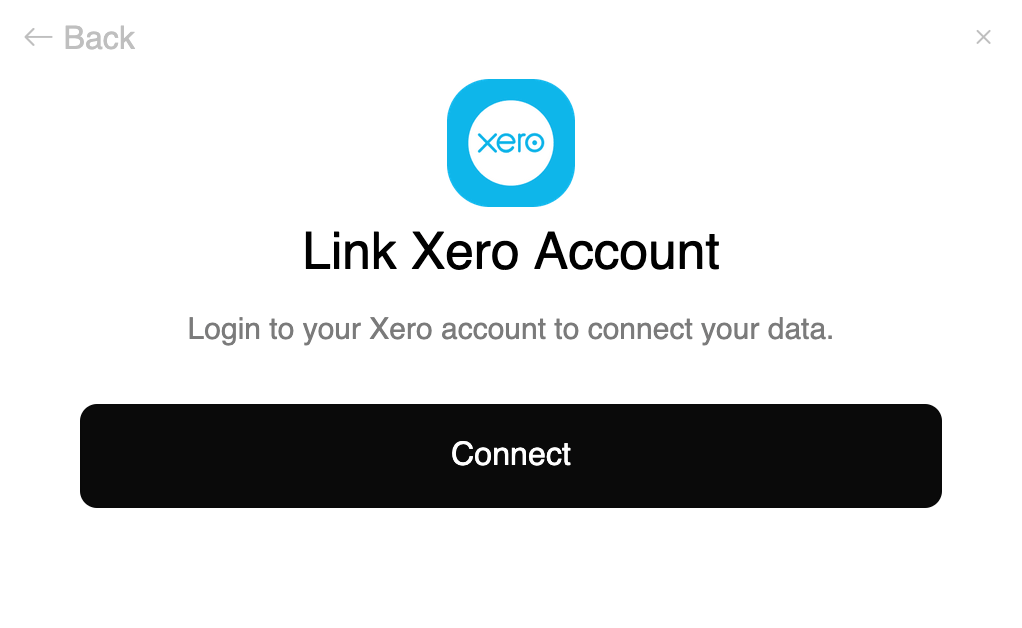
Click the Connect button to begin the authentication process with Xero.
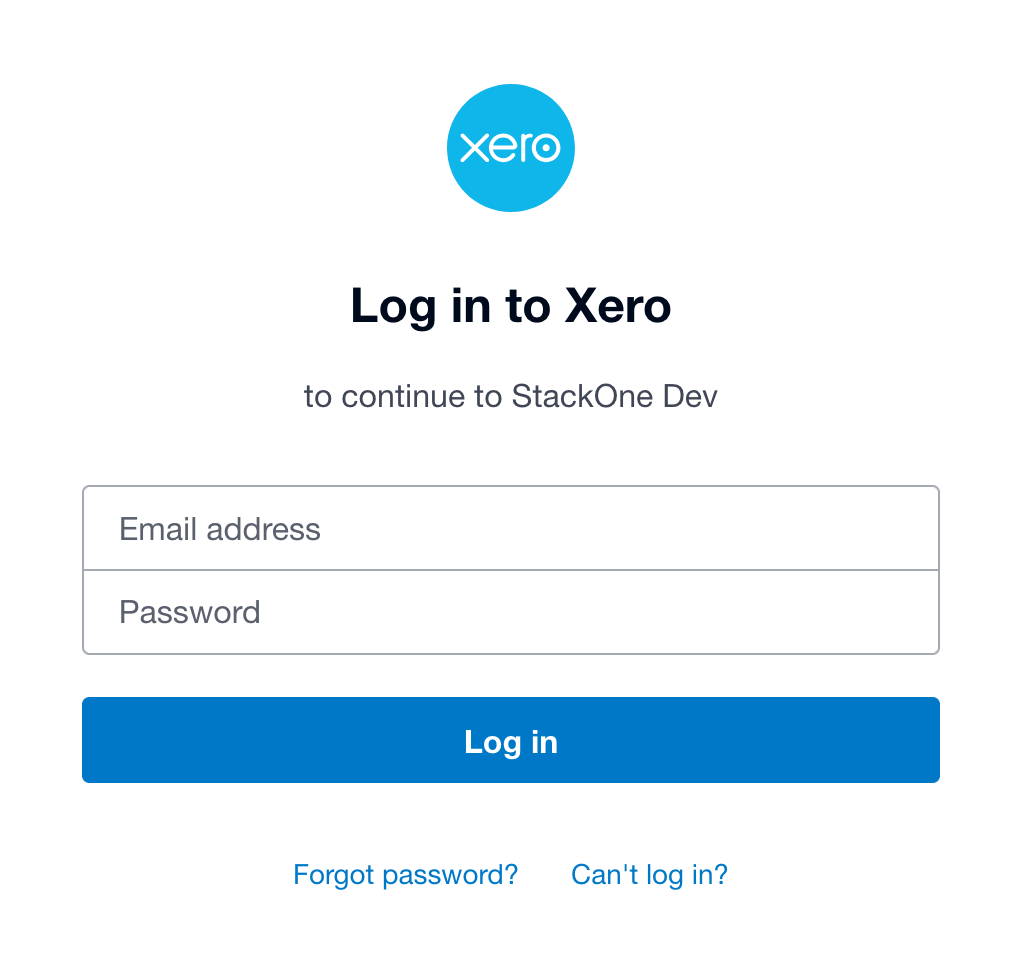
 You will be redirected to Xero's login page to enter your Xero credentials.
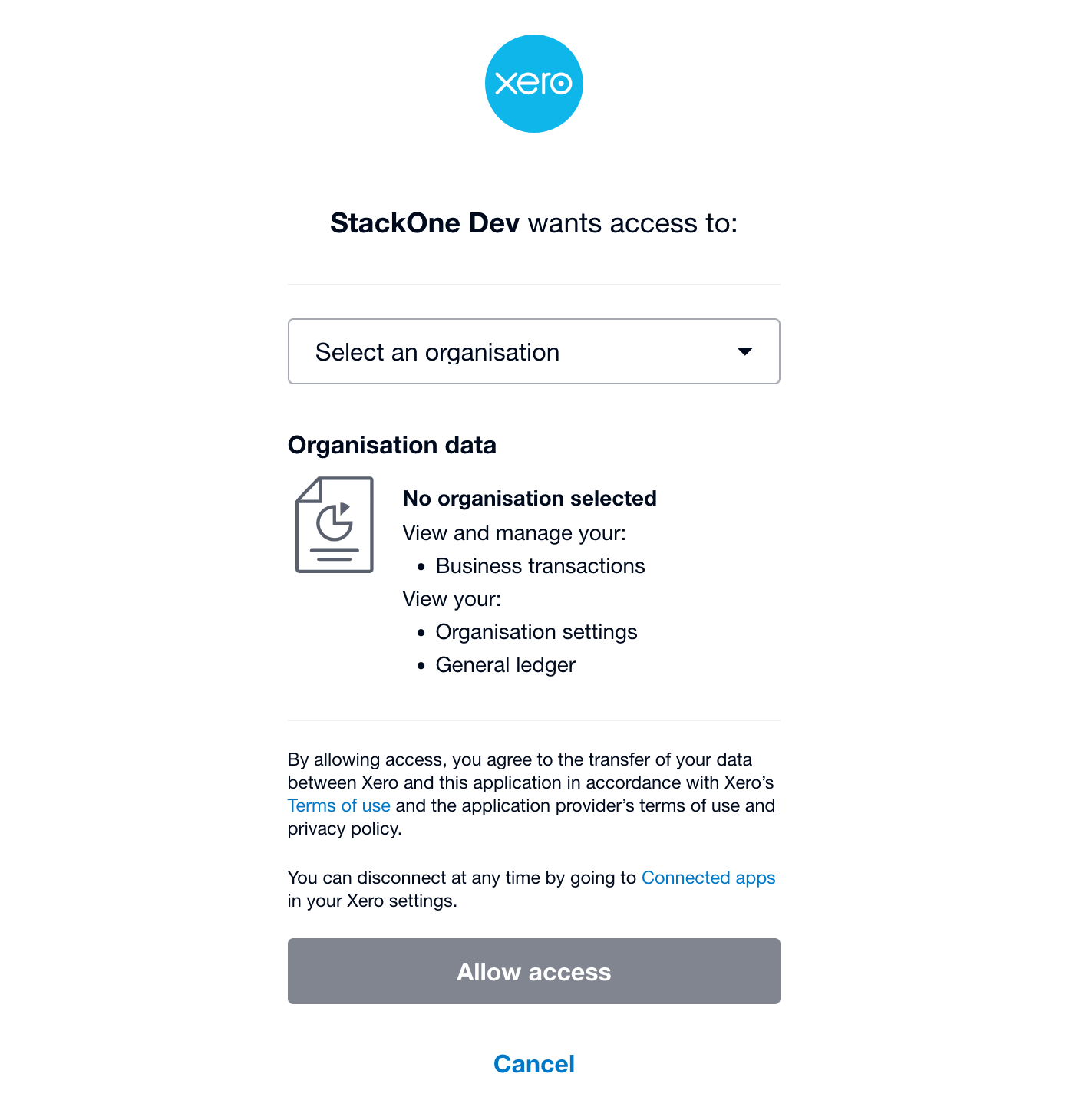
 After successful login, Xero will display an authorization page showing the permissions that will be granted and ask you to select the organization you want to connect. (See note below to connect additional organizations after the first connection.)
 ## Connect additional organizations
If you have access to multiple Xero organizations, you can connect additional organizations after the first connection:
* Follow the same steps as the first connection to connect additional organizations.
* When at Step 3, select the additional organization you want to connect.
This should be repeated for each additional organization you want to connect.
## Connect additional organizations
If you have access to multiple Xero organizations, you can connect additional organizations after the first connection:
* Follow the same steps as the first connection to connect additional organizations.
* When at Step 3, select the additional organization you want to connect.
This should be repeated for each additional organization you want to connect.
Congratulations, you're all set! If you face any issues with the steps mentioned above,
please contact us by emailing [integrations@stackone.com](mailto:integrations@stackone.com). We're always here to assist you!