> ## Documentation Index
> Fetch the complete documentation index at: https://stackone-hub-docs-confluence-api-token-update.mintlify.site/llms.txt
> Use this file to discover all available pages before exploring further.
# Breezy HR
> Follow these steps to connect Breezy HR via the StackOne Hub successfully.
Ensure that your Breezy HR account has an **Administrator** Company Role.
If you've been directed to StackOne to integrate with Breezy HR, the following steps will help you understand the process and any necessary actions to configure a successful integration.
## Log in to Breezy HR
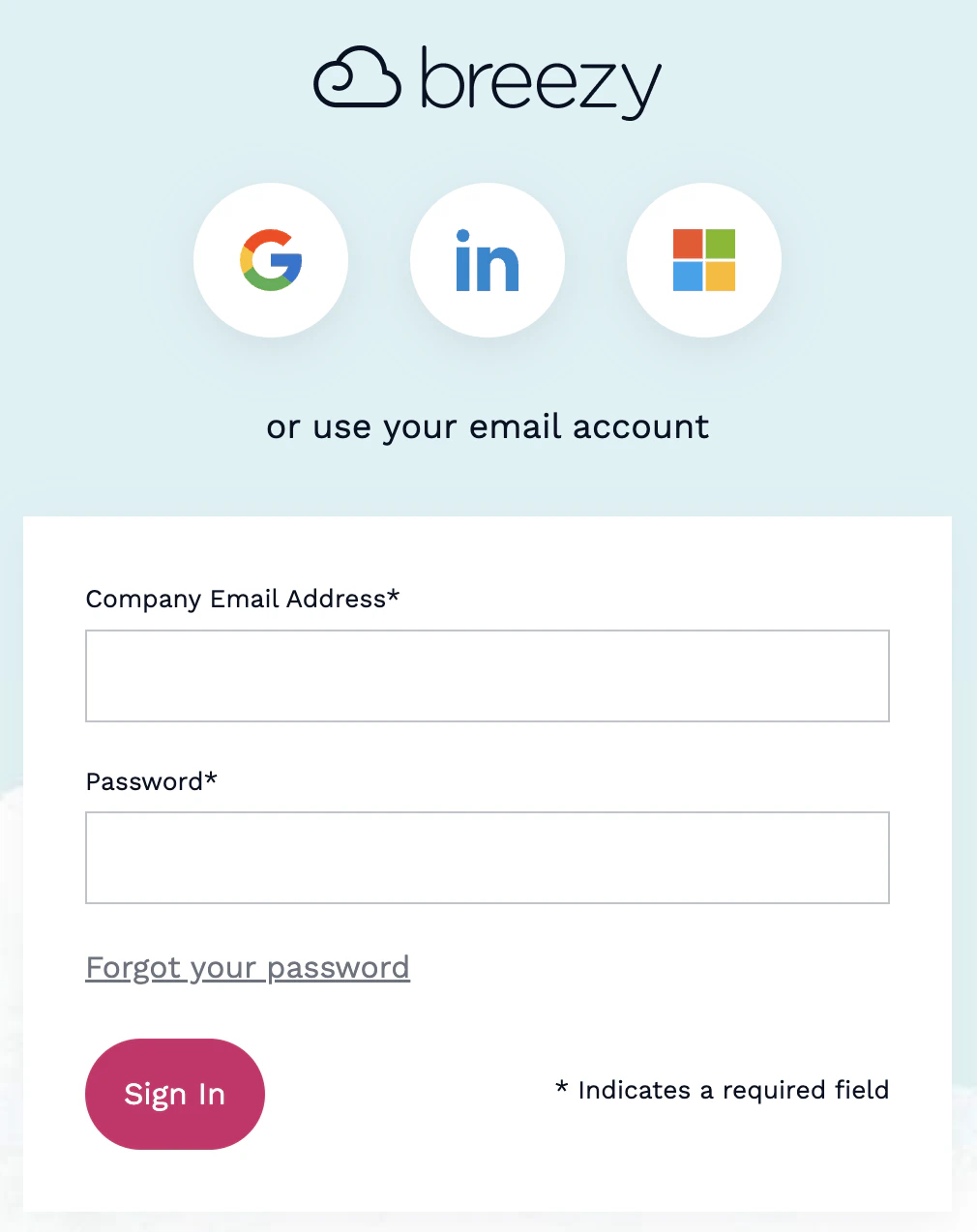
Log in to your Breezy HR account at [https://app.breezy.hr/signin](https://app.breezy.hr/signin).
 ## Create a new Breezy HR System User
This integration will authenticate on behalf of a specified Breezy HR Company Administrator.
You can use an existing User, or follow the steps below to create a new User.
Click the Settings icon in the left navigation.
## Create a new Breezy HR System User
This integration will authenticate on behalf of a specified Breezy HR Company Administrator.
You can use an existing User, or follow the steps below to create a new User.
Click the Settings icon in the left navigation.
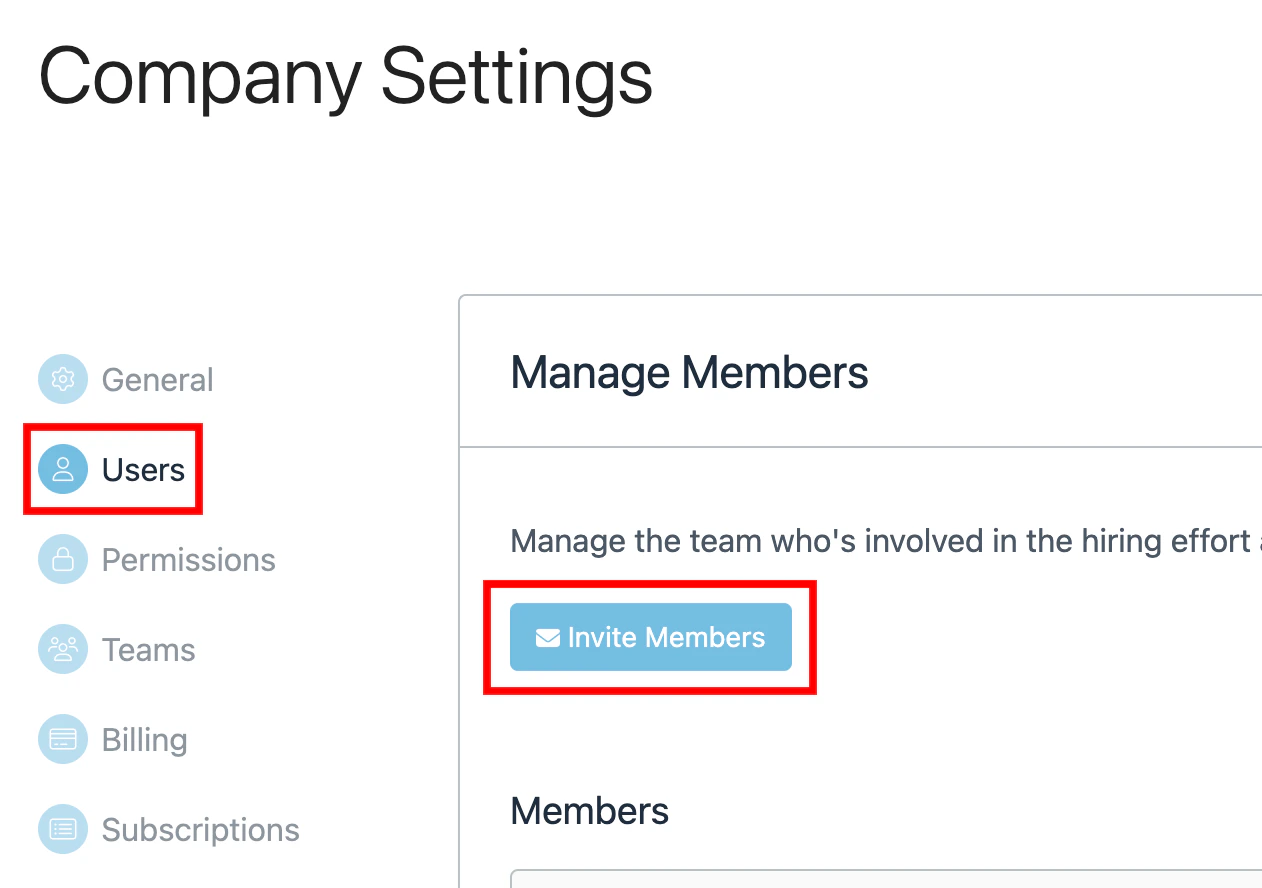
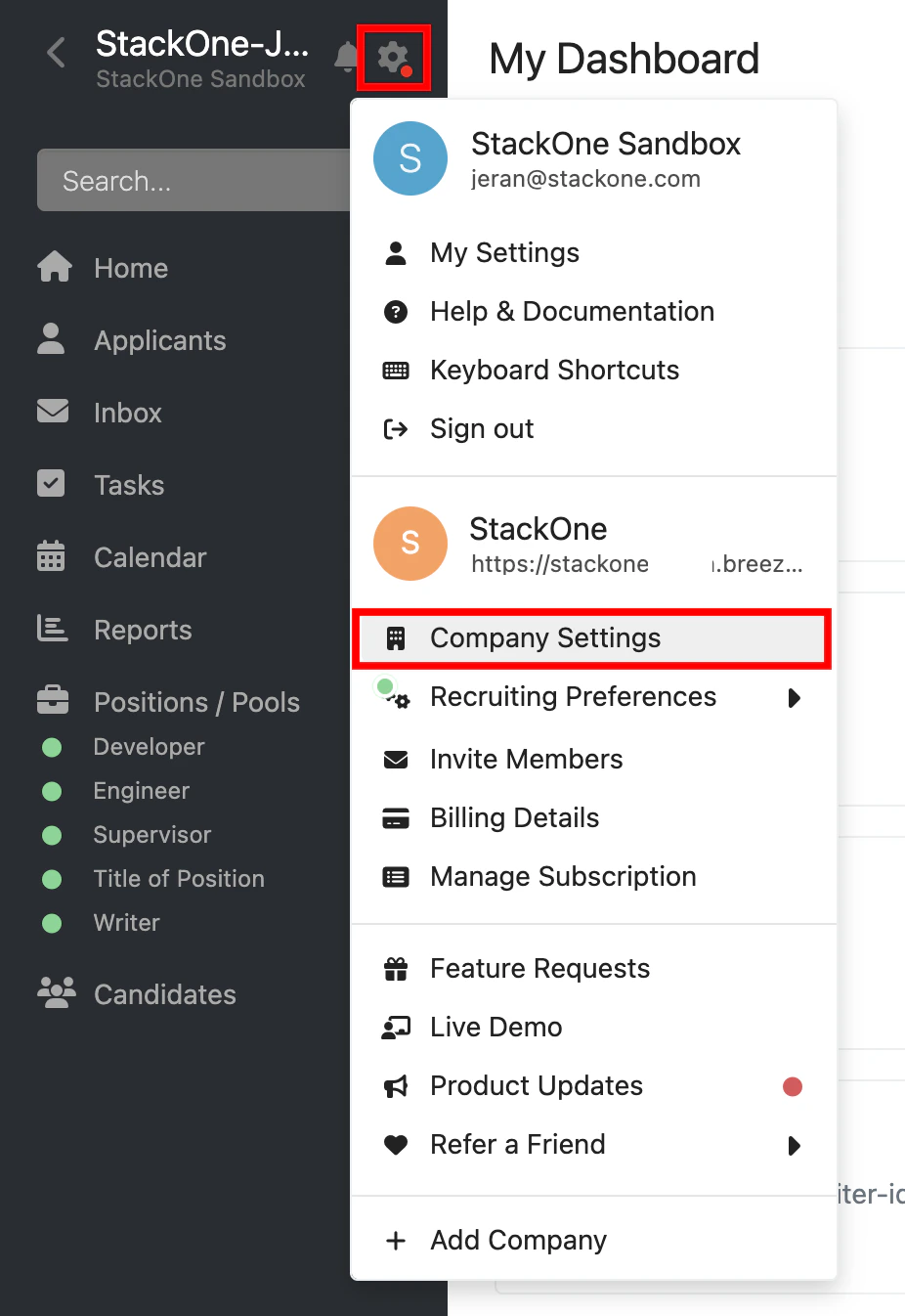 Under Company Settings, click **Users**.
Click **Invite Members** to create a new User.
Under Company Settings, click **Users**.
Click **Invite Members** to create a new User.
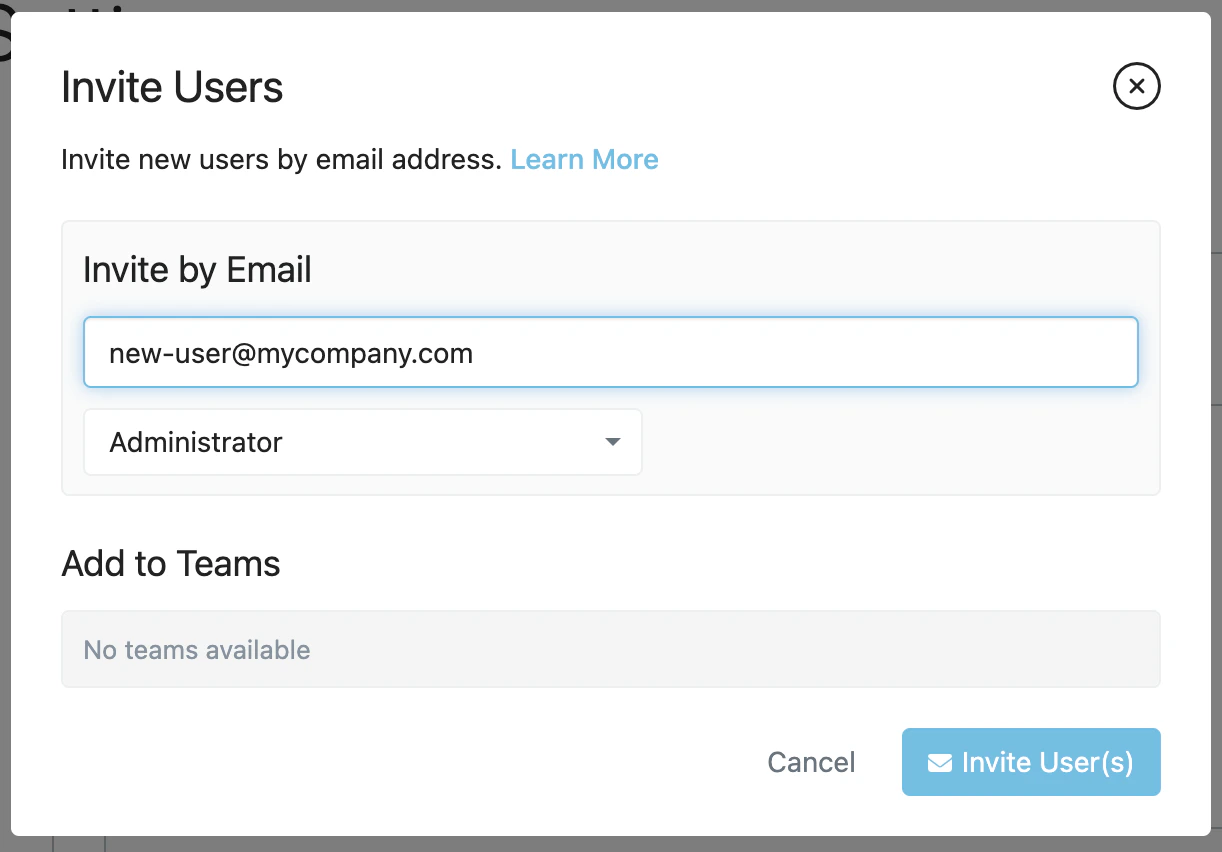
 Enter the new User's Email Address. Then select **Administrator** in the dropdown box labeled "Add to this Role".
Click the **Invite User(s)** button to complete.
Enter the new User's Email Address. Then select **Administrator** in the dropdown box labeled "Add to this Role".
Click the **Invite User(s)** button to complete.
 An invitation from Breezy HR will be sent to the email address submitted above. Accept the invitation to complete the User creation process.
This User's email and password will be required for this connection.
## Find your Company ID
Your Company ID can be found in the URL when you are logged into Breezy HR, located directly after `app.breezy.hr/app/`.
Given the URL [https://app.breezy.hr/app/my-company/home](https://app.breezy.hr/app/my-company/home), your Company ID is `my-company`.
## Connecting with StackOne
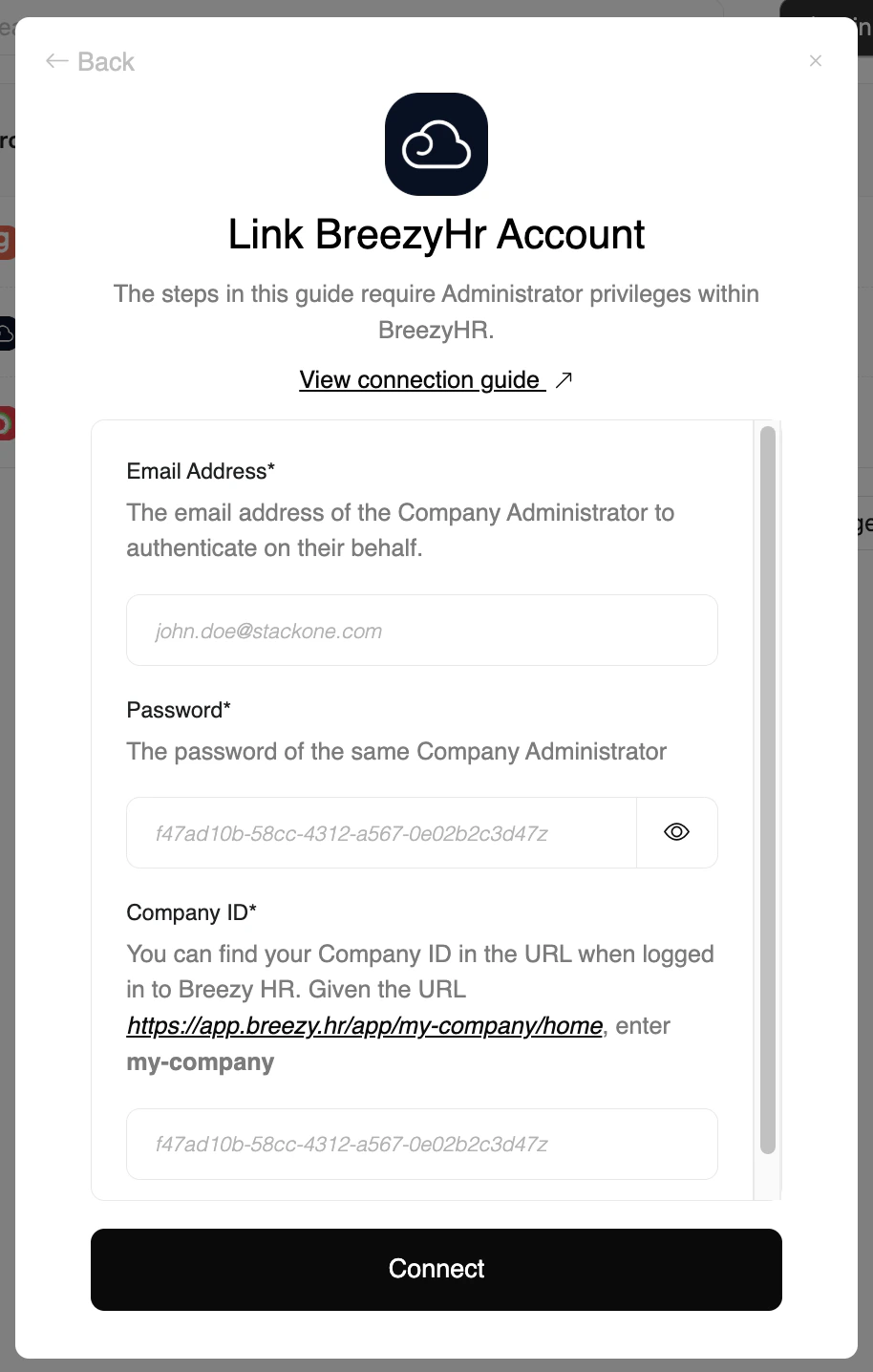
Upon reaching the Link Account page, enter the credential(s) from the previous steps:
* **Email Address**
* **Password**
* **Company ID**
Proceed by clicking the Connect button.
An invitation from Breezy HR will be sent to the email address submitted above. Accept the invitation to complete the User creation process.
This User's email and password will be required for this connection.
## Find your Company ID
Your Company ID can be found in the URL when you are logged into Breezy HR, located directly after `app.breezy.hr/app/`.
Given the URL [https://app.breezy.hr/app/my-company/home](https://app.breezy.hr/app/my-company/home), your Company ID is `my-company`.
## Connecting with StackOne
Upon reaching the Link Account page, enter the credential(s) from the previous steps:
* **Email Address**
* **Password**
* **Company ID**
Proceed by clicking the Connect button.
Congratulations, you're all set! If you face any issues with the steps mentioned above,
please contact us by emailing [integrations@stackone.com](mailto:integrations@stackone.com). We're always here to assist you!
## Available data
This integration has the following [ATS Resources](https://docs.stackone.com/reference/getting-started-with-your-api) available from the provider:
- Applications
- Candidates
- Job Postings
- Jobs