> ## Documentation Index
> Fetch the complete documentation index at: https://stackone-hub-docs-confluence-api-token-update.mintlify.site/llms.txt
> Use this file to discover all available pages before exploring further.
# Bullhorn
> Follow these steps to connect Bullhorn with StackOne Hub successfully.
Ensure you have Admin privileges for your Bullhorn account.
If you've been directed to StackOne to integrate with Bullhorn, the following steps will help you understand the process and any necessary actions to configure a successful integration.
## Getting your Client ID, Client Secret and API Username
These are unique identifiers for your account. If you do not possess this information, please contact Bullhorn Support or Submit a ticket via the [Bullhorn Resource Center](https://www.bullhorn.com/au/technical-support-2/)
You will need to contact Bullhorn support to "add the following redirect URI: `https://api.stackone.com/connect/oauth2/bullhorn_ats/callback`".
## Identify a Bullhorn Custom Field for Data Storage
This connection will store Background Check and Assessment information within a custom field in Bullhorn. To avoid overwriting existing data, please identify an unused custom field in your Bullhorn instance.
You will be able to select `customTextBlock` 1 through 10 for this "Custom Field" in the connection step below.
*Example*: `customTextBlock4`
## (optional) Getting a Client Corporation ID and Client Contact ID
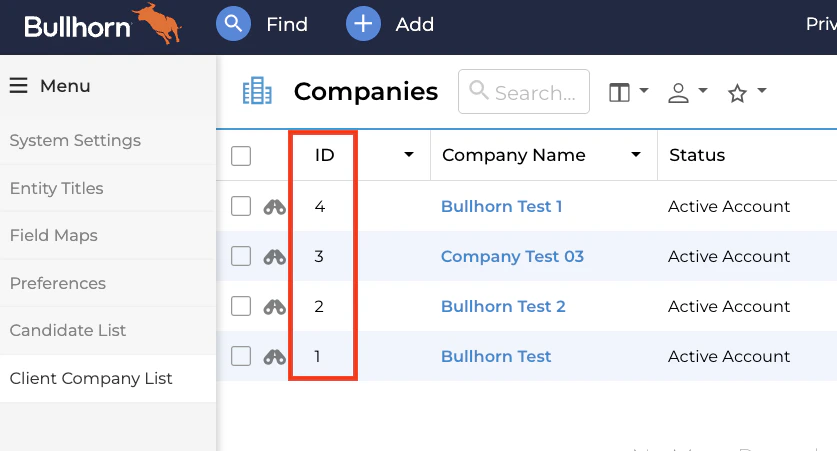
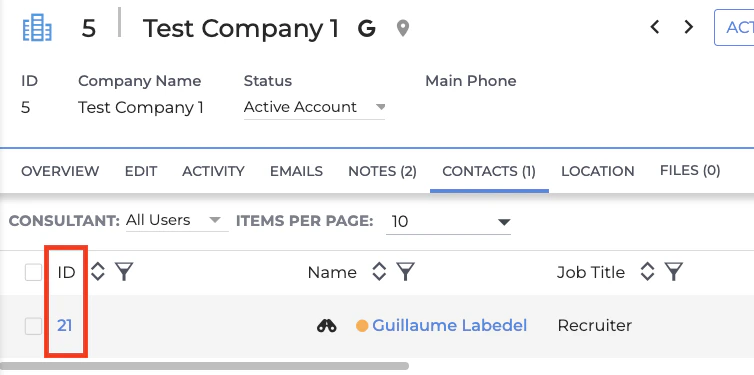
To create a new Job with this connection, a **Client Corporation ID** (Company ID) and **Client Contact ID** are required to be associated with the new Job.
The **Client Corporation ID** can be seen in the main *Companies* page in your Bullhorn instance:
 The **Client Contact ID** can be seen by viewing the *Contacts* of the same Company you will be using for this step.
 ## Connecting to StackOne
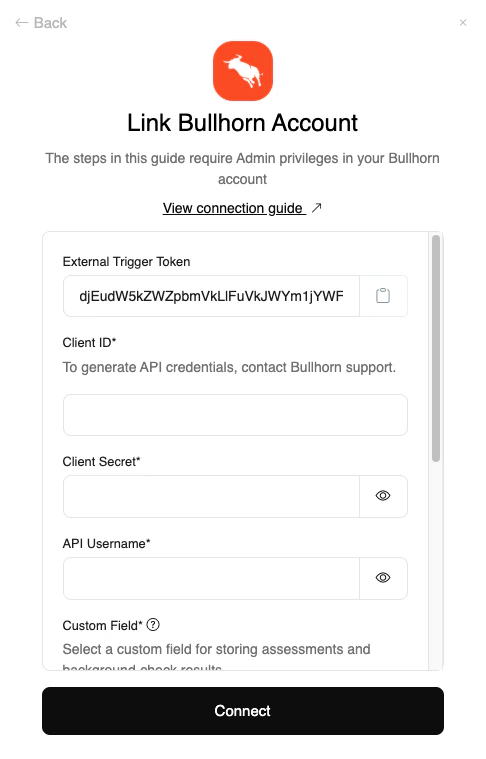
Upon reaching the Link Account page, enter the following credentials received from Bullhorn Support:
* Client ID
* Client Secret
* API Username
* Custom Field
* Used for Background Check and Assessment data storage
* Client Corporation ID (optional)
* Required for creating Jobs
* Client Contact ID (optional)
* Required for creating Jobs
After entering the information above, proceed by clicking the `Connect` button.
## Connecting to StackOne
Upon reaching the Link Account page, enter the following credentials received from Bullhorn Support:
* Client ID
* Client Secret
* API Username
* Custom Field
* Used for Background Check and Assessment data storage
* Client Corporation ID (optional)
* Required for creating Jobs
* Client Contact ID (optional)
* Required for creating Jobs
After entering the information above, proceed by clicking the `Connect` button.
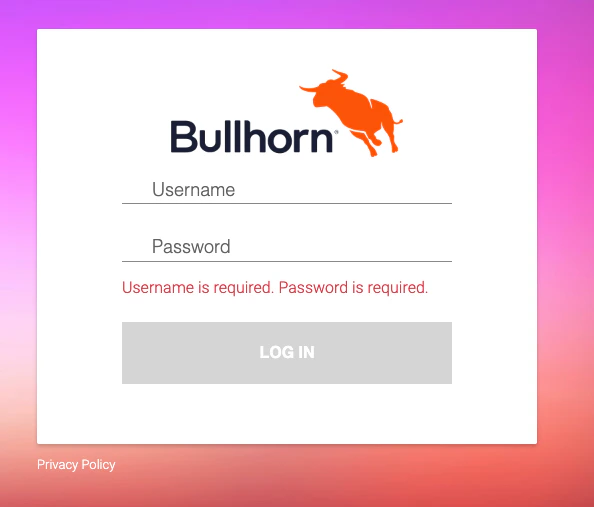
 In the window that appears, log in to your Bullhorn account to authorize account access.
Congratulations, you're all set! If you face any issues with the steps mentioned above,
please contact us by emailing [integrations@stackone.com](mailto:integrations@stackone.com). We're always here to assist you!
## Useful Links
[https://bullhorn.github.io/Getting-Started-with-REST](https://bullhorn.github.io/Getting-Started-with-REST)