> ## Documentation Index
> Fetch the complete documentation index at: https://stackone-hub-docs-confluence-api-token-update.mintlify.site/llms.txt
> Use this file to discover all available pages before exploring further.
# JobAdder (OAuth Client Credentials)
> Follow these steps to connect JobAdder (OAuth Client Credentials) via the StackOne Hub successfully.
Ensure that your JobAdder account has **Admin** privileges.
If you've been directed to StackOne to integrate with JobAdder, the following steps will help you understand the process and any necessary actions to configure a successful integration.
## Create your Client ID and Client Secret
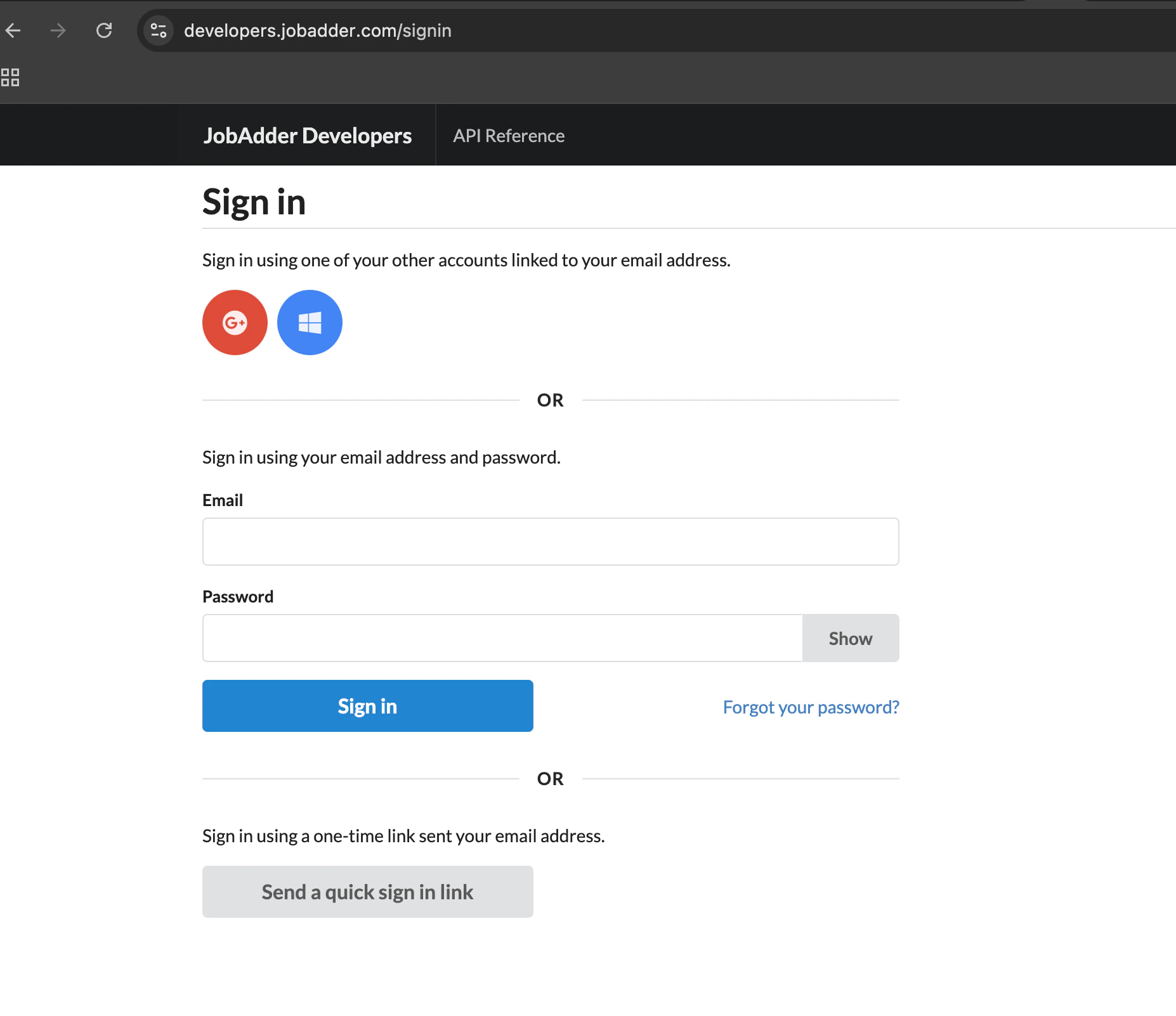
Go to the [JobAdder Developer Portal](https://developers.jobadder.com/) and log in with your account.\
If you don’t yet have an account, create one by following the registration process.
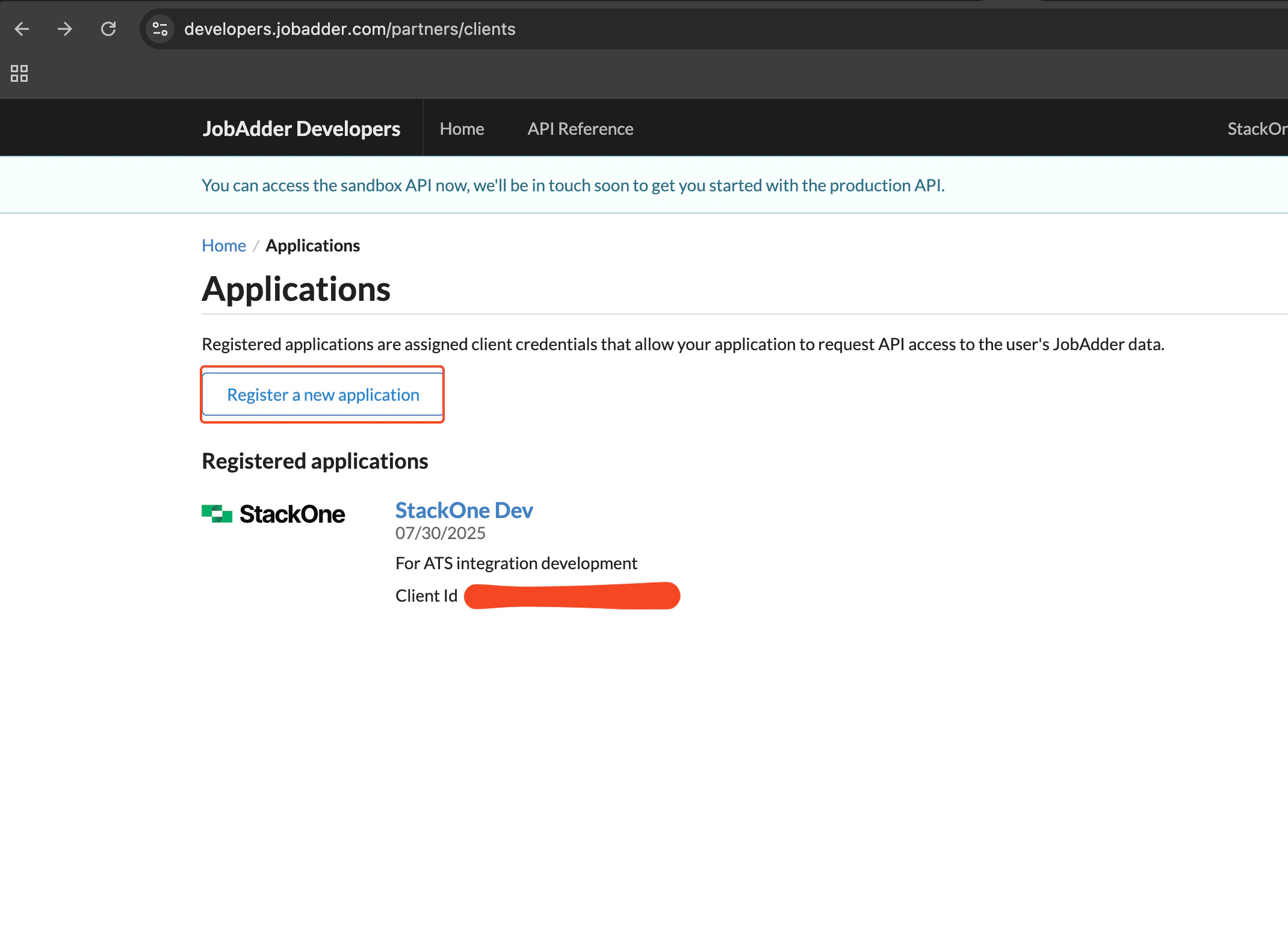
 Click **Register a New Application** to create a new application.
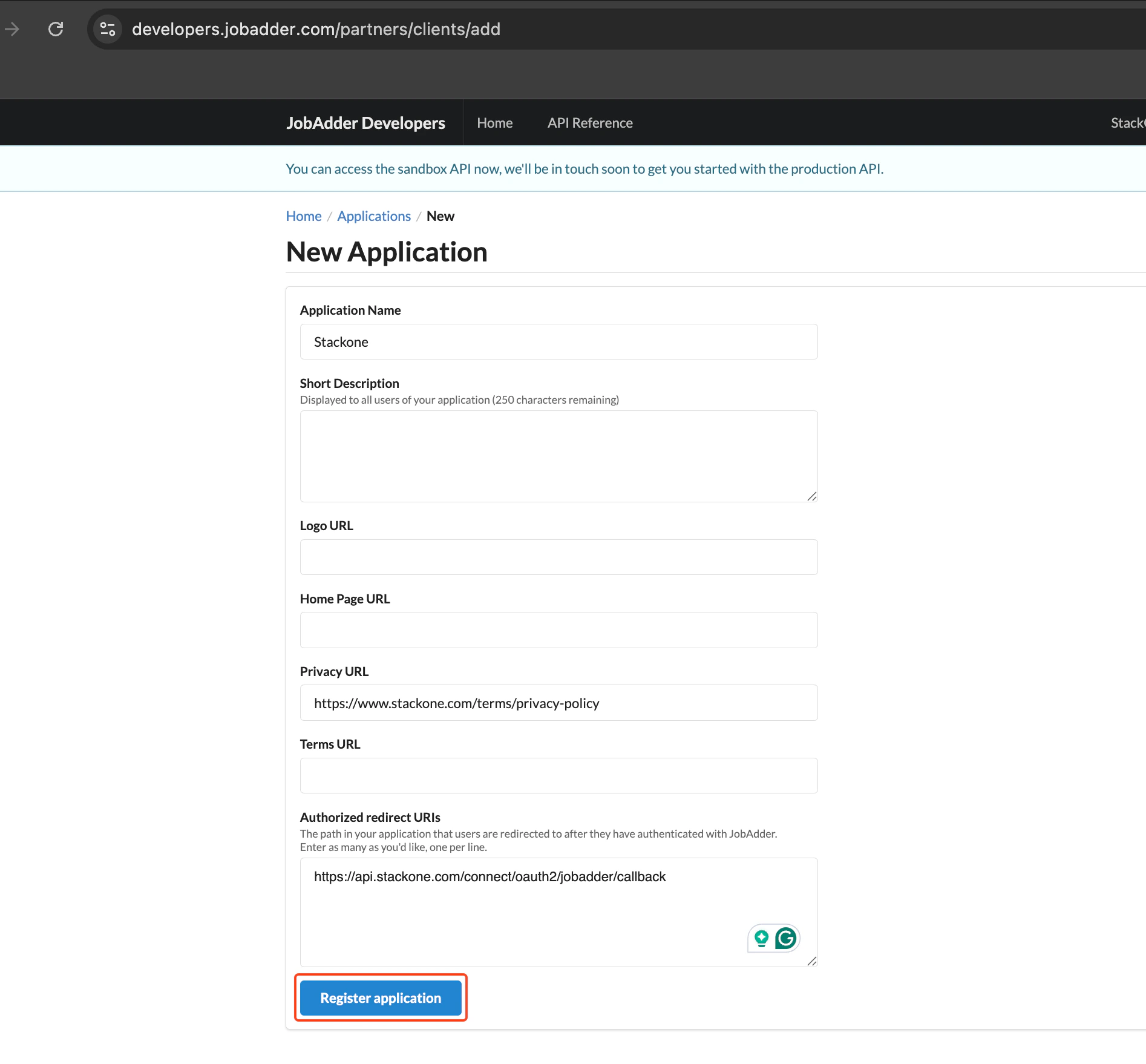
 Enter the application details and then click the **Create** button:
* **Application Name**: e.g. *StackOne*
* **Redirect URL**: `https://api.stackone.com/connect/oauth2/jobadder/callback`
* **Privacy URL**: e.g. `https://www.stackone.com/terms/privacy-policy`
Submit the form by clicking **Register Application**.
Enter the application details and then click the **Create** button:
* **Application Name**: e.g. *StackOne*
* **Redirect URL**: `https://api.stackone.com/connect/oauth2/jobadder/callback`
* **Privacy URL**: e.g. `https://www.stackone.com/terms/privacy-policy`
Submit the form by clicking **Register Application**.
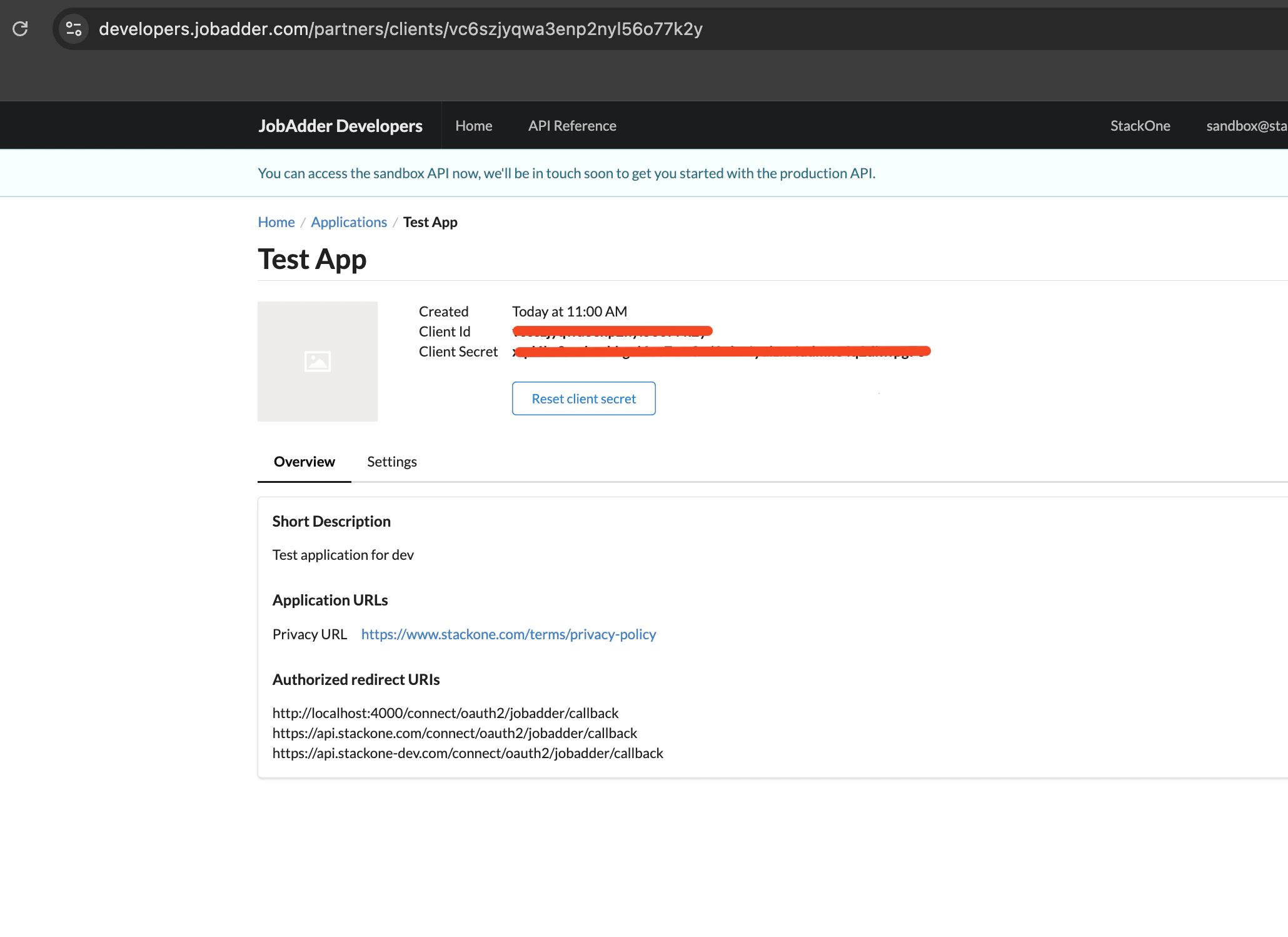
 You will now see the **Client ID** and **Client Secret**. Copy and store them securely.\
You can also access them at any time from your developer account.
You will now see the **Client ID** and **Client Secret**. Copy and store them securely.\
You can also access them at any time from your developer account.
 ## Connecting with StackOne
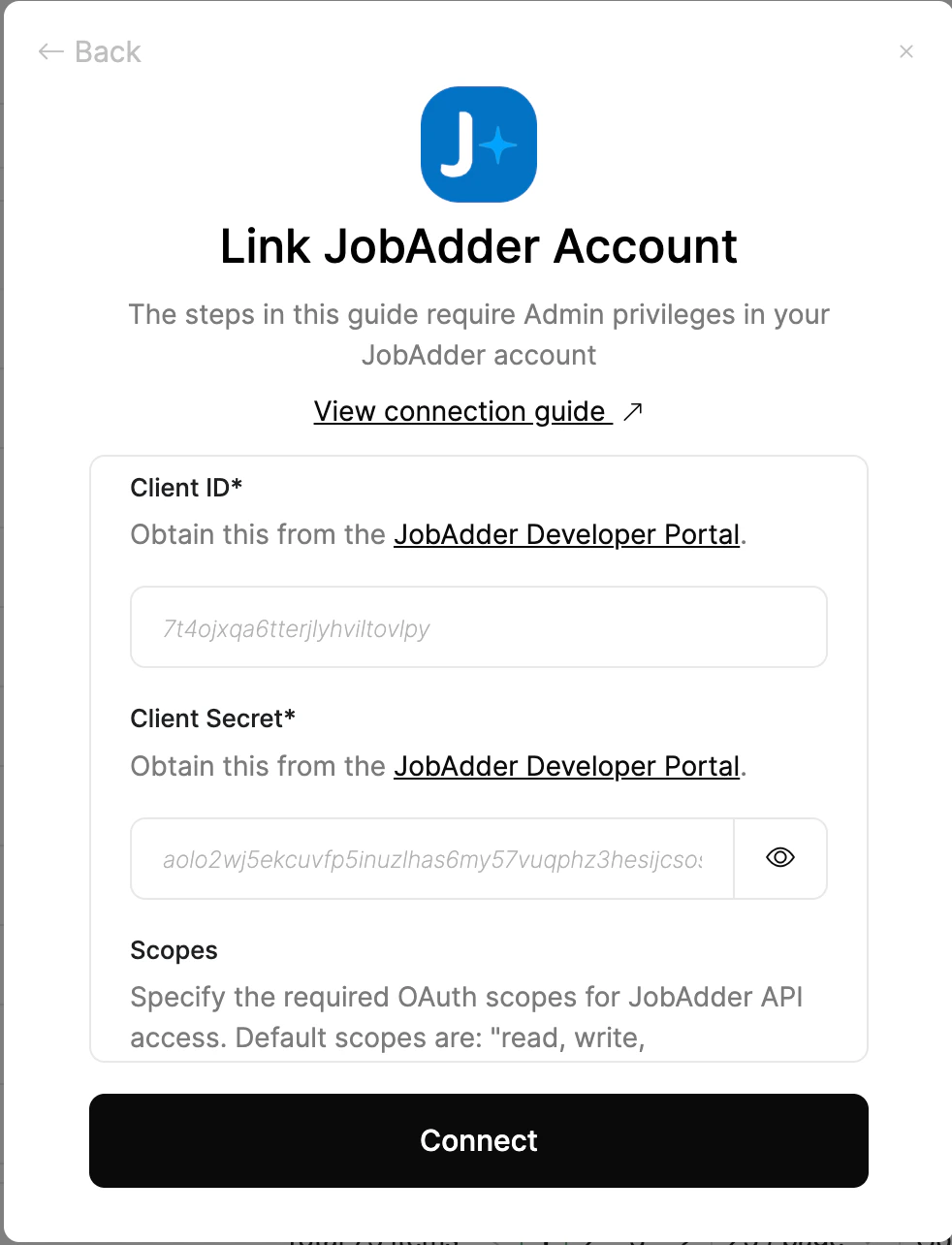
Upon reaching the Link Account page, enter the credential(s) from the previous steps:
* **Client ID**
* **Client Secret**
* **Scopes** (optional)
In the **Scopes** field, you can enter a space-separated list of scopes.\
The full list of available scopes can be found at [JobAdder API Scopes](https://api.jobadder.com/v2/docs#section/Getting-Started/Scopes).\
If no scopes are provided, the following defaults will be applied: **read, write, offline\_access**.
Proceed by clicking the Connect button.
## Connecting with StackOne
Upon reaching the Link Account page, enter the credential(s) from the previous steps:
* **Client ID**
* **Client Secret**
* **Scopes** (optional)
In the **Scopes** field, you can enter a space-separated list of scopes.\
The full list of available scopes can be found at [JobAdder API Scopes](https://api.jobadder.com/v2/docs#section/Getting-Started/Scopes).\
If no scopes are provided, the following defaults will be applied: **read, write, offline\_access**.
Proceed by clicking the Connect button.
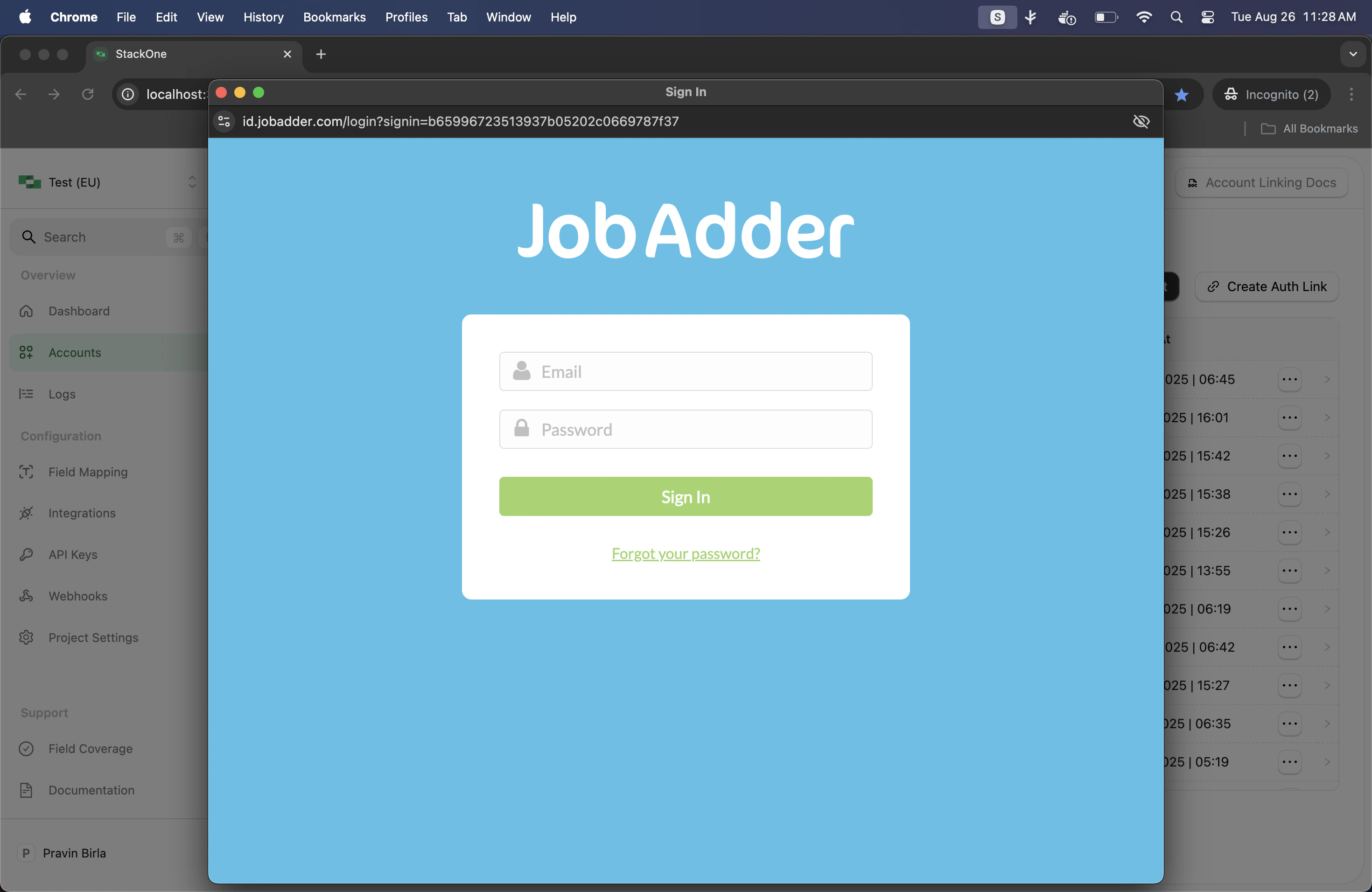
 If you are not already logged in, you will be prompted with the JobAdder login window.\
Enter your JobAdder credentials and click **Sign In**.\
This step is automatically skipped if you are already logged in.
If you are not already logged in, you will be prompted with the JobAdder login window.\
Enter your JobAdder credentials and click **Sign In**.\
This step is automatically skipped if you are already logged in.
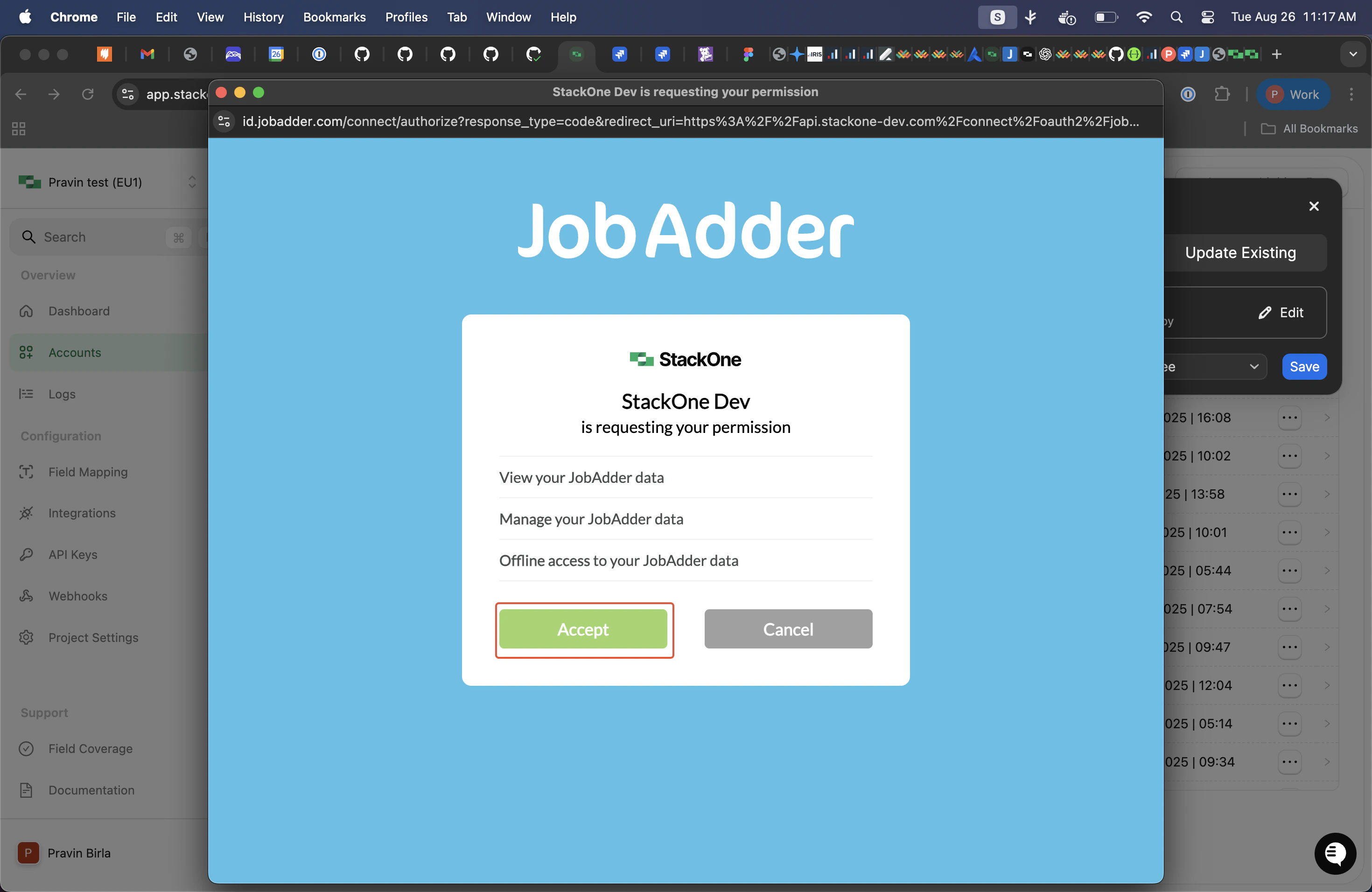
 A window will appear with details of the specified application. Click **Accept** to authorize the application for this integration.
Congratulations, you're all set! If you face any issues with the steps mentioned above,
please contact us by emailing [integrations@stackone.com](mailto:integrations@stackone.com). We're always here to assist you!
## Available data
This integration has the following [ATS Resources](https://docs.stackone.com/reference/getting-started-with-your-api) available from the provider:
- Applications
- Candidates
- Interview Stages
- Job Postings
- Jobs
- Rejected Reasons