> ## Documentation Index
> Fetch the complete documentation index at: https://stackone-hub-docs-confluence-api-token-update.mintlify.site/llms.txt
> Use this file to discover all available pages before exploring further.
# Lever
> Follow these steps to connect Lever with StackOne Hub successfully.
Ensure you have Admin privileges for your Lever account.
If you've been directed to StackOne to integrate with Lever, the following steps will help you understand the process and any necessary actions to configure successful integration.
## Login to your Lever account
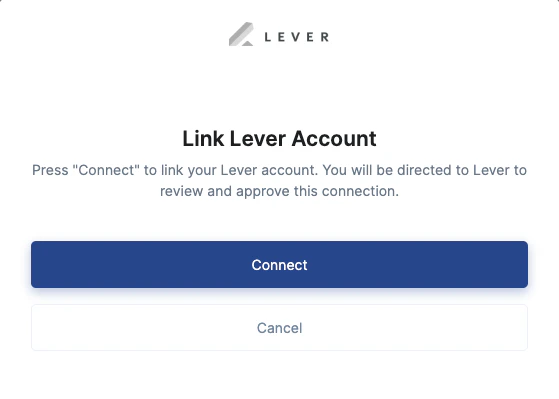
Click the Connect button to start the login process.
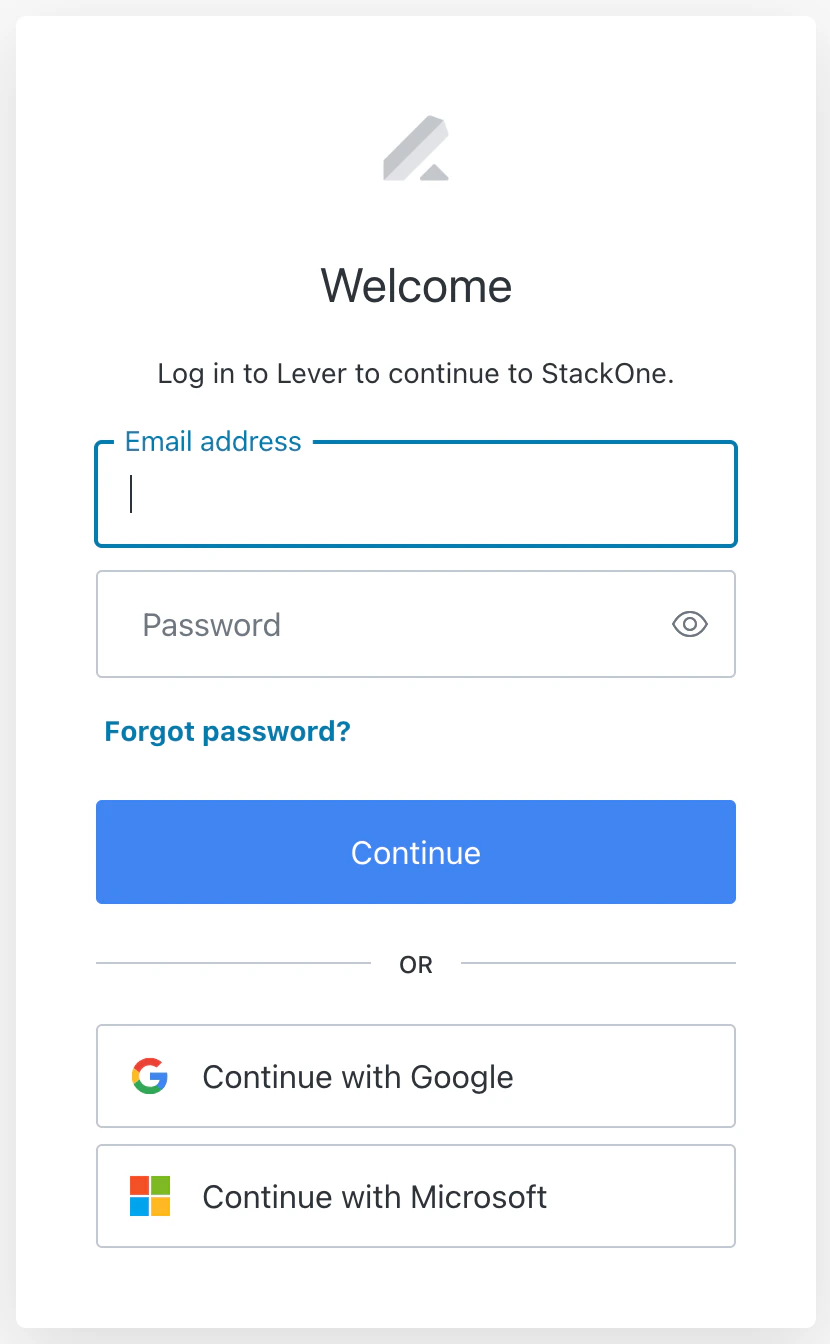
 Enter your Lever credentials or use one of the sign-in options available that are connected to your Lever account.
 ## Accept the Scopes required for the connection
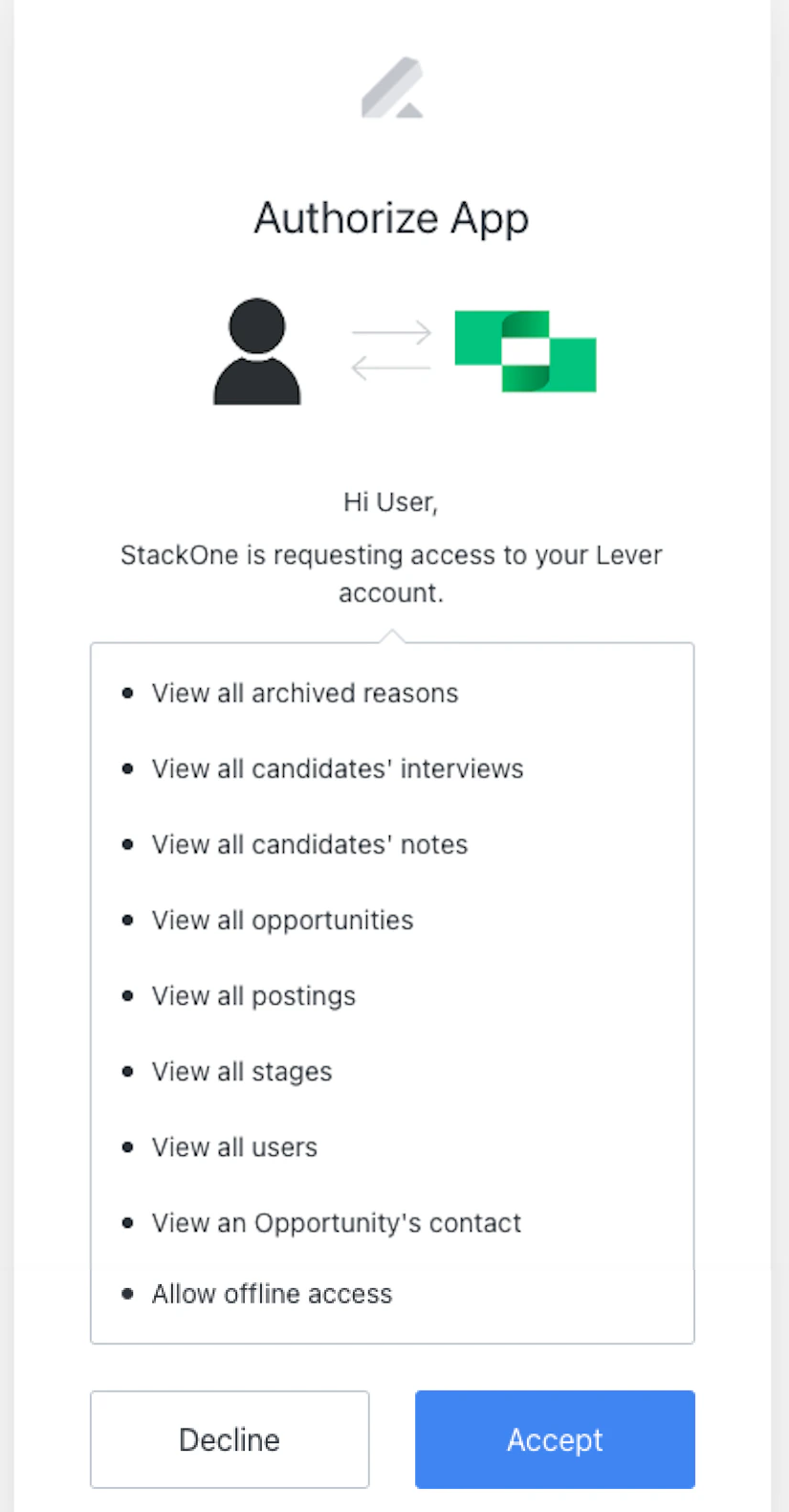
StackOne uses the following scopes to access data in your Lever account on behalf of the tool or platform you're integrating Lever with:
* `View Archived-Reasons`
* `View Candidates Interviews`
* `View Candidates Notes`
* `View All Opportunities`
* `View All Postings`
* `View All Stages`
* `View All Users`
* `View Opportunitie's Contacts`
* `Offline Access` allows us to refresh the login details so that the account doesn't have to be re-authenticated regularly.
To continue, Accept the requested scopes.
## Accept the Scopes required for the connection
StackOne uses the following scopes to access data in your Lever account on behalf of the tool or platform you're integrating Lever with:
* `View Archived-Reasons`
* `View Candidates Interviews`
* `View Candidates Notes`
* `View All Opportunities`
* `View All Postings`
* `View All Stages`
* `View All Users`
* `View Opportunitie's Contacts`
* `Offline Access` allows us to refresh the login details so that the account doesn't have to be re-authenticated regularly.
To continue, Accept the requested scopes.
Congratulations, you're all set! If you face any issues with the steps mentioned above,
please contact us by emailing [integrations@stackone.com](mailto:integrations@stackone.com). We're always here to assist you!
## Useful Links
[https://hire.lever.co/developers](https://hire.lever.co/developers)