> ## Documentation Index
> Fetch the complete documentation index at: https://stackone-hub-docs-confluence-api-token-update.mintlify.site/llms.txt
> Use this file to discover all available pages before exploring further.
# SAP SuccessFactors
> Follow these steps to connect SAP SuccessFactors with StackOne Hub successfully.
Ensure you have Admin privileges for your SAP SuccessFactors account with permission for the Manage Integration Tools > Manage OAuth2 Client Applications.
If you've been directed to StackOne to integrate with SAP SuccessFactors, the following steps will help you understand the process and any necessary actions to configure successful integration.
## Locating API Server
SAP uses multiple API server addresses. You will need to look up the API server that corresponds to your tenant domain on this [table](https://help.sap.com/docs/SAP_SUCCESSFACTORS_PLATFORM/d599f15995d348a1b45ba5603e2aba9b/af2b8d5437494b12be88fe374eba75b6.html) under the `API Server` column.
For example, if your domain was `https://pmsalesdemo8.successfactors.com/` you would search for `salesdemo8` in the table.
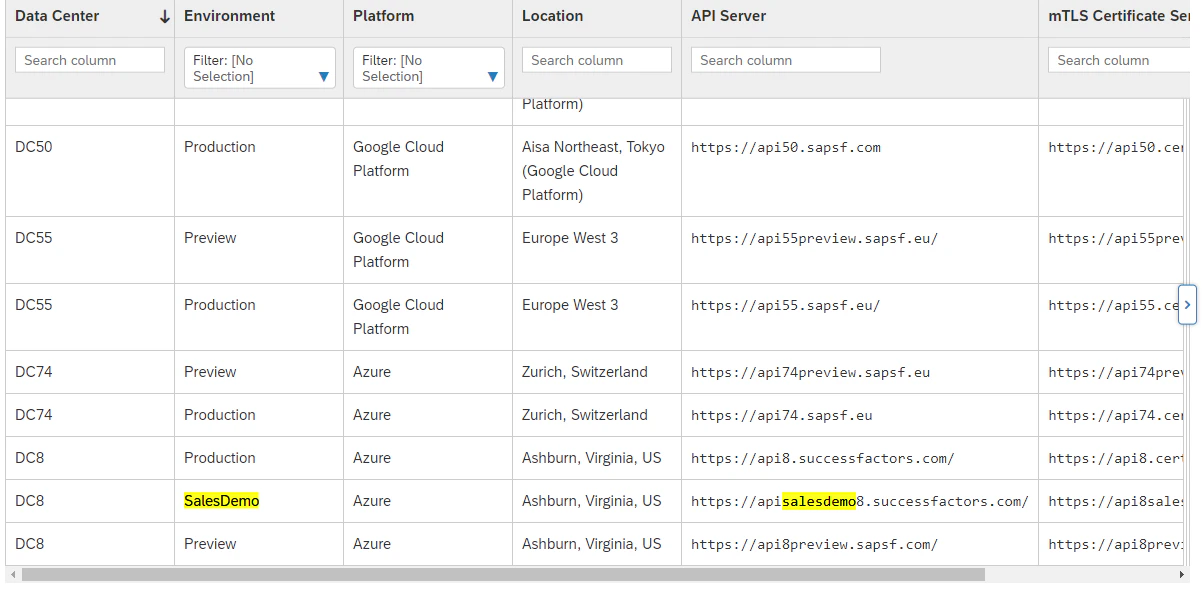 Copy the value in the `API Server` column (remove the final forward-slash `/`). In this example, the value would be `https://apisalesdemo8.successfactors.com`.
Use this value as the `API Server` value when connecting SAP SuccessFactors to StackOne.
## Finding Username
Login to SAP SuccessFactors.
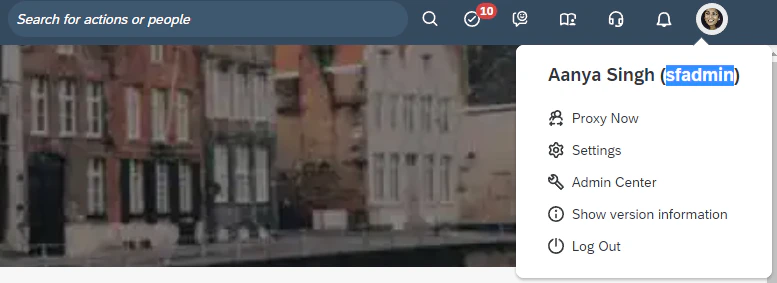
Select your profile image in the upper right-hand corner of the screen.
Your username is the value in parenthesis. Copy this value and note it as your `Username`.
Copy the value in the `API Server` column (remove the final forward-slash `/`). In this example, the value would be `https://apisalesdemo8.successfactors.com`.
Use this value as the `API Server` value when connecting SAP SuccessFactors to StackOne.
## Finding Username
Login to SAP SuccessFactors.
Select your profile image in the upper right-hand corner of the screen.
Your username is the value in parenthesis. Copy this value and note it as your `Username`.
 ## Finding Company ID
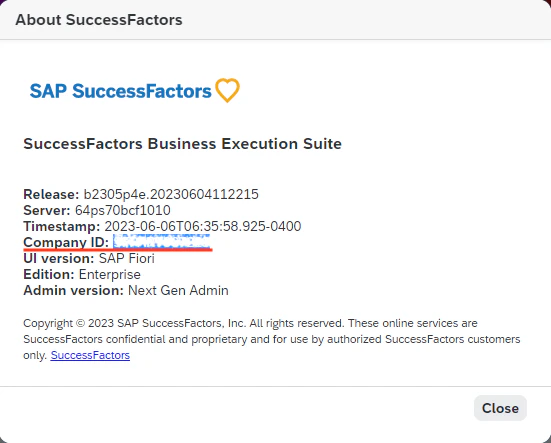
Within the same dropdown from Step 2, select the Show version information option.
Within the modal that appears, you will see `Company ID`. Copy and note down this value.
## Finding Company ID
Within the same dropdown from Step 2, select the Show version information option.
Within the modal that appears, you will see `Company ID`. Copy and note down this value.
 ## Registering a new Client Application
In the upper right search bar, search for Manage OAuth2 Client Applications and select the option under Actions.
## Registering a new Client Application
In the upper right search bar, search for Manage OAuth2 Client Applications and select the option under Actions.
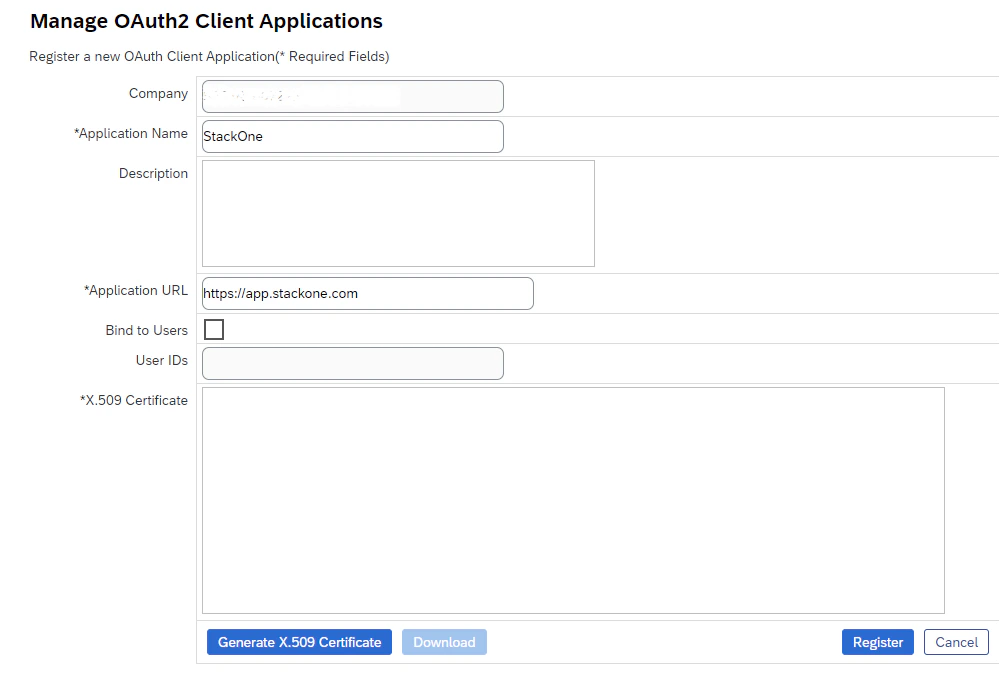
 Select Register Client Application.
Enter an Application Name, e.g. `StackOne`.
Enter an Application URL. Note: This can be any URL and is not used in this integration.
Select Register Client Application.
Enter an Application Name, e.g. `StackOne`.
Enter an Application URL. Note: This can be any URL and is not used in this integration.
 ## Generating X.509 Certificate
Press the Generate X.509 Certificate button.
Enter any Common Name(CN) for the certificate, e.g. `StackOne OAuth2`.
## Generating X.509 Certificate
Press the Generate X.509 Certificate button.
Enter any Common Name(CN) for the certificate, e.g. `StackOne OAuth2`.
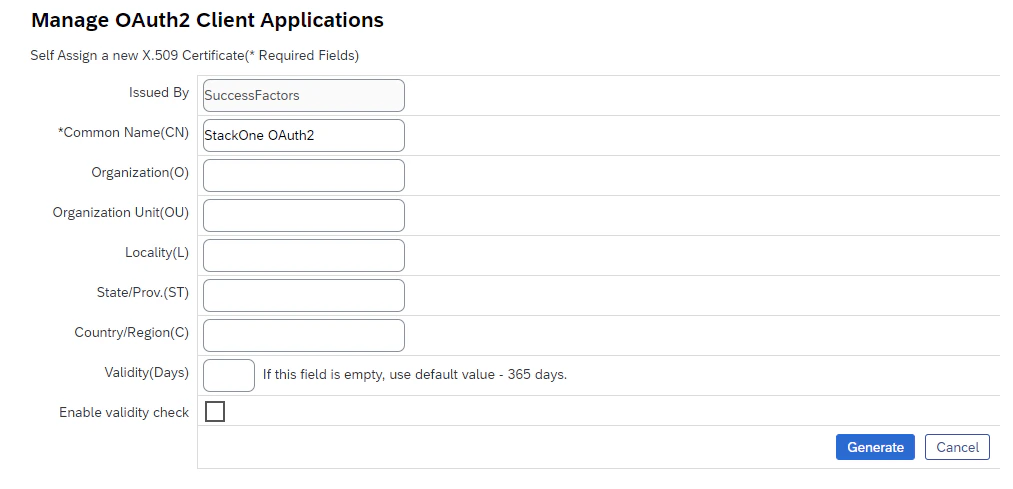 Press Generate.
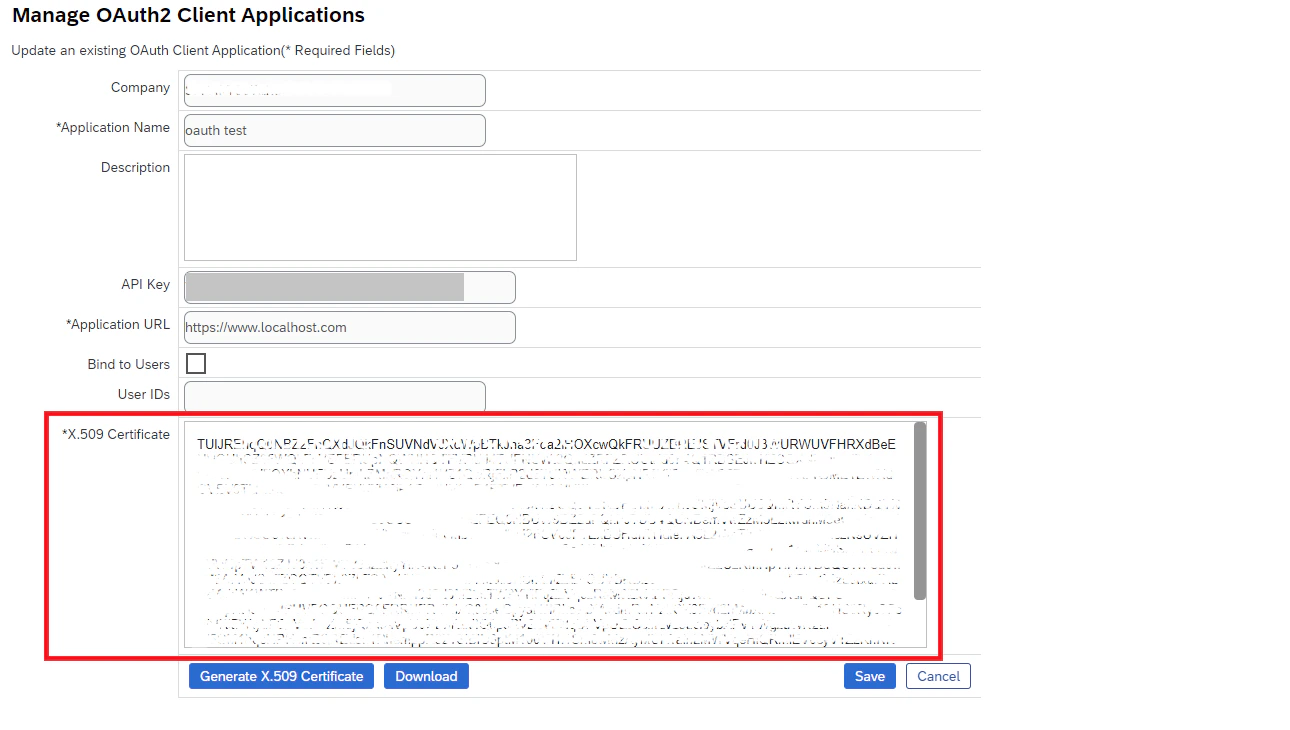
Copy the value inside the X.509 Certificate section.
Press Generate.
Copy the value inside the X.509 Certificate section.
 ## Downloading Private Key
Press the Download button.
❗Caution: The downloaded file contains your private key. This should be handled securely, and this local file should be deleted after your StackOne account has been linked.
Select and copy the long string of characters between -----BEGIN ENCRYPTED PRIVATE KEY----- and -----END ENCRYPTED PRIVATE KEY-----
This value is your Private Key. Please keep it safe!
## Finding API Key
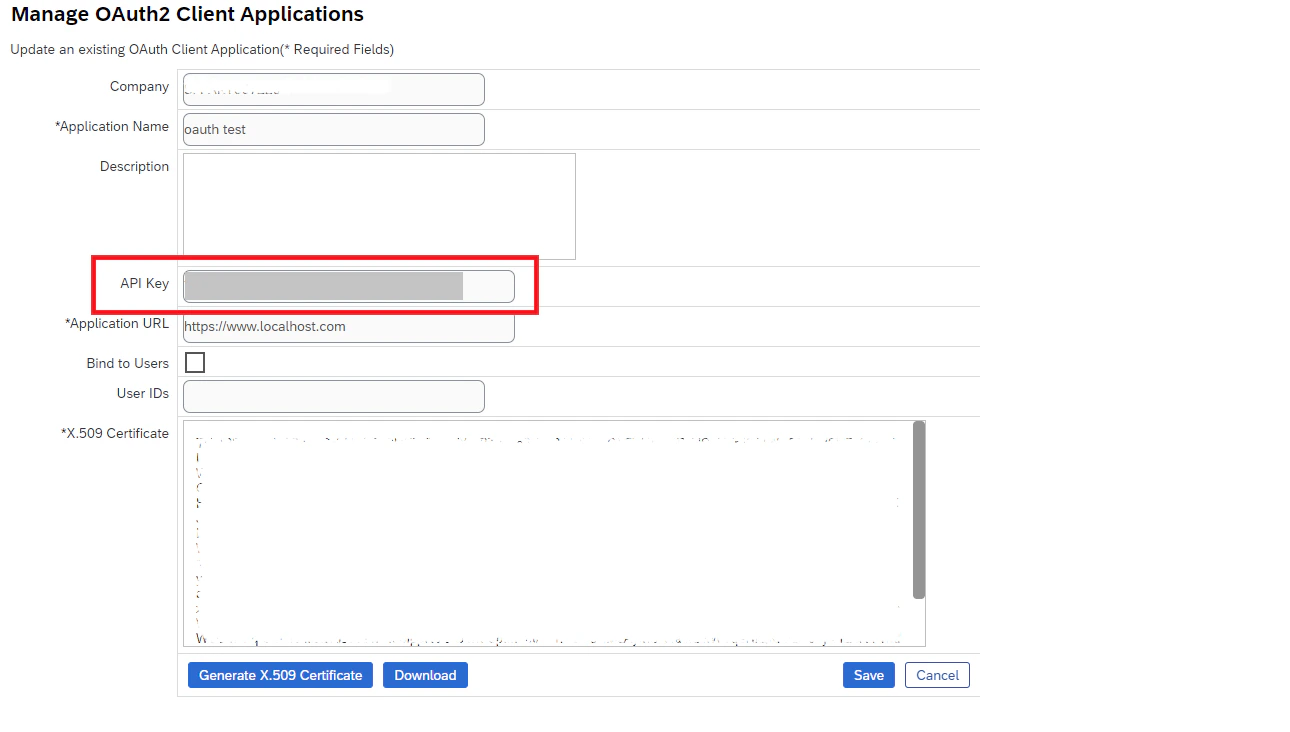
Your API Key is displayed on the Manage OAuth2 Client Applications screen above your X.509 Certificate.
## Downloading Private Key
Press the Download button.
❗Caution: The downloaded file contains your private key. This should be handled securely, and this local file should be deleted after your StackOne account has been linked.
Select and copy the long string of characters between -----BEGIN ENCRYPTED PRIVATE KEY----- and -----END ENCRYPTED PRIVATE KEY-----
This value is your Private Key. Please keep it safe!
## Finding API Key
Your API Key is displayed on the Manage OAuth2 Client Applications screen above your X.509 Certificate.
 ## Connecting with StackOne
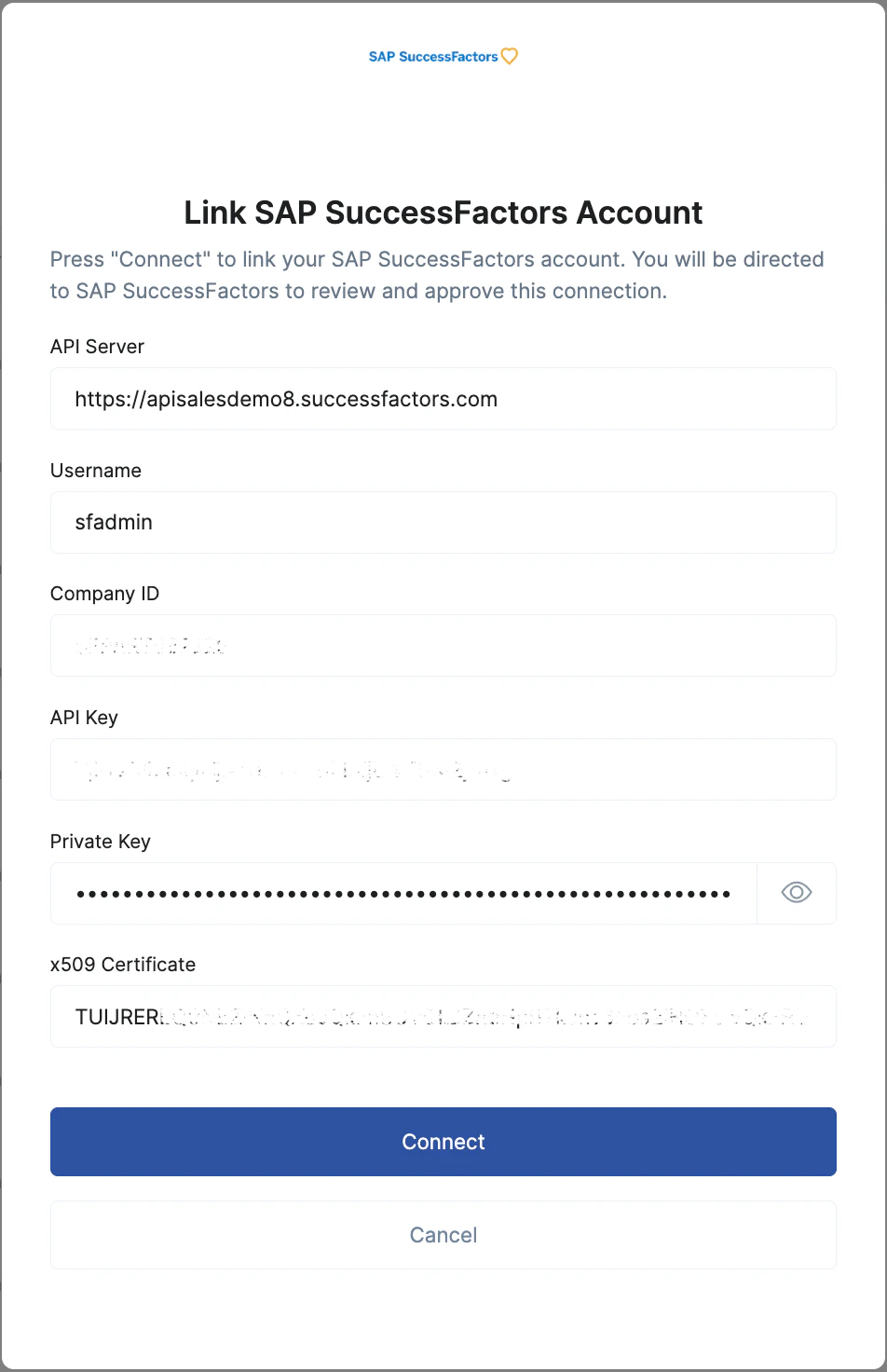
Upon reaching the Link Account page, enter the gathered details and proceed by clicking the `Connect` button.
## Connecting with StackOne
Upon reaching the Link Account page, enter the gathered details and proceed by clicking the `Connect` button.
 Note: The integration may take up to 15 minutes to initially authenticate once the account has been connected. In the meantime, requests will return a 401: Unauthorized response.
Congratulations, you're all set! If you face any issues with the steps mentioned above,
please contact us by emailing [integrations@stackone.com](mailto:integrations@stackone.com). We're always here to assist you!
## Useful Links
[https://api.sap.com/products/SAPSuccessFactors/apis/all](https://api.sap.com/products/SAPSuccessFactors/apis/all)