> ## Documentation Index
> Fetch the complete documentation index at: https://stackone-hub-docs-confluence-api-token-update.mintlify.site/llms.txt
> Use this file to discover all available pages before exploring further.

# BambooHR (OAuth)

> Follow these steps to successfully connect your BambooHR account to StackOne Hub using OAuth.

<Warning>
  Ensure that you have Admin privileges for your BambooHR account.
</Warning>

## Getting your Company Domain

<Steps>
  <Step title="Sign in to BambooHR">
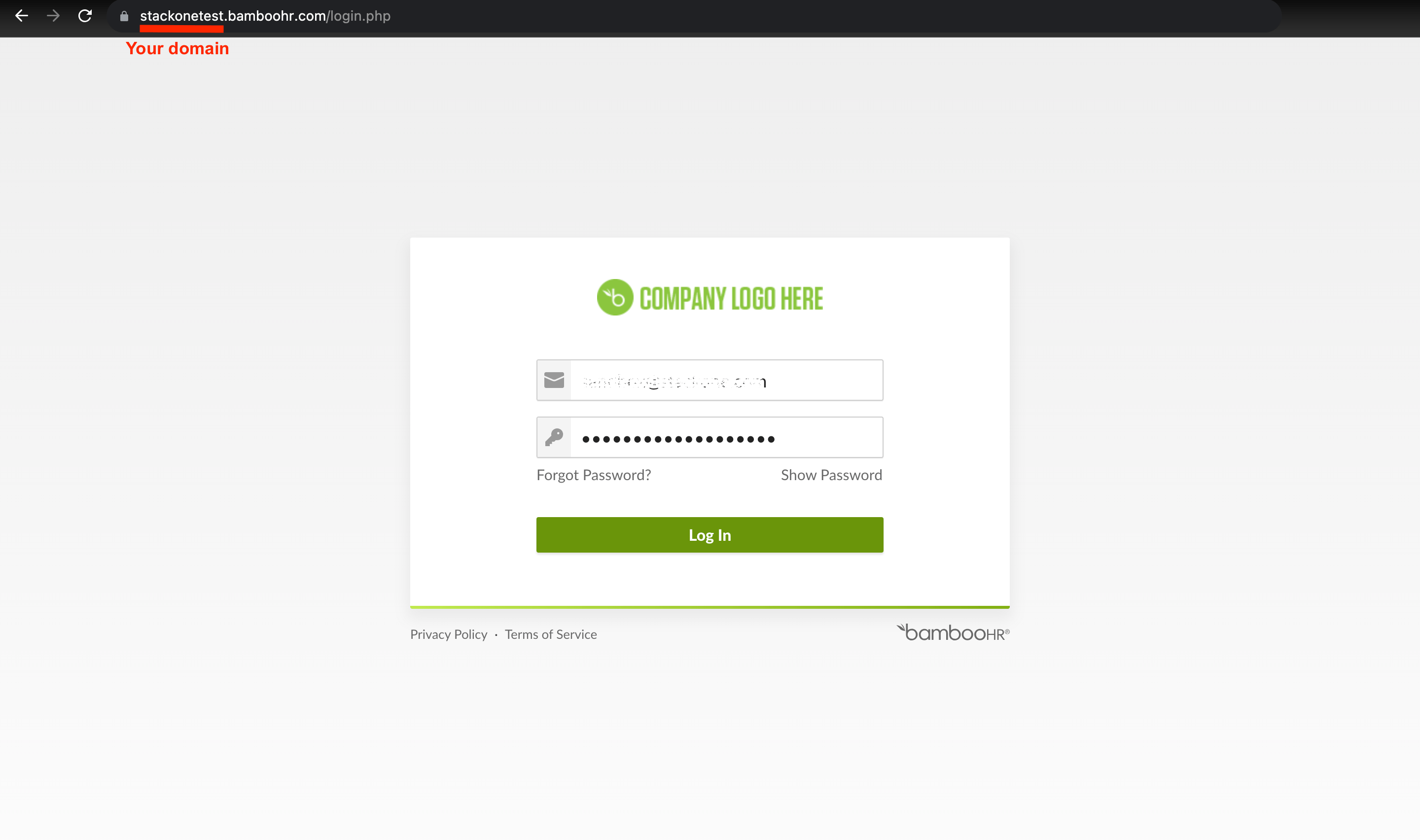
    Sign in to your BambooHR instance and note your company domain, which is the URL's prefix. For example, if your URL is `https://stackonetest.bamboohr.com`, then your Company Domain is **stackonetest**.
    <Frame>
      <img className="rounded-md" style={{ margin: '0 auto', border: '1px solid #efefef' }} alt="Company Domain" src="https://mintcdn.com/stackone-hub-docs-confluence-api-token-update/r1CxNaPqqmzcLh_k/images/bamboohr/image1.png?fit=max&auto=format&n=r1CxNaPqqmzcLh_k&q=85&s=23033d4e4df39e1a8535122ca01e5d15" width="2880" height="1704" data-path="images/bamboohr/image1.png" />
    </Frame>
  </Step>
</Steps>

## Connecting to StackOne

<Steps>
  <Step title="Enter Company Domain">
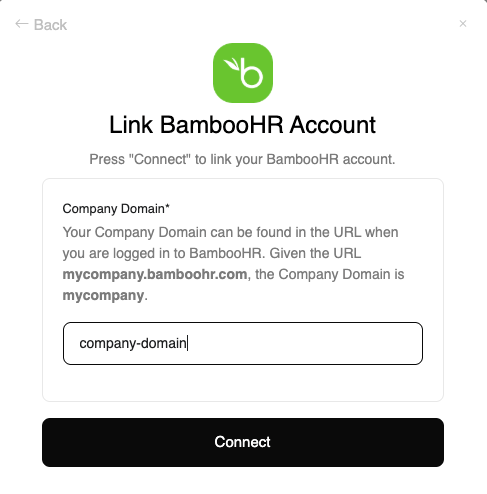
    Upon reaching the Link Account page, enter the Company Domain and proceed by clicking the `Connect` button.
    <Frame>
      <img className="rounded-md" style={{ margin: '0 auto', border: '1px solid #efefef' }} alt="Enter Company Domain" src="https://mintcdn.com/stackone-hub-docs-confluence-api-token-update/r1CxNaPqqmzcLh_k/images/bamboohr/bamboohr_oauth_connector.png?fit=max&auto=format&n=r1CxNaPqqmzcLh_k&q=85&s=86b4b6bd0e19da33870d31b6d3e39a8a" width="487" height="494" data-path="images/bamboohr/bamboohr_oauth_connector.png" />
    </Frame>
  </Step>

  <Step title="Enter Login Credentials">
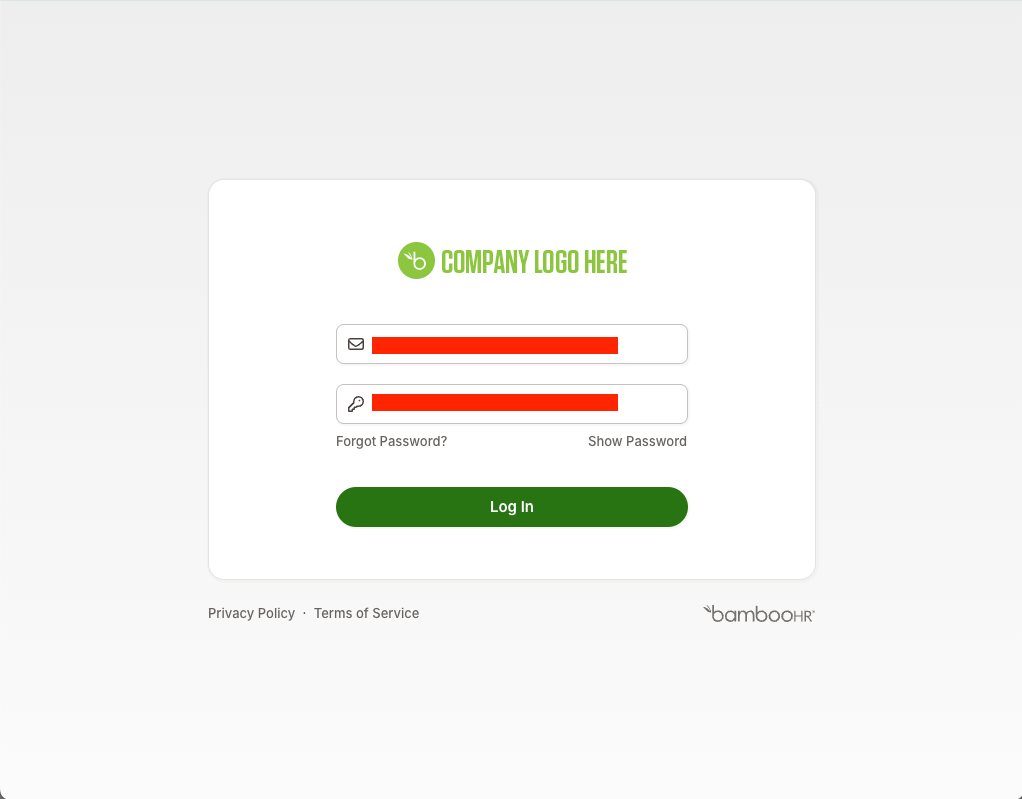
    You will be prompted to enter your login credentials.
    <Frame>
      <img className="rounded-md" style={{ margin: '0 auto', border: '1px solid #efefef' }} alt="login credentials" src="https://mintcdn.com/stackone-hub-docs-confluence-api-token-update/r1CxNaPqqmzcLh_k/images/bamboohr/Login_screen.png?fit=max&auto=format&n=r1CxNaPqqmzcLh_k&q=85&s=88adb1fd8f2aeba966951095b7e2978e" width="1022" height="799" data-path="images/bamboohr/Login_screen.png" />
    </Frame>

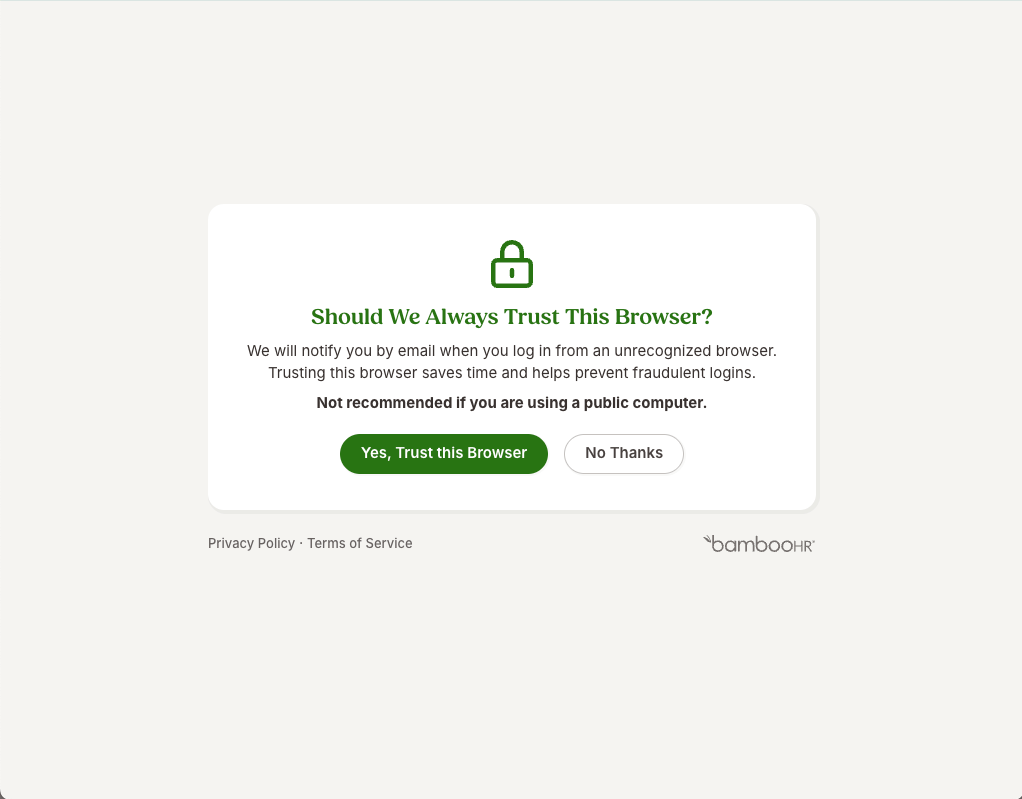
    Click the `Yes, Trust this Browser` button.
    <Frame>
      <img className="rounded-md" style={{ margin: '0 auto', border: '1px solid #efefef' }} alt="Trust this Browser" src="https://mintcdn.com/stackone-hub-docs-confluence-api-token-update/r1CxNaPqqmzcLh_k/images/bamboohr/browser_trust.png?fit=max&auto=format&n=r1CxNaPqqmzcLh_k&q=85&s=81f5e4b1e51a4305677fb0136c687a96" width="1022" height="799" data-path="images/bamboohr/browser_trust.png" />
    </Frame>
  </Step>
</Steps>

<br />

Congratulations, you're all set! If you face any issues with the steps mentioned above,
please contact us by emailing [integrations@stackone.com](mailto:integrations@stackone.com). We're always here to assist you!
