> ## Documentation Index
> Fetch the complete documentation index at: https://stackone-hub-docs-confluence-api-token-update.mintlify.site/llms.txt
> Use this file to discover all available pages before exploring further.
# Deel (OAuth)
> Follow these steps to connect Deel via the StackOne Hub successfully.
Ensure that your Deel account has Admin privileges.
If you've been directed to StackOne to integrate with Deel, the following steps will help you understand the process and any necessary actions to configure a successful integration.
## Create your Client ID and Client Secret
This integration will authenticate on behalf of a registered application in Deel.
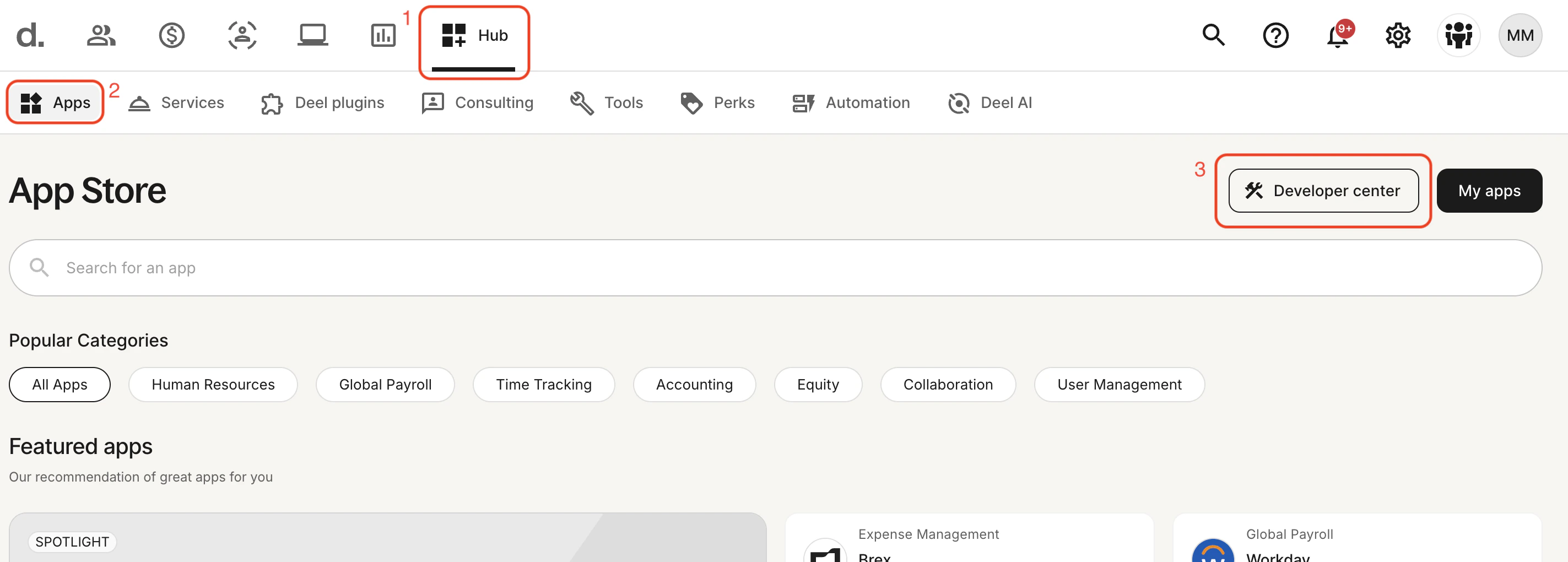
In Deel, click **Hub** in the navigation menu, then select **Apps > Developer Center**.
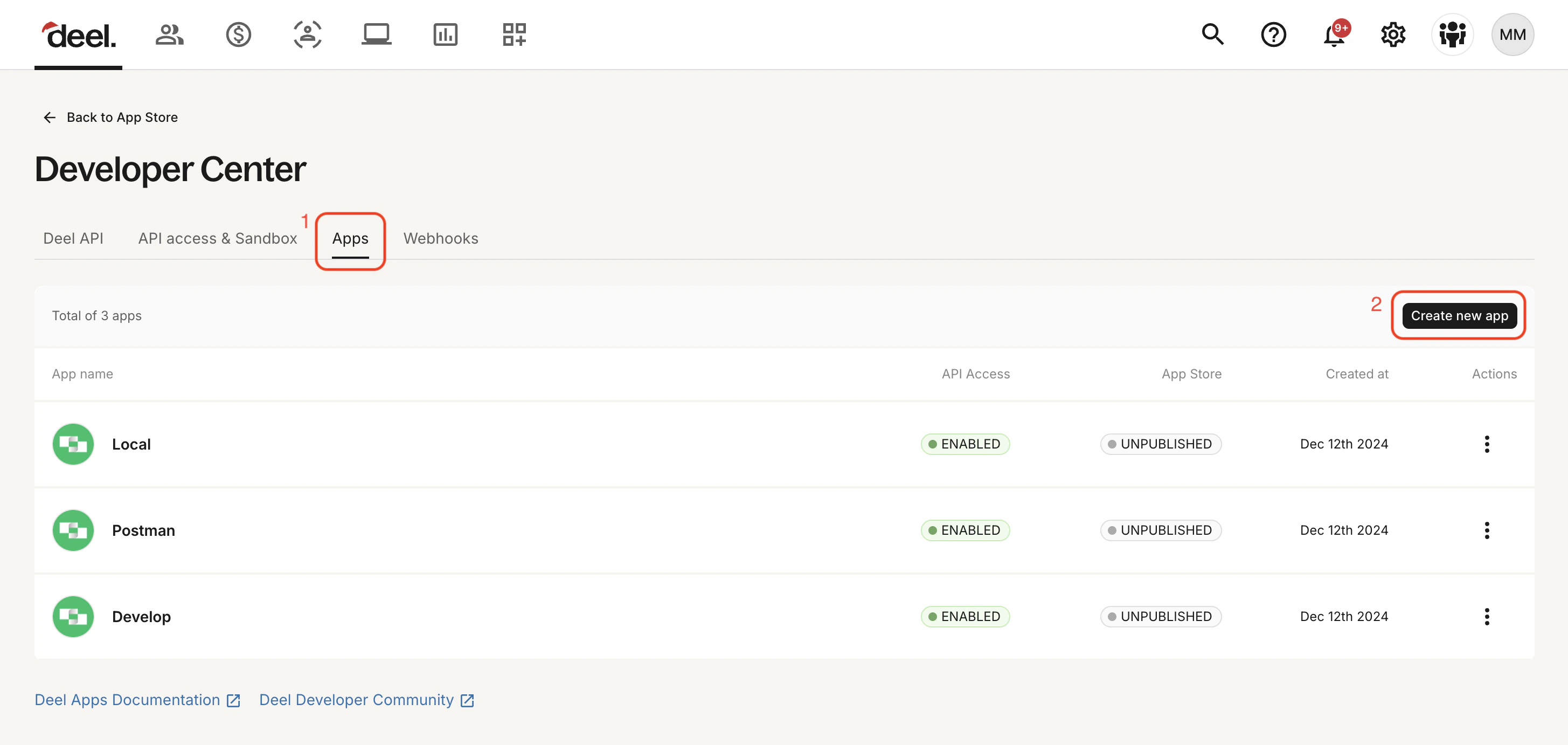
 On the **Apps** tab, click the **Create new app** button.
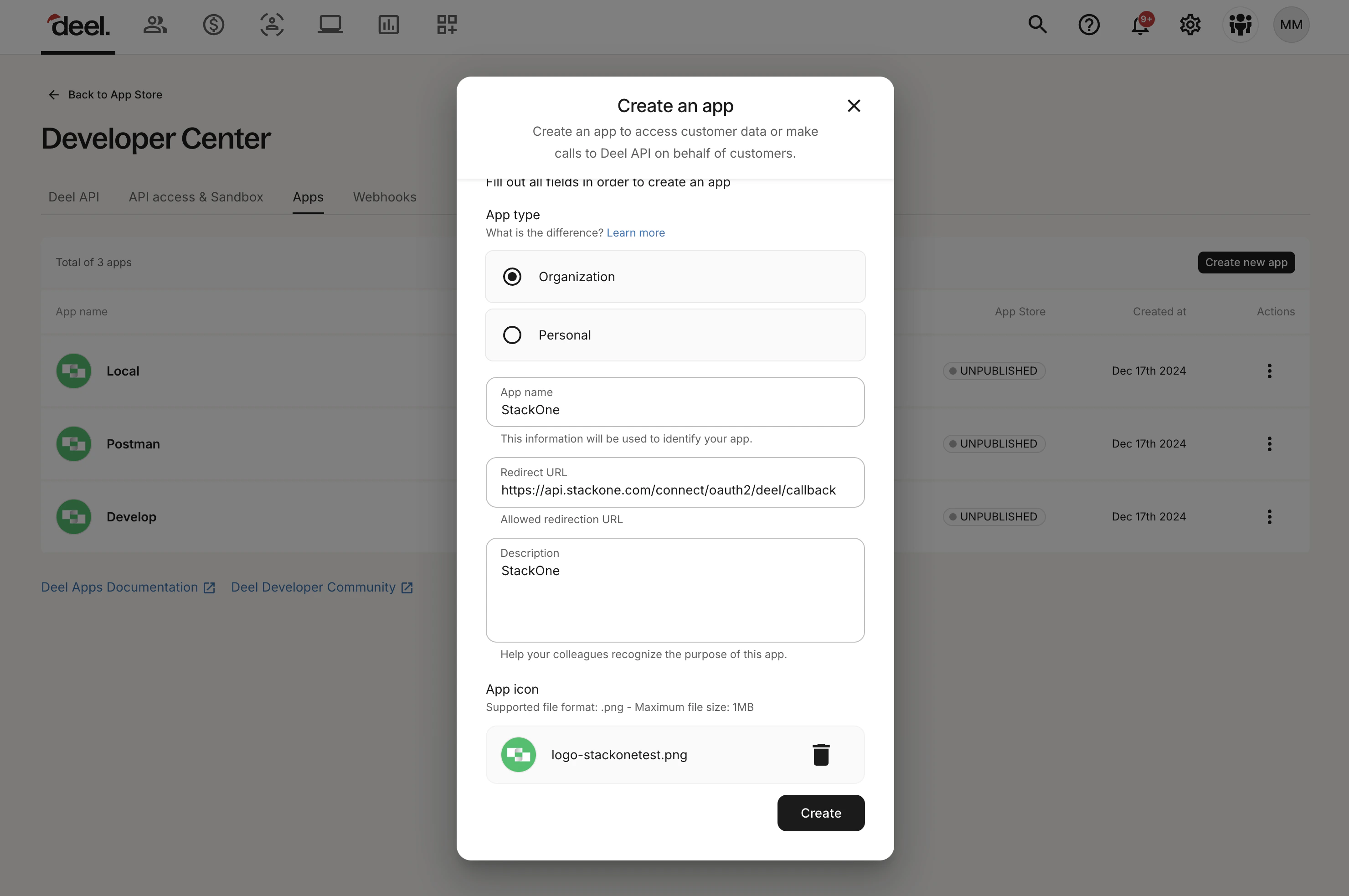
 We recommend using an **Organization** app type which is tied to the organization. Personal Apps tied to an individual and will expire once the user leaves the company.
Configure the app with the following details
* **App Type**: Organization
* **App Name**: e.g. StackOne
* **Redirect URL**: `https://api.stackone.com/connect/oauth2/deel/callback`
* **Description**: e.g. StackOne
* **Logo**: Any image (visible when authenticating)
We recommend using an **Organization** app type which is tied to the organization. Personal Apps tied to an individual and will expire once the user leaves the company.
Configure the app with the following details
* **App Type**: Organization
* **App Name**: e.g. StackOne
* **Redirect URL**: `https://api.stackone.com/connect/oauth2/deel/callback`
* **Description**: e.g. StackOne
* **Logo**: Any image (visible when authenticating)
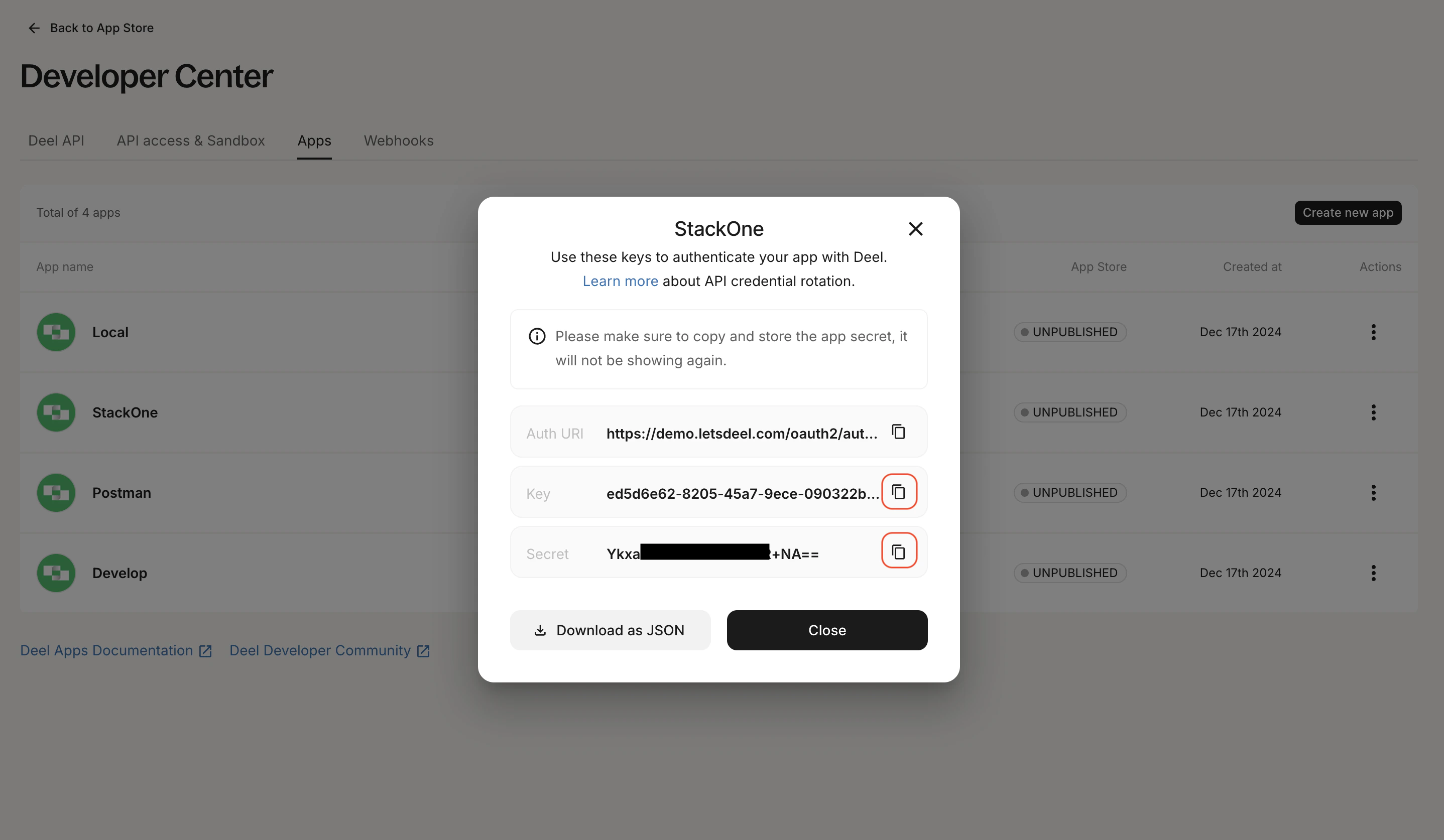
 Copy your Client ID and Client Secret and store them safely to be used in a later step.
 ## Connecting with StackOne
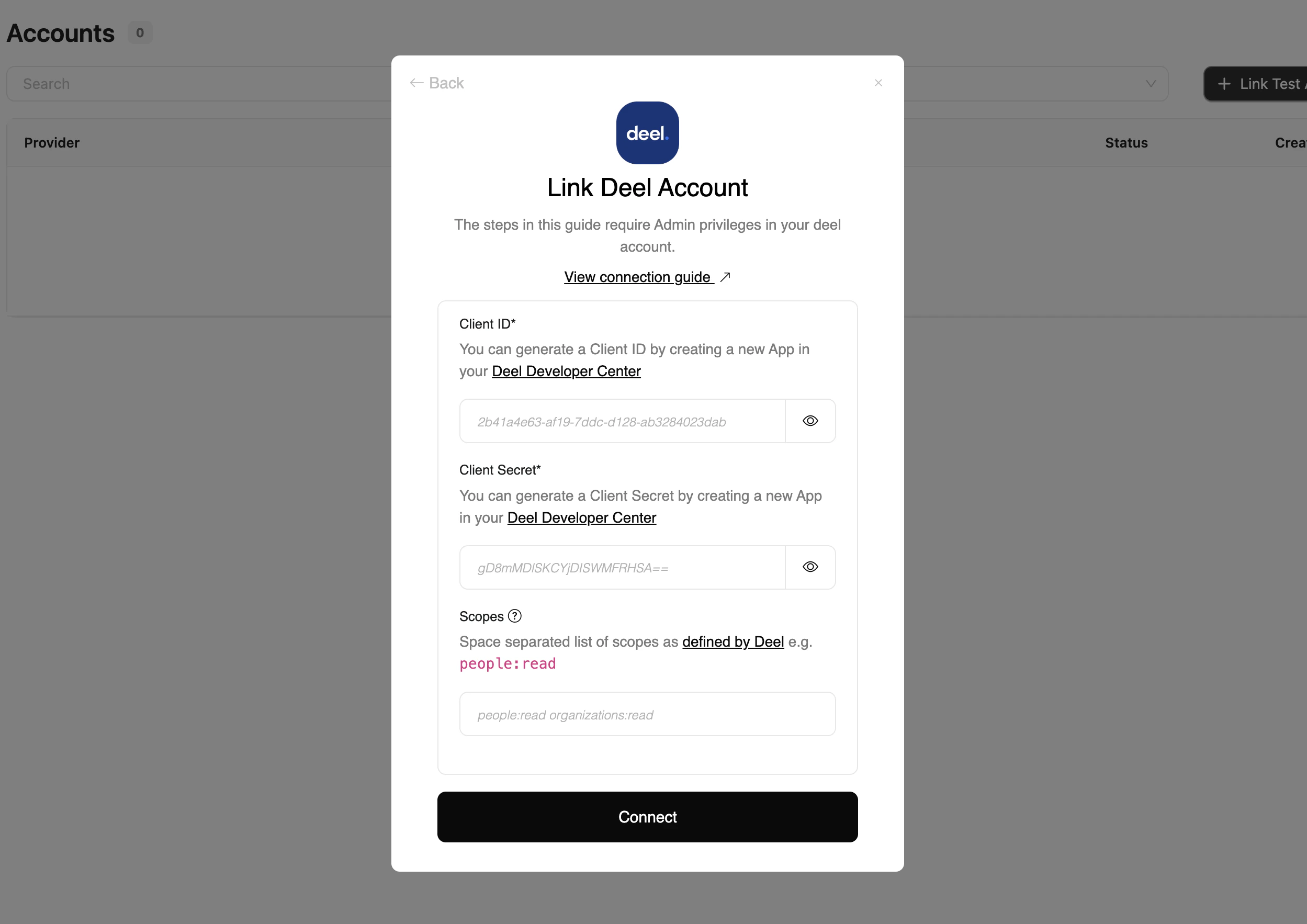
Upon reaching the Link Account page, enter the credential(s) from the previous steps:
* **Client ID**
* **Client Secret**
* **Scopes** (optional)
Proceed by clicking the Connect button.
## Connecting with StackOne
Upon reaching the Link Account page, enter the credential(s) from the previous steps:
* **Client ID**
* **Client Secret**
* **Scopes** (optional)
Proceed by clicking the Connect button.
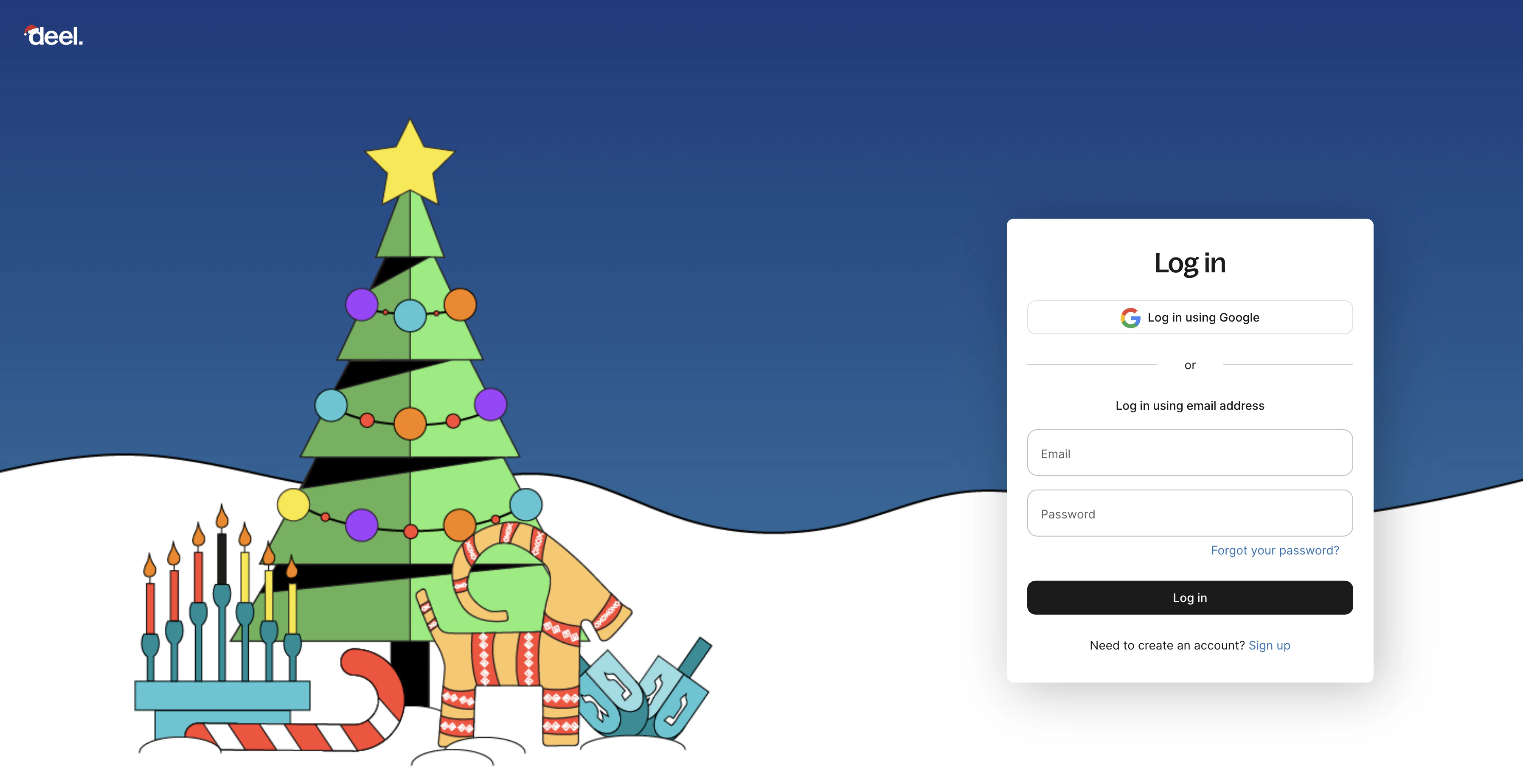
 A new window will take you to Deel. If necessary, enter your Deel credentials or use one of the sign-in options available that are connected to your Deel account.
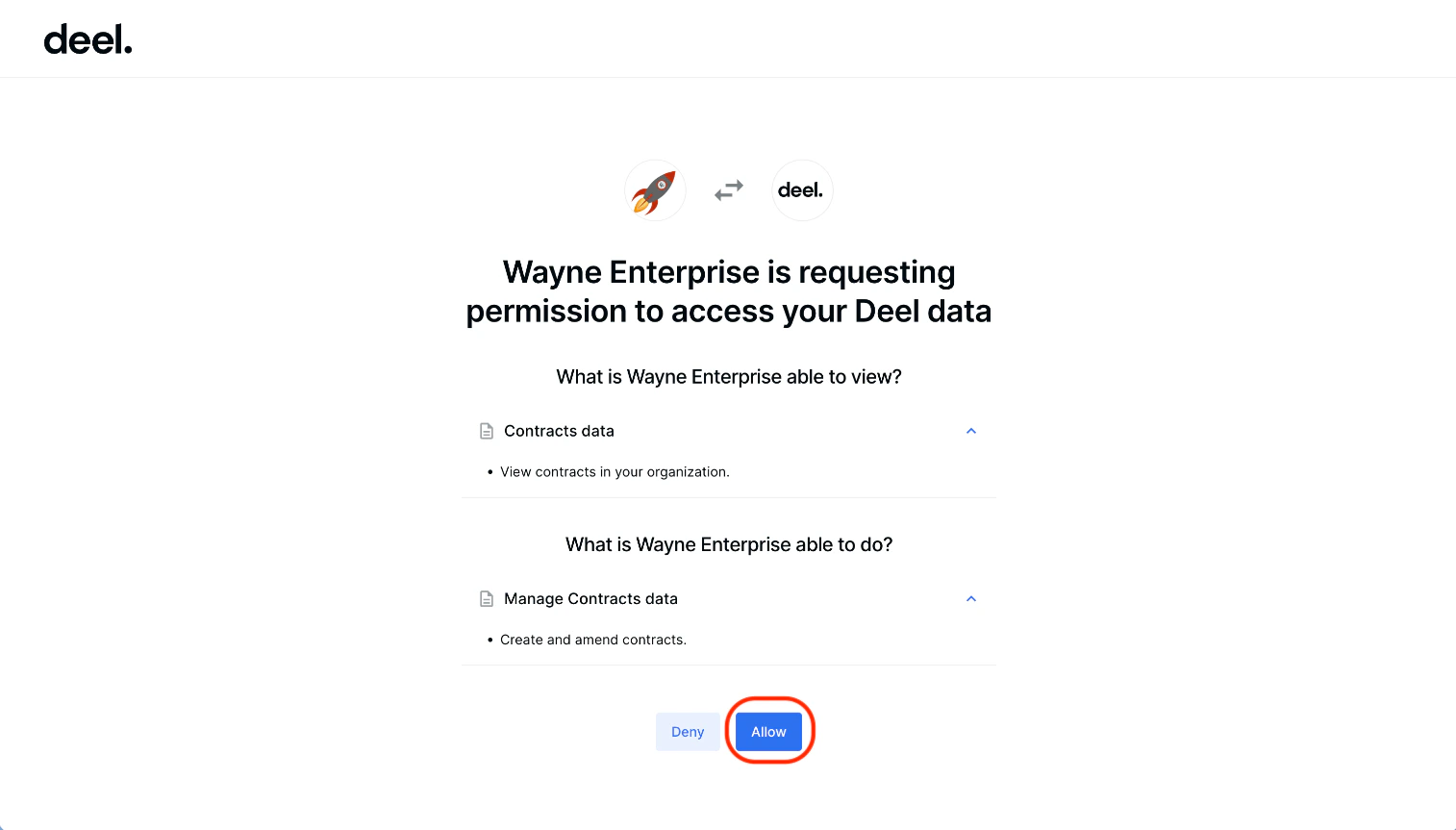
 In order to connect to your Deel account, you need to grant permission for the App to access your data.
Click **Allow** to proceed.
In order to connect to your Deel account, you need to grant permission for the App to access your data.
Click **Allow** to proceed.
Congratulations, you're all set! If you face any issues with the steps mentioned above,
please contact us by emailing [integrations@stackone.com](mailto:integrations@stackone.com). We're always here to assist you!
## Available data
This integration has the following [HRIS Resources](https://docs.stackone.com/reference/getting-started-with-your-api) available from the provider:
- Employees
- Employments
- Locations
- Companies
- Groups