> ## Documentation Index
> Fetch the complete documentation index at: https://stackone-hub-docs-confluence-api-token-update.mintlify.site/llms.txt
> Use this file to discover all available pages before exploring further.

# Lattice (Partner OAuth)

> Follow these steps to connect Lattice via the StackOne Hub successfully.

<Warning>
  Ensure that you have Admin privileges for your Lattice account.
</Warning>

If you've been directed to StackOne to integrate with Lattice, the following steps will help you understand the process and any necessary actions to configure a successful integration.

## Get Partner Credentials

<Steps>
  <Step title="Open the Partner Application Form">
    Go to <a href="https://lattice.com/integrations-application" target="_blank" rel="noopener noreferrer">[https://lattice.com/integrations-application](https://lattice.com/integrations-application)</a> and click <b>Apply Now</b>.
  </Step>

  <Step title="Submit Required Details">
    * Provide the required information (company name, contact, intended integration purpose). Include the redirect URL you'll register later.
    * After submitting, Lattice Support / Partnerships will provision an OAuth application and reply with your credentials (this may take some time depending on their queue).
  </Step>

  <Step title="Receive Credentials">
    You should receive:

    <ul>
      <li><b>Client ID</b></li>
      <li><b>Client Secret</b></li>
      <li><b>Website URL</b>: format <code>https\://\<your-subdomain>.latticehq.com</code></li>
    </ul>

    Store the Client Secret in a secure secrets manager.
  </Step>

  <Step title="Register / Confirm Redirect URL">
    Ensure Lattice has registered the redirect URL:
    <pre><code>[https://api.stackone.com/connect/oauth2/lattice/callback](https://api.stackone.com/connect/oauth2/lattice/callback)</code></pre>
    This must match exactly (including protocol and path) or the OAuth authorization will fail. Add staging callbacks if required.
  </Step>
</Steps>

## Connecting with StackOne

<Steps>
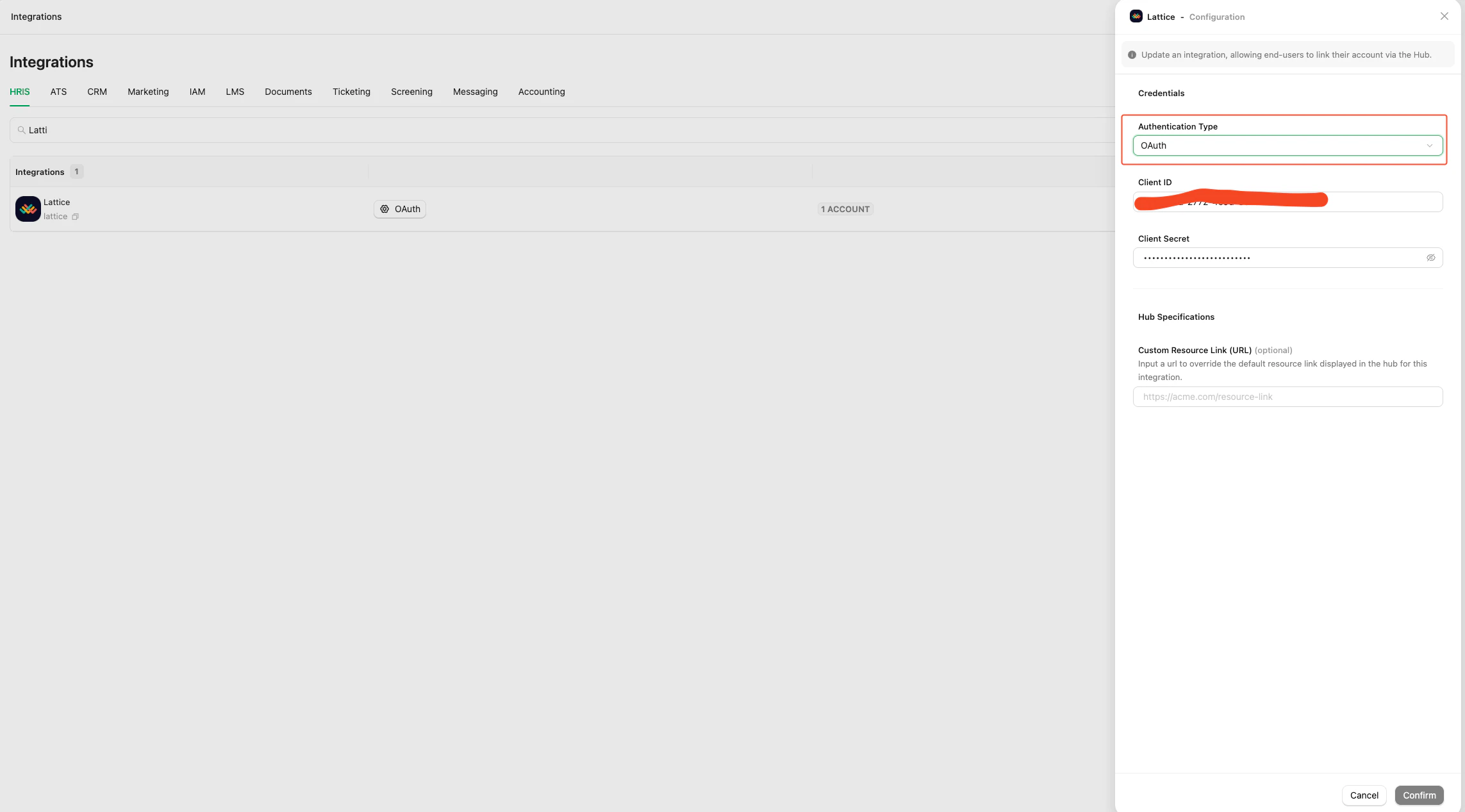
  <Step title="Select Authentication Type & Configure Credentials">
    In the HRIS Lattice integration settings in StackOne, set <b>Authentication Type</b>. And provide the following:

    <ul>
      <li><b>Client ID</b></li>
      <li><b>Client Secret</b></li>
    </ul>

    <Frame>
      <img className="rounded-md" style={{ margin: '0 auto', border: '1px solid #efefef' }} alt="Link Account" src="https://mintcdn.com/stackone-hub-docs-confluence-api-token-update/xv17FcN7H2RPwPLf/images/lattice-hris/image1.png?fit=max&auto=format&n=xv17FcN7H2RPwPLf&q=85&s=d8c4e1aedbb14742bbb7165ee29a7c41" width="2286" height="1267" data-path="images/lattice-hris/image1.png" />
    </Frame>
  </Step>

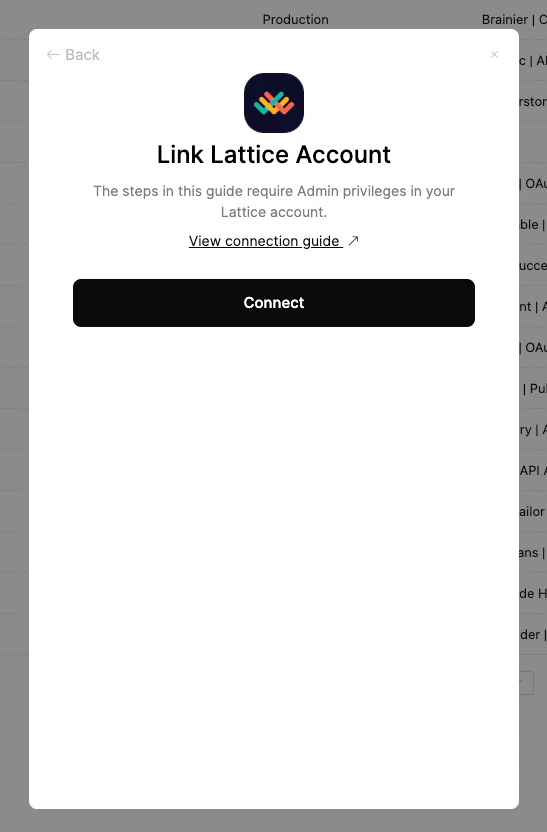
  <Step title="Open the Accounts page">
    Navigate to the Accounts page in StackOne and locate HRIS Lattice. Click the `Connect` button.

    <Frame>
      <img className="rounded-md" style={{ margin: '0 auto', border: '1px solid #efefef' }} alt="Link Account" src="https://mintcdn.com/stackone-hub-docs-confluence-api-token-update/xv17FcN7H2RPwPLf/images/lattice-hris/image2.png?fit=max&auto=format&n=xv17FcN7H2RPwPLf&q=85&s=f2fba5e1bcb115a08734b8234034ef37" width="547" height="832" data-path="images/lattice-hris/image2.png" />
    </Frame>
  </Step>

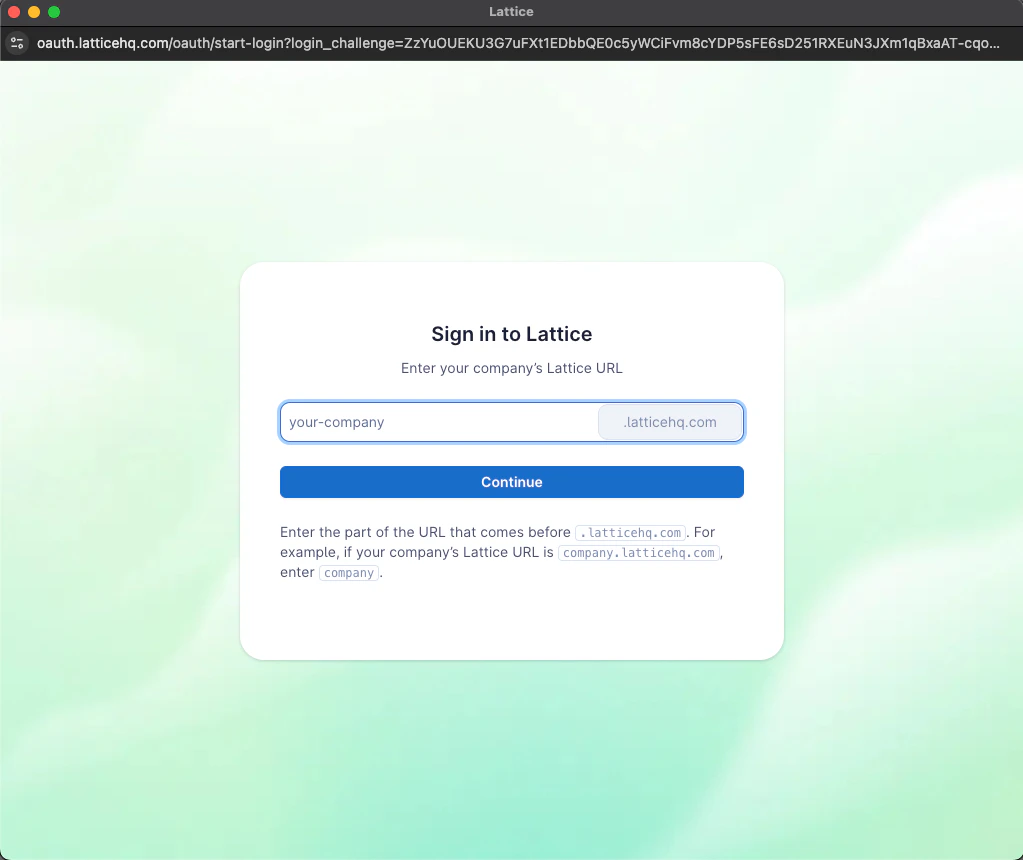
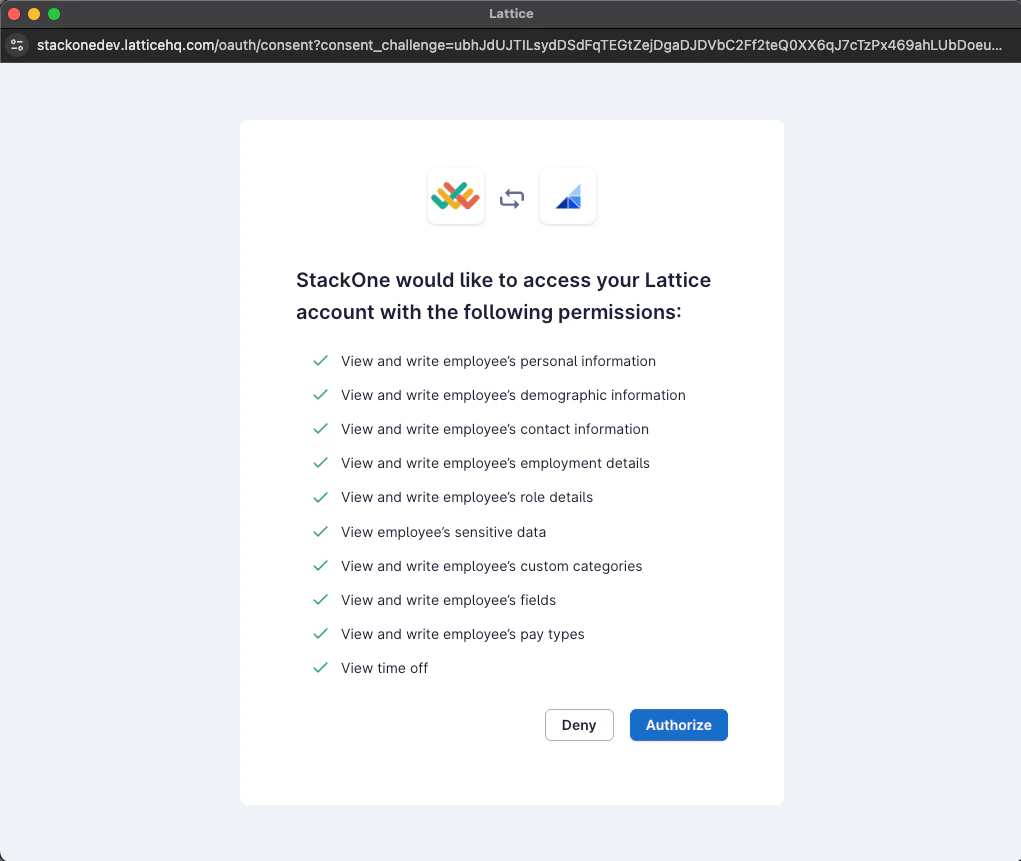
  <Step title="Authorize in Lattice">
    A new window will open redirecting you to Lattice. Sign in (if needed) with an admin / partner-enabled account and approve the requested scopes.

    <Frame>
      <img className="rounded-md" style={{ margin: '0 auto', border: '1px solid #efefef' }} alt="Link Account" src="https://mintcdn.com/stackone-hub-docs-confluence-api-token-update/xv17FcN7H2RPwPLf/images/lattice-hris/image3.png?fit=max&auto=format&n=xv17FcN7H2RPwPLf&q=85&s=c9ffeb1d845b5efdb07987e948cc89be" width="1023" height="860" data-path="images/lattice-hris/image3.png" />
    </Frame>

    <Frame>
      <img className="rounded-md" style={{ margin: '0 auto', border: '1px solid #efefef' }} alt="Link Account" src="https://mintcdn.com/stackone-hub-docs-confluence-api-token-update/xv17FcN7H2RPwPLf/images/lattice-hris/image4.png?fit=max&auto=format&n=xv17FcN7H2RPwPLf&q=85&s=068b661dedb1294bc365d305e22ac54f" width="1021" height="861" data-path="images/lattice-hris/image4.png" />
    </Frame>
  </Step>

  <Step title="Completion">
    After granting access you’ll return to StackOne and the account status will show as connected.
  </Step>
</Steps>

## Available Data

This integration has the following [HRIS Resources](https://docs.stackone.com/reference/getting-started-with-your-api) available from the provider:

<ul>
  <li>Employees</li>
  <li>Employee Employments</li>
  <li>Employments</li>
  <li>Employee Time Offs</li>
  <li>Time Offs</li>
  <li>Time Off Policies</li>
  <li>Groups</li>
  <li>Departments (Groups - Departments subset)</li>
  <li>Custom Field Definitions (Employees)</li>
</ul>

## Useful Links

<Card title="Lattice v2 API Docs" icon="link" href="https://developers.lattice.com/v2/docs">
  [https://developers.lattice.com/v2/docs](https://developers.lattice.com/v2/docs)
</Card>

<Card title="Lattice Partner / Integration Application" icon="link" href="https://lattice.com/integrations-application">
  [https://lattice.com/integrations-application](https://lattice.com/integrations-application)
</Card>

<br />

Congratulations, you're all set! If you face any issues with the steps mentioned above,
please contact us by emailing [integrations@stackone.com](mailto:integrations@stackone.com). We're always here to assist you!