> ## Documentation Index
> Fetch the complete documentation index at: https://stackone-hub-docs-confluence-api-token-update.mintlify.site/llms.txt
> Use this file to discover all available pages before exploring further.
# Oracle HCM
> Follow these steps to connect Oracle HCM with StackOne Hub successfully.
Ensure you have Admin privileges for your Oracle HCM account.
If you've been directed to StackOne to integrate with Oracle HCM, the following steps will help you understand the process and any necessary actions to configure successful integration.
## Get your Rest Server URL
You can find the REST Server URL, username, and password in the welcome email sent to your Oracle Cloud service administrator. This is typically the URL of your Oracle Cloud service. Example: `https://servername.fa.us2.oraclecloud.com`.
## Create a Service User with Required Roles
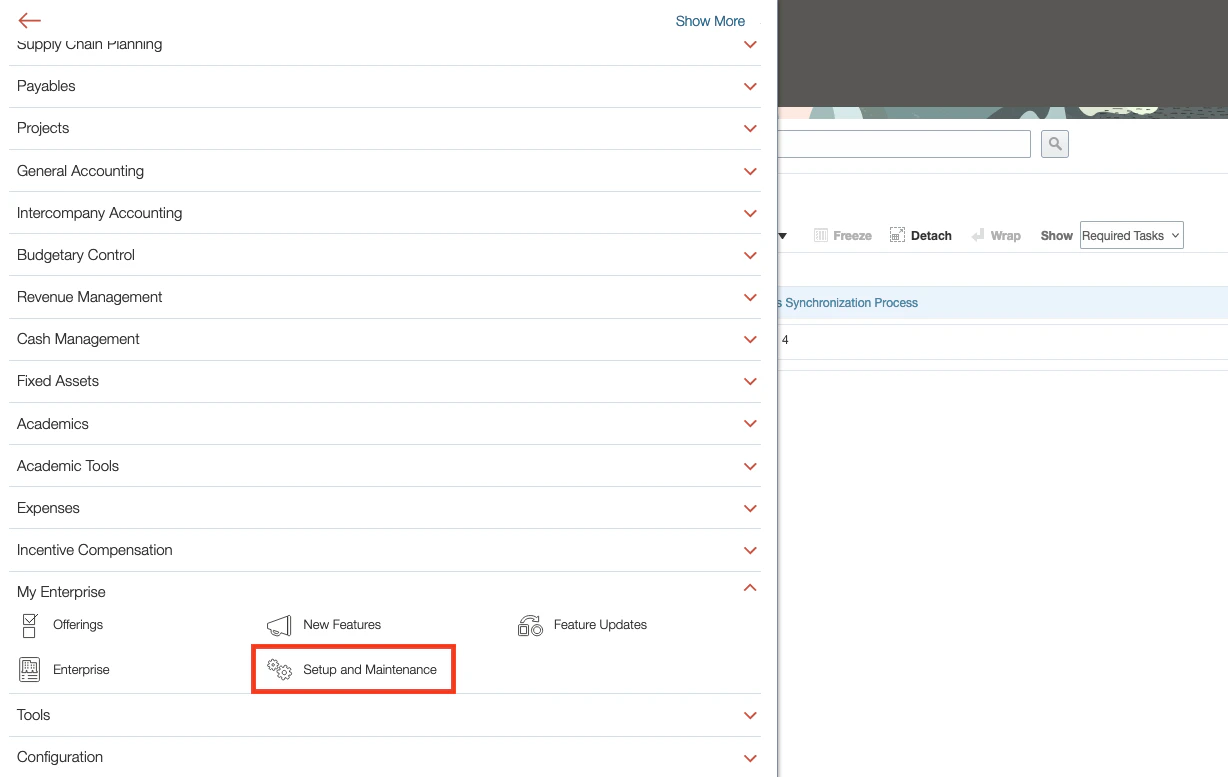
Within your Oracle Cloud Vision instance in the left side navigation panel, expand My Enterprise, then click Setup and Maintenance.
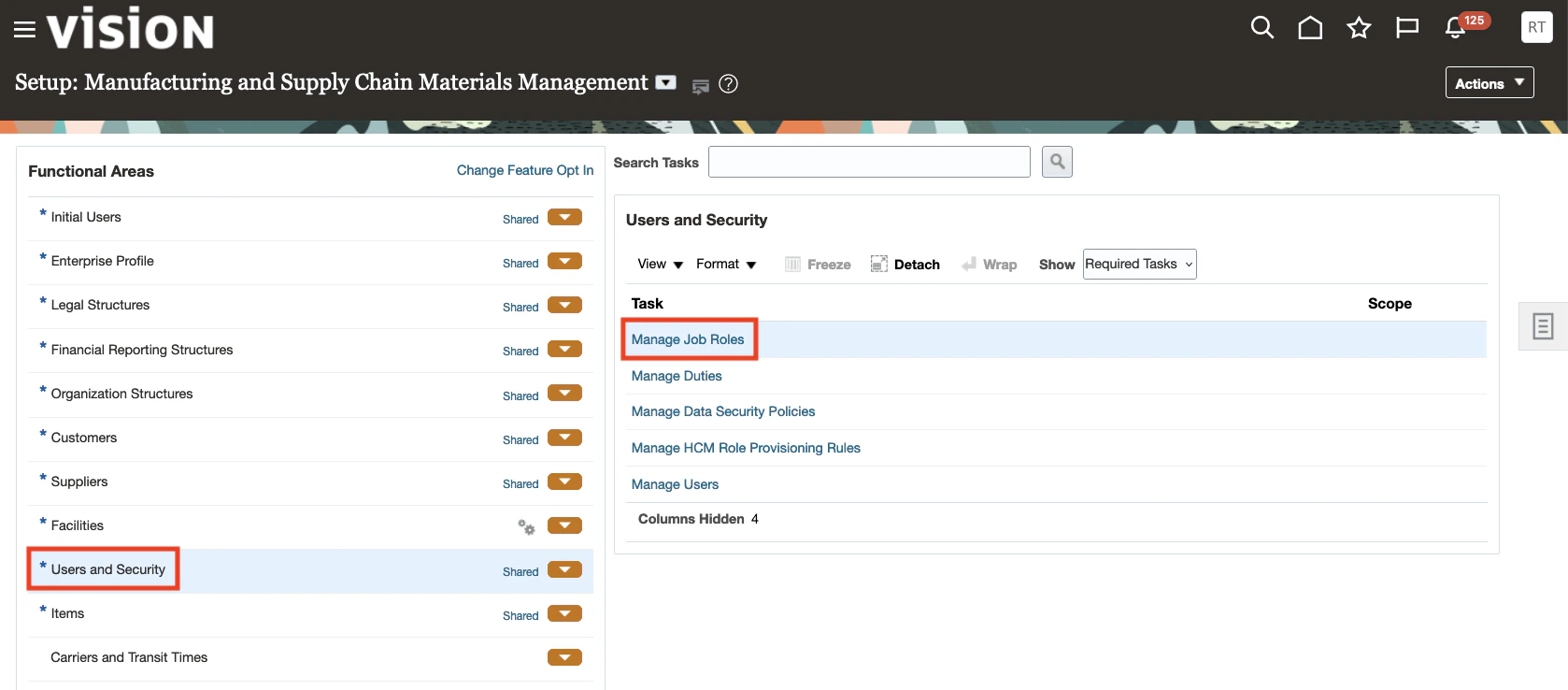
 Under "Functional Areas", click Users and Security. Then on the right, click Manage Job Roles.
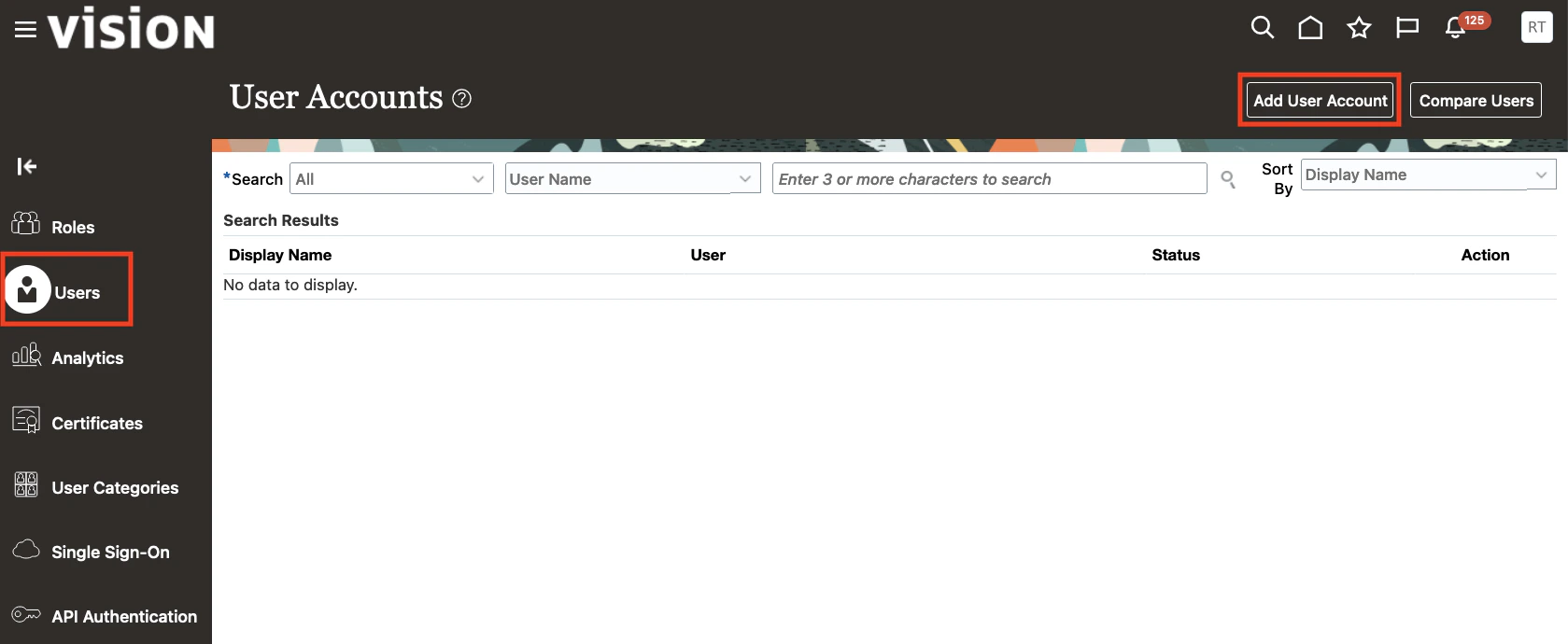
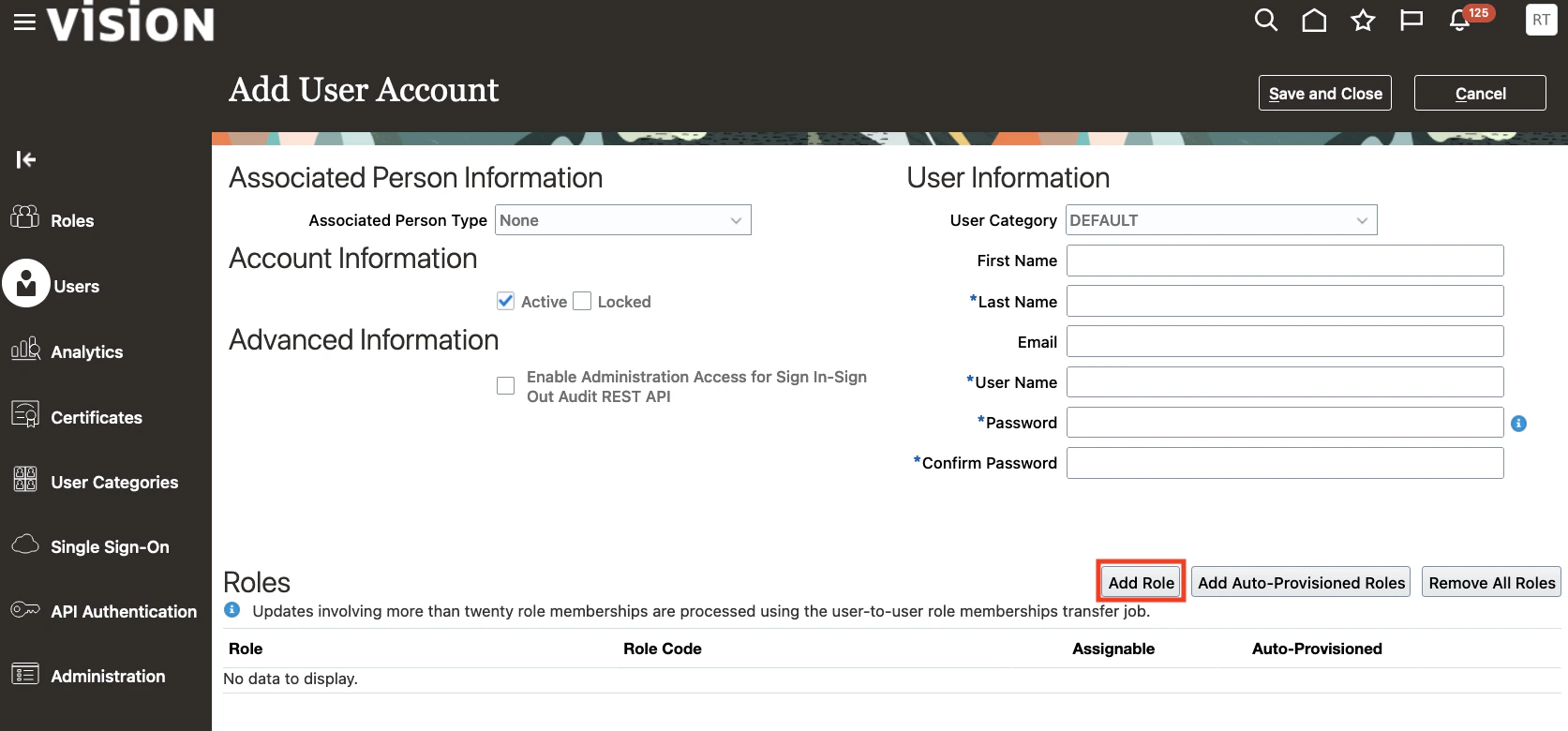
 In the left navigation panel, click Users. Then click the Add User Account button in the top right.
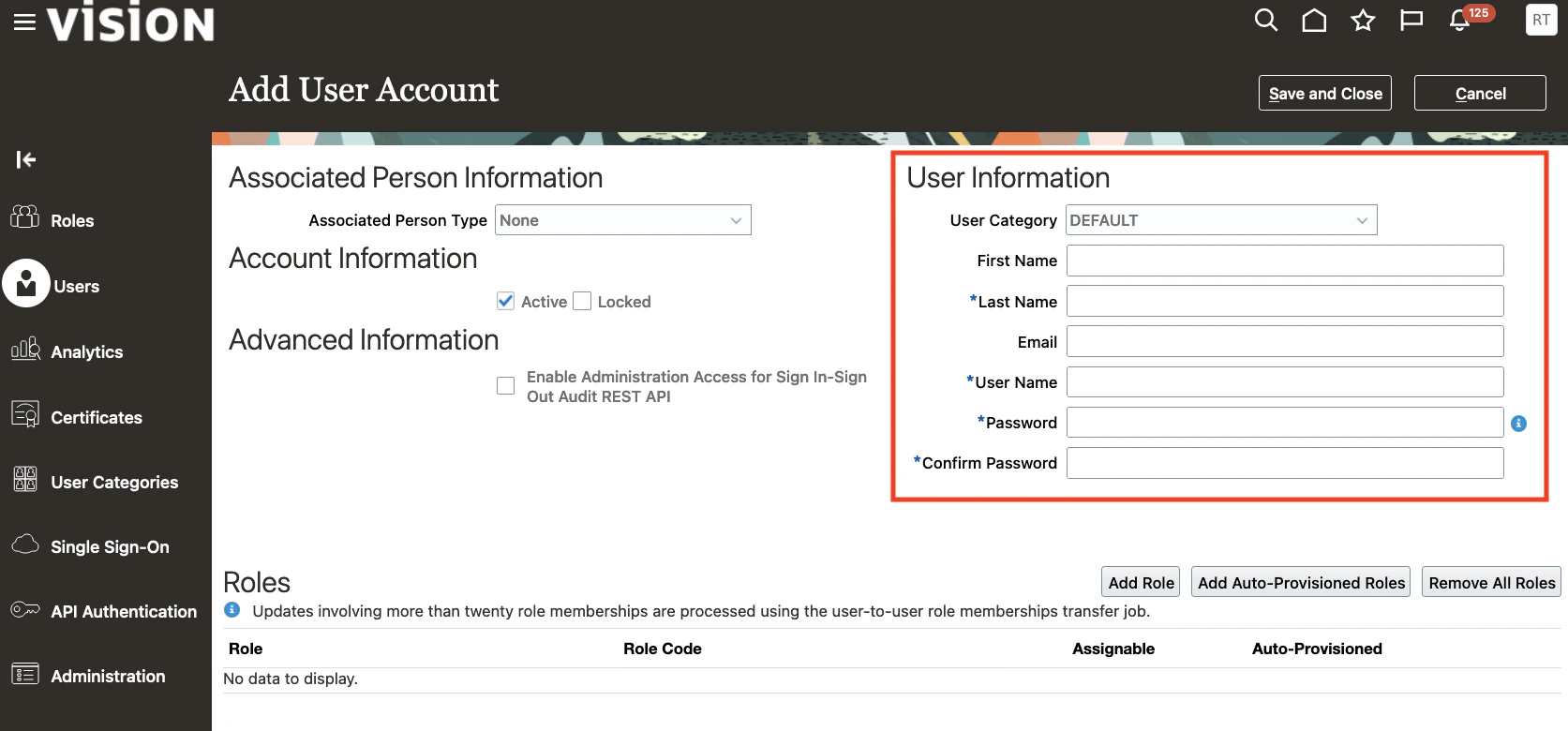
 Enter the new User Information for the new Service User to be authorized for this integration. Store these credentials safely. The required fields are:
- Last Name
- Username
- Password
- Confirm Password
 Determine the required roles based on the integration category. The HRIS integration requires the following roles:
- ORA\_RECRUITER\_JOB
- PER\_RECRUITING\_ADMINISTRATOR\_JOB
- ORA\_IRC\_RECRUITING\_AGENT\_JOB
- ORA\_RECRUITING\_MANAGER\_JOB
- PER\_HUMAN\_RESOURCE\_SPECIALIST\_JOB
- ORA\_HRC\_HUMAN\_CAPITAL\_MANAGEMENT\_INTEGRATION\_SPECIALIST\_JOB
Press the Add Role button.
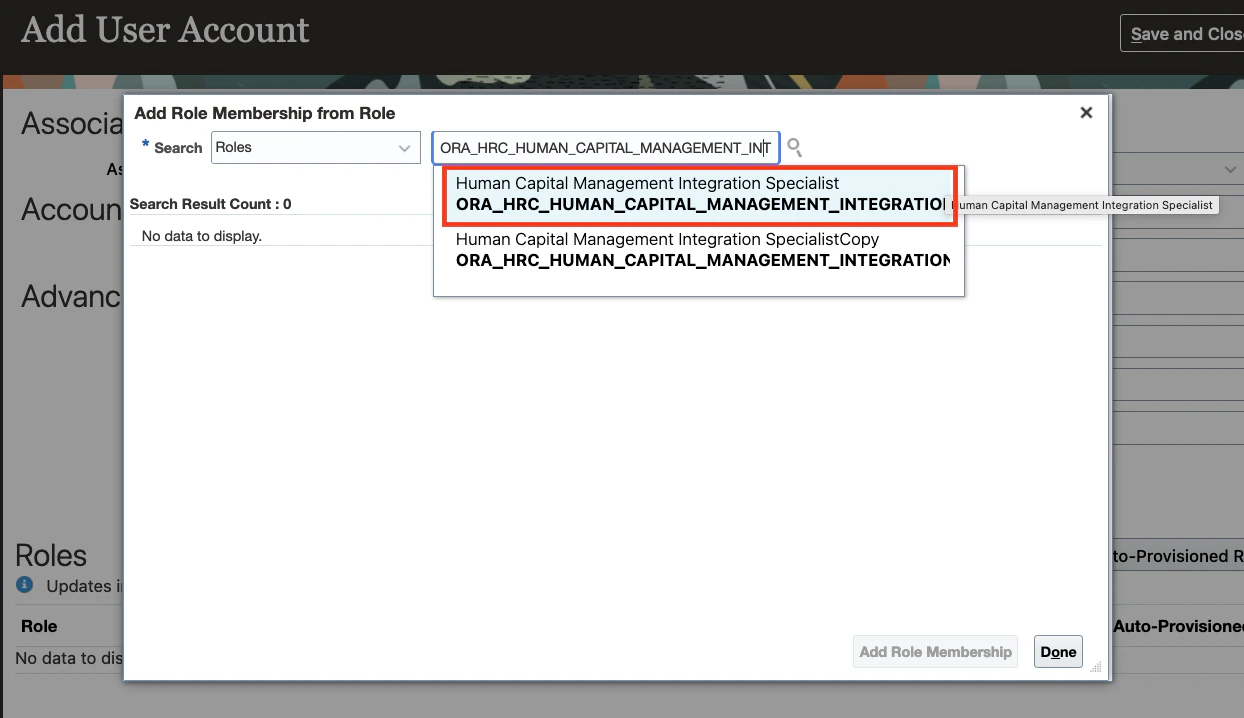
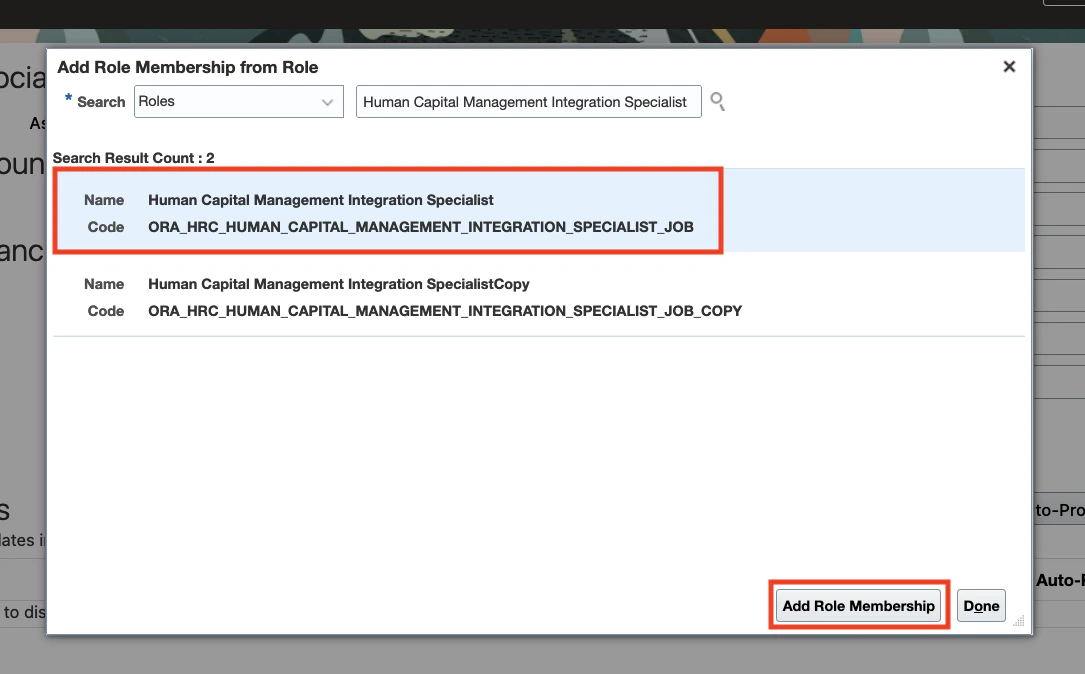
 In the window that appears, for each required role:
- Paste the role name into the Search box. Click the first result to populate the search results.
- Click the role result matching the correct Code. Then click the Add Role Membership button.
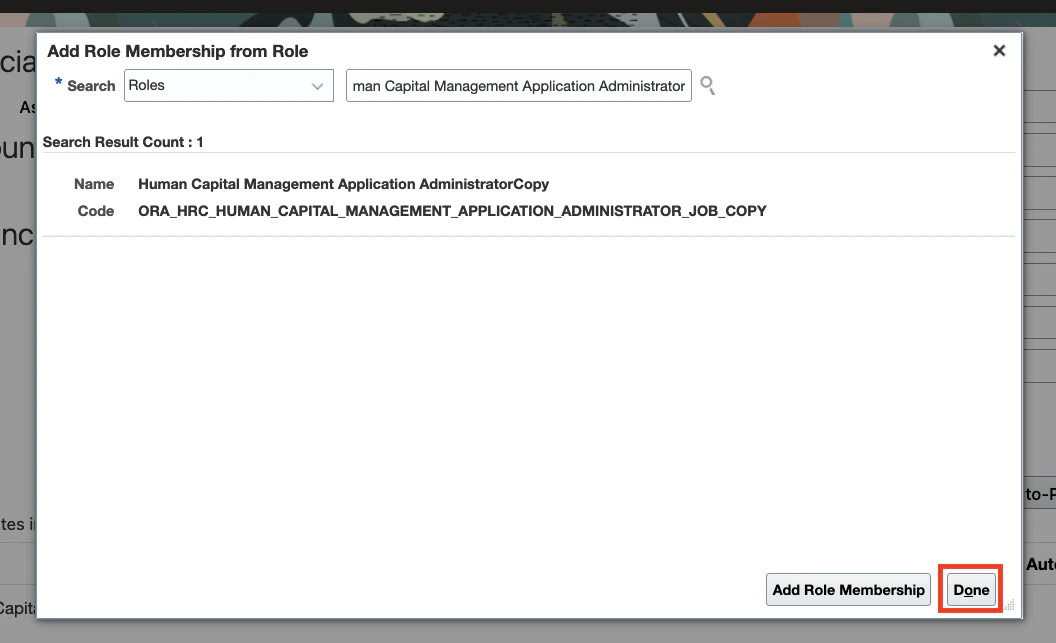
Continue until all required roles are added, then click Done.
 Confirm that the User Information and Roles are correct, then click the Save and Close button.
 ## Connecting to StackOne
Upon reaching the Link Account page, enter the Service User's Username and Password from the previous step, and the Rest Server URL. Proceed by clicking the Connect button.
## Connecting to StackOne
Upon reaching the Link Account page, enter the Service User's Username and Password from the previous step, and the Rest Server URL. Proceed by clicking the Connect button.
Congratulations, you're all set! If you face any issues with the steps mentioned above,
please contact us by emailing [integrations@stackone.com](mailto:integrations@stackone.com). We're always here to assist you!
## Useful Links
[https://docs.oracle.com/en/cloud/saas/human-resources/23d/farws/index.html](https://docs.oracle.com/en/cloud/saas/human-resources/23d/farws/index.html)