> ## Documentation Index
> Fetch the complete documentation index at: https://stackone-hub-docs-confluence-api-token-update.mintlify.site/llms.txt
> Use this file to discover all available pages before exploring further.
# Payfit
> Follow these steps to connect Payfit via the StackOne Hub successfully.
Ensure that your Payfit account has Admin privileges.
If you've been directed to StackOne to integrate with Payfit, the following steps will help you understand the process and any necessary actions to configure a successful integration.
## Log in to Payfit
Log in to your Payfit account.
## Create your Payfit API Key
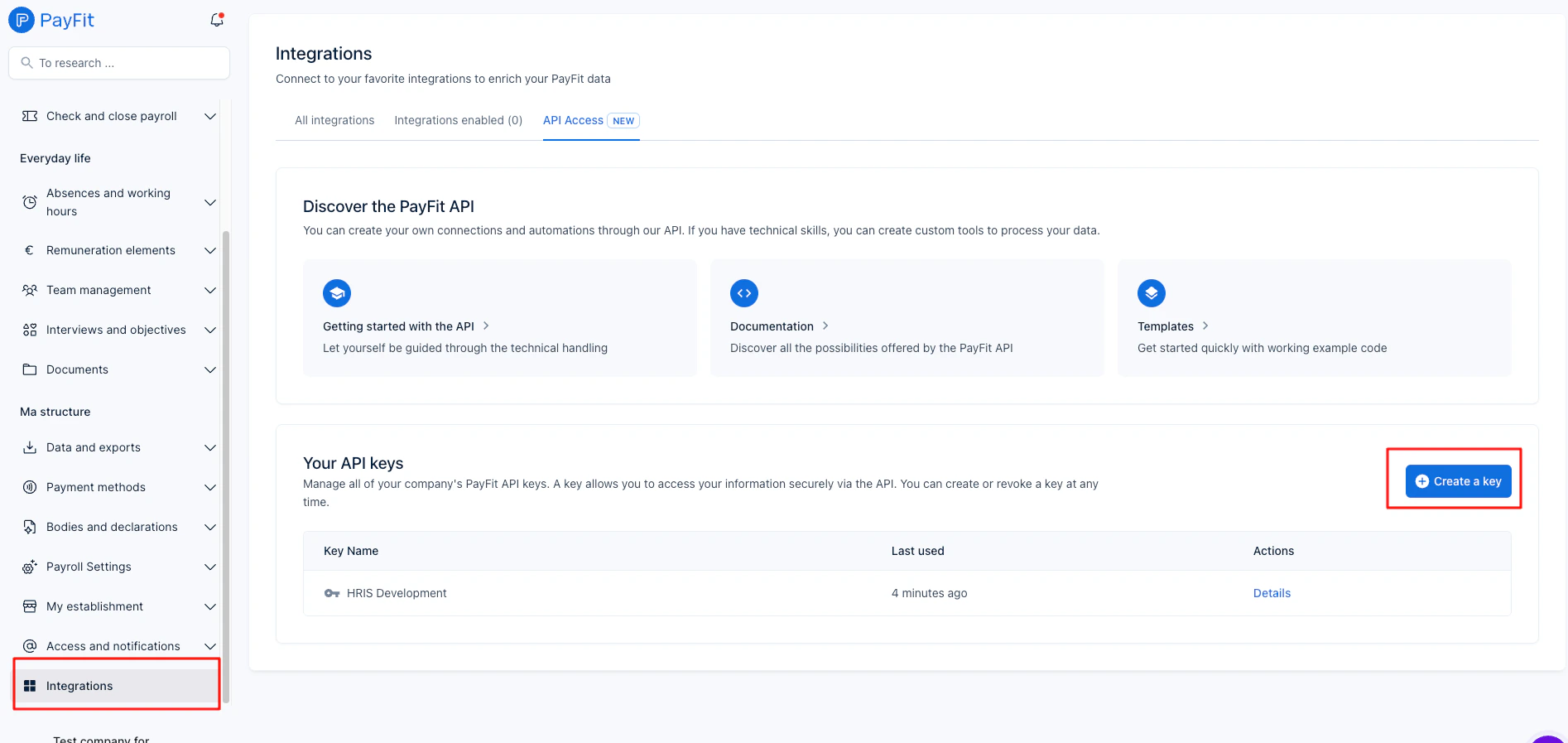
Go to **[https://app.payfit.com/integrations/hub/api](https://app.payfit.com/integrations/hub/api)** and click on **Create a key**.
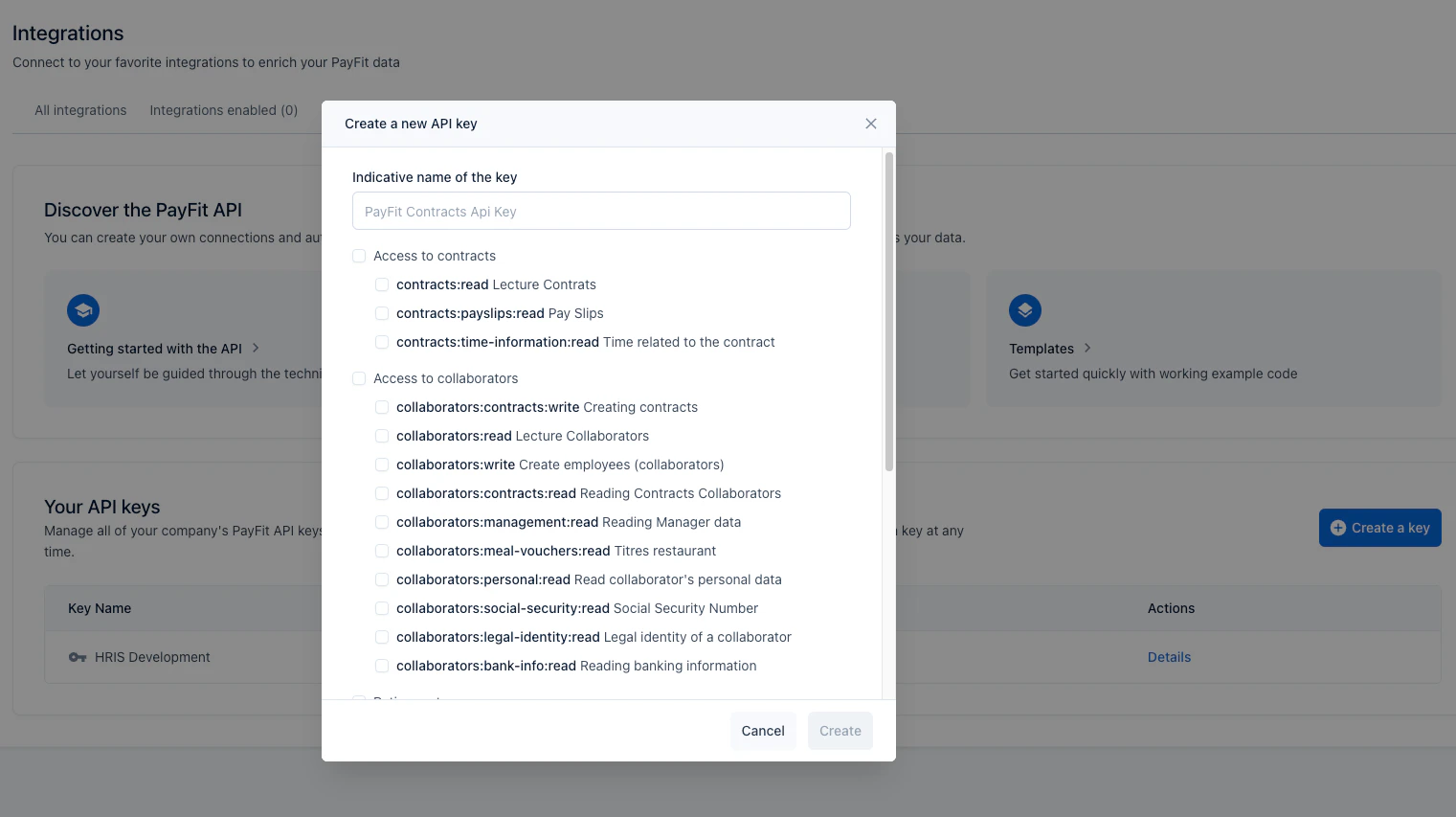
 Configure your key with an explicit label and the appropriate scopes.
- contracts:read
- contracts:time-information:read
- collaborators:contracts:write
- collaborators:read
- collaborators:write
- collaborators:contracts:read
- collaborators:management:read
- collaborators:personal:read
- collaborators:legal-identity:read
 Copy your newly created key and save it securely. You will not be able to access it again in the PayFit interface for security reasons.
## Connecting with StackOne
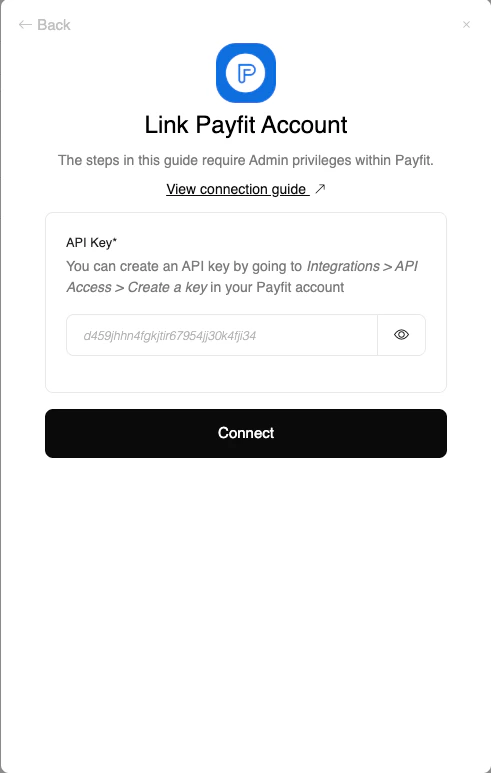
Upon reaching the Link Account page, enter the credential(s) from the previous steps:
* **API Key**
Proceed by clicking the Connect button.
Copy your newly created key and save it securely. You will not be able to access it again in the PayFit interface for security reasons.
## Connecting with StackOne
Upon reaching the Link Account page, enter the credential(s) from the previous steps:
* **API Key**
Proceed by clicking the Connect button.
Congratulations, you're all set! If you face any issues with the steps mentioned above,
please contact us by emailing [integrations@stackone.com](mailto:integrations@stackone.com). We're always here to assist you!
## Useful Links
[https://developers.payfit.io/docs/authentication-via-api-key](https://developers.payfit.io/docs/authentication-via-api-key)