> ## Documentation Index
> Fetch the complete documentation index at: https://stackone-hub-docs-confluence-api-token-update.mintlify.site/llms.txt
> Use this file to discover all available pages before exploring further.
# Personio
> Follow these steps to connect Personio with StackOne Hub successfully.
Ensure you have Admin privileges for your Personio account.
If you've been directed to StackOne to integrate with Personio, the following steps will help you understand the process and any necessary actions to configure successful integration.
This guidance assumes you have Admin privileges for your Personio account.
## Generating your API credentials
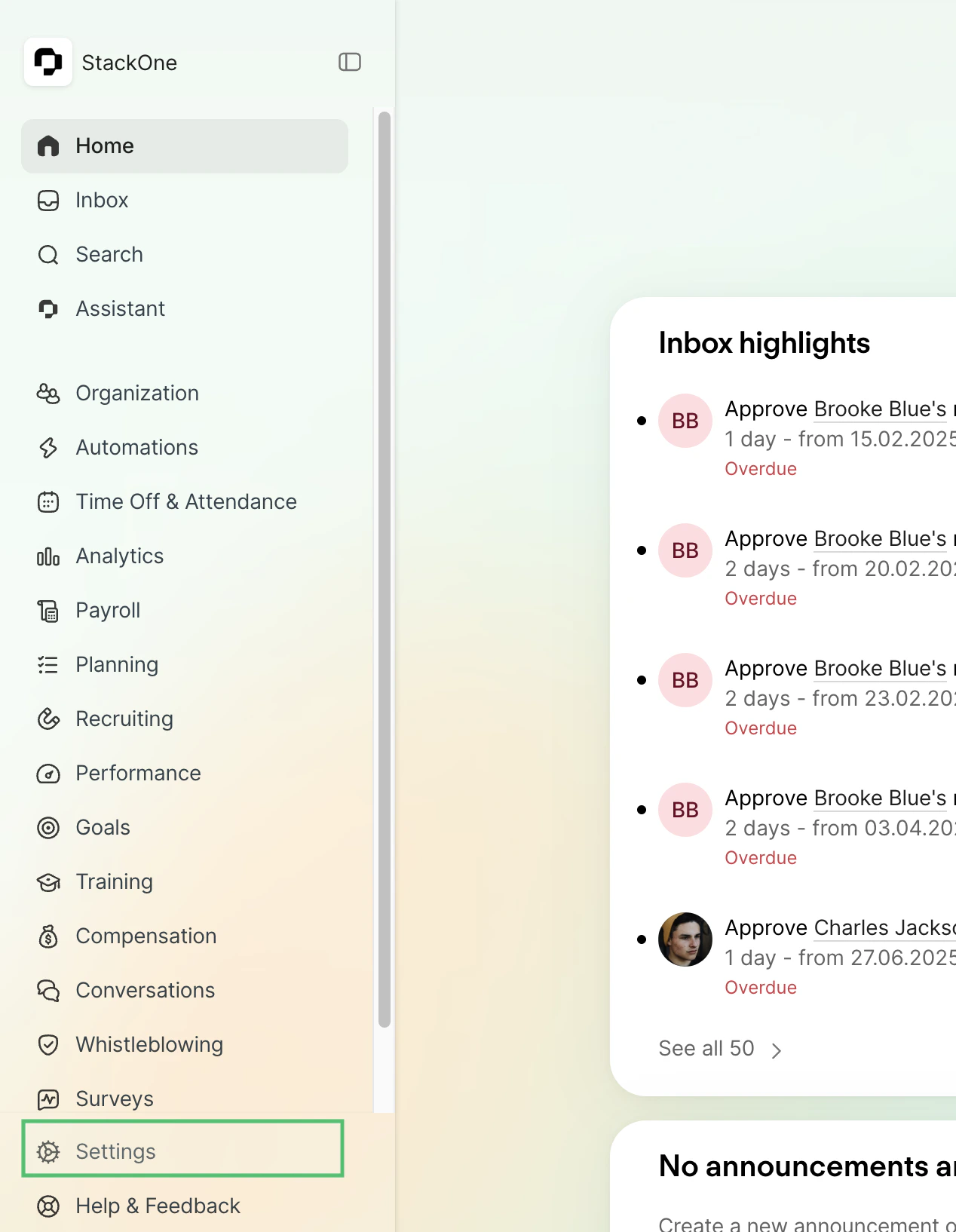
Sign in to the Personio website and click on the Settings tab on the left-hand side menu.
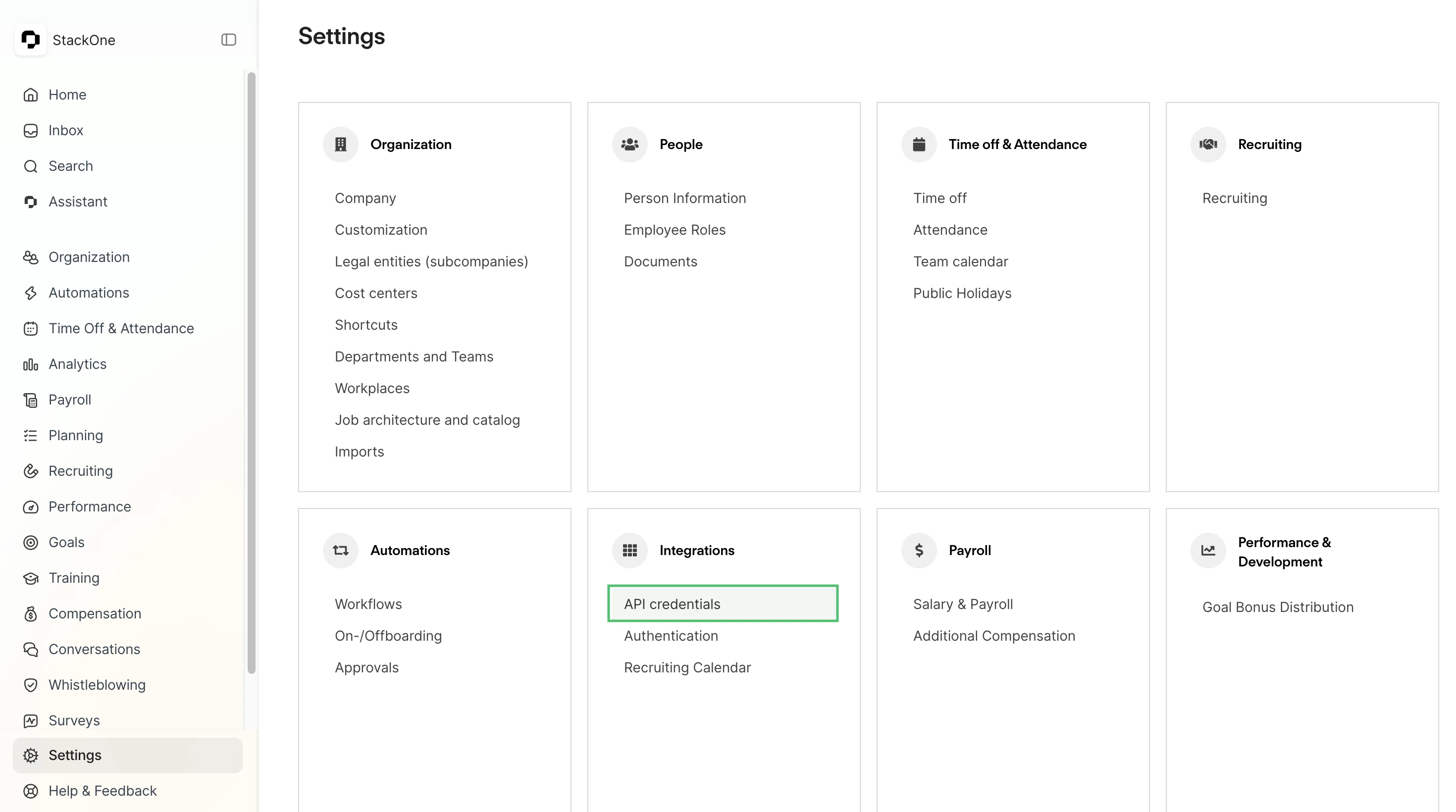
 In the Settings menu, scroll down to the "Integrations" section and click on "API credentials".
 On the "Connected integrations" page, click the "Create custom integration" button.
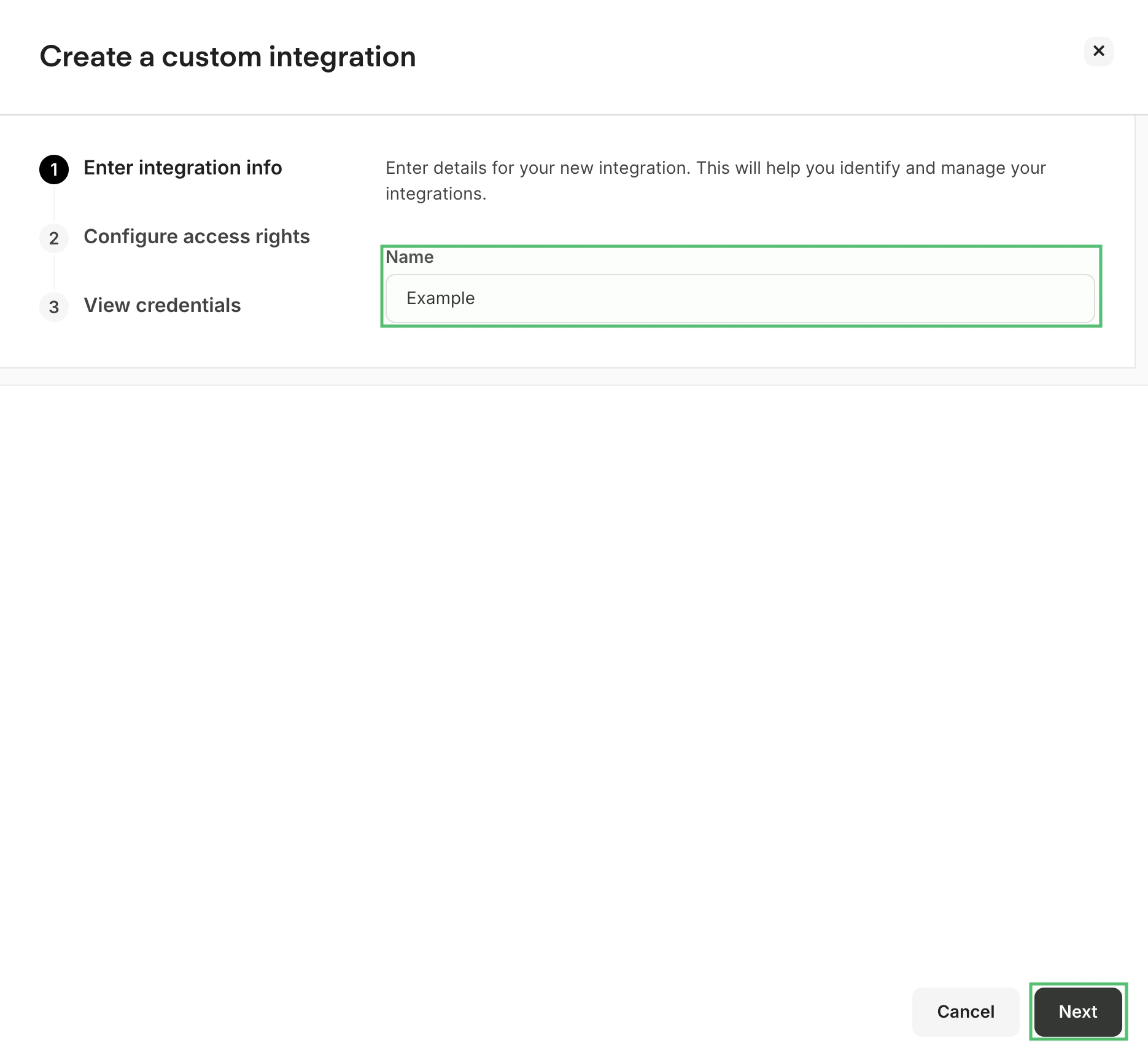
 In the first step of the integration creation dialog, enter a name for your integration, and then click on the Next button.
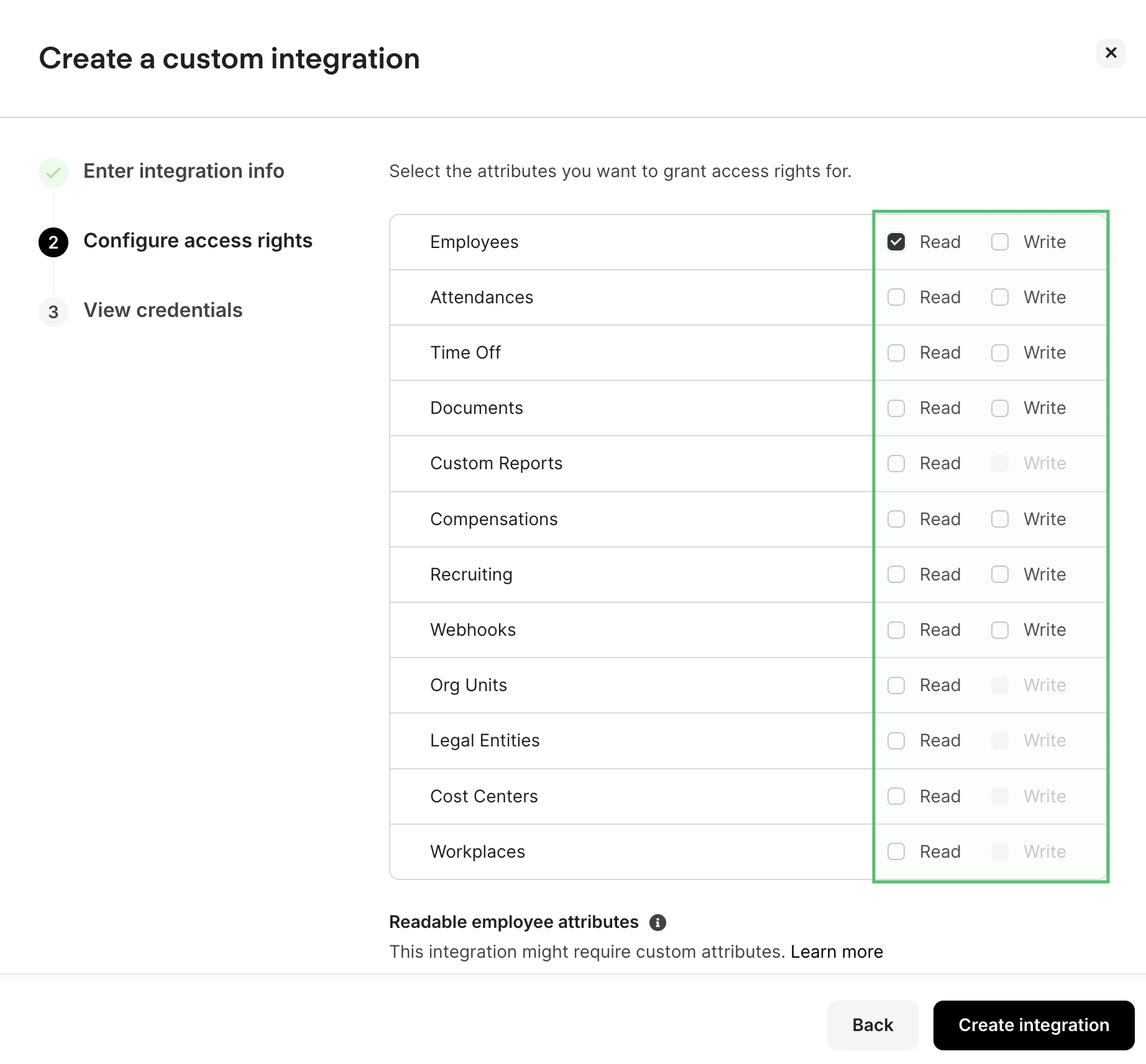
 In the second step, select the data types you want to grant access to. You must select at least one permission to continue. Common options include:
* **employees** (Read/Write)
* **attendances** (Read/Write)
* **Time off** (Read/Write)
* **documents** (Read/Write)
* **Recruiting** (Read/Write)
* **Webhooks** (Read/Write)
In the second step, select the data types you want to grant access to. You must select at least one permission to continue. Common options include:
* **employees** (Read/Write)
* **attendances** (Read/Write)
* **Time off** (Read/Write)
* **documents** (Read/Write)
* **Recruiting** (Read/Write)
* **Webhooks** (Read/Write)
 If you selected "employees" permissions, you can optionally click "Choose attributes" to select specific employee attributes you want to include in your data. You can also select all attributes.
After selecting your permissions, click "Create integration" to generate your API credentials.
Once the integration is created, you'll see your API credentials displayed:
* **Client ID**: A unique identifier for your integration
* **API Secret**: A secret key for authentication
Copy both values to a secure location. You can use the "Copy" buttons provided.
If you selected "employees" permissions, you can optionally click "Choose attributes" to select specific employee attributes you want to include in your data. You can also select all attributes.
After selecting your permissions, click "Create integration" to generate your API credentials.
Once the integration is created, you'll see your API credentials displayed:
* **Client ID**: A unique identifier for your integration
* **API Secret**: A secret key for authentication
Copy both values to a secure location. You can use the "Copy" buttons provided.
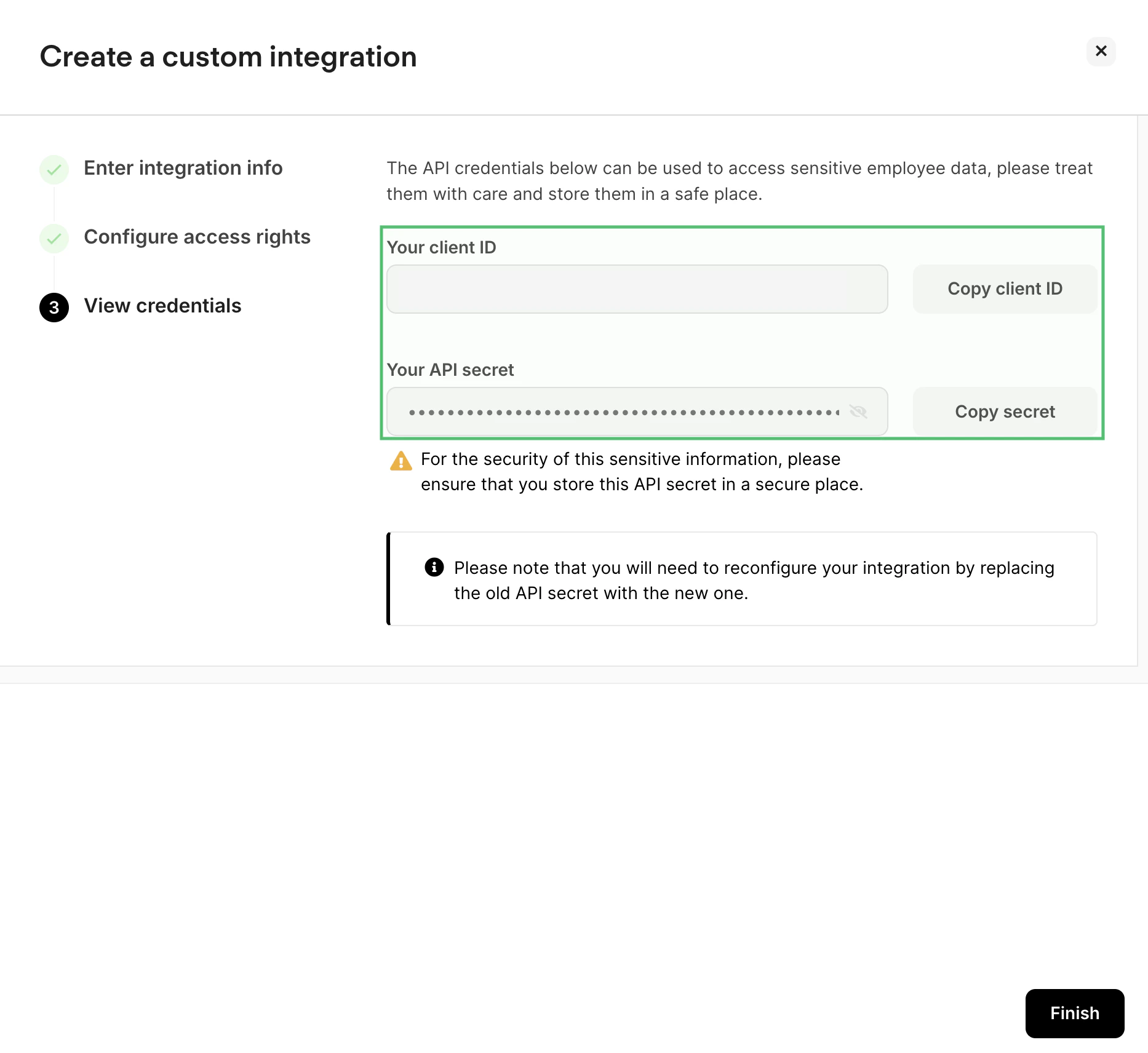 Copy your API credentials – client id and client secret to a safe place, then click "Finish".
## Connecting with StackOne Hub
Paste the API client ID and client secret in the StackOne Hub after selecting Personio as your HRIS provider.
Copy your company name from your Personio account, then paste your company name inside the Personio app id; please make sure the name is in capital letters.
Copy your API credentials – client id and client secret to a safe place, then click "Finish".
## Connecting with StackOne Hub
Paste the API client ID and client secret in the StackOne Hub after selecting Personio as your HRIS provider.
Copy your company name from your Personio account, then paste your company name inside the Personio app id; please make sure the name is in capital letters.
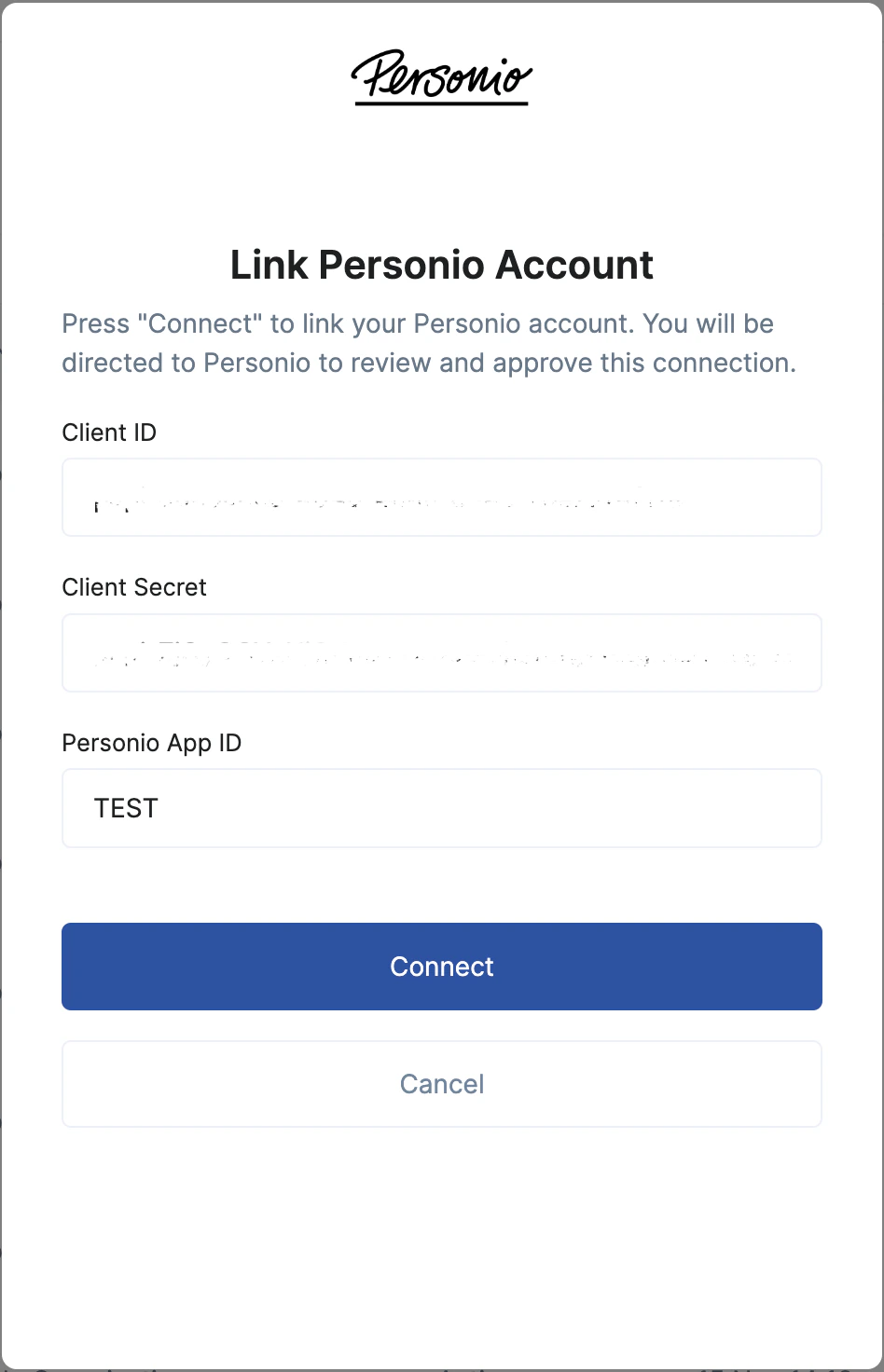
Congratulations, you're all set! If you face any issues with the steps mentioned above,
please contact us by emailing [integrations@stackone.com](mailto:integrations@stackone.com). We're always here to assist you!
## Useful Links
[https://developer.personio.de/docs/getting-started-with-the-personio-api](https://developer.personio.de/docs/getting-started-with-the-personio-api)