> ## Documentation Index
> Fetch the complete documentation index at: https://stackone-hub-docs-confluence-api-token-update.mintlify.site/llms.txt
> Use this file to discover all available pages before exploring further.

# Staffology HR

> Follow these steps to connect Staffology HR via the StackOne Hub successfully.

<Warning>
  Ensure you have Admin privileges for your Staffology HR account.
</Warning>

If you've been directed to StackOne to integrate with Staffology HR, the following steps will help you understand the process and any necessary actions to configure a successful integration.

This guidance assumes you have Admin privileges for your Staffology HR account.

## Enable API Access

<Steps>
  <Step title="Login to Staffology HR">
    Login to your Staffology HR account.
  </Step>

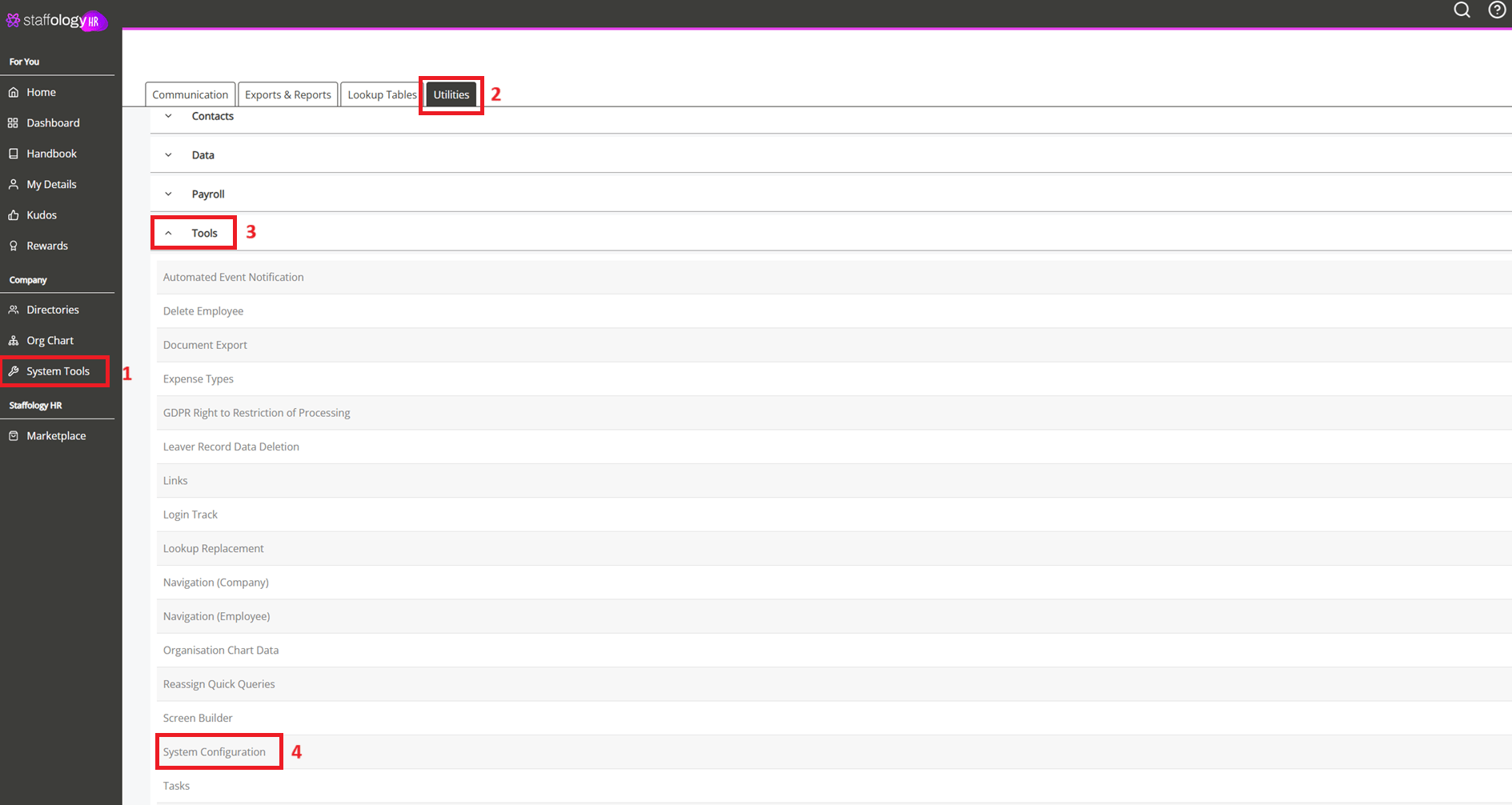
  <Step title="Open System Configuration">
    From the sidebar, navigate to: <strong>System Tools → Utilities → Tools → System Configuration</strong>.

    <Frame>
      <img className="rounded-md" style={{ margin: '0 auto', border: '1px solid #efefef' }} alt="System Configuration" src="https://mintcdn.com/stackone-hub-docs-confluence-api-token-update/0zRfAlVllz5bF-yn/images/staffologyhr/image1.png?fit=max&auto=format&n=0zRfAlVllz5bF-yn&q=85&s=3db2b79aedef68fdaf8bd7414e805160" width="1889" height="1006" data-path="images/staffologyhr/image1.png" />
    </Frame>
  </Step>

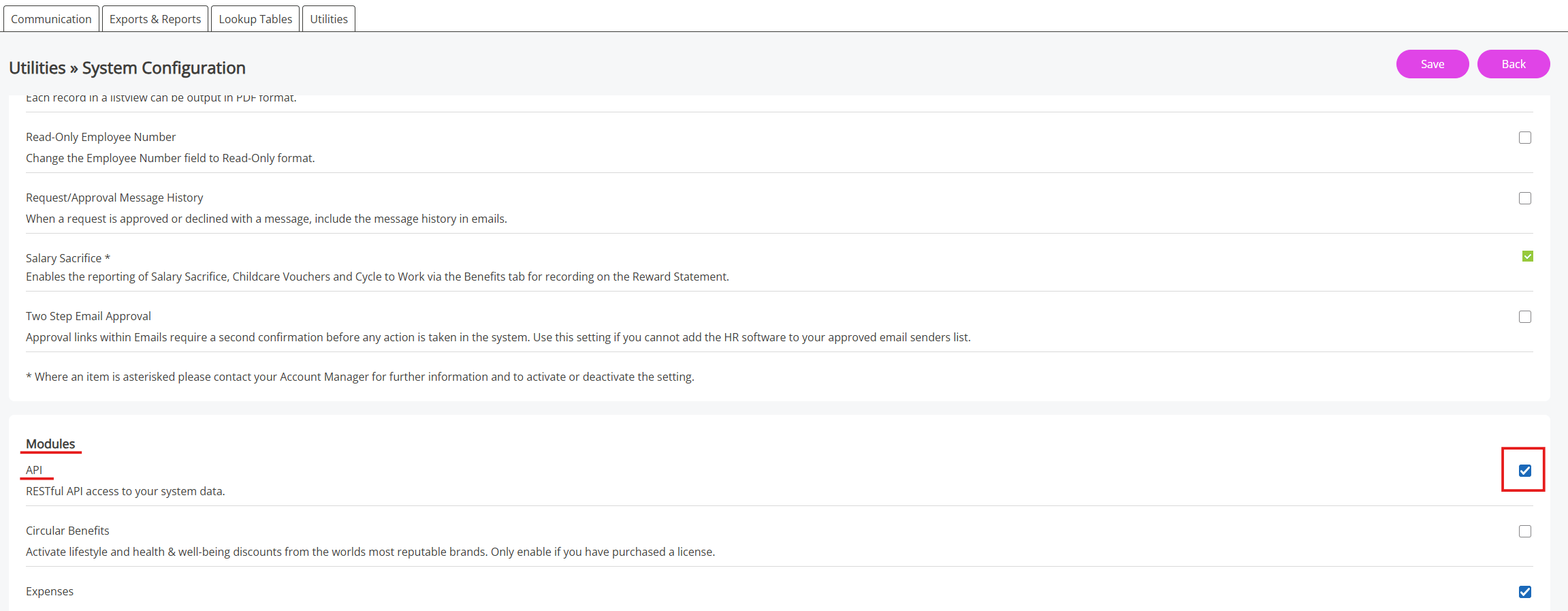
  <Step title="Enable API Access">
    In the <strong>Modules</strong> section, select the <strong>API</strong> checkbox to enable API access.

    <Frame>
      <img className="rounded-md" style={{ margin: '0 auto', border: '1px solid #efefef' }} alt="Enable API Access" src="https://mintcdn.com/stackone-hub-docs-confluence-api-token-update/0zRfAlVllz5bF-yn/images/staffologyhr/image2.png?fit=max&auto=format&n=0zRfAlVllz5bF-yn&q=85&s=c9dc8238b0456f93b19f49da8299f805" width="2303" height="897" data-path="images/staffologyhr/image2.png" />
    </Frame>
  </Step>
</Steps>

## Create an API User and Generate Credentials

<Steps>
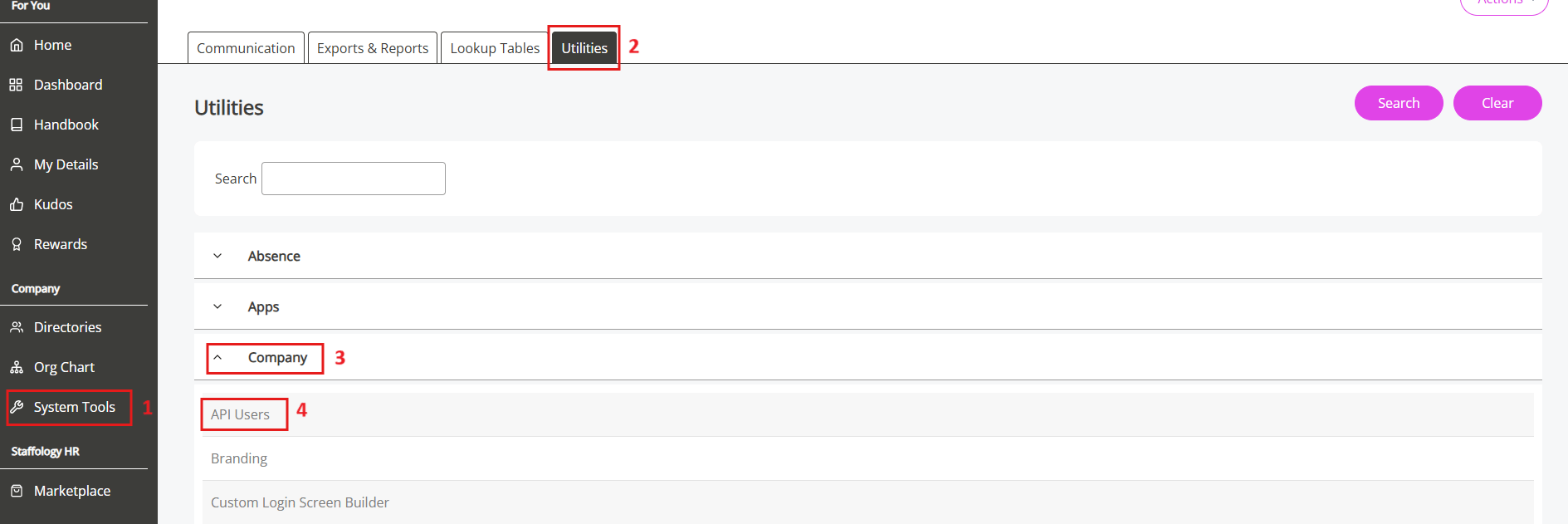
  <Step title="Go to API Users">
    From the sidebar, navigate to: <strong>System Tools → Utilities → Company → API Users</strong>.

    <Frame>
      <img className="rounded-md" style={{ margin: '0 auto', border: '1px solid #efefef' }} alt="API Users" src="https://mintcdn.com/stackone-hub-docs-confluence-api-token-update/0zRfAlVllz5bF-yn/images/staffologyhr/image3.png?fit=max&auto=format&n=0zRfAlVllz5bF-yn&q=85&s=04ef5896b859350ca99288fa0f75c564" width="1889" height="631" data-path="images/staffologyhr/image3.png" />
    </Frame>
  </Step>

  <Step title="Click Create User">
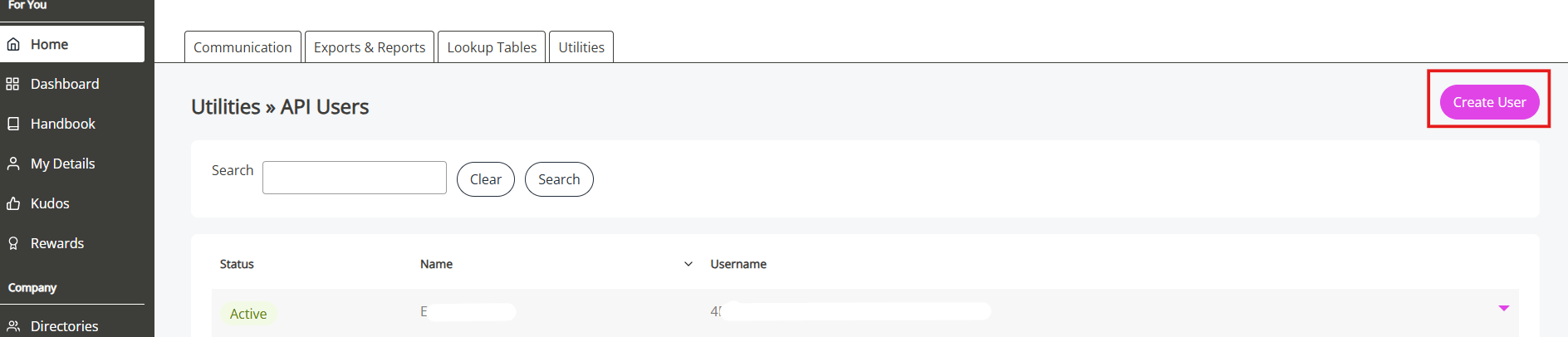
    On the <strong>API Users</strong> page, click the <strong>Create User</strong>
    button to start creating a new API user.
    <Frame>
      <img className="rounded-md" style={{ margin: "0 auto", border: "1px solid #efefef" }} alt="Click Create User" src="https://mintcdn.com/stackone-hub-docs-confluence-api-token-update/0zRfAlVllz5bF-yn/images/staffologyhr/image4.png?fit=max&auto=format&n=0zRfAlVllz5bF-yn&q=85&s=d163664c9d9830113e416af69b68beed" width="1888" height="406" data-path="images/staffologyhr/image4.png" />
    </Frame>
  </Step>

  <Step title="Enter User Details">
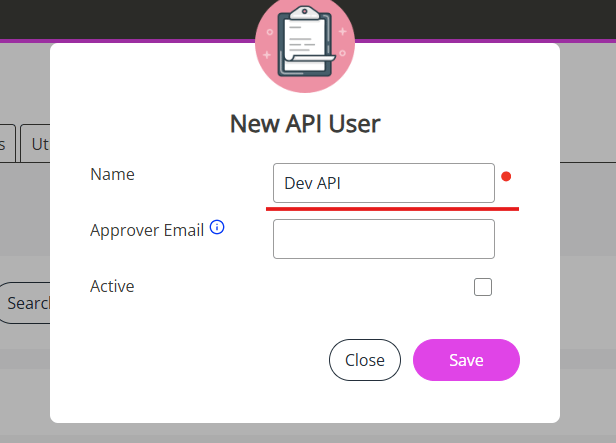
    In the <strong>New API User</strong> popup, enter a name for the user that
    relates to the API integration.
    <Frame>
      <img className="rounded-md" style={{ margin: "0 auto", border: "1px solid #efefef" }} alt="Enter User Details" src="https://mintcdn.com/stackone-hub-docs-confluence-api-token-update/0zRfAlVllz5bF-yn/images/staffologyhr/image5.png?fit=max&auto=format&n=0zRfAlVllz5bF-yn&q=85&s=35d96c9308145f1ce1b9cc45144c7bc9" width="616" height="443" data-path="images/staffologyhr/image5.png" />
    </Frame>
  </Step>

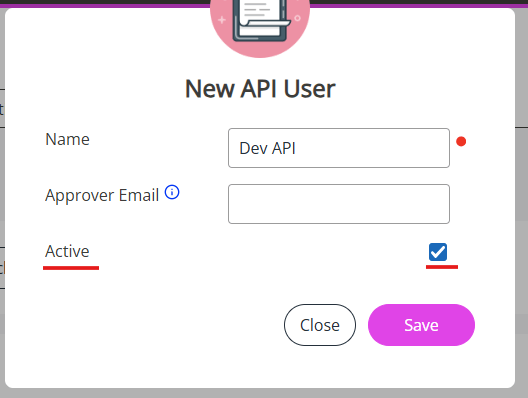
  <Step title="Activate the User">
    Select the <strong>Active</strong> checkbox to enable the user.

    <Frame>
      <img className="rounded-md" style={{ margin: "0 auto", border: "1px solid #efefef" }} alt="Activate User" src="https://mintcdn.com/stackone-hub-docs-confluence-api-token-update/0zRfAlVllz5bF-yn/images/staffologyhr/image6.png?fit=max&auto=format&n=0zRfAlVllz5bF-yn&q=85&s=bed32a86d9e241ebc11113f8be69bcef" width="528" height="398" data-path="images/staffologyhr/image6.png" />
    </Frame>
  </Step>

  <Step title="Save the User">
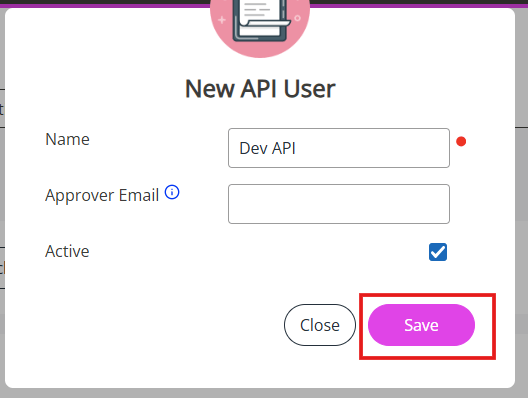
    Click <strong>Save</strong> to create the API user.

    <Frame>
      <img className="rounded-md" style={{ margin: "0 auto", border: "1px solid #efefef" }} alt="Save User" src="https://mintcdn.com/stackone-hub-docs-confluence-api-token-update/0zRfAlVllz5bF-yn/images/staffologyhr/image7.png?fit=max&auto=format&n=0zRfAlVllz5bF-yn&q=85&s=98a91c5cc6145ef9e5a6c1026aef5a99" width="528" height="398" data-path="images/staffologyhr/image7.png" />
    </Frame>
  </Step>

  <Step title="Generate Credentials">
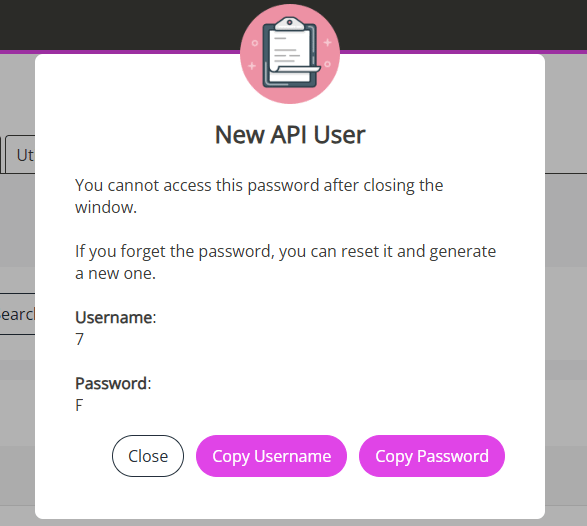
    Saving will generate a <strong>Username</strong> and <strong>Password</strong>
    for the API user.
    <br /> Copy and securely store both credentials.
    <Frame>
      <img className="rounded-md" style={{ margin: "0 auto", border: "1px solid #efefef" }} alt="Generate Credentials" src="https://mintcdn.com/stackone-hub-docs-confluence-api-token-update/0zRfAlVllz5bF-yn/images/staffologyhr/image8.png?fit=max&auto=format&n=0zRfAlVllz5bF-yn&q=85&s=e4f266e34f24a6b9903d28b1e4119083" width="587" height="526" data-path="images/staffologyhr/image8.png" />
    </Frame>
  </Step>
</Steps>

<Note>
  Creating an API user grants full <strong>Set Rights</strong> permissions.
</Note>

## Connecting with StackOne

<Steps>
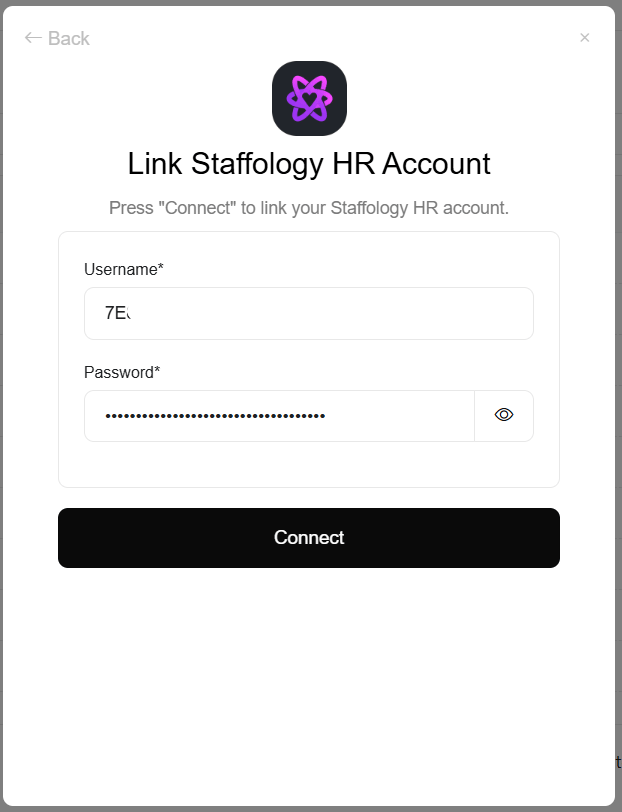
  <Step title="Enter Username & Password">
    Upon reaching the Link Account page, enter the gathered username and
    password and proceed by clicking the `Connect` button.
    <Frame>
      <img className="rounded-md" style={{ margin: "0 auto", border: "1px solid #efefef" }} alt="Link Account" src="https://mintcdn.com/stackone-hub-docs-confluence-api-token-update/0zRfAlVllz5bF-yn/images/staffologyhr/image9.png?fit=max&auto=format&n=0zRfAlVllz5bF-yn&q=85&s=d982c3a65dcad7e3f97624ddbea4dc8f" width="622" height="812" data-path="images/staffologyhr/image9.png" />
    </Frame>
  </Step>
</Steps>

<br />

Congratulations, you're all set! If you face any issues with the steps mentioned above,
please contact us by emailing [integrations@stackone.com](mailto:integrations@stackone.com). We're always here to assist you!

## Useful Links

<Card title="API Reference" icon="link" href="https://help.staffology.co.uk/hr/integrations/api-user-create.htm">
  [https://help.staffology.co.uk/hr/integrations/api-user-create.htm](https://help.staffology.co.uk/hr/integrations/api-user-create.htm)
</Card>