> ## Documentation Index
> Fetch the complete documentation index at: https://stackone-hub-docs-confluence-api-token-update.mintlify.site/llms.txt
> Use this file to discover all available pages before exploring further.
# Workday WQL (OAuth)
> Follow these steps to understand the process and actions required for a successful connection.
This guidance assumes you have administrator privileges for your Workday account.
## Finding your Workday Tenant
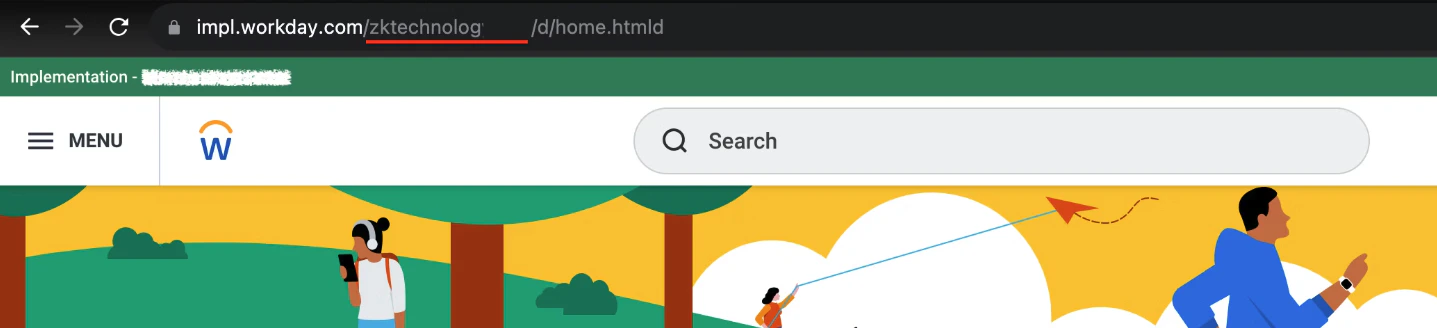
Log in to your Workday account. In the browser’s address bar, locate your tenant immediately after `workday.com/`.
If your URL is `https://my-instance.workday.com/my-tenant/d/etc`, your tenant is `my-tenant`.
 ## Finding the Web Services Endpoint
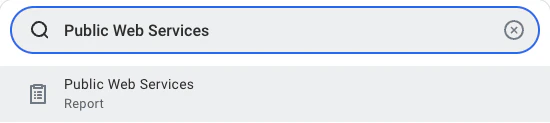
Search and navigate to the `Public Web Services` report.
## Finding the Web Services Endpoint
Search and navigate to the `Public Web Services` report.
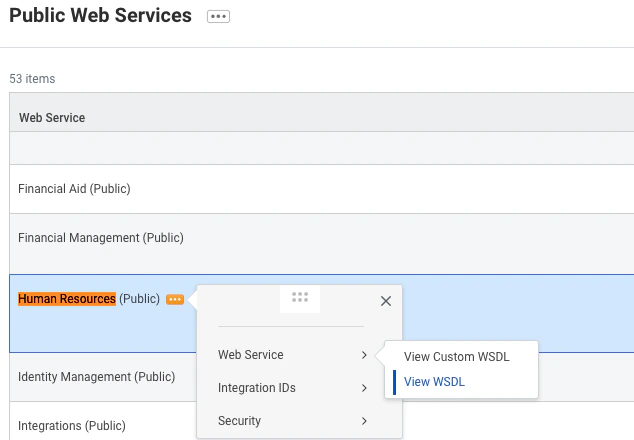
 Locate **Human Resources** and hover to open the menu. From the three‑dot menu choose `Web Service` then click `View WSDL` (the page may take a minute to load).
 Search for `wsdl:service` or scroll to the bottom of the page. You should see a section like this:
 Copy everything before `/service` in the location attribute. Exclude the `https://` prefix. In the example above this would be `wd2-impl-services1.workday.com/ccx` (yours may differ, e.g. `wd5-services1.myworkday.com/ccx`).
Save this value to be used in a later step.
## Set up an Integration System User
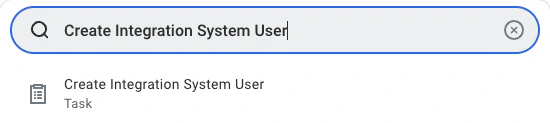
Search and navigate to the `Create Integration System User` task.
 Enter a username and password in the Account Information section.
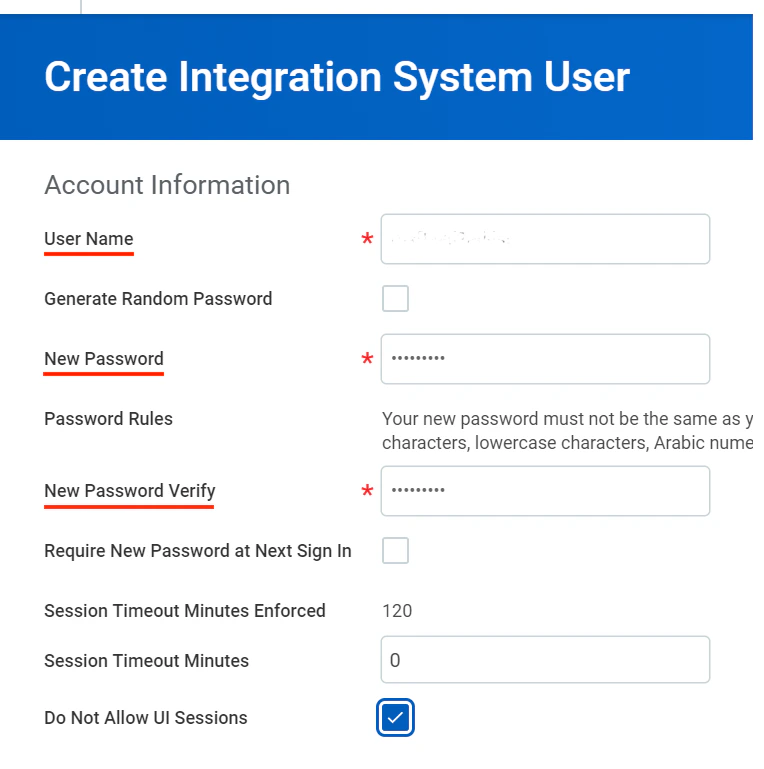 Click `OK` to create the user.
## Add the Integration System User to a Security Group
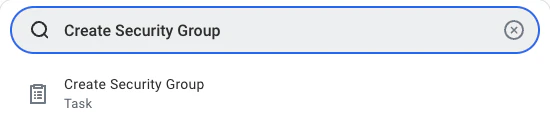
Search and navigate to the `Create Security Group` task.
Click `OK` to create the user.
## Add the Integration System User to a Security Group
Search and navigate to the `Create Security Group` task.
 Select `Integration System Security Group (Unconstrained)` from the Type of Tenanted Security Group drop‑down and enter the same name used when creating the Integration System User.
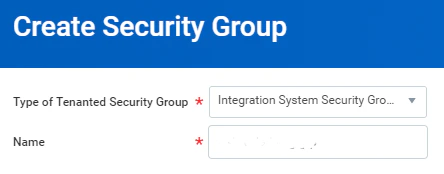 Click `OK`.
Select `Integration System Users` from the drop-down menu. You may choose the user created in the [step](#set-up-an-integration-system-user) above or any other user to whom you want to assign this security group.
Click `OK`.
Select `Integration System Users` from the drop-down menu. You may choose the user created in the [step](#set-up-an-integration-system-user) above or any other user to whom you want to assign this security group.
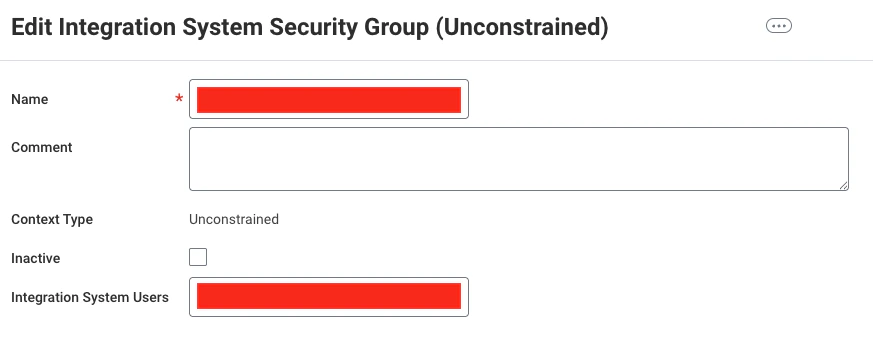 Click `OK`.
## Configure Domain Security Policy Permissions
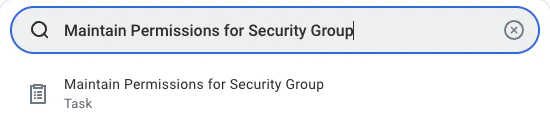
Search and navigate to the `Maintain Permissions for Security Group` task.
Click `OK`.
## Configure Domain Security Policy Permissions
Search and navigate to the `Maintain Permissions for Security Group` task.
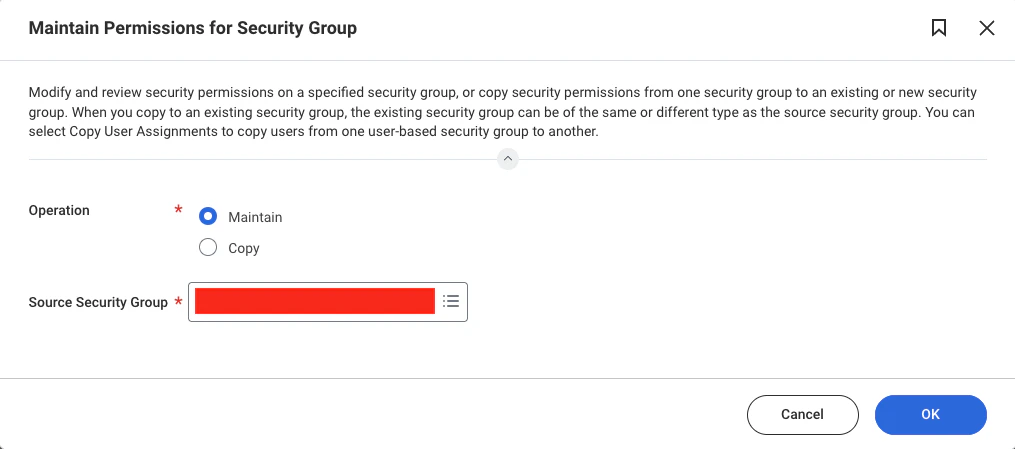
 Select the Security Group name created earlier.
 This integration uses the following Workday Security Group permissions.
Set each listed permission to **Get Only/View Only** for read access in the *View/Modify Access* column.
The Workday HRIS integration currently requires **all** of the permissions listed below to be enabled for full support.
This integration uses the following Workday Security Group permissions.
Set each listed permission to **Get Only/View Only** for read access in the *View/Modify Access* column.
The Workday HRIS integration currently requires **all** of the permissions listed below to be enabled for full support.
Workday's API may return an error response if any of these permissions are missing.
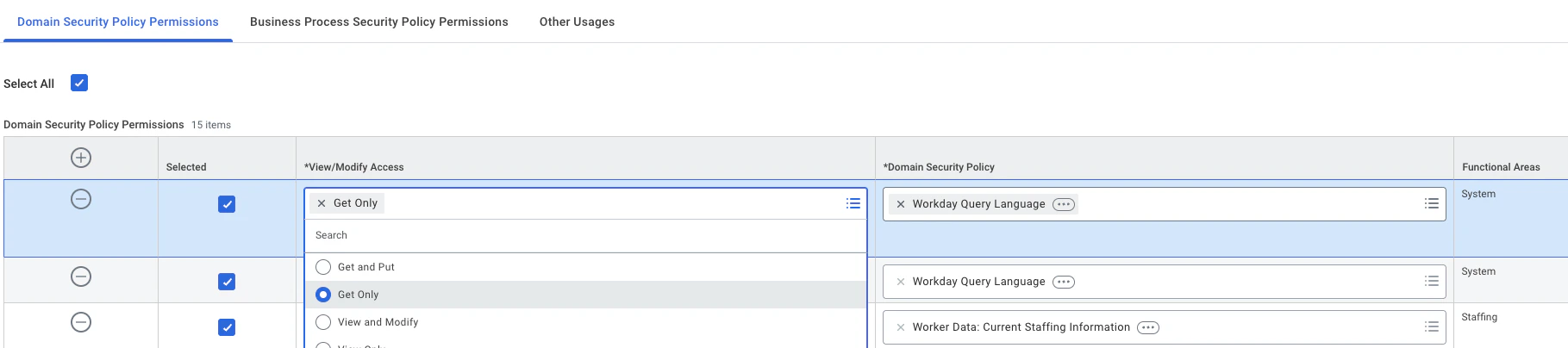 Please note that Security Group Permissions can be customised within a Workday organisation, and this list does not account for such customisations.
| Domain Security Policy | View/Modify Access |
| ----------------------------------------- | ------------------ |
| WQL for Workday Extend | Get Only |
| Worker Data: Current Staffing Information | Get Only |
| Workday Query Language | Get Only |
| Workday Query Language | View Only |
| Person Data: Name | Get Only |
| Person Data: Marital Status | Get Only |
| Person Data: Work Email | Get Only |
| Person Data: ID Information | Get Only |
| Person Data: Home Phone | Get Only |
| Person Data: Gender | Get Only |
| Person Data: Home Email | Get Only |
| Person Data: Date of Birth | Get Only |
| Person Data: Work Phone | Get Only |
| Person Data: Ethnicity | Get Only |
Depending on the fields included in your custom report, additional **Domain Security Policy Permissions** may be required.
If you encounter `null` values in the API response, review and add the necessary permissions accordingly.
## Activate the Security Policy Changes
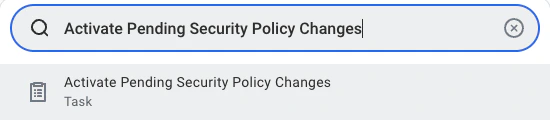
Search and navigate to the `Activate Pending Security Policy Changes` task.
Please note that Security Group Permissions can be customised within a Workday organisation, and this list does not account for such customisations.
| Domain Security Policy | View/Modify Access |
| ----------------------------------------- | ------------------ |
| WQL for Workday Extend | Get Only |
| Worker Data: Current Staffing Information | Get Only |
| Workday Query Language | Get Only |
| Workday Query Language | View Only |
| Person Data: Name | Get Only |
| Person Data: Marital Status | Get Only |
| Person Data: Work Email | Get Only |
| Person Data: ID Information | Get Only |
| Person Data: Home Phone | Get Only |
| Person Data: Gender | Get Only |
| Person Data: Home Email | Get Only |
| Person Data: Date of Birth | Get Only |
| Person Data: Work Phone | Get Only |
| Person Data: Ethnicity | Get Only |
Depending on the fields included in your custom report, additional **Domain Security Policy Permissions** may be required.
If you encounter `null` values in the API response, review and add the necessary permissions accordingly.
## Activate the Security Policy Changes
Search and navigate to the `Activate Pending Security Policy Changes` task.
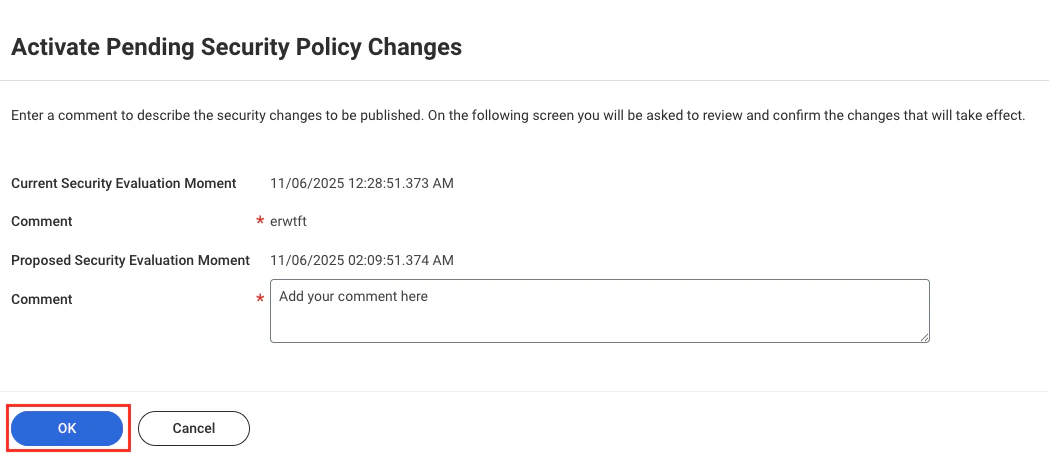
 Add an optional comment then click `OK`.
 Review the policies that require approval in the summary of the security policy changes. Tick the confirmation box and click `OK` to approve the pending security policy changes to activate them.
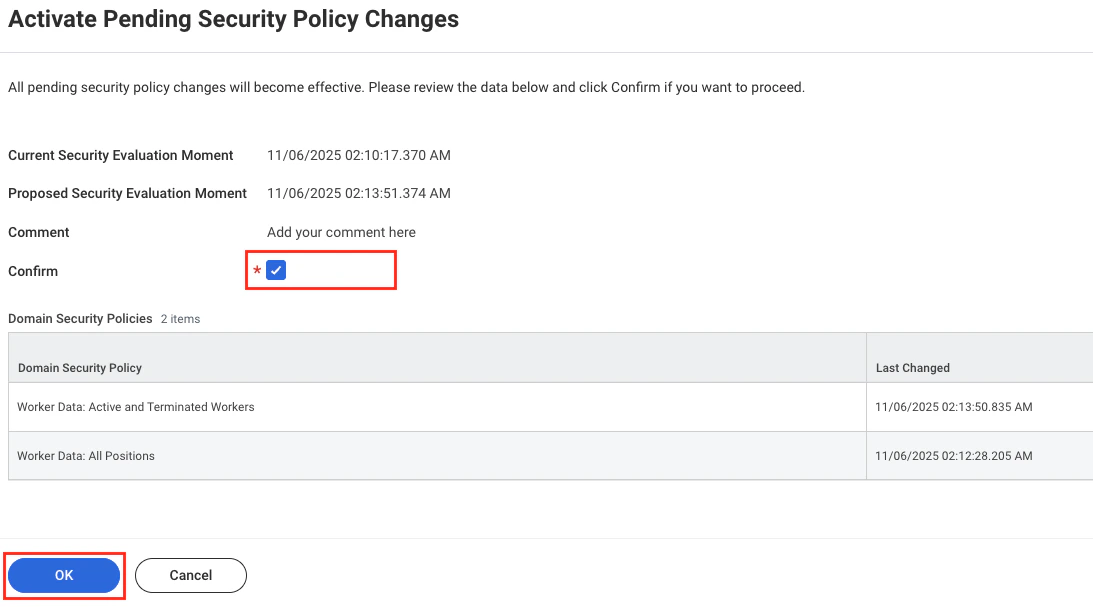 You must **activate security changes** each time you modify Domain Security Policy Permissions; otherwise changes will not take effect.
## Register the REST API Client
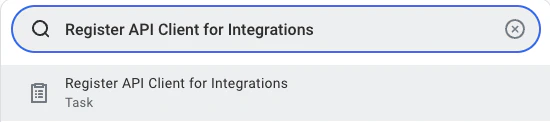
Search and navigate to the `Register API Client for Integrations` task.
You must **activate security changes** each time you modify Domain Security Policy Permissions; otherwise changes will not take effect.
## Register the REST API Client
Search and navigate to the `Register API Client for Integrations` task.
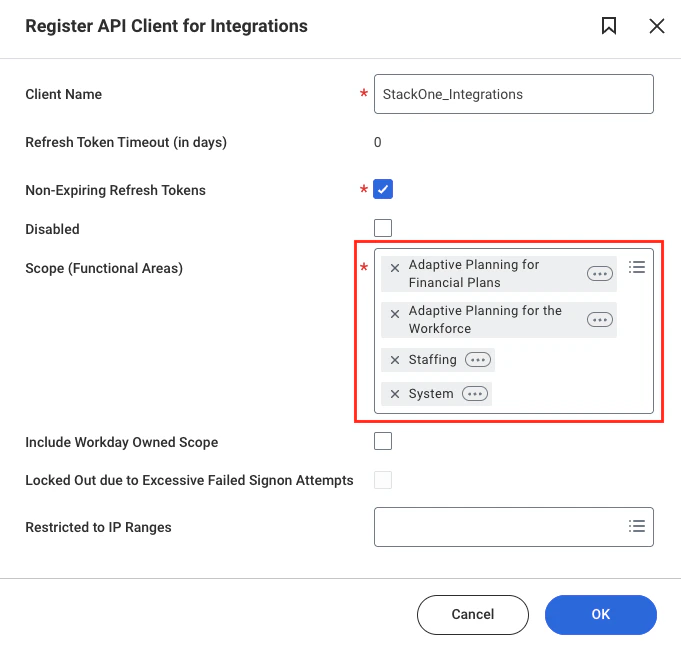
 Register the API client with the following details:
* **Client Name**: Any name (e.g. `StackOne_Integrations`).
* **Non‑Expiring Refresh Tokens**: Tick the box.
* **Scopes**: Select required functional scopes for API access:
* *Adaptive Planning for Financial Plans*
* *Adaptive Planning for the Workforce*
* *Staffing*
* *System*
Register the API client with the following details:
* **Client Name**: Any name (e.g. `StackOne_Integrations`).
* **Non‑Expiring Refresh Tokens**: Tick the box.
* **Scopes**: Select required functional scopes for API access:
* *Adaptive Planning for Financial Plans*
* *Adaptive Planning for the Workforce*
* *Staffing*
* *System*
 Click `OK`.
After registration a page displays the **Client ID** and **Client Secret**. Copy and store these credentials securely.
Click `OK`.
After registration a page displays the **Client ID** and **Client Secret**. Copy and store these credentials securely.
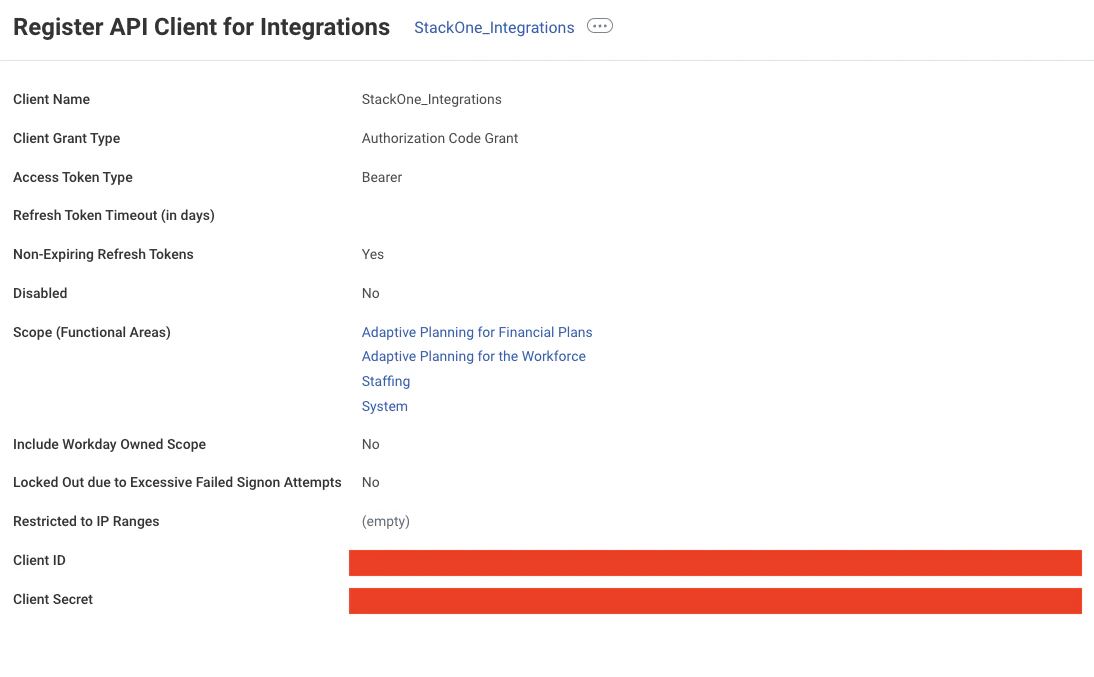 * At the top of the page click the **menu (⋯)** icon.
* Select **API Client**.
* Click **Manage Refresh Tokens for Integrations**.
* At the top of the page click the **menu (⋯)** icon.
* Select **API Client**.
* Click **Manage Refresh Tokens for Integrations**.
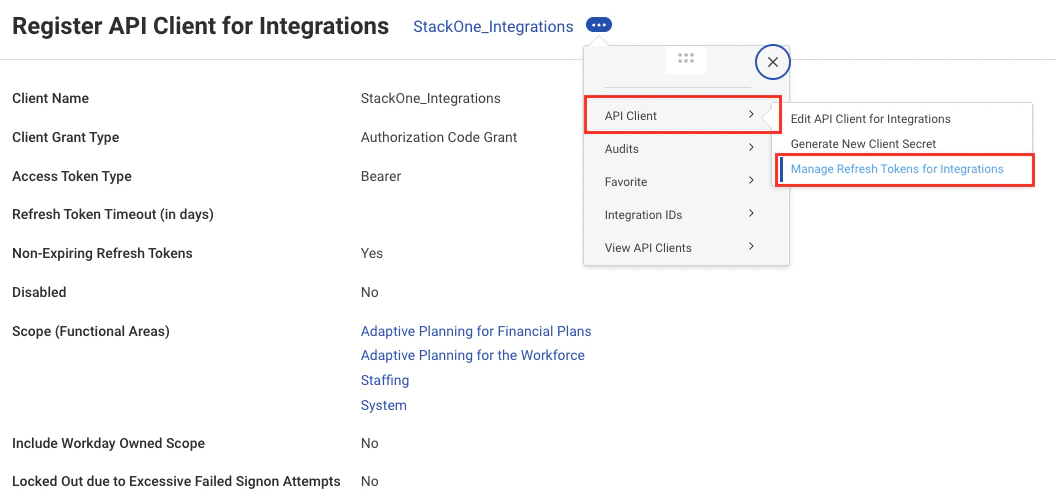 Choose your Workday account (the [Integration System User](#set-up-an-integration-system-user) you've created earlier) and click `OK`.
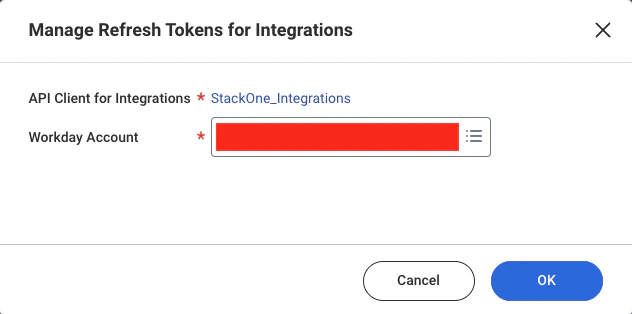 On the refresh token page select **Generate New Refresh Token** and click `OK`.
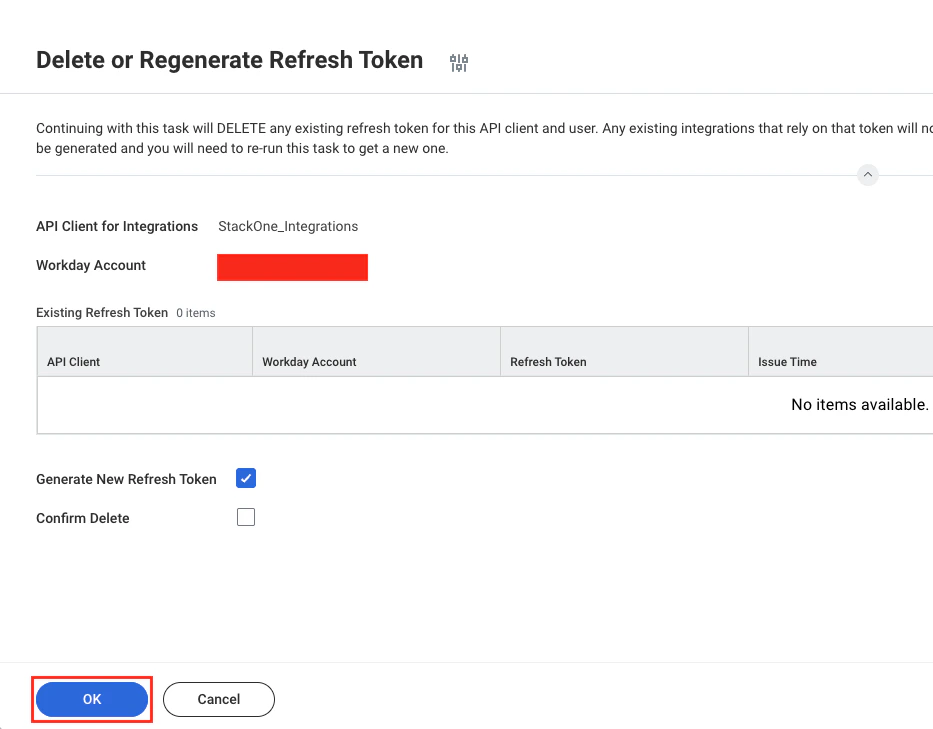 When generated, copy the token and click `Done`.
 ## Custom WQL Query
This section outlines a recommended workflow for generating a WQL query. If your organisation already has a validated WQL query for the required employee data, you can skip these steps and proceed directly to **[Connecting to StackOne](#connecting-to-stackone)**.
Creating a custom report is optional for generating WQL (Workday Query Language). However, there are several ways to obtain WQL:
## Custom WQL Query
This section outlines a recommended workflow for generating a WQL query. If your organisation already has a validated WQL query for the required employee data, you can skip these steps and proceed directly to **[Connecting to StackOne](#connecting-to-stackone)**.
Creating a custom report is optional for generating WQL (Workday Query Language). However, there are several ways to obtain WQL:
* **Custom Report**: By using the custom report feature, users can more accurately tailor the data they wish to extract from the data source and then convert the report to WQL.
* **Standard Reports**: You can utilise existing standard reports and convert them directly to WQL. To do this, navigate to **Convert Report to WQL** and select the `Standard Report`.
* **Data Sources**: You can also navigate to the **Data Sources** using global search and access a specific data source (e.g., All Workers) to view the available data source fields. From there, you can form a WQL query according to the WQL syntax.
## Create and View a Custom Report
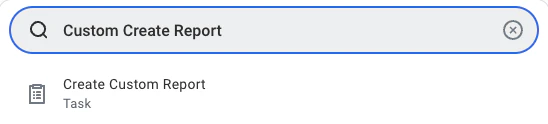
Search and navigate to the `Create Custom Report` task
 Follow these steps to configure the custom report:
* **Report Name**: Must be unique within the tenant
* **Report Type**: Select **Advanced**
* **Optimised for Performance**: Tick this box to enhance performance
* **Data Source**: Choose the appropriate data source based on the data you need (e.g. Workers for HCM reporting).
Follow these steps to configure the custom report:
* **Report Name**: Must be unique within the tenant
* **Report Type**: Select **Advanced**
* **Optimised for Performance**: Tick this box to enhance performance
* **Data Source**: Choose the appropriate data source based on the data you need (e.g. Workers for HCM reporting).
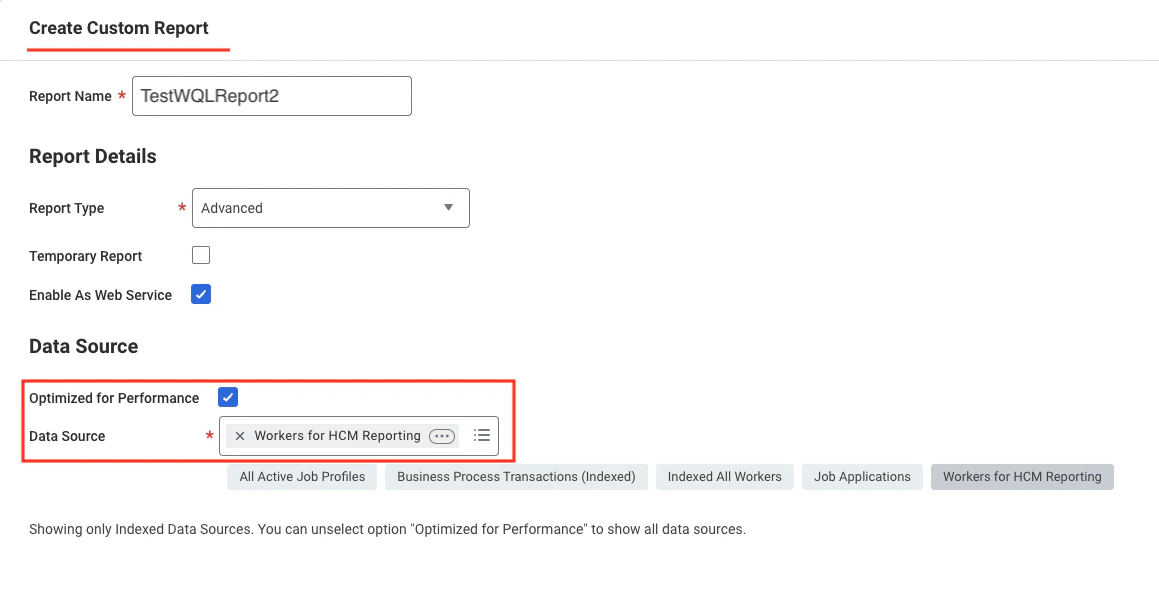 Click `OK` to continue.
Add and configure report fields:
* Click the `+` icon to add a field.
* Select a Business Object (e.g. Worker) in the **Business Object** column.
* Choose the specific field (e.g. Employee ID) in the **Field** column.
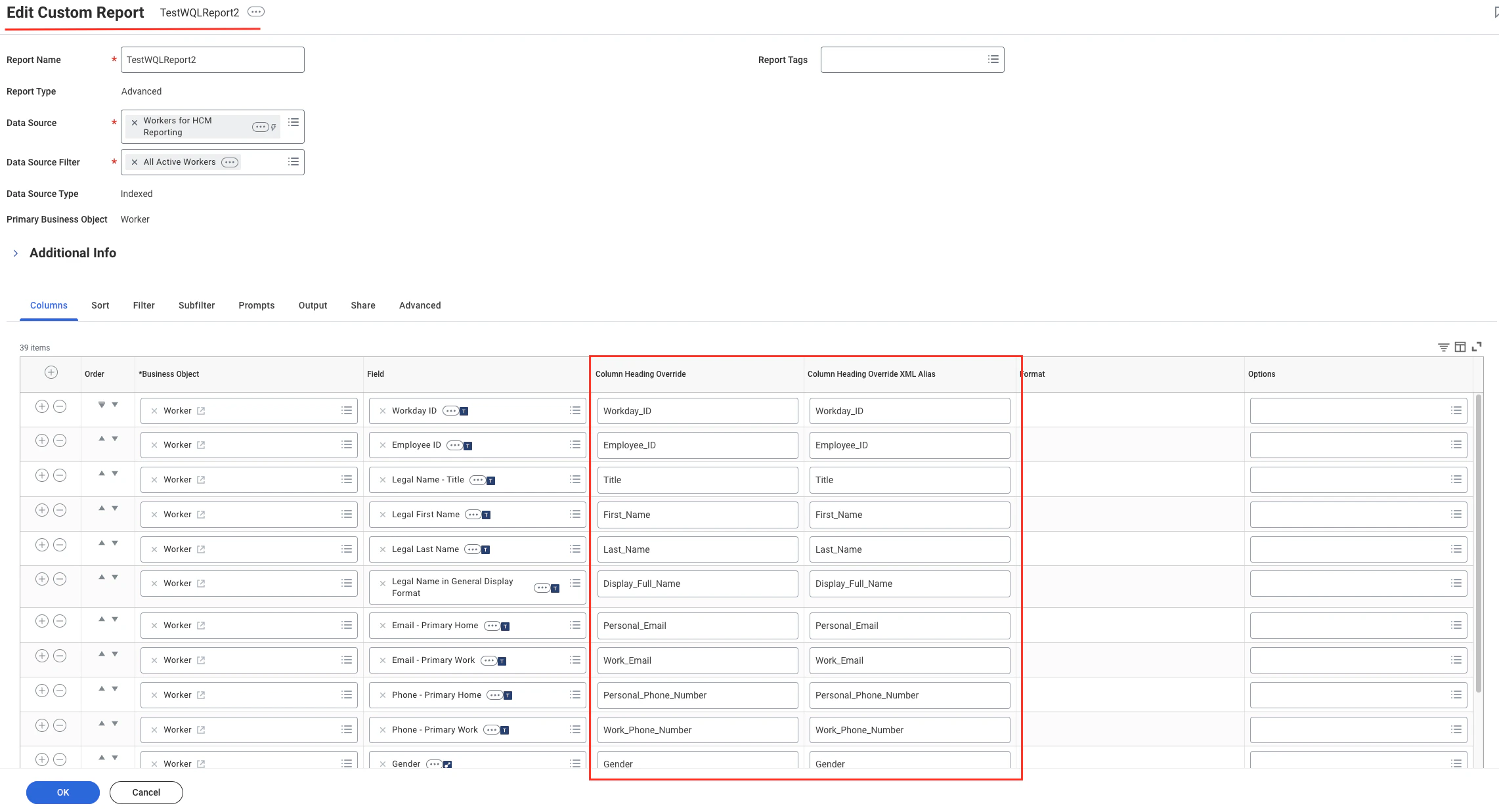
* Set aliases in **Column Heading Override** to ensure stable field names in API responses.
The **Column Heading Override XML Alias** column will appear only after you enable **Enable As Web Service** under the Advanced tab and save the report. You can view this column when you return to edit the report.
Add following **field's Alias** in your report. The aliases serve as stable identifiers for the API responses but the underlying fields must be properly configured.
* Workday\_ID
* Employee\_ID
* Title
* First\_Name
* Last\_Name
* Display\_Full\_Name
* Personal\_Email
* Work\_Email
* Personal\_Phone\_Number
* Work\_Phone\_Number
* Gender
* Ethnicity
* Date\_Of\_Birth
* Marital\_Status
* Job\_Title
* Company
* Hire\_Date
* Original\_Hire\_Date
* Employment\_Status
* Location
* Employment\_Type
* Manager
* Cost\_Centers
* National\_Identifier\_Numbers
* Termination\_Date
* Home\_Address
* Home\_Address\_Country
* Home\_Address\_Postal\_Code
* Home\_Address\_State
* Home\_Address\_City
* Work\_Address
* Work\_Address\_Country
* Citizenships
* Job\_Code
* Effective\_Date
* Grade
* Benefits
* Skills
Click `OK` to continue.
Add and configure report fields:
* Click the `+` icon to add a field.
* Select a Business Object (e.g. Worker) in the **Business Object** column.
* Choose the specific field (e.g. Employee ID) in the **Field** column.
* Set aliases in **Column Heading Override** to ensure stable field names in API responses.
The **Column Heading Override XML Alias** column will appear only after you enable **Enable As Web Service** under the Advanced tab and save the report. You can view this column when you return to edit the report.
Add following **field's Alias** in your report. The aliases serve as stable identifiers for the API responses but the underlying fields must be properly configured.
* Workday\_ID
* Employee\_ID
* Title
* First\_Name
* Last\_Name
* Display\_Full\_Name
* Personal\_Email
* Work\_Email
* Personal\_Phone\_Number
* Work\_Phone\_Number
* Gender
* Ethnicity
* Date\_Of\_Birth
* Marital\_Status
* Job\_Title
* Company
* Hire\_Date
* Original\_Hire\_Date
* Employment\_Status
* Location
* Employment\_Type
* Manager
* Cost\_Centers
* National\_Identifier\_Numbers
* Termination\_Date
* Home\_Address
* Home\_Address\_Country
* Home\_Address\_Postal\_Code
* Home\_Address\_State
* Home\_Address\_City
* Work\_Address
* Work\_Address\_Country
* Citizenships
* Job\_Code
* Effective\_Date
* Grade
* Benefits
* Skills
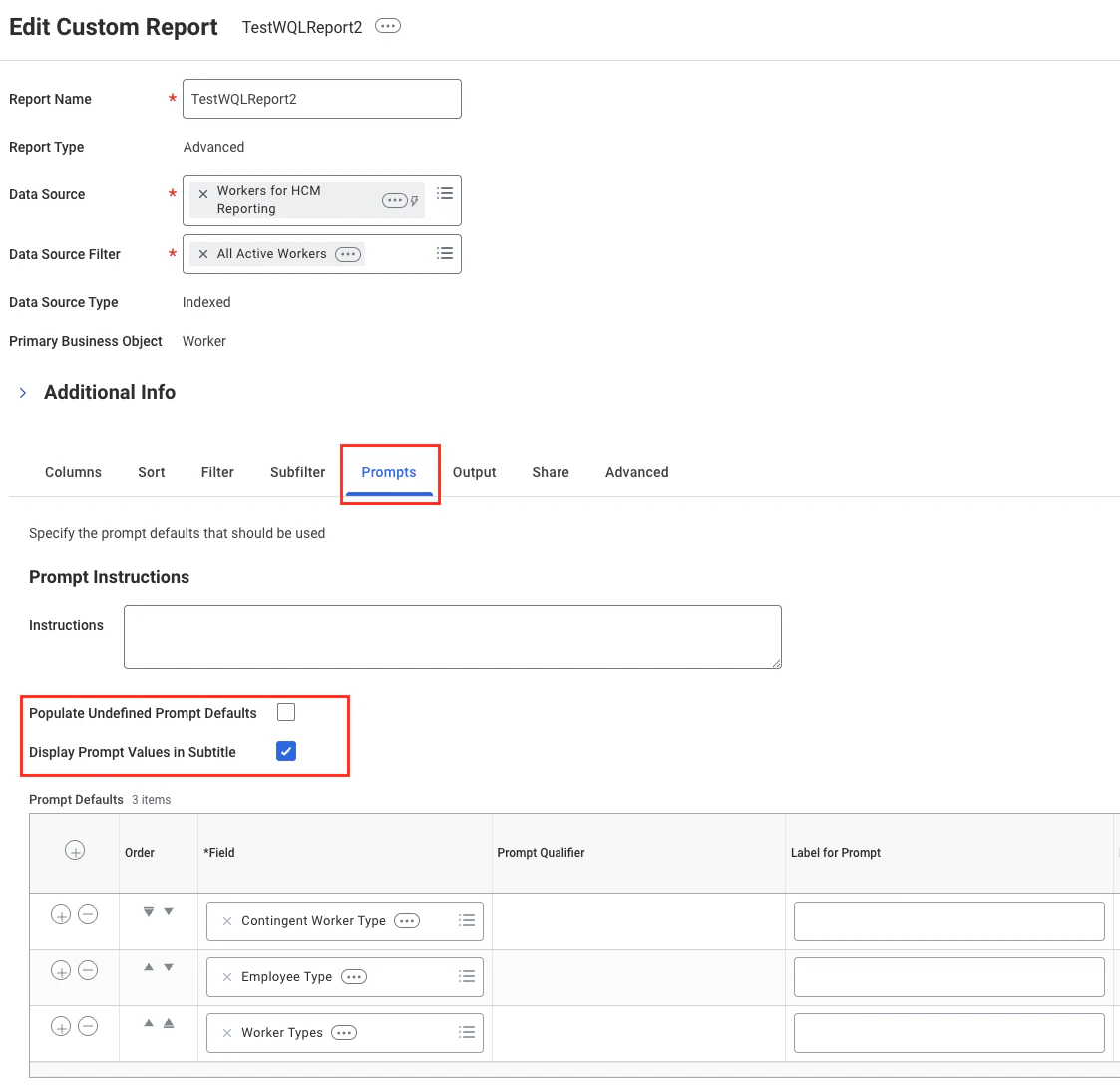
 * Tick **Populate Undefined Prompt Defaults** to make prompt default fields visible in the report table. Once the `Prompt Defaults` grid is visible, the ticked **Populate Undefined Prompt Defaults** field will be unticked again.
* Tick **Display Prompt Values in Subtitle** to enable prompt display.
* Tick **Populate Undefined Prompt Defaults** to make prompt default fields visible in the report table. Once the `Prompt Defaults` grid is visible, the ticked **Populate Undefined Prompt Defaults** field will be unticked again.
* Tick **Display Prompt Values in Subtitle** to enable prompt display.
 Click `OK` to save the report.
Search for `View Custom Report`,
Click `OK` to save the report.
Search for `View Custom Report`,
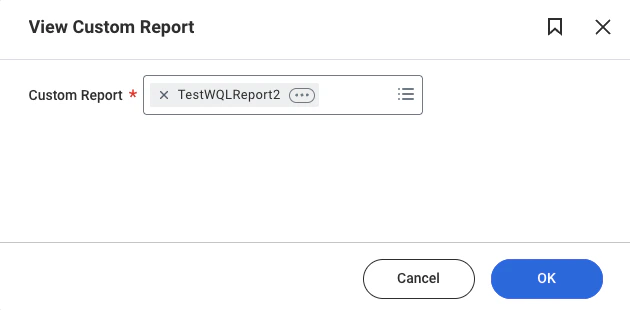
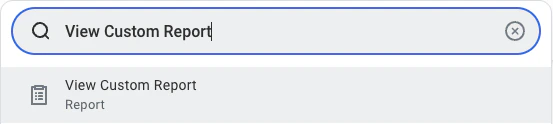 select the report you just created, and then click `OK` to open it.
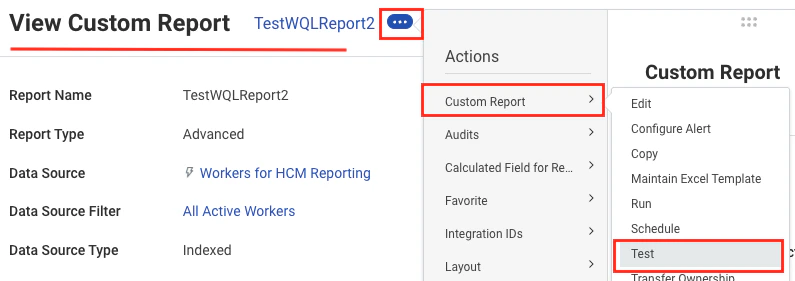
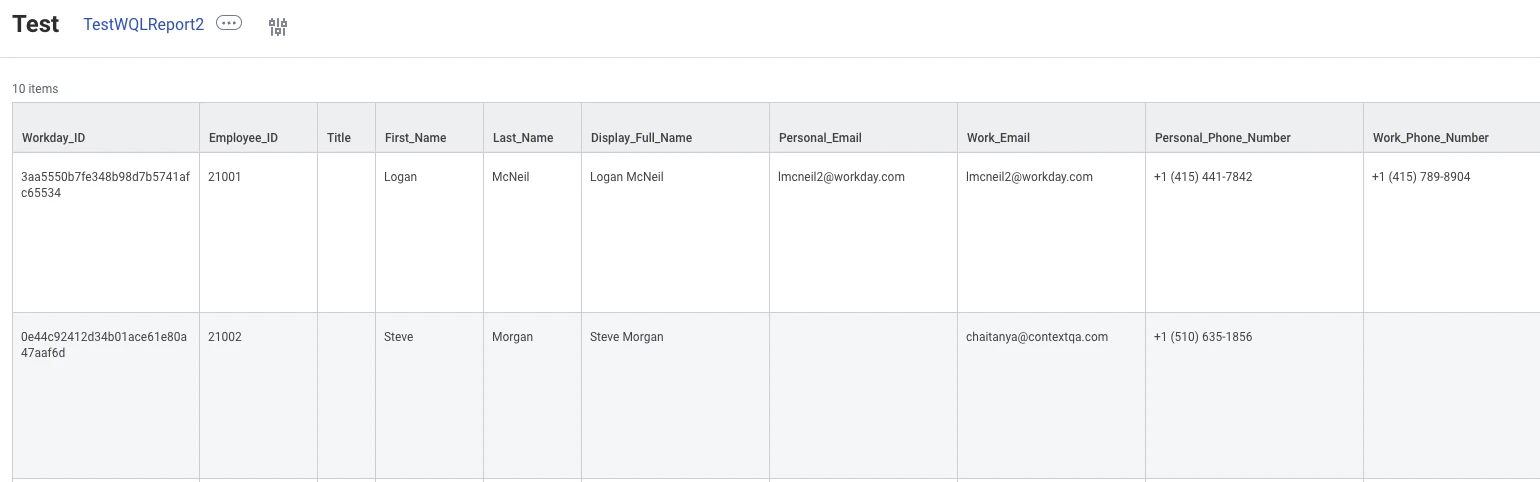
 Navigate to `Test` under the `Custom Report` menu via the 3-dot menu.
 Click `OK` to test it.
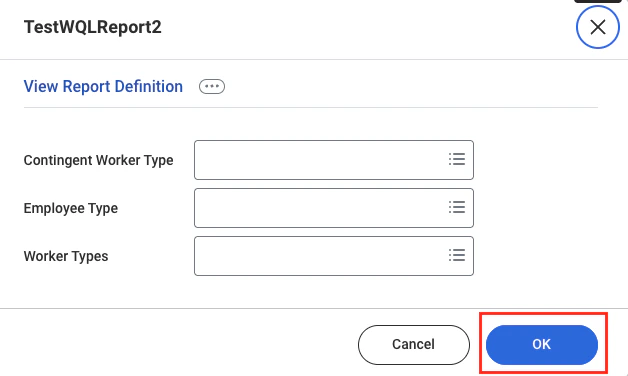 You will get some sample data based on the fields you configured in the custom report.
 ## Convert the Report to WQL in Workday
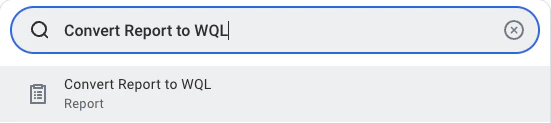
Use the global search bar to search for "Convert Reports to WQL".
## Convert the Report to WQL in Workday
Use the global search bar to search for "Convert Reports to WQL".
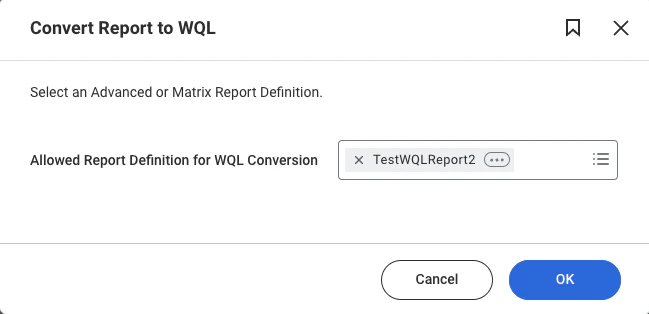
 Select the custom report you created earlier in the [Create and View a Custom Report](#create-and-view-a-custom-report) step.
 Click `OK`.
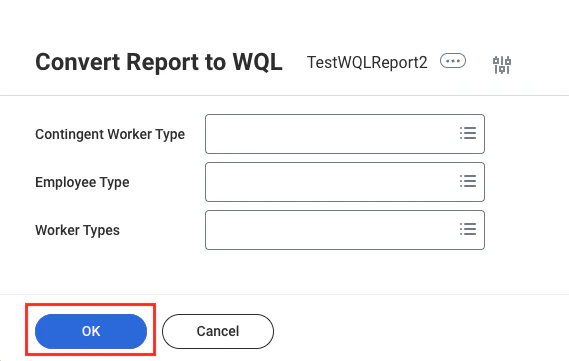 You are taken to a page showing the generated WQL query for your custom report.
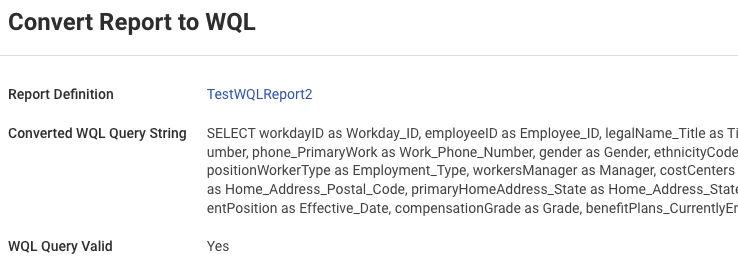 Copy this WQL query and paste it into the `Employee WQL Query` field when connecting through the StackOne Connector Hub.
WQL does not support calculated fields when converting custom reports to WQL.
## Connecting to StackOne
Enter the following details in the StackOne Connector Hub:
* **[Web Service Endpoint](#finding-the-web-services-endpoint)**
* **[Tenant](#finding-your-workday-tenant)**
* **[Client ID](#register-the-rest-api-client)**
* **[Client Secret](#register-the-rest-api-client)**
* **[Non-expiring Refresh Token](#register-the-rest-api-client)**
* **Employee WQL Query**: The custom Workday Query Language (WQL) query used when fetching employees.
```sql theme={null}
/* Sample WQL query format */
SELECT workdayID as Workday_ID, employeeID as Employee_ID, legalName_Title as Title, legalFirstName as First_Name, legalLastName as Last_Name, legalNameInGeneralDisplayFormat as Display_Full_Name, email_PrimaryHome as Personal_Email, email_PrimaryWork as Work_Email, phone_PrimaryHome as Personal_Phone_Number FROM allWorkers
```
Click **Connect**.
Copy this WQL query and paste it into the `Employee WQL Query` field when connecting through the StackOne Connector Hub.
WQL does not support calculated fields when converting custom reports to WQL.
## Connecting to StackOne
Enter the following details in the StackOne Connector Hub:
* **[Web Service Endpoint](#finding-the-web-services-endpoint)**
* **[Tenant](#finding-your-workday-tenant)**
* **[Client ID](#register-the-rest-api-client)**
* **[Client Secret](#register-the-rest-api-client)**
* **[Non-expiring Refresh Token](#register-the-rest-api-client)**
* **Employee WQL Query**: The custom Workday Query Language (WQL) query used when fetching employees.
```sql theme={null}
/* Sample WQL query format */
SELECT workdayID as Workday_ID, employeeID as Employee_ID, legalName_Title as Title, legalFirstName as First_Name, legalLastName as Last_Name, legalNameInGeneralDisplayFormat as Display_Full_Name, email_PrimaryHome as Personal_Email, email_PrimaryWork as Work_Email, phone_PrimaryHome as Personal_Phone_Number FROM allWorkers
```
Click **Connect**.
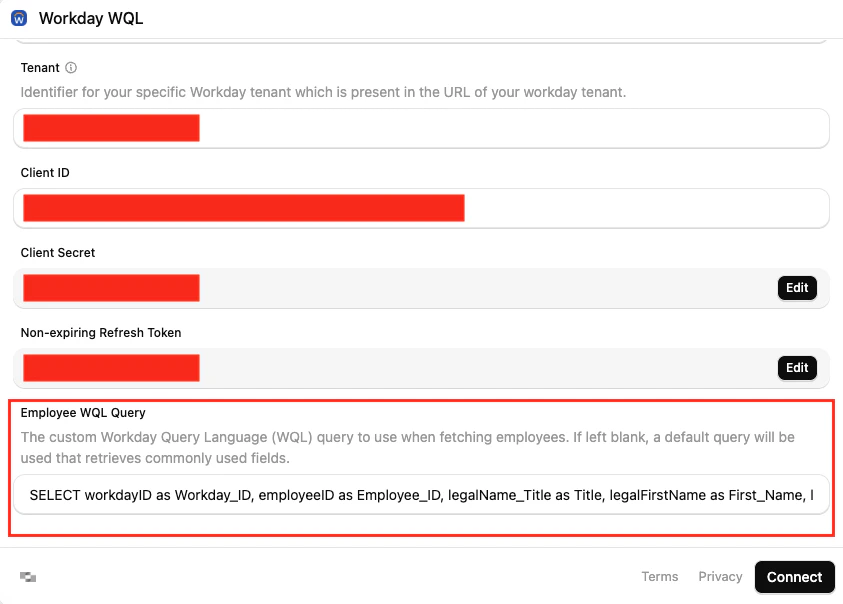
Congratulations, you're all set! If you face any issues with the steps mentioned above,
please contact us by emailing [integrations@stackone.com](mailto:integrations@stackone.com). We're always here to assist you!
[https://doc.workday.com](https://doc.workday.com)