> ## Documentation Index
> Fetch the complete documentation index at: https://stackone-hub-docs-confluence-api-token-update.mintlify.site/llms.txt
> Use this file to discover all available pages before exploring further.

# Duo

> Follow these steps to connect Duo via the StackOne Hub successfully.

<Warning>
  Ensure you have the Owner role within Duo.
</Warning>

If you've been directed to StackOne to integrate with Duo, the following steps will help you understand the process and any necessary actions to configure successful integration.

## Get Your Duo Integration Credentials

<Steps>
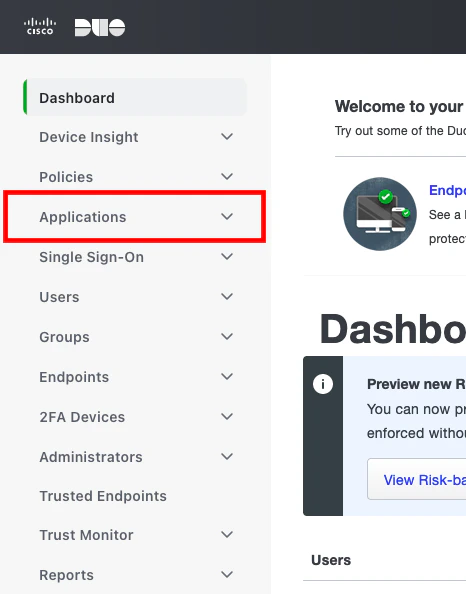
  <Step title="Log in to Duo Admin">
    When logged in to your [Duo Admin](https://admin.duosecurity.com), click Applications.
    <Frame>
      <img className="rounded-md" style={{ margin: '0 auto', border: '1px solid #efefef' }} alt="Duo Admin Applications" src="https://mintcdn.com/stackone-hub-docs-confluence-api-token-update/Rs6NeAXs5I3UVlO6/images/duo/image1.png?fit=max&auto=format&n=Rs6NeAXs5I3UVlO6&q=85&s=96dda042e7582d1fdcc83d8eea0b908a" width="466" height="594" data-path="images/duo/image1.png" />
    </Frame>
  </Step>

  <Step title="Protect an Application">
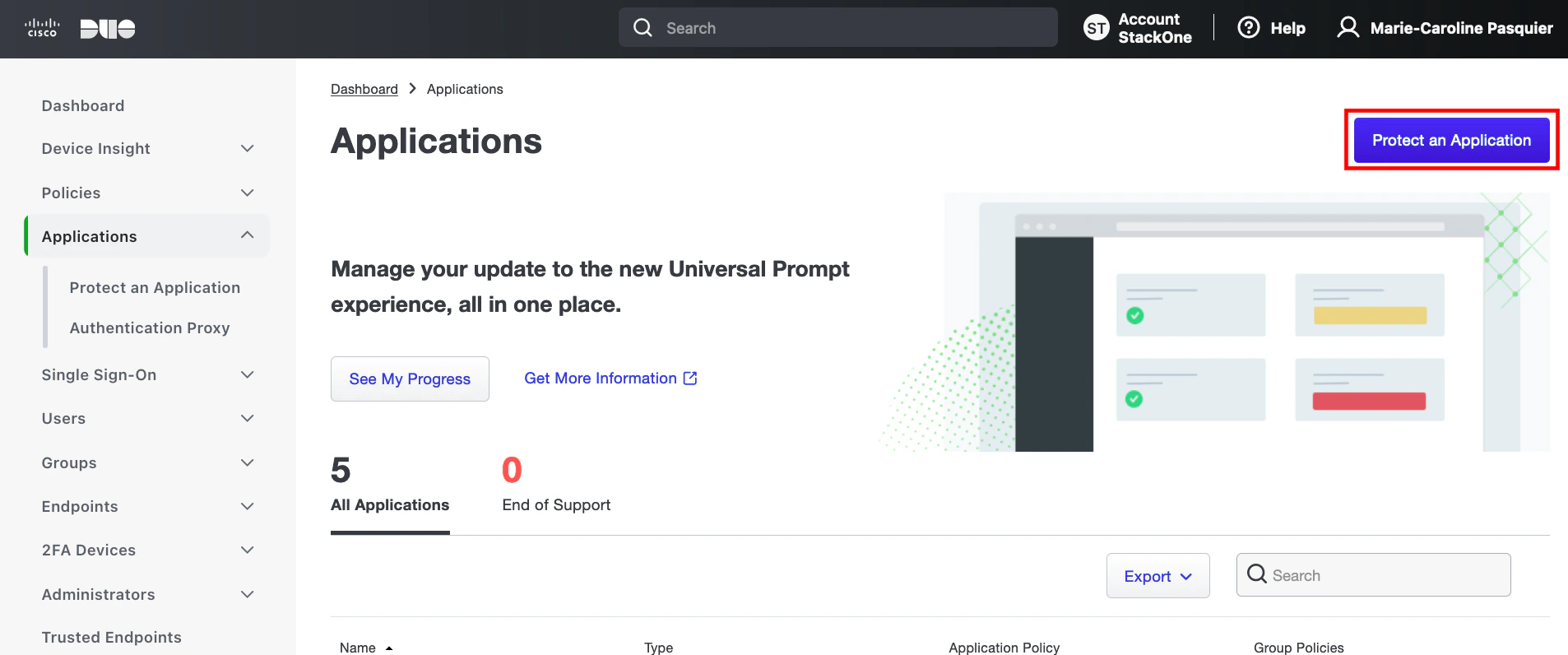
    Click the Protect an Application button on the right.
    <Frame>
      <img className="rounded-md" style={{ margin: '0 auto', border: '1px solid #efefef' }} alt="Protect an Application" src="https://mintcdn.com/stackone-hub-docs-confluence-api-token-update/Rs6NeAXs5I3UVlO6/images/duo/image2.png?fit=max&auto=format&n=Rs6NeAXs5I3UVlO6&q=85&s=d3e7708cb9fe73015910ef0c96cac2bc" width="1906" height="796" data-path="images/duo/image2.png" />
    </Frame>
  </Step>

  <Step title="Select Admin API">
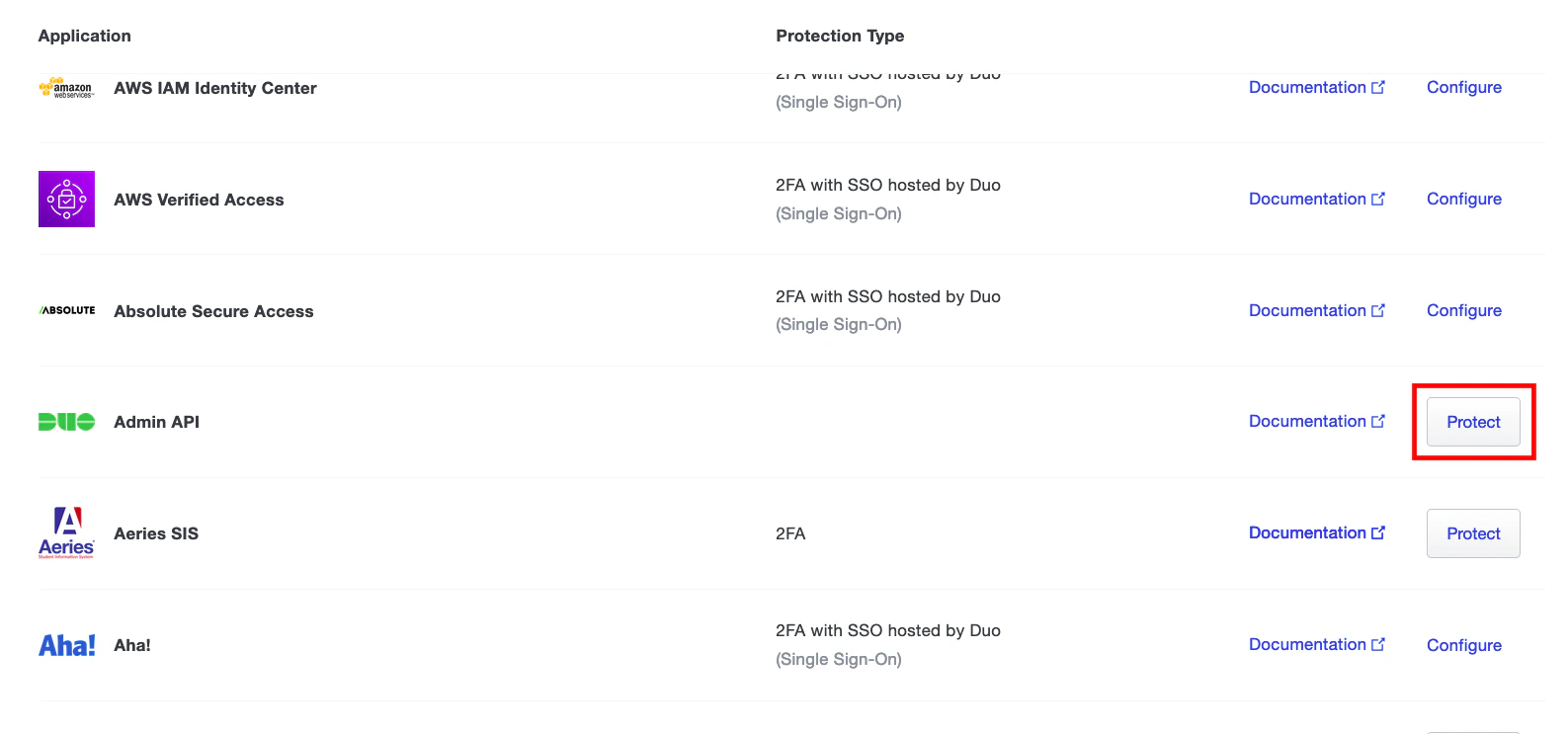
    Scroll down to Admin API and click the Protect button.
    <Frame>
      <img className="rounded-md" style={{ margin: '0 auto', border: '1px solid #efefef' }} alt="Admin API" src="https://mintcdn.com/stackone-hub-docs-confluence-api-token-update/Rs6NeAXs5I3UVlO6/images/duo/image3.png?fit=max&auto=format&n=Rs6NeAXs5I3UVlO6&q=85&s=1605d95b82b8edaac4b0b4d8ea1a94e7" width="1587" height="743" data-path="images/duo/image3.png" />
    </Frame>
  </Step>

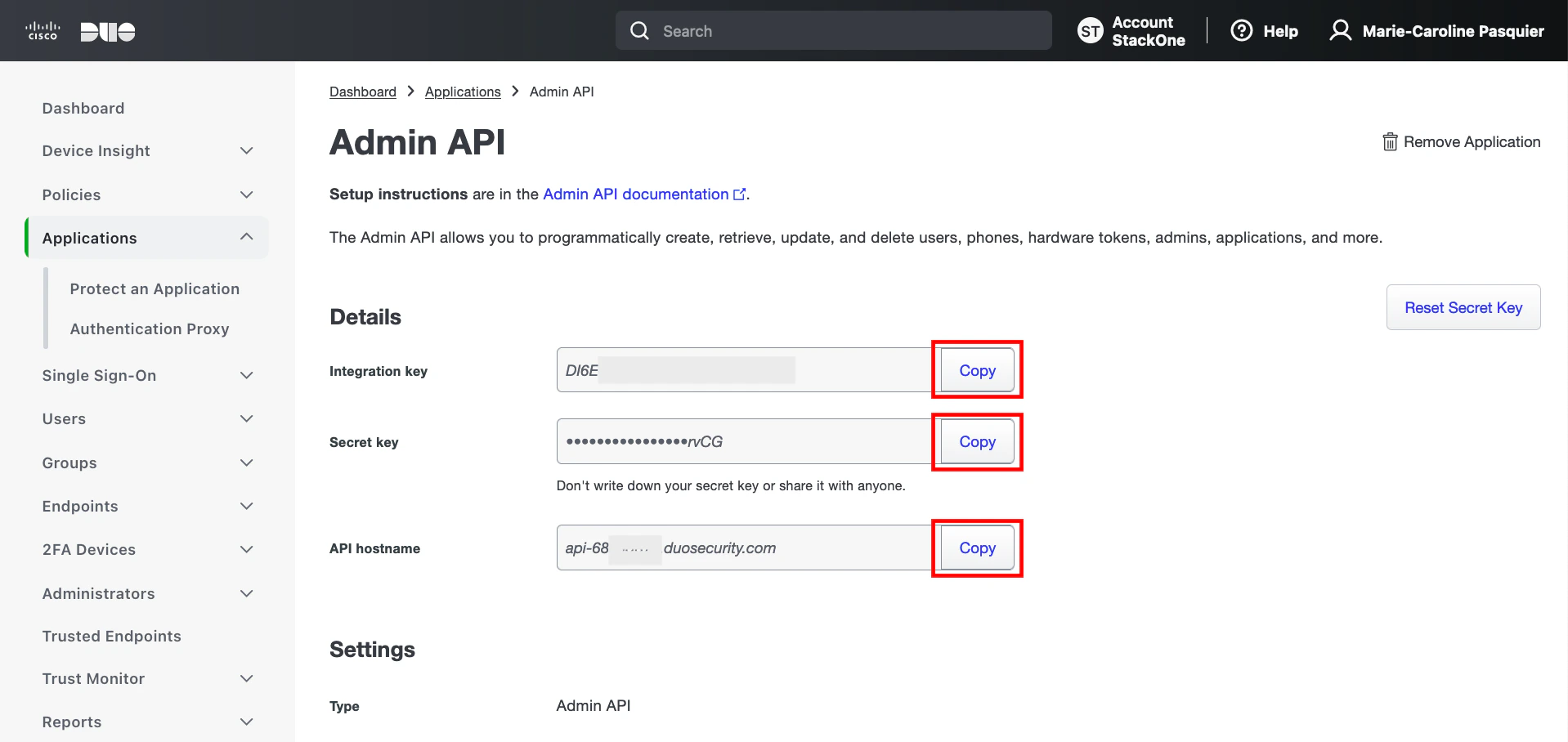
  <Step title="Copy Credentials">
    Copy and safely store each of the following credentials displayed. These will be required for connection:

    <ul>
      <li>Integration key</li>
      <li>Secret key</li>
      <li>API hostname</li>
    </ul>

    <Frame>
      <img className="rounded-md" style={{ margin: '0 auto', border: '1px solid #efefef' }} alt="Credentials" src="https://mintcdn.com/stackone-hub-docs-confluence-api-token-update/Rs6NeAXs5I3UVlO6/images/duo/image4.png?fit=max&auto=format&n=Rs6NeAXs5I3UVlO6&q=85&s=a9fa01305abbf1459c40cc7ef66d0a97" width="1918" height="908" data-path="images/duo/image4.png" />
    </Frame>
  </Step>

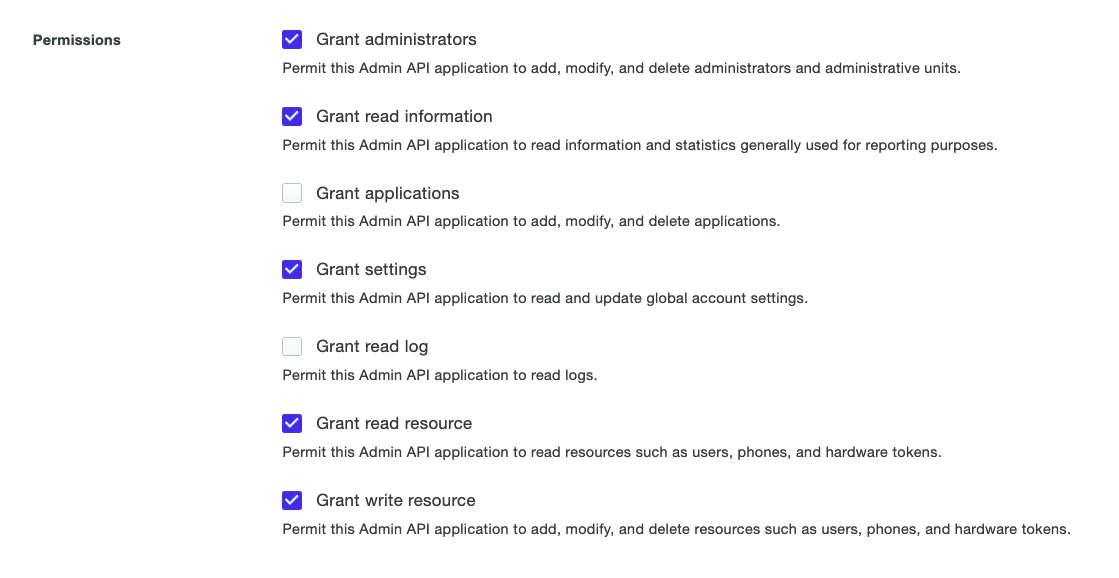
  <Step title="Set Permissions">
    Scroll down to Permissions, and ensure that the following are enabled:

    <ul>
      <li>Grant administrators</li>
      <li>Grant read information</li>
      <li>Grant settings</li>
      <li>Grant read resource</li>
      <li>Grant write resource</li>
    </ul>

    <Frame>
      <img className="rounded-md" style={{ margin: '0 auto', border: '1px solid #efefef' }} alt="Permissions" src="https://mintcdn.com/stackone-hub-docs-confluence-api-token-update/Rs6NeAXs5I3UVlO6/images/duo/image5.png?fit=max&auto=format&n=Rs6NeAXs5I3UVlO6&q=85&s=95d492f0a10802e21d3c3e7fc016b17d" width="1119" height="578" data-path="images/duo/image5.png" />
    </Frame>
  </Step>

  <Step title="Save Changes">
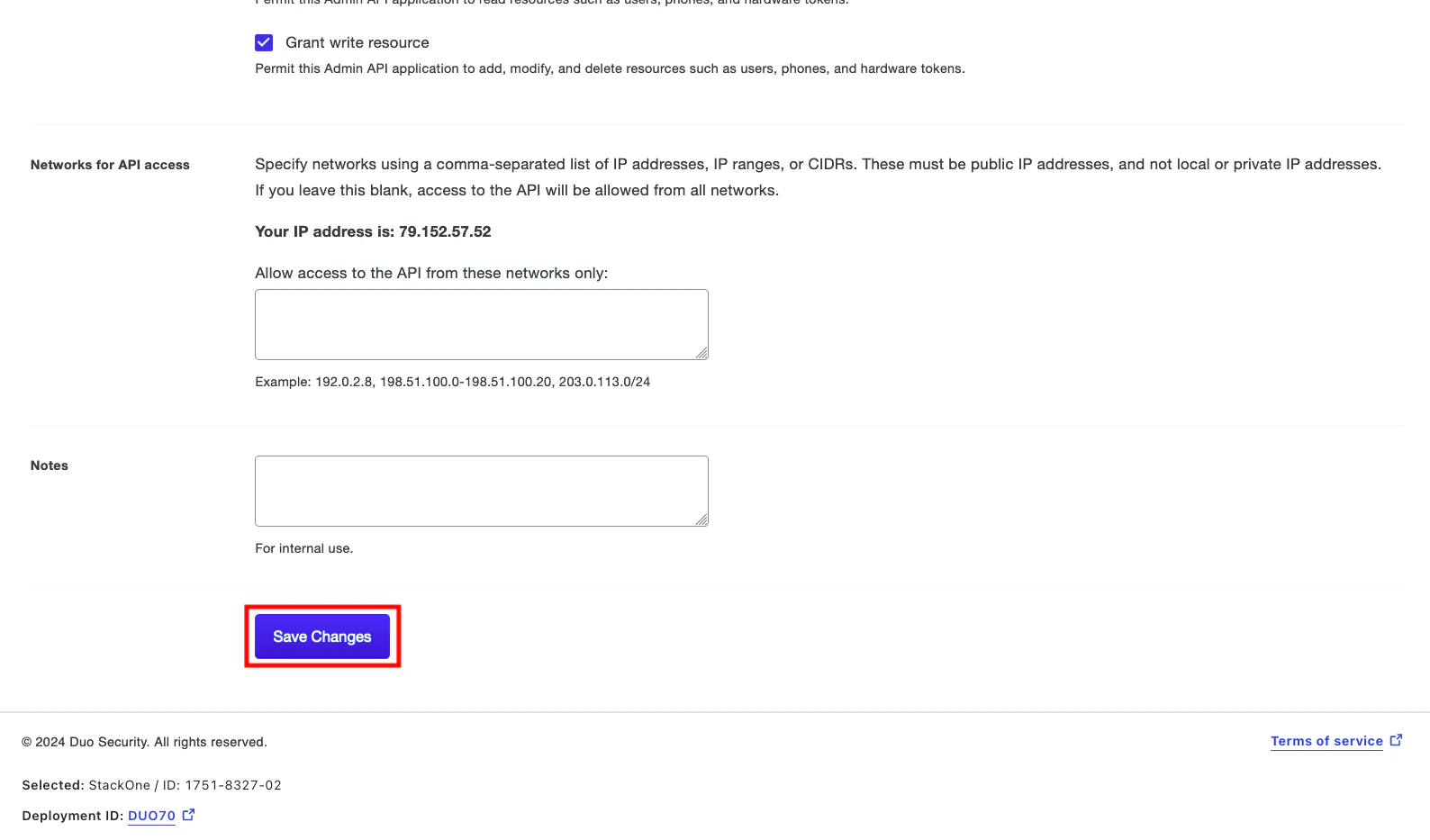
    Scroll down to click the Save changes button.
    <Frame>
      <img className="rounded-md" style={{ margin: '0 auto', border: '1px solid #efefef' }} alt="Save Changes" src="https://mintcdn.com/stackone-hub-docs-confluence-api-token-update/Rs6NeAXs5I3UVlO6/images/duo/image6.png?fit=max&auto=format&n=Rs6NeAXs5I3UVlO6&q=85&s=fca6118b6bd08c902076b8a20c45d788" width="1588" height="933" data-path="images/duo/image6.png" />
    </Frame>
  </Step>
</Steps>

## Connecting with StackOne

<Steps>
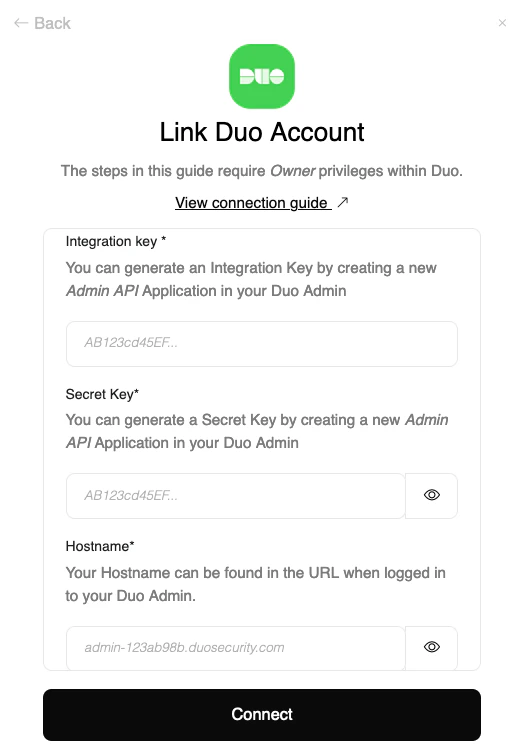
  <Step title="Enter Credentials">
    Upon reaching the Link Account page, enter the credentials you stored in the previous step:

    <ul>
      <li>Integration Key</li>
      <li>Secret Key</li>
      <li>Hostname</li>
    </ul>

    <Frame>
      <img className="rounded-md" style={{ margin: '0 auto', border: '1px solid #efefef' }} alt="Link Account" src="https://mintcdn.com/stackone-hub-docs-confluence-api-token-update/Rs6NeAXs5I3UVlO6/images/duo/image7.png?fit=max&auto=format&n=Rs6NeAXs5I3UVlO6&q=85&s=18dbf9d6cf599a024b61a6fc33f96535" width="524" height="751" data-path="images/duo/image7.png" />
    </Frame>
  </Step>

  <Step title="Connect">
    Proceed by clicking the Connect button.
  </Step>
</Steps>

<br />

Congratulations, you're all set! If you face any issues with the steps mentioned above,
please contact us by emailing [integrations@stackone.com](mailto:integrations@stackone.com). We're always here to assist you!

## Available data

This integration has the following [IAM Resources](https://docs.stackone.com/reference/iam_list_users) available from the provider:

<ul>
  <li>Users</li>
  <li>Roles</li>
  <li>Groups</li>
</ul>

## Useful Links

<Card title="API Reference" icon="link" href="https://duo.com/docs/adminapi#administrators">
  [https://duo.com/docs/adminapi#administrators](https://duo.com/docs/adminapi#administrators)
</Card>