> ## Documentation Index
> Fetch the complete documentation index at: https://stackone-hub-docs-confluence-api-token-update.mintlify.site/llms.txt
> Use this file to discover all available pages before exploring further.
# Google Workspace
> Follow these steps to connect Google Workspace via the StackOne Hub successfully.
Ensure that your Google Workspace account has Admin or Owner privileges.
If you've been directed to StackOne to integrate with Google Workspace, the following steps will help you understand the process and any necessary actions to configure a successful integration.
## Log in to Google Workspace
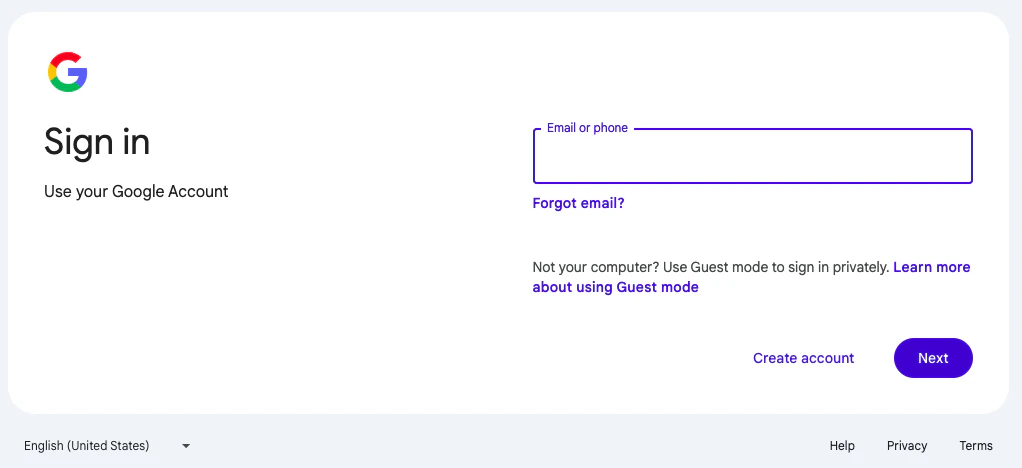
Log in to your Google Workspace Admin at [https://admin.google.com/login](https://admin.google.com/login)
 ## Get your Google Workspace Domain
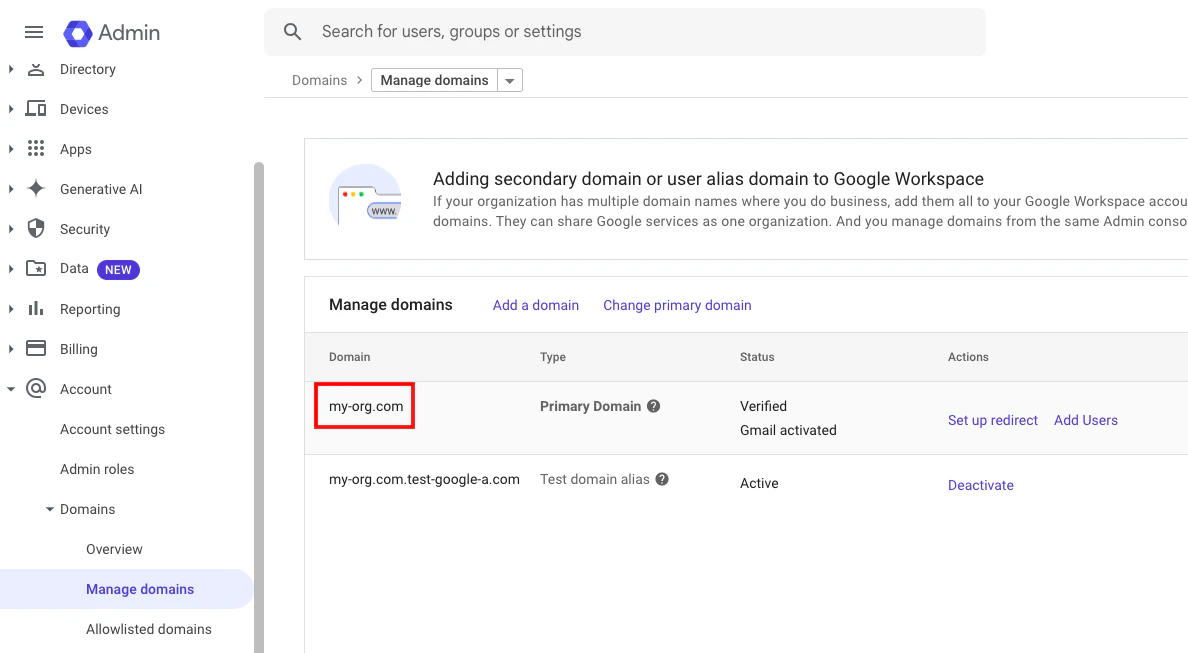
Each connection will be associated with a single Google Workspace domain. If you wish to connect multiple domains, create a connection for each domain.
In the left navigation menu, click **Account > Domains > Manage domains**
## Get your Google Workspace Domain
Each connection will be associated with a single Google Workspace domain. If you wish to connect multiple domains, create a connection for each domain.
In the left navigation menu, click **Account > Domains > Manage domains**
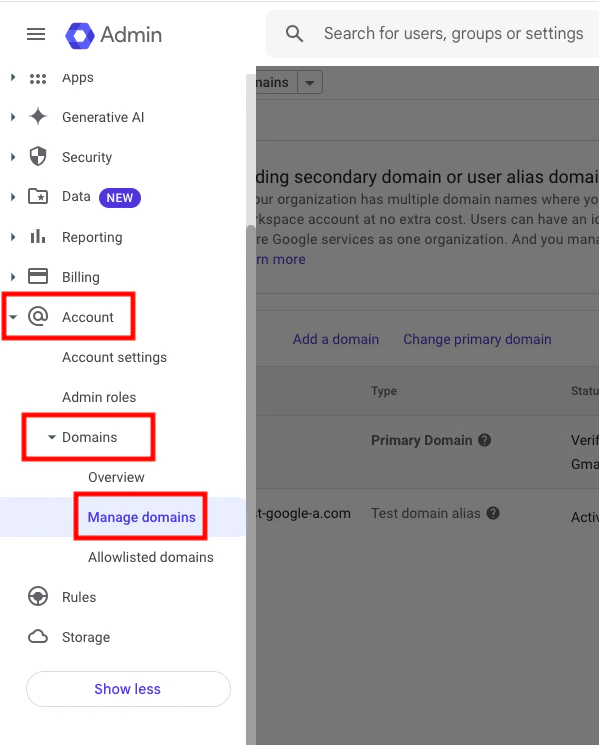 Copy the **Domain** you wish to connect from the displayed list. Store this to be used in later steps.
 ## Enable the Admin SDK API
Google requires manually enabling APIs for your account. The [Admin SDK API](https://developers.google.com/admin-sdk) provides the underlying endpoints for this IAM connection.
Go to your Google Cloud Console at [https://console.cloud.google.com/](https://console.cloud.google.com/)
## Enable the Admin SDK API
Google requires manually enabling APIs for your account. The [Admin SDK API](https://developers.google.com/admin-sdk) provides the underlying endpoints for this IAM connection.
Go to your Google Cloud Console at [https://console.cloud.google.com/](https://console.cloud.google.com/)
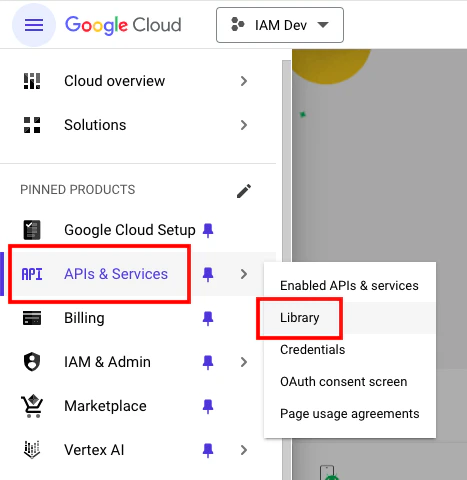
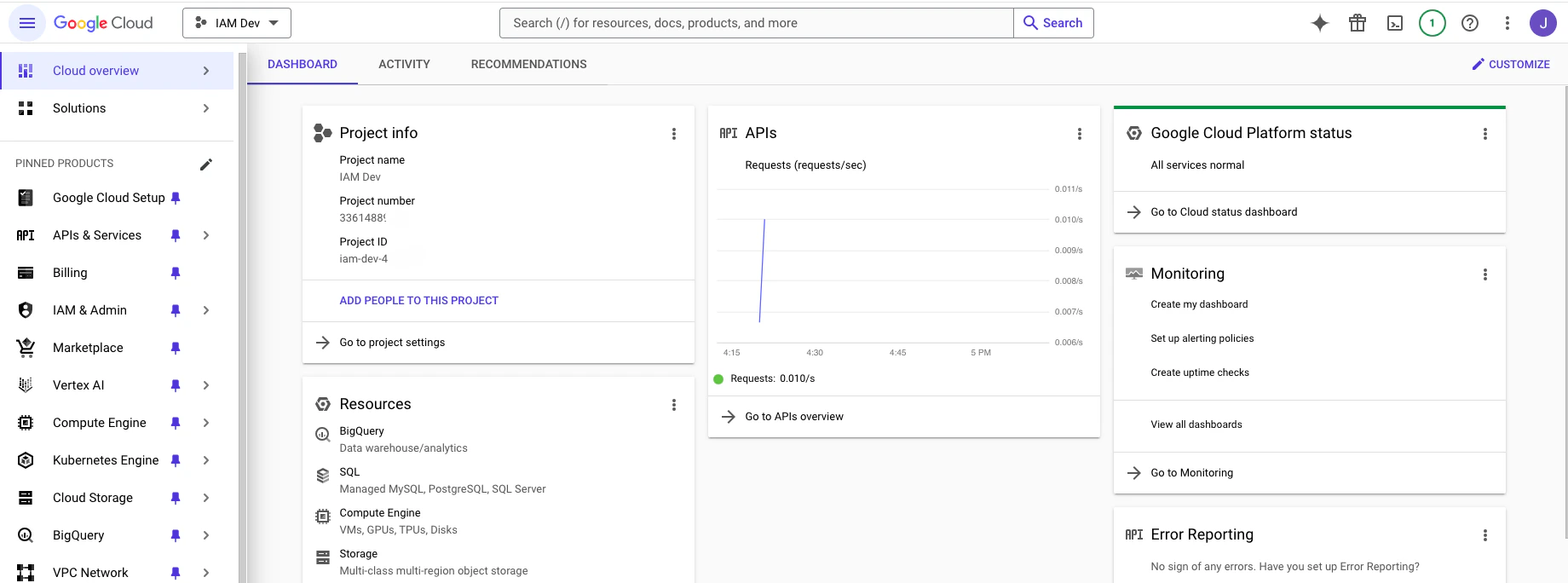 In the left navigation menu, click **APIs & Services > Library**
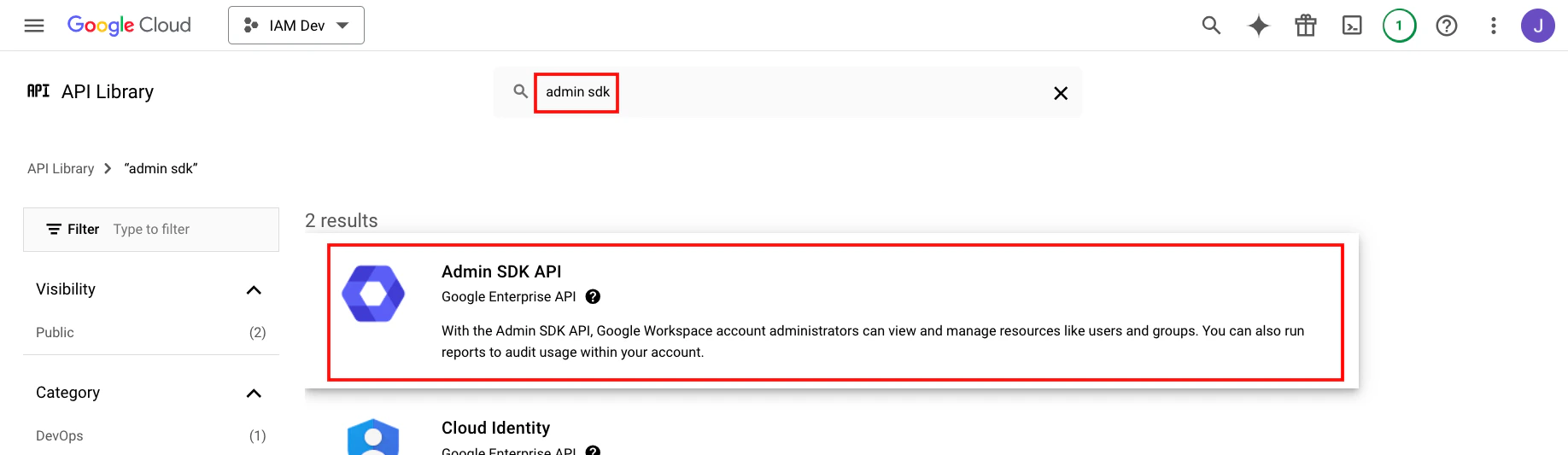
 Using the search bar, enter a search for *"admin sdk"*. Click the **Admin SDK API** result.
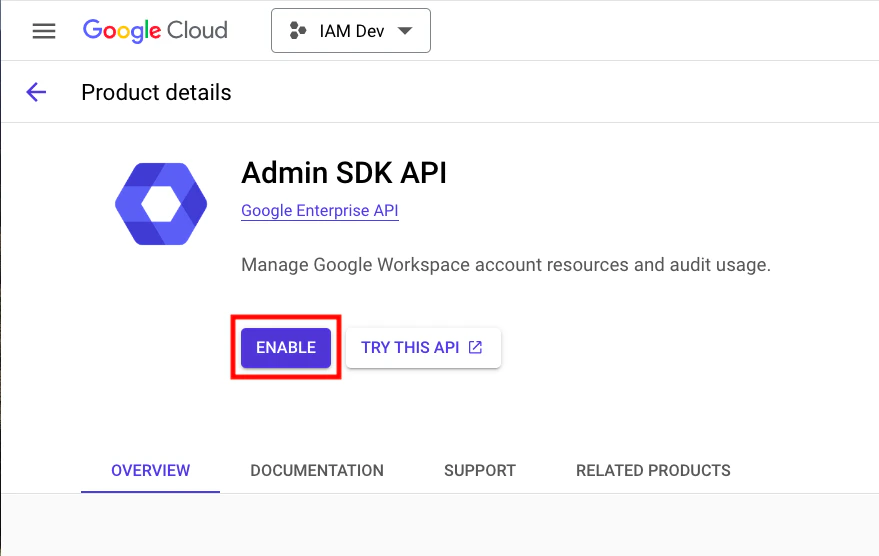
 Click the **Enable** button to enable the Admin SDK API for your organization.
 ## Create New OAuth Client Credentials
This connection will authenticate on behalf of a registered OAuth Client in Google Workspace.
In the Admin SDK API **Manage** page, scroll down to click **Credentials**.
## Create New OAuth Client Credentials
This connection will authenticate on behalf of a registered OAuth Client in Google Workspace.
In the Admin SDK API **Manage** page, scroll down to click **Credentials**.
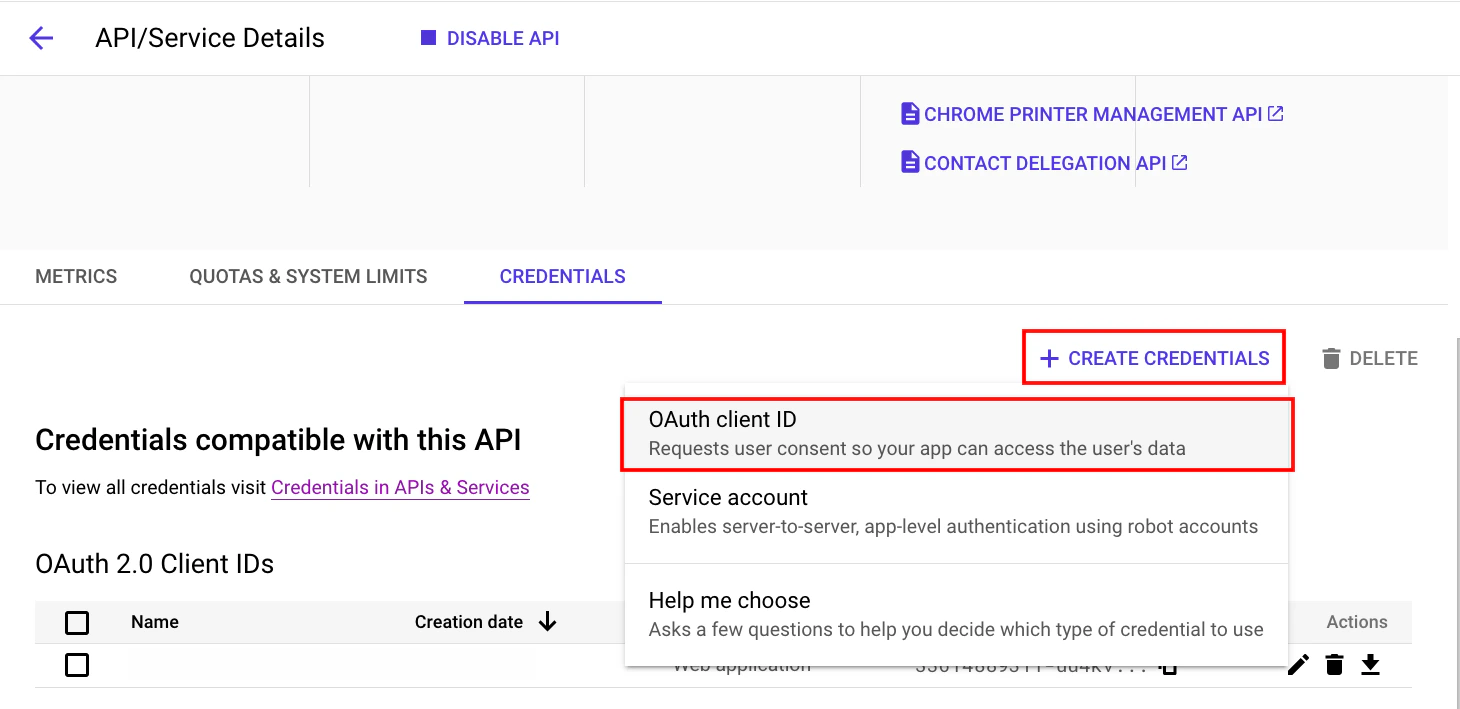
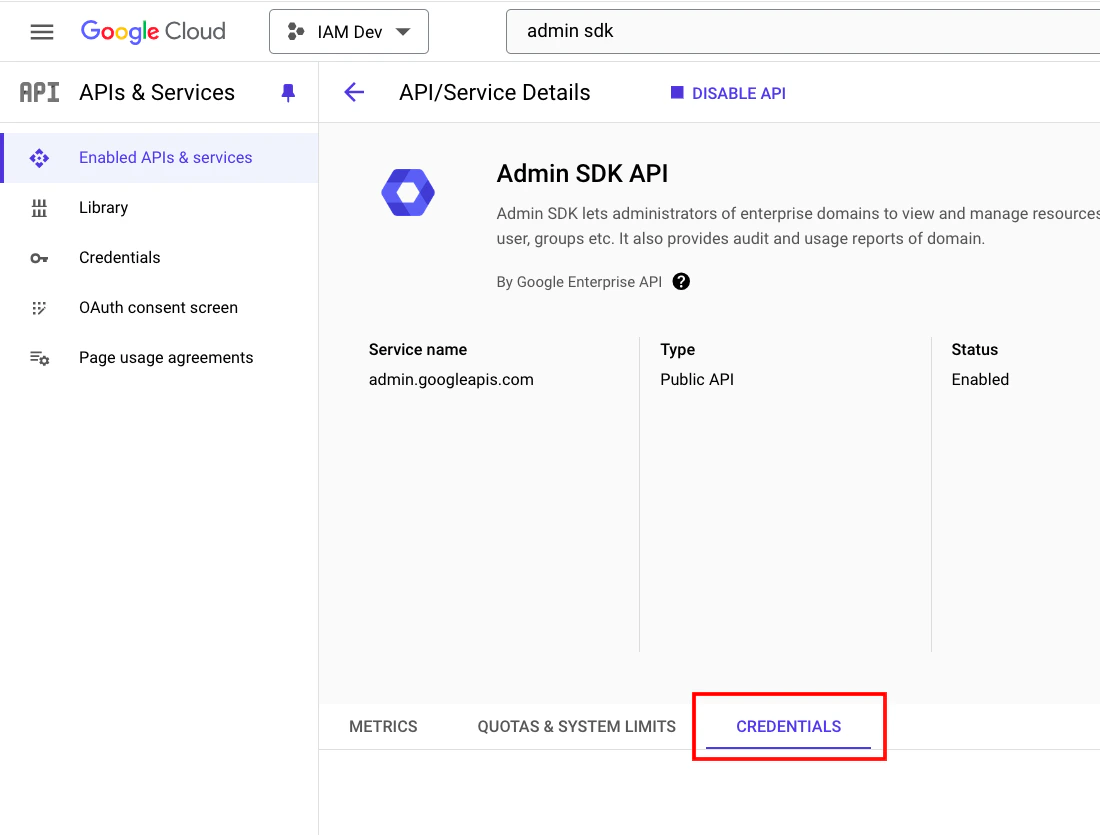 Under *Credentials*, click **Create Credentials > OAuth client ID**
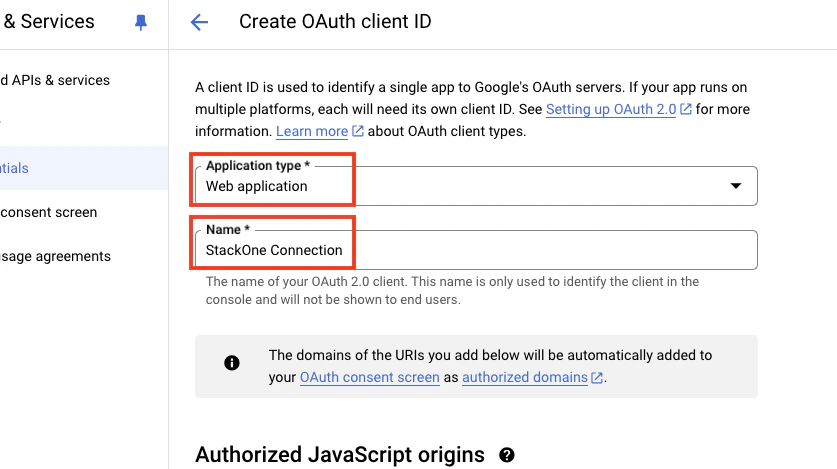
 Under *Create OAuth client ID*, enter the following details:
* Application type: **Web application**
* Name: Enter a name for the new application
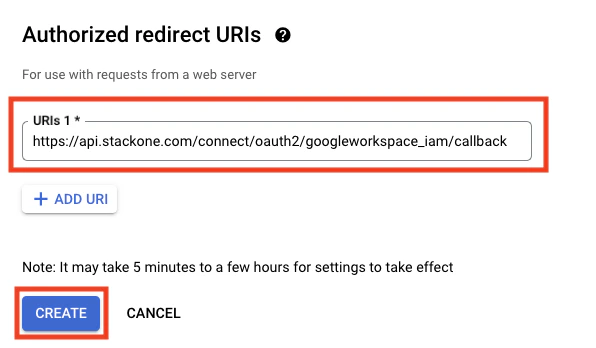
* Authorized redirect URIs: `https://api.stackone.com/connect/oauth2/googleworkspace_iam/callback`
Then click the **Create** button at the bottom to proceed.
Under *Create OAuth client ID*, enter the following details:
* Application type: **Web application**
* Name: Enter a name for the new application
* Authorized redirect URIs: `https://api.stackone.com/connect/oauth2/googleworkspace_iam/callback`
Then click the **Create** button at the bottom to proceed.
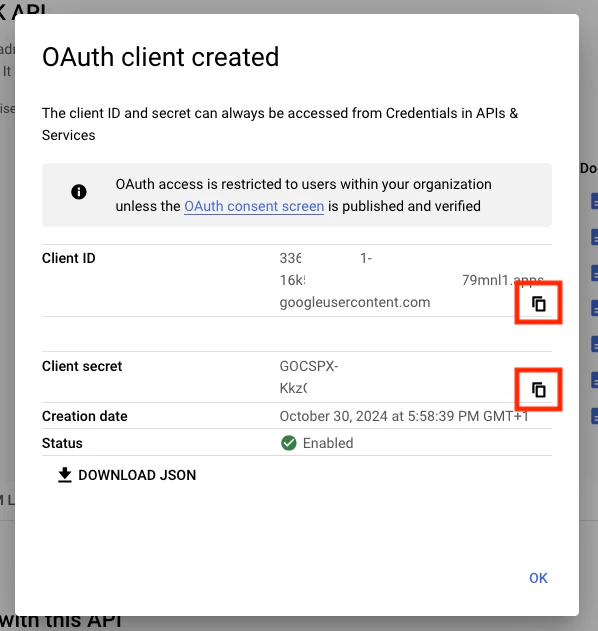
 The new application's **Client ID** and **Client Secret** will be displayed. **Copy** these values and store them securely to be used in the next step.
 ## Configure OAuth Consent
Google requires configuring a consent screen to be displayed when granting application access to your account.
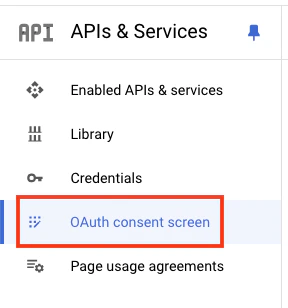
After enabling the Admin SDK API, click **APIs & Services > OAuth consent screen** in the left navigation menu.
## Configure OAuth Consent
Google requires configuring a consent screen to be displayed when granting application access to your account.
After enabling the Admin SDK API, click **APIs & Services > OAuth consent screen** in the left navigation menu.
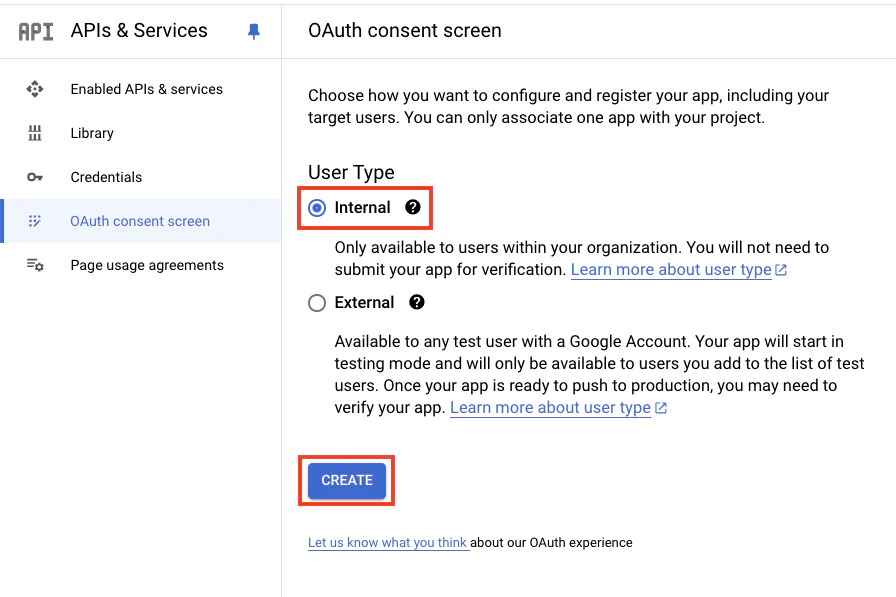
 Under *User Type* select **Internal**, then click the **Create** button.
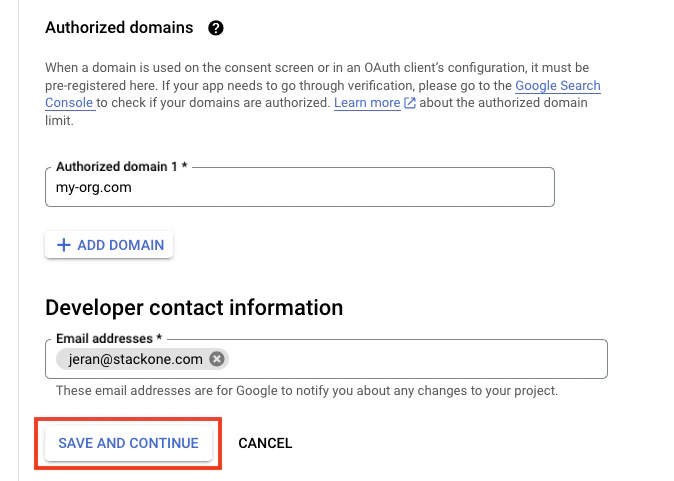
 Under *Edit app registration*, enter the following required details:
*App information*
* App name: Enter a name for the new application
* User support email: Your Google Workspace account email
*Authorized domains*
* Authorized domain 1: Enter the **Domain** you copied in a [previous step](#get-your-google-workspace-domain). *Example: my-org.com*
*Developer contact information*
* Email addresses: Your Google Workspace account email
Then click the **Save and Continue** button to proceed.
Under *Edit app registration*, enter the following required details:
*App information*
* App name: Enter a name for the new application
* User support email: Your Google Workspace account email
*Authorized domains*
* Authorized domain 1: Enter the **Domain** you copied in a [previous step](#get-your-google-workspace-domain). *Example: my-org.com*
*Developer contact information*
* Email addresses: Your Google Workspace account email
Then click the **Save and Continue** button to proceed.
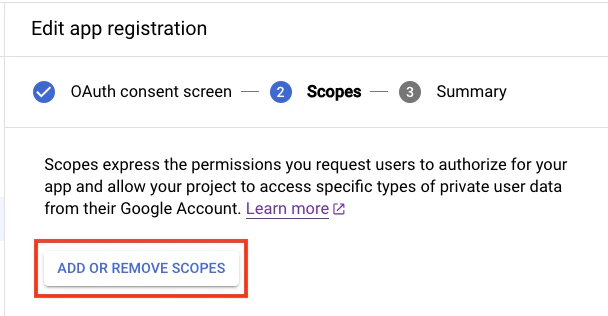
 Click the **Add or Remove Scopes** button, and a popout window will appear on the right titled *Update selected scopes*.
 Enable the following scopes which are required for full functionality of this integration:
* `https://www.googleapis.com/auth/admin.directory.group.readonly`
* `https://www.googleapis.com/auth/admin.directory.group.member.readonly`
* `https://www.googleapis.com/auth/admin.directory.user.readonly`
* `https://www.googleapis.com/auth/admin.directory.orgunit.readonly`
* `https://www.googleapis.com/auth/admin.directory.rolemanagement.readonly`
You can copy and paste each scope into the **Filter** bar to quickly locate them.
Enable the following scopes which are required for full functionality of this integration:
* `https://www.googleapis.com/auth/admin.directory.group.readonly`
* `https://www.googleapis.com/auth/admin.directory.group.member.readonly`
* `https://www.googleapis.com/auth/admin.directory.user.readonly`
* `https://www.googleapis.com/auth/admin.directory.orgunit.readonly`
* `https://www.googleapis.com/auth/admin.directory.rolemanagement.readonly`
You can copy and paste each scope into the **Filter** bar to quickly locate them.
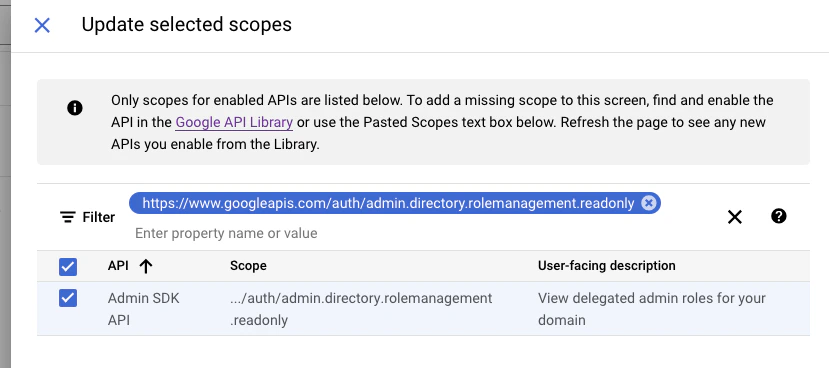 Once all five scopes have been enabled, click the **Update** button to proceed.
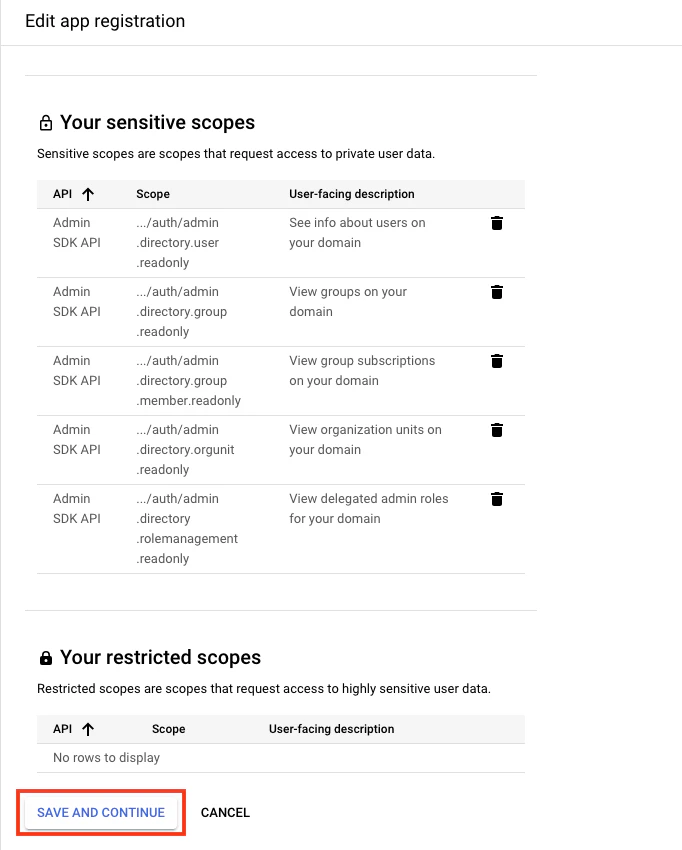
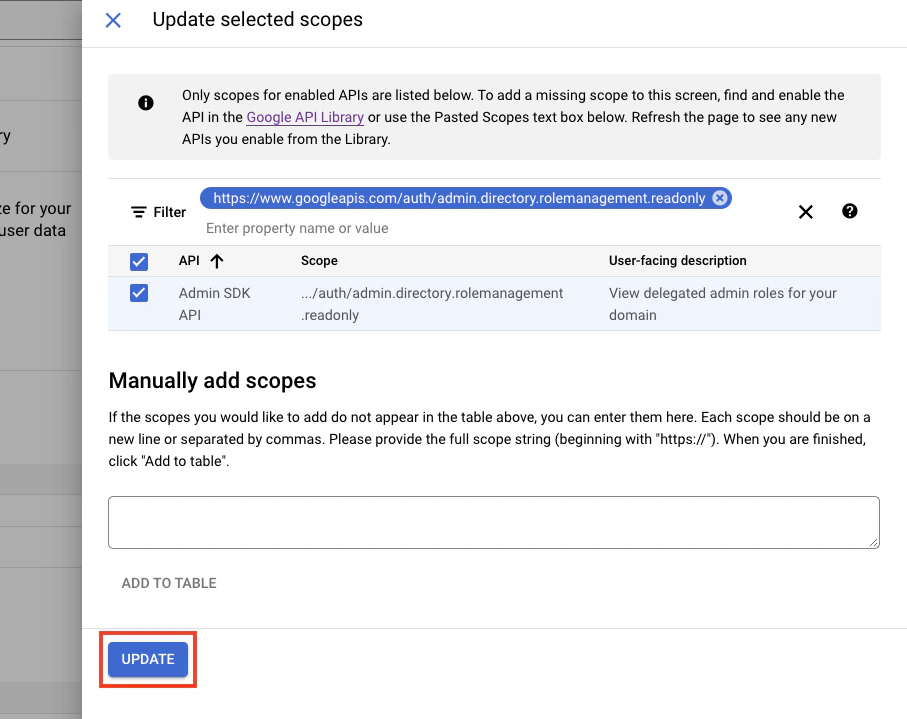 Confirm that each of the required scopes is listed under *Your sensitive scopes*.
Then click the **Save and Continue** button to proceed.
Confirm that each of the required scopes is listed under *Your sensitive scopes*.
Then click the **Save and Continue** button to proceed.
 ## Connecting with StackOne
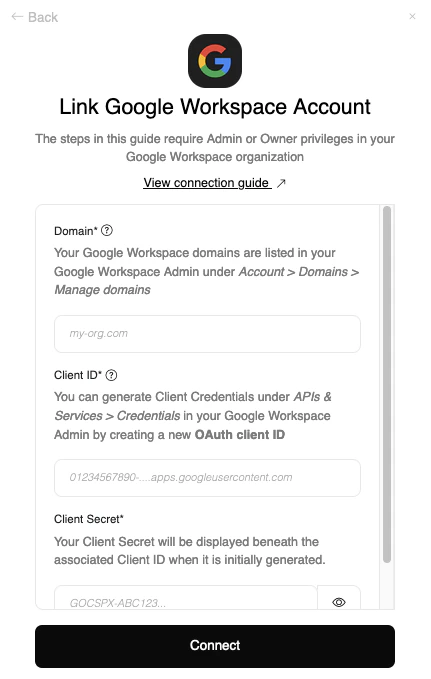
Upon reaching the Link Account page, enter the credentials from the previous steps:
* **Domain**
* **Client ID**
* **Client Secret**
* **Scopes** - If you selected only the required scopes in the previous steps, leave the default value for this field. Otherwise, enter the space-separated list of scopes granted to your application.
Proceed by clicking the Connect button.
## Connecting with StackOne
Upon reaching the Link Account page, enter the credentials from the previous steps:
* **Domain**
* **Client ID**
* **Client Secret**
* **Scopes** - If you selected only the required scopes in the previous steps, leave the default value for this field. Otherwise, enter the space-separated list of scopes granted to your application.
Proceed by clicking the Connect button.
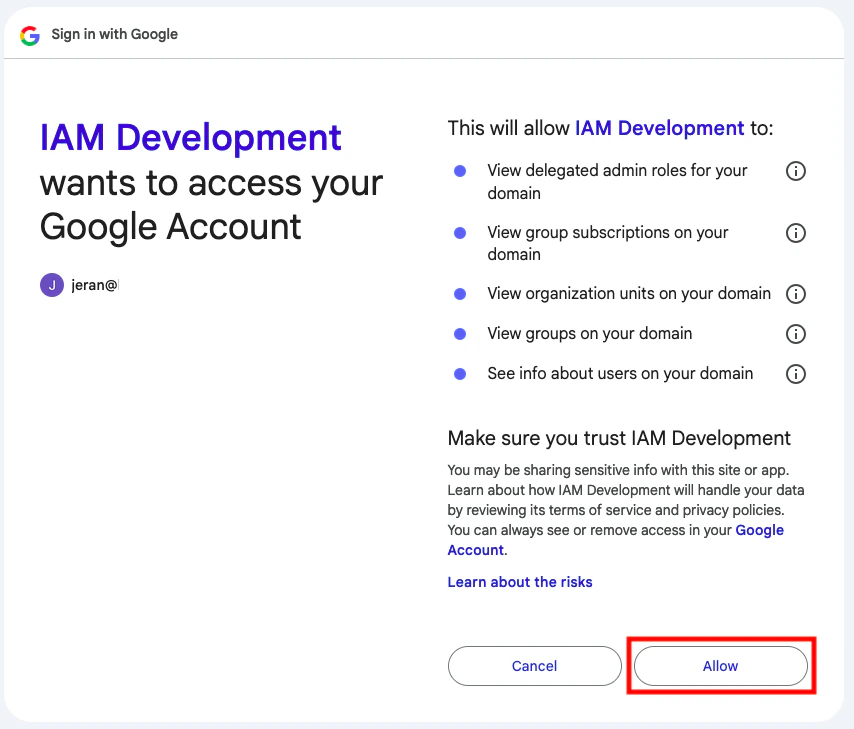
 A window will appear and may prompt you to log in to your Google Workspace account.
After logging in, you will be displayed the OAuth consent screen you configured in a [previous step](#configure-oauth-consent).
Click the **Allow** button to grant the application access to your Google Workspace account.
A window will appear and may prompt you to log in to your Google Workspace account.
After logging in, you will be displayed the OAuth consent screen you configured in a [previous step](#configure-oauth-consent).
Click the **Allow** button to grant the application access to your Google Workspace account.
Congratulations, you're all set! If you face any issues with the steps mentioned above,
please contact us by emailing [integrations@stackone.com](mailto:integrations@stackone.com). We're always here to assist you!
## Available data
This integration has the following [IAM Resources](https://docs.stackone.com/reference/getting-started-with-your-api) available from the provider:
## Useful Links
[https://developers.google.com/identity/protocols/oauth2/scopes#admin-directory](https://developers.google.com/identity/protocols/oauth2/scopes#admin-directory)