> ## Documentation Index
> Fetch the complete documentation index at: https://stackone-hub-docs-confluence-api-token-update.mintlify.site/llms.txt
> Use this file to discover all available pages before exploring further.
# Okta
> Follow these steps to connect Okta via the StackOne Hub successfully.
Ensure that your Okta account has **API Access Administrator**, **Organization Administrator**, or **Super Administrator** privileges.
If you've been directed to StackOne to integrate with Okta, the following steps will help you understand the process and any necessary actions to configure a successful integration.
## Log in to Okta
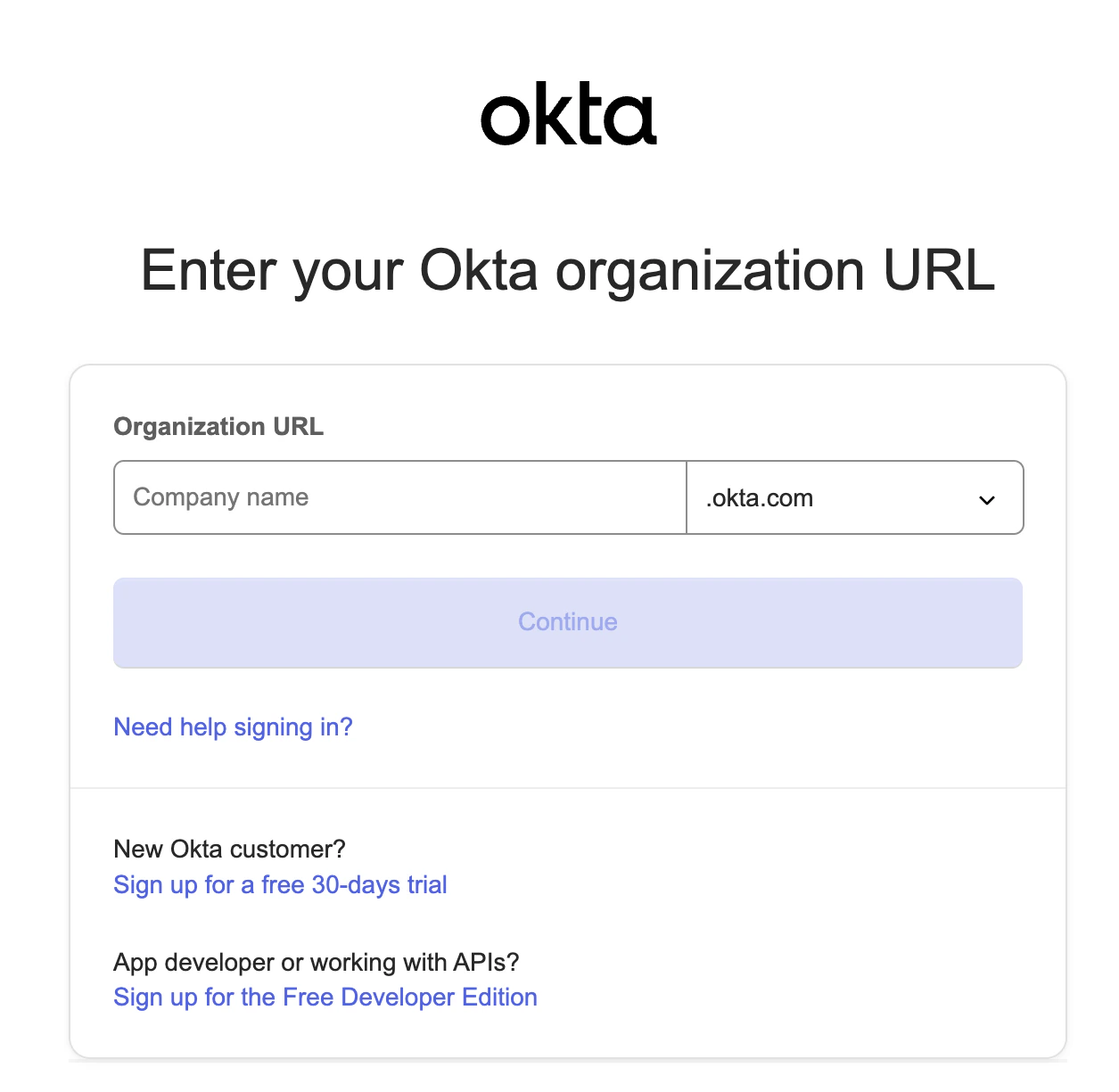
Log in to your Okta account: [https://login.okta.com/](https://login.okta.com/)
 ## Find your Okta Organization URL
Your Organization URL can be found in the URL when logged in to Okta.
Given the URL: `https://MY-ORG.okta.com/app/UserHome`, the **Organization URL** is `MY-ORG`.
## Create your Okta API Token
From your Okta homepage, click the **Admin** button in the top right.
## Find your Okta Organization URL
Your Organization URL can be found in the URL when logged in to Okta.
Given the URL: `https://MY-ORG.okta.com/app/UserHome`, the **Organization URL** is `MY-ORG`.
## Create your Okta API Token
From your Okta homepage, click the **Admin** button in the top right.
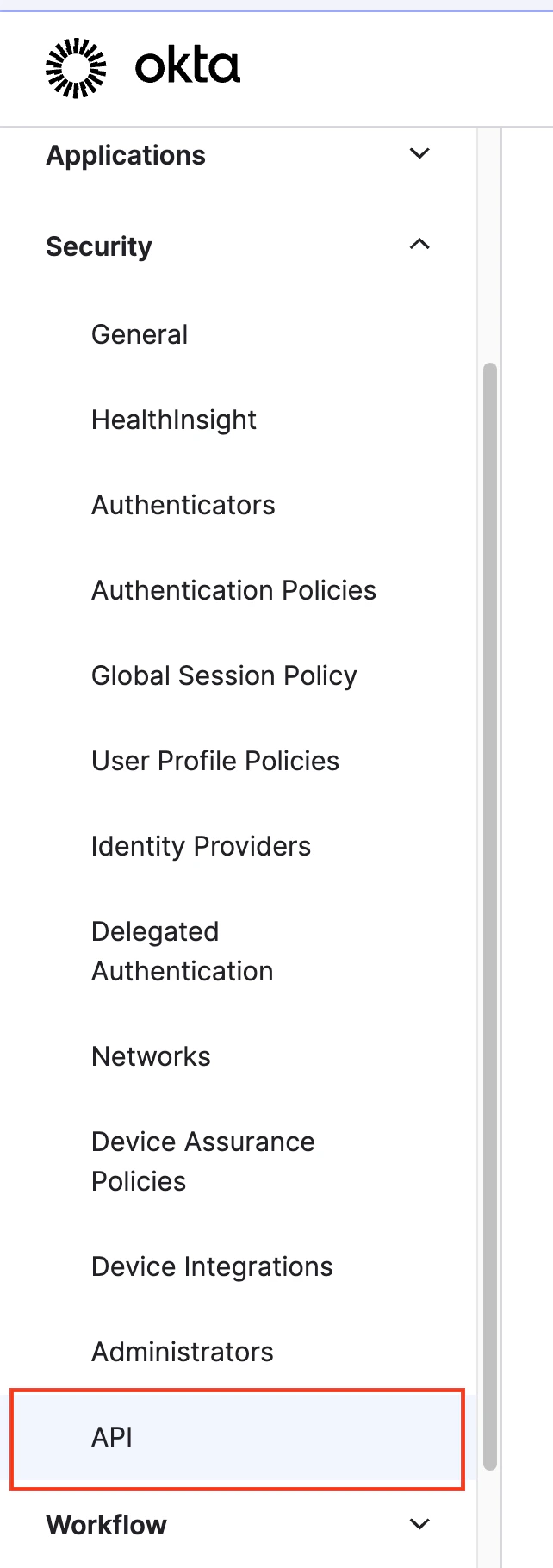
 In the left navigation menu, click **Security > API**.
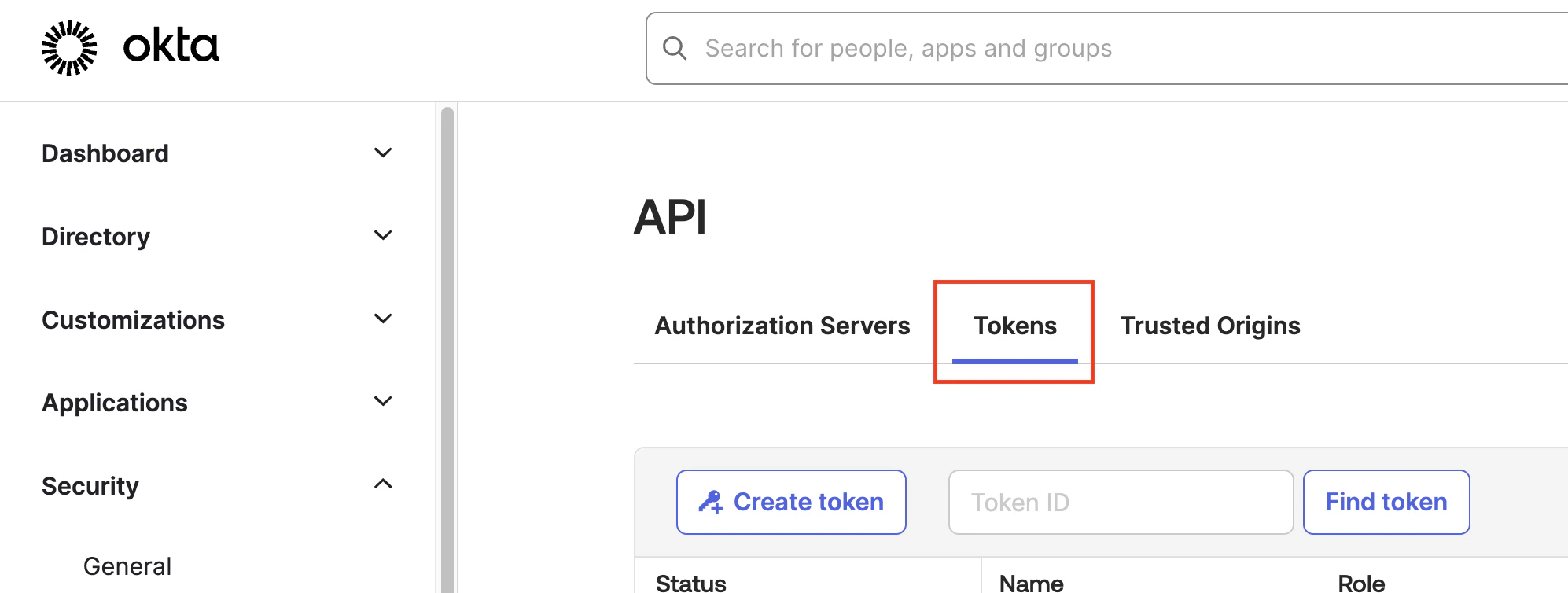
 Then under *API*, click **Tokens**.
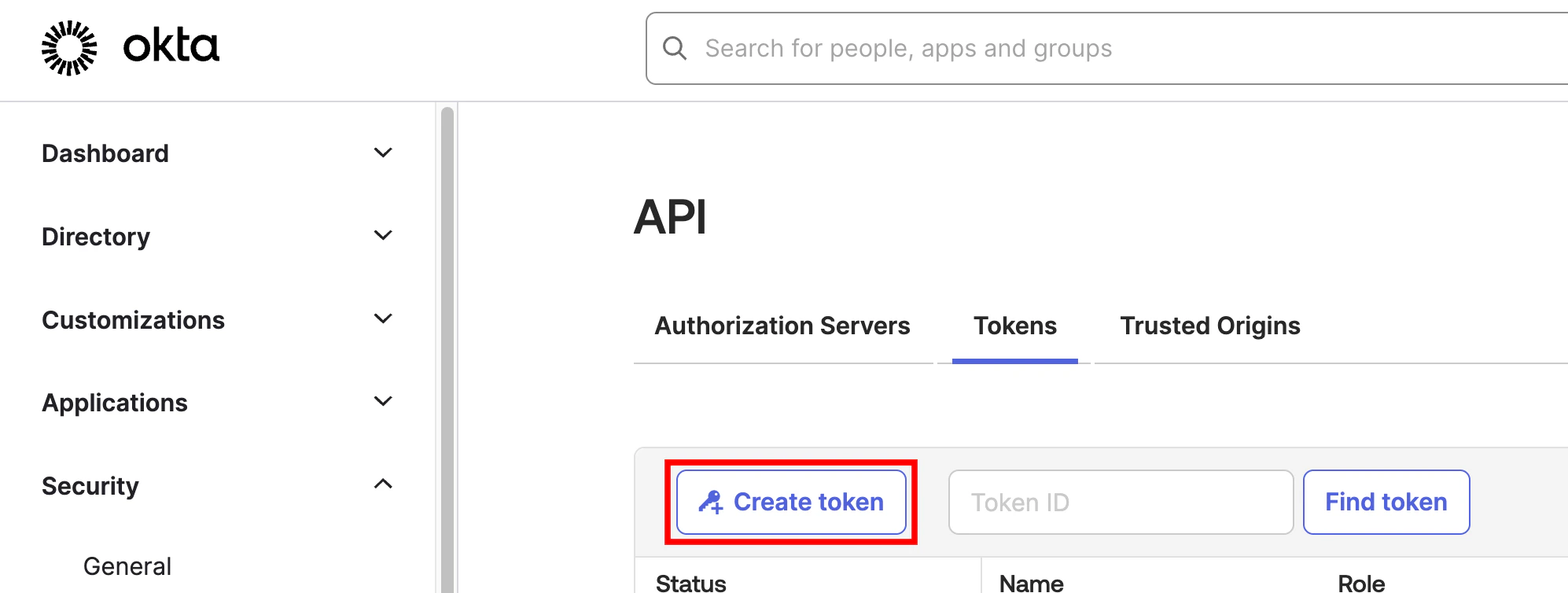
 Click the **Create token** button to create a new API Token.
 Enter a name for the new API Token, and select **Any IP** for the dropdown: *API calls made with this token must originate from*.
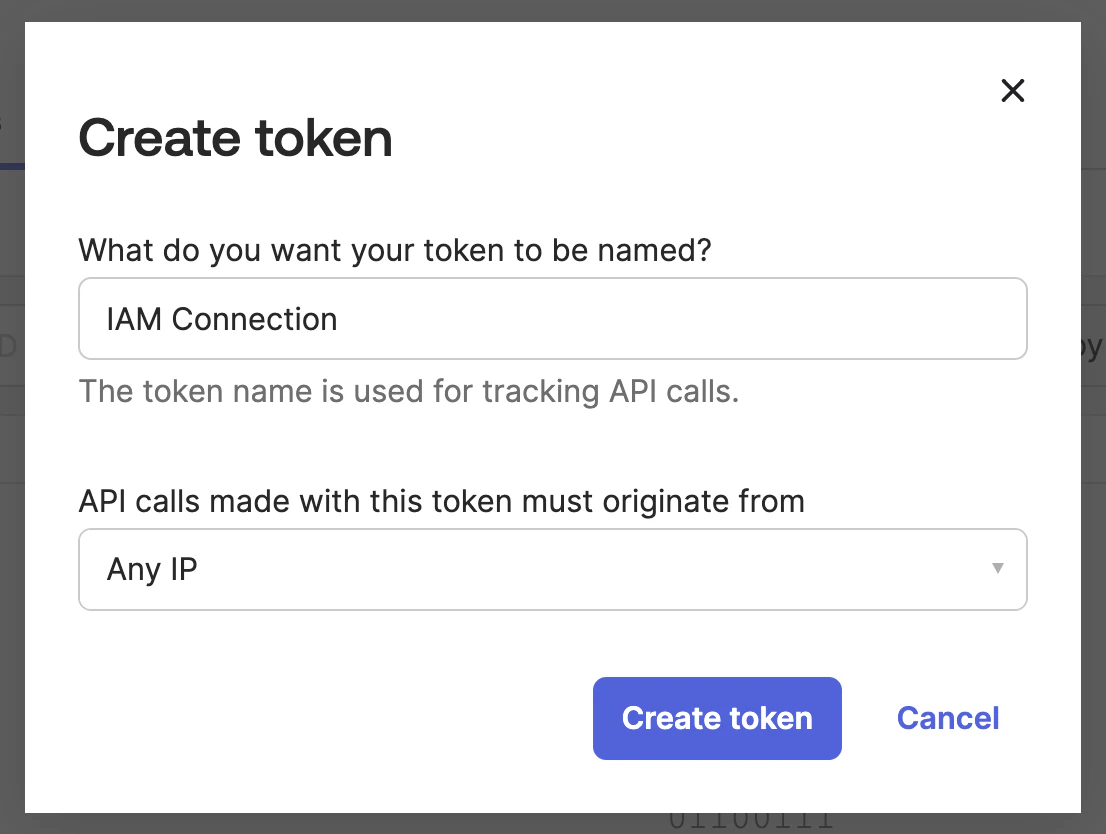 If your Okta instance requires connections only from specific network zones, please contact [integrations@stackone.com](mailto:integrations@stackone.com) for details.
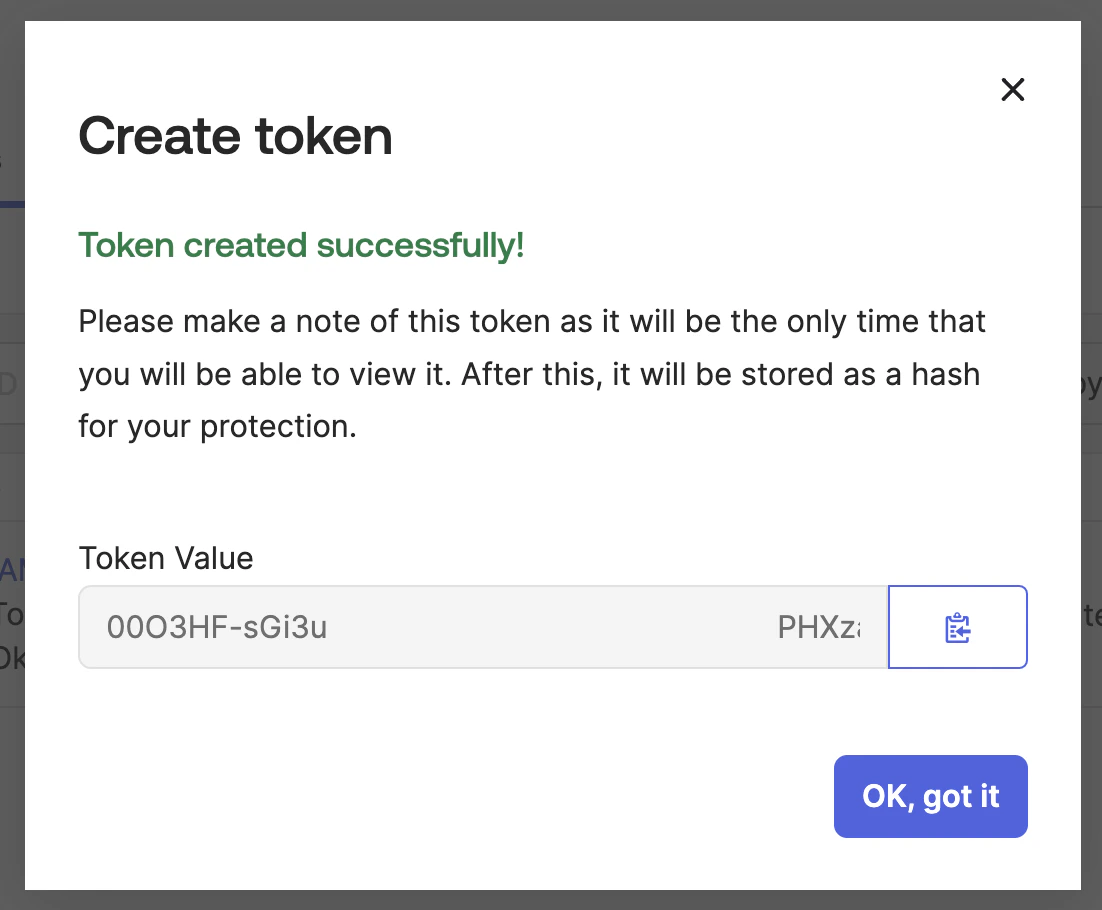
Copy your **API Token** and store it safely to be used in a later step.
If your Okta instance requires connections only from specific network zones, please contact [integrations@stackone.com](mailto:integrations@stackone.com) for details.
Copy your **API Token** and store it safely to be used in a later step.
 ## Connecting with StackOne
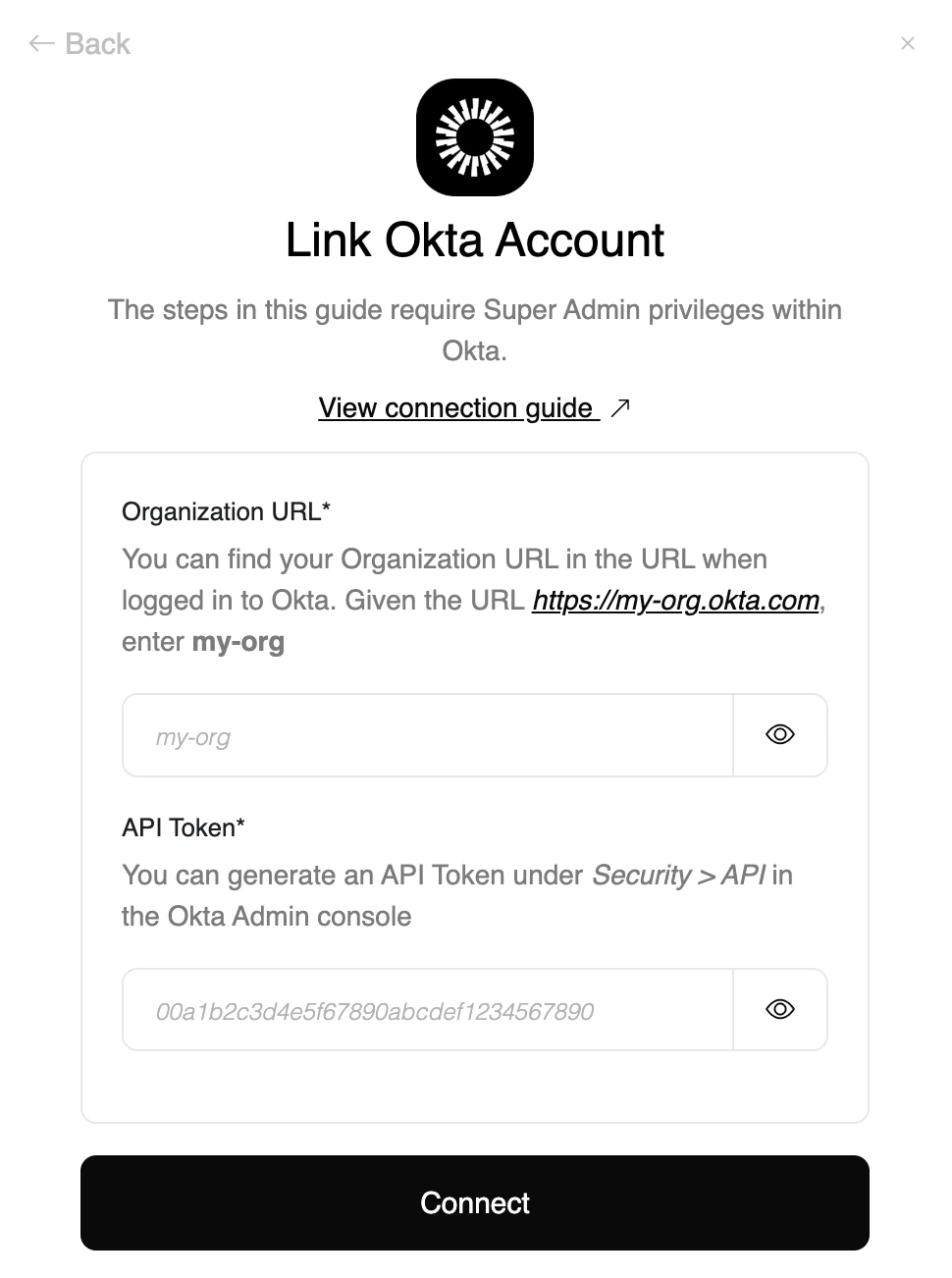
Upon reaching the Link Account page, enter the credential(s) from the previous steps:
* **Organization URL**
* **API Token**
Proceed by clicking the Connect button.
## Connecting with StackOne
Upon reaching the Link Account page, enter the credential(s) from the previous steps:
* **Organization URL**
* **API Token**
Proceed by clicking the Connect button.
Congratulations, you're all set! If you face any issues with the steps mentioned above,
please contact us by emailing [integrations@stackone.com](mailto:integrations@stackone.com). We're always here to assist you!
## Available data
This integration has the following [IAM Resources](https://docs.stackone.com/reference/getting-started-with-your-api) available from the provider: