> ## Documentation Index
> Fetch the complete documentation index at: https://stackone-hub-docs-confluence-api-token-update.mintlify.site/llms.txt
> Use this file to discover all available pages before exploring further.

# Scaleway

> Follow these steps to connect Scaleway via the StackOne Hub successfully.

<Warning>
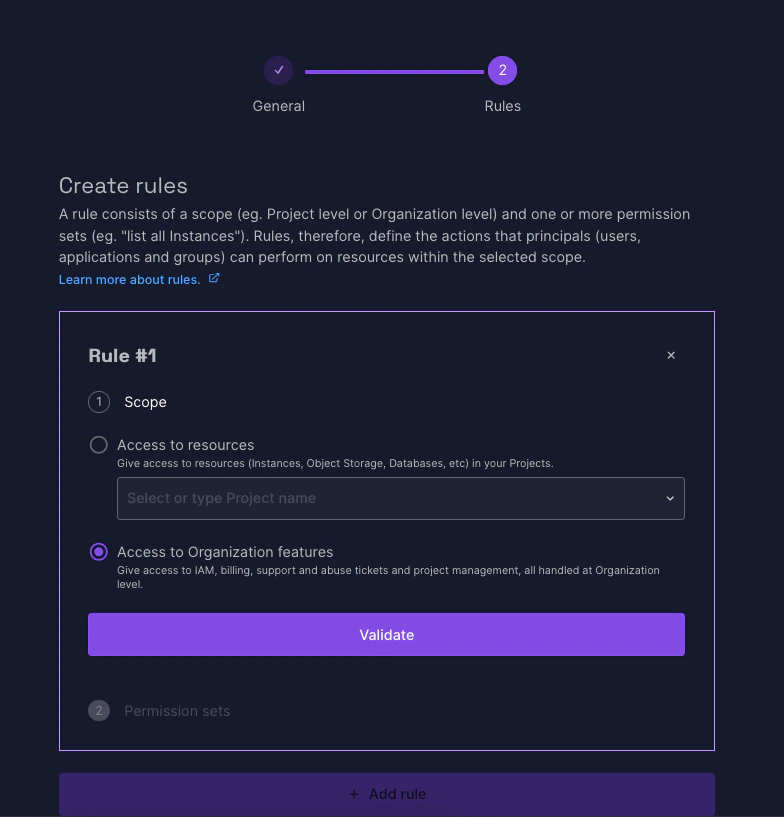
  Ensure your Scaleway Role has the Access to Organization features Rule assigned. Scaleway Policies and Rules for your organization can be viewed on the [Identity and Access Management (IAM) > Policies](https://console.scaleway.com/iam/policies) page.
</Warning>

If you've been directed to StackOne to integrate with Scaleway, the following steps will help you understand the process and any necessary actions to configure successful integration.

## Get Your Scaleway Organization ID

<Steps>
  <Step title="Log in to Scaleway">
    Log in to your [Scaleway account](https://console.scaleway.com)
  </Step>

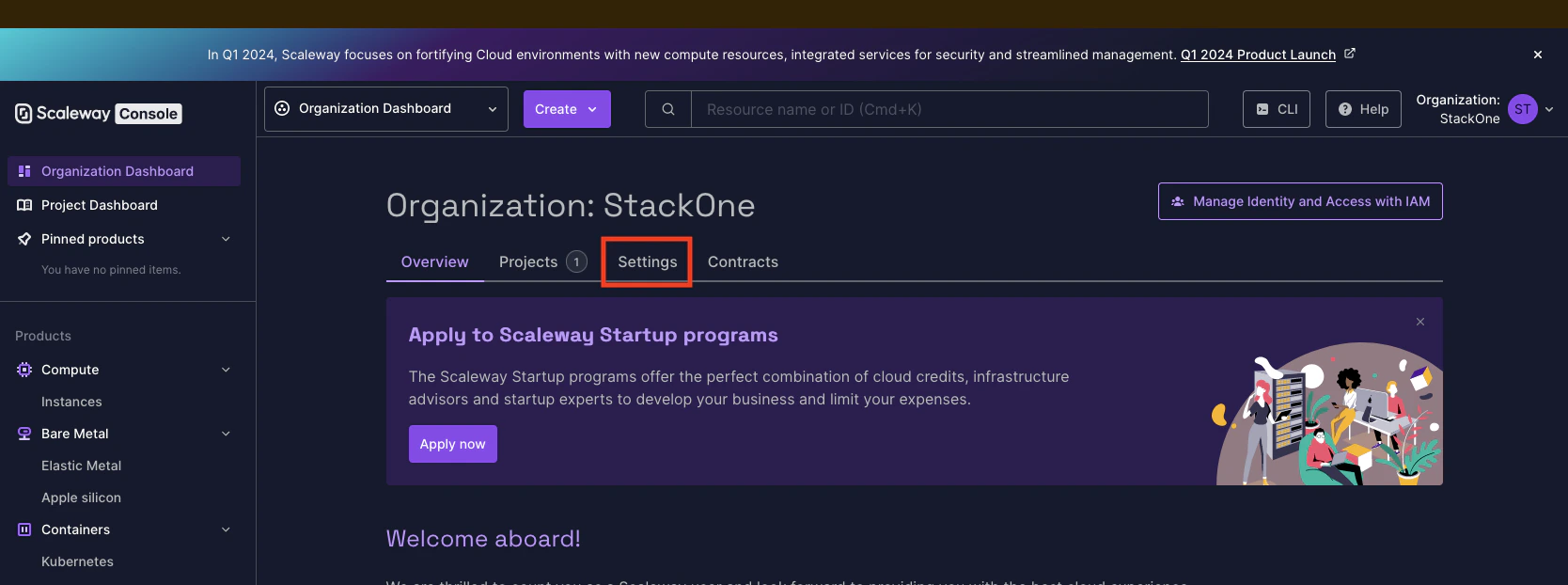
  <Step title="Access Organization Settings">
    In your Organization Dashboard, click Settings under your Organization name.
    <Frame>
      <img className="rounded-md" style={{ margin: '0 auto', border: '1px solid #efefef' }} alt="Organization Dashboard" src="https://mintcdn.com/stackone-hub-docs-confluence-api-token-update/lxJo9u7ebkkFpY1x/images/scaleway/image1.png?fit=max&auto=format&n=lxJo9u7ebkkFpY1x&q=85&s=317466a9a721313feda82acf67e2c600" width="1668" height="622" data-path="images/scaleway/image1.png" />
    </Frame>
  </Step>

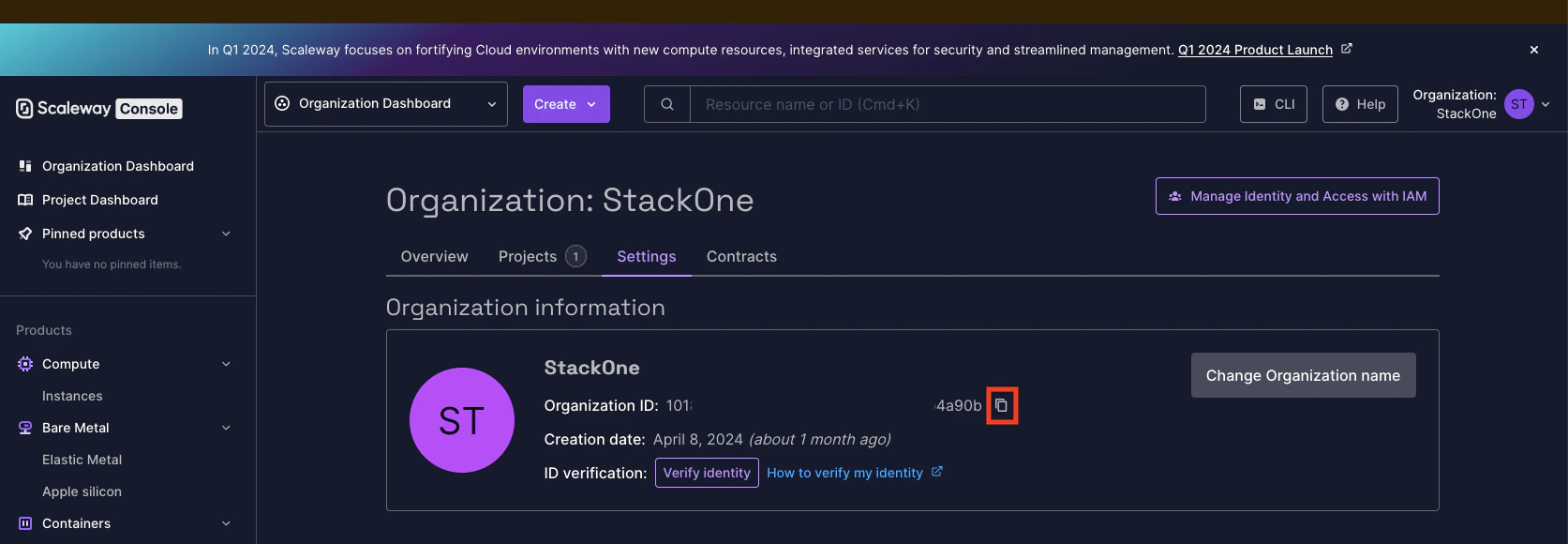
  <Step title="Copy Organization ID">
    Click the button to copy your Organization ID and store it safely.
    <Frame>
      <img className="rounded-md" style={{ margin: '0 auto', border: '1px solid #efefef' }} alt="Copy Organization ID" src="https://mintcdn.com/stackone-hub-docs-confluence-api-token-update/lxJo9u7ebkkFpY1x/images/scaleway/image2.png?fit=max&auto=format&n=lxJo9u7ebkkFpY1x&q=85&s=1fb68bbcea7c738771fbd078f2c53dd7" width="1673" height="580" data-path="images/scaleway/image2.png" />
    </Frame>
  </Step>
</Steps>

## Create a Policy for the Scaleway Application

<Steps>
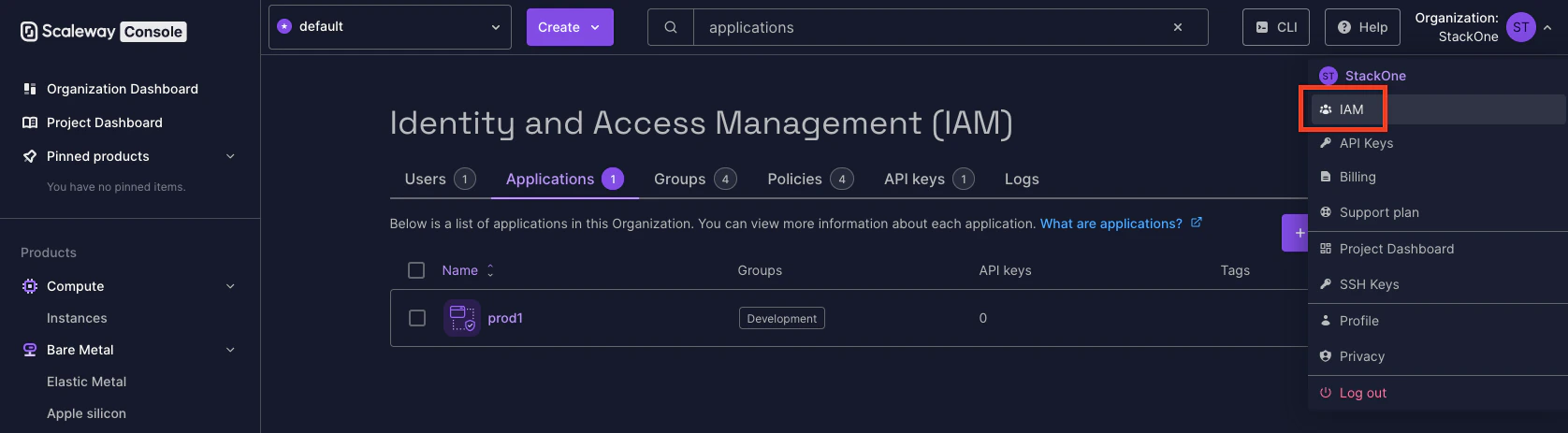
  <Step title="Access IAM">
    In your Scaleway Account, click your Organization icon in the top right, then click [IAM](https://console.scaleway.com).
    <Frame>
      <img className="rounded-md" style={{ margin: '0 auto', border: '1px solid #efefef' }} alt="IAM" src="https://mintcdn.com/stackone-hub-docs-confluence-api-token-update/lxJo9u7ebkkFpY1x/images/scaleway/image3.png?fit=max&auto=format&n=lxJo9u7ebkkFpY1x&q=85&s=9300006f7fdd8d395d4a13481fc304ef" width="1676" height="463" data-path="images/scaleway/image3.png" />
    </Frame>
  </Step>

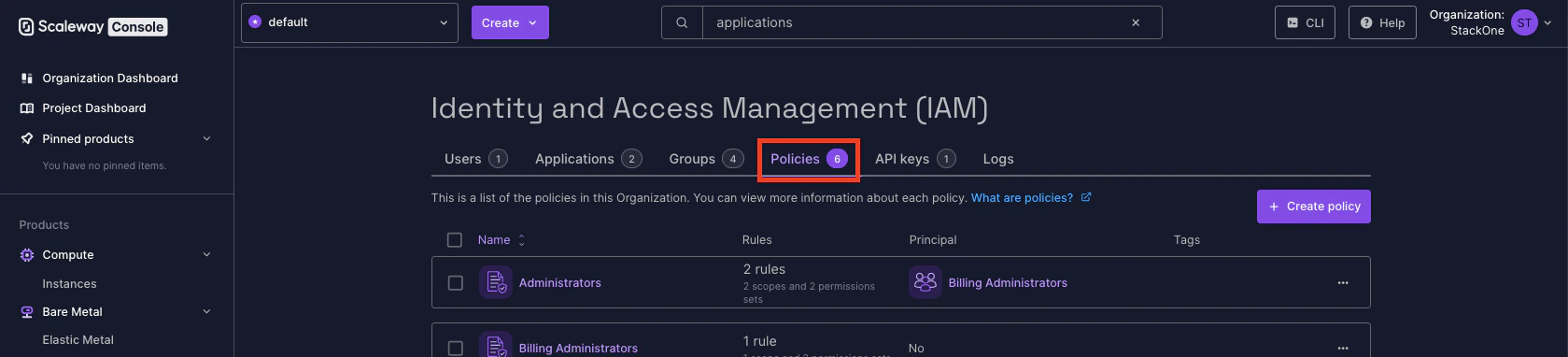
  <Step title="View Policies">
    Click Policies

    <Frame>
      <img className="rounded-md" style={{ margin: '0 auto', border: '1px solid #efefef' }} alt="Create Policy" src="https://mintcdn.com/stackone-hub-docs-confluence-api-token-update/C1VeUVSQ_nltDcS8/images/scaleway/image4.png?fit=max&auto=format&n=C1VeUVSQ_nltDcS8&q=85&s=bf48e4b21dade939a9ac40c7b9269336" width="1679" height="382" data-path="images/scaleway/image4.png" />
    </Frame>
  </Step>

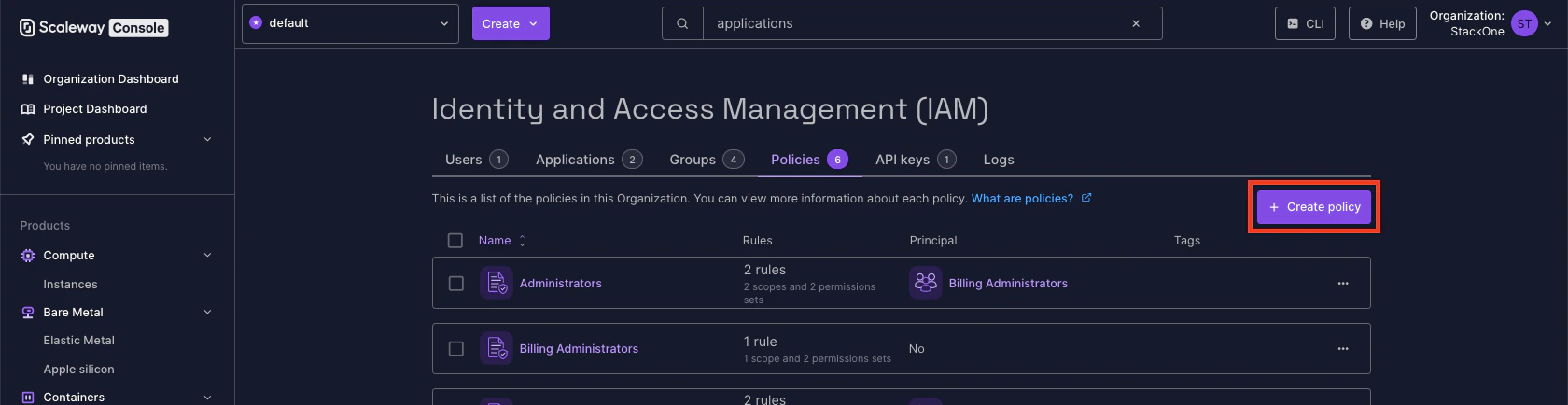
  <Step title="Create New Policy">
    Click the + Create policy button.

    <Frame>
      <img className="rounded-md" style={{ margin: '0 auto', border: '1px solid #efefef' }} alt="Create Policy" src="https://mintcdn.com/stackone-hub-docs-confluence-api-token-update/C1VeUVSQ_nltDcS8/images/scaleway/image5.png?fit=max&auto=format&n=C1VeUVSQ_nltDcS8&q=85&s=90099d8f8f954dbf4b1e3b3fd9d0e765" width="1680" height="434" data-path="images/scaleway/image5.png" />
    </Frame>
  </Step>

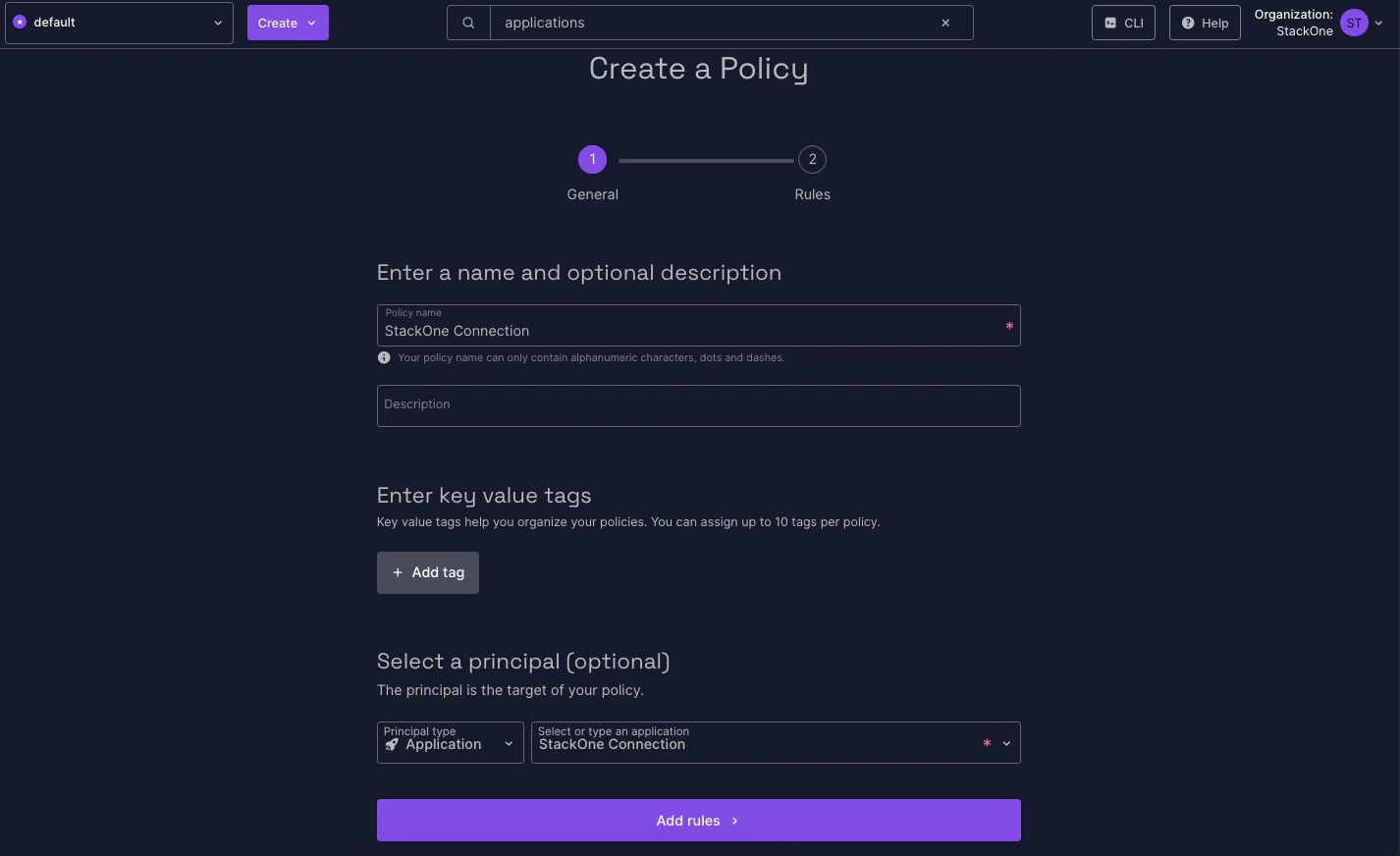
  <Step title="Enter Policy Details">
    Under Create a Policy, enter at least the following:

    <ul>
      <li>Policy name</li>
      <li>Select a principal: Principal type Application, Application, Select or type an application, The name of this Application</li>
    </ul>

    <Frame>
      <img className="rounded-md" style={{ margin: '0 auto', border: '1px solid #efefef' }} alt="Policy Details" src="https://mintcdn.com/stackone-hub-docs-confluence-api-token-update/C1VeUVSQ_nltDcS8/images/scaleway/image6.png?fit=max&auto=format&n=C1VeUVSQ_nltDcS8&q=85&s=f0fb1f12e99f8279d3a01e5d3d6ea745" width="1426" height="872" data-path="images/scaleway/image6.png" />
    </Frame>
  </Step>

  <Step title="Add Rules">
    Click the Add rules button, select Access to Organization features, then click the Validate button.
    <Frame>
      <img className="rounded-md" style={{ margin: '0 auto', border: '1px solid #efefef' }} alt="Add Rules" src="https://mintcdn.com/stackone-hub-docs-confluence-api-token-update/C1VeUVSQ_nltDcS8/images/scaleway/image7.png?fit=max&auto=format&n=C1VeUVSQ_nltDcS8&q=85&s=231cccb9491eb10a138939ac3c774db4" width="784" height="817" data-path="images/scaleway/image7.png" />
    </Frame>
  </Step>

  <Step title="Create Policy">
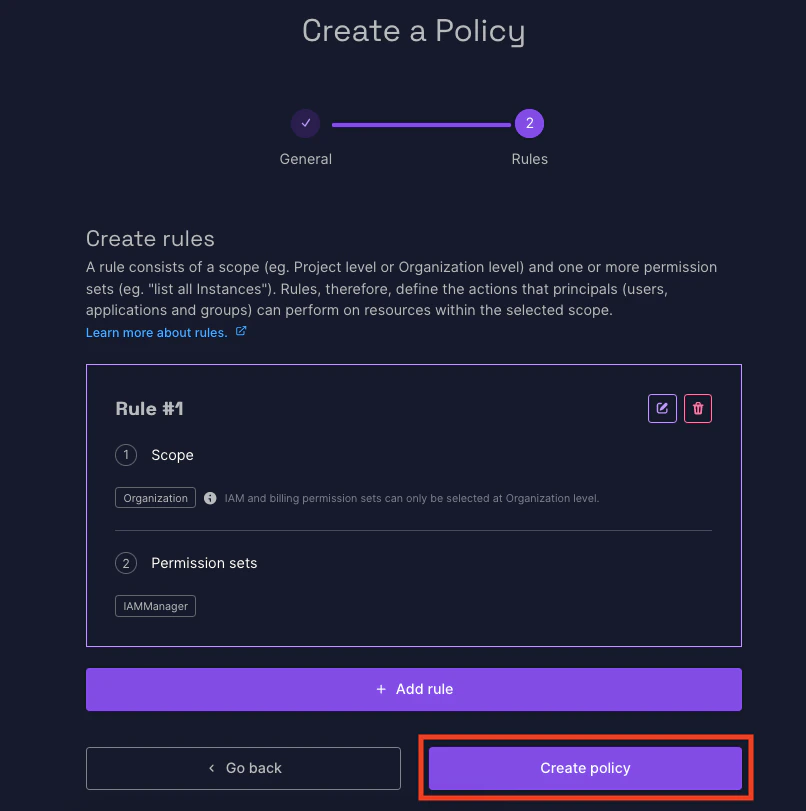
    With your new Rule created, click the Create policy button. Your new Policy will be displayed.
    <Frame>
      <img className="rounded-md" style={{ margin: '0 auto', border: '1px solid #efefef' }} alt="Create Policy Confirmation" src="https://mintcdn.com/stackone-hub-docs-confluence-api-token-update/C1VeUVSQ_nltDcS8/images/scaleway/image8.png?fit=max&auto=format&n=C1VeUVSQ_nltDcS8&q=85&s=7dd5d5a17e6d657925f79bee919a1cfc" width="806" height="811" data-path="images/scaleway/image8.png" />
    </Frame>
  </Step>
</Steps>

## Create a new Scaleway Application

<Steps>
  <Step title="Access Applications">
    Under Identity and Access Management (IAM), click [Applications](https://console.scaleway.com).
  </Step>

  <Step title="Create Application">
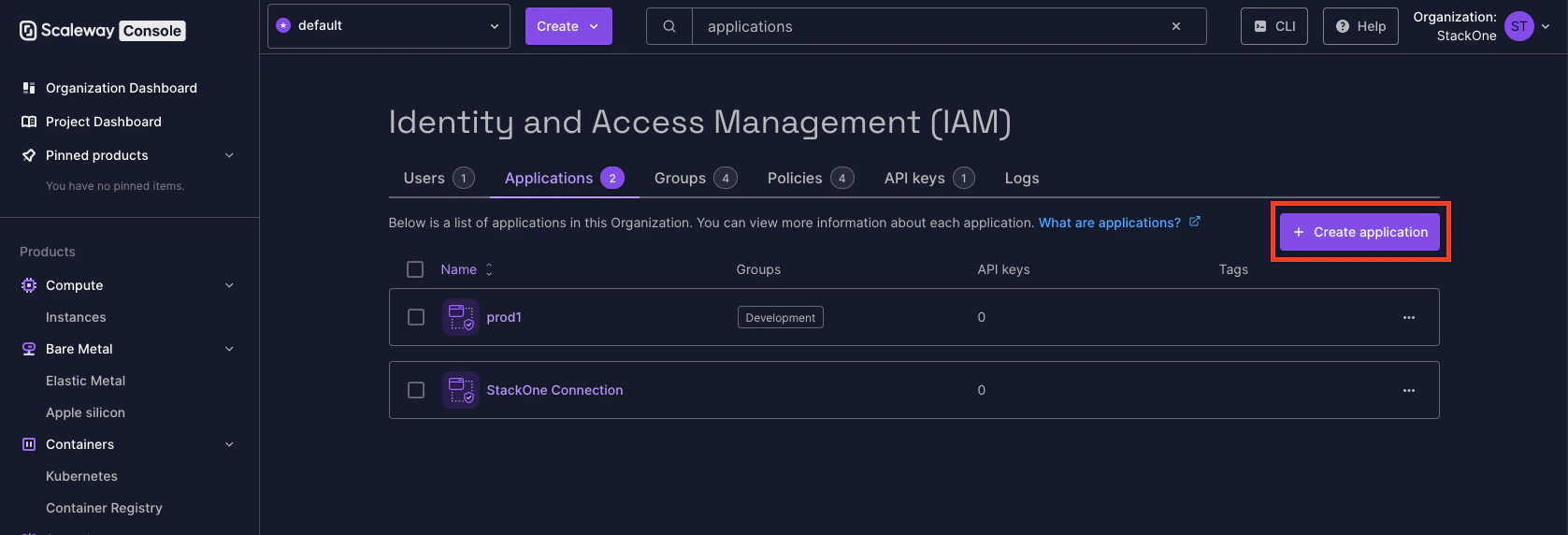
    Click the + Create application button.
    <Frame>
      <img className="rounded-md" style={{ margin: '0 auto', border: '1px solid #efefef' }} alt="Create Application" src="https://mintcdn.com/stackone-hub-docs-confluence-api-token-update/C1VeUVSQ_nltDcS8/images/scaleway/image9.png?fit=max&auto=format&n=C1VeUVSQ_nltDcS8&q=85&s=c1fe02df4228dd4518243157d6b5fb05" width="1677" height="572" data-path="images/scaleway/image9.png" />
    </Frame>
  </Step>

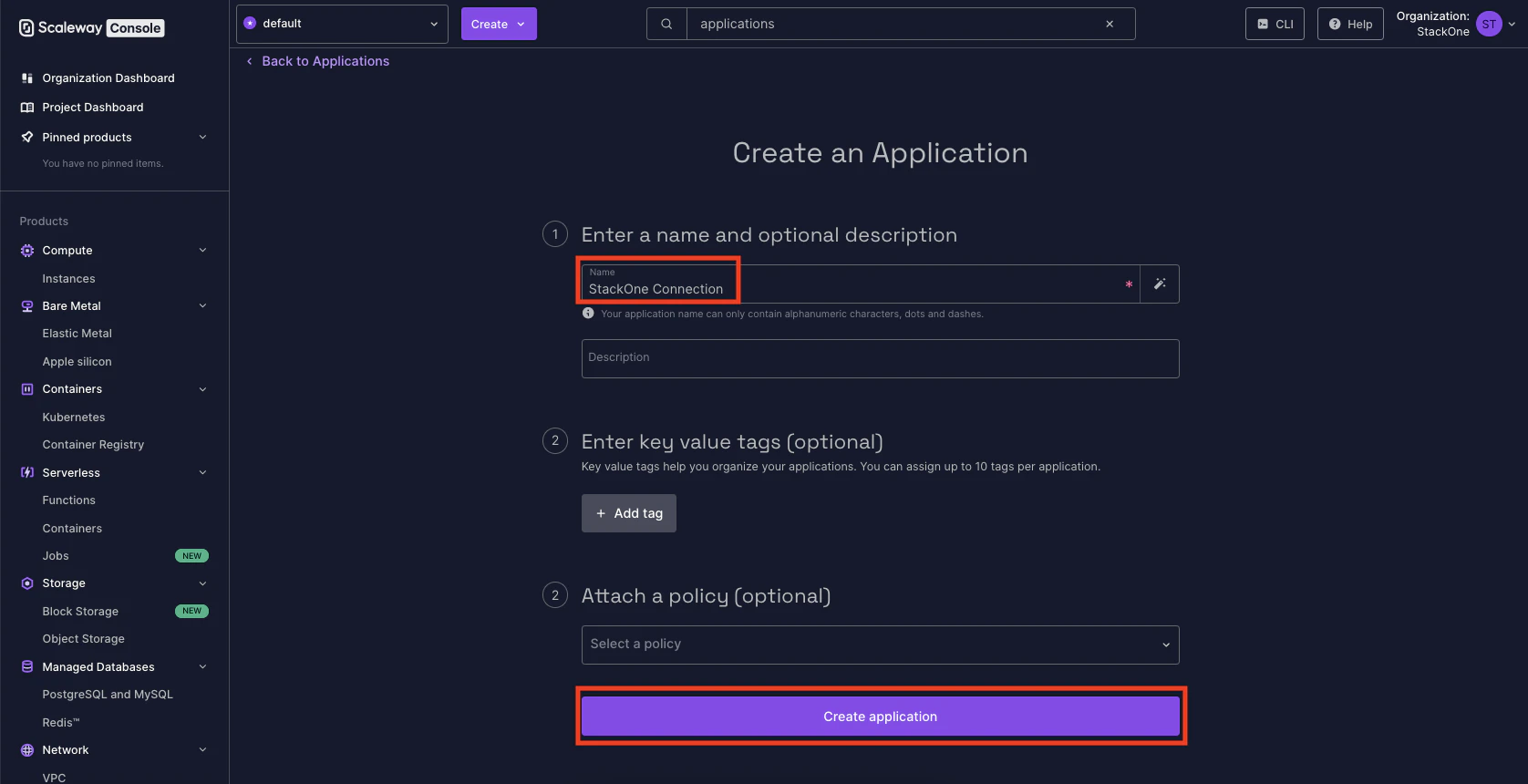
  <Step title="Enter Application Details">
    Under Create an Application, enter the following required details:

    <ul>
      <li>Name</li>
      <li>Policy: Select the Policy created in the previous step</li>
    </ul>

    <Frame>
      <img className="rounded-md" style={{ margin: '0 auto', border: '1px solid #efefef' }} alt="Application Details" src="https://mintcdn.com/stackone-hub-docs-confluence-api-token-update/lxJo9u7ebkkFpY1x/images/scaleway/image10.png?fit=max&auto=format&n=lxJo9u7ebkkFpY1x&q=85&s=2cf07f52bbe7215134394fcfc776eb98" width="1676" height="860" data-path="images/scaleway/image10.png" />
    </Frame>
  </Step>

  <Step title="Create Application">
    Click the Create application button to proceed.
  </Step>
</Steps>

## Get Your Scaleway Secret Key

<Steps>
  <Step title="Access API Keys">
    Under Identity and Access Management (IAM), click [API Keys](https://console.scaleway.com).
  </Step>

  <Step title="Generate API Key">
    Click the + Generate API key button.

    <Frame>
      <img className="rounded-md" style={{ margin: '0 auto', border: '1px solid #efefef' }} alt="Generate API Key" src="https://mintcdn.com/stackone-hub-docs-confluence-api-token-update/lxJo9u7ebkkFpY1x/images/scaleway/image11.png?fit=max&auto=format&n=lxJo9u7ebkkFpY1x&q=85&s=48c830da0a554cfa9f4c705cbc5ce68c" width="1421" height="322" data-path="images/scaleway/image11.png" />
    </Frame>
  </Step>

  <Step title="Enter API Key Details">
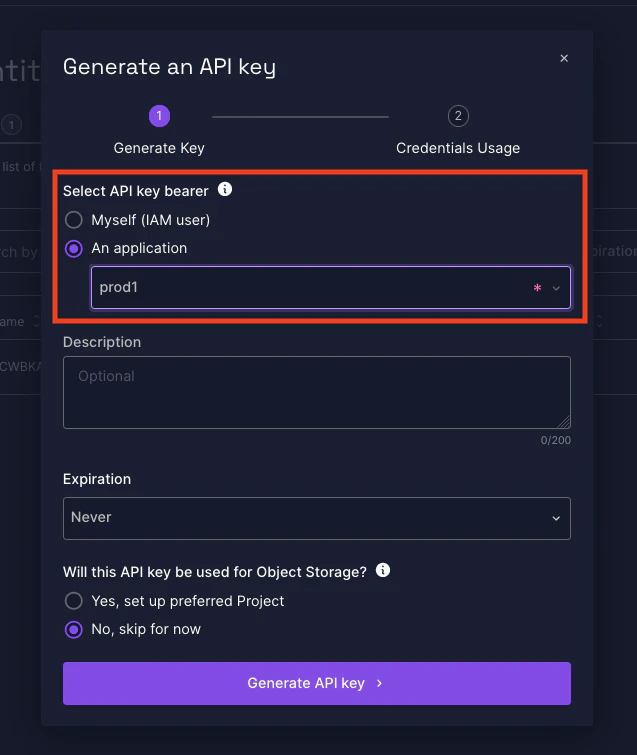
    Under Generate an API Key, select the Application you created in the previous step. Enter any other optional details.
    <Frame>
      <img className="rounded-md" style={{ margin: '0 auto', border: '1px solid #efefef' }} alt="API Key Details" src="https://mintcdn.com/stackone-hub-docs-confluence-api-token-update/lxJo9u7ebkkFpY1x/images/scaleway/image12.png?fit=max&auto=format&n=lxJo9u7ebkkFpY1x&q=85&s=daa860b660c1e9a2137cdb2da8b5fd28" width="637" height="755" data-path="images/scaleway/image12.png" />
    </Frame>
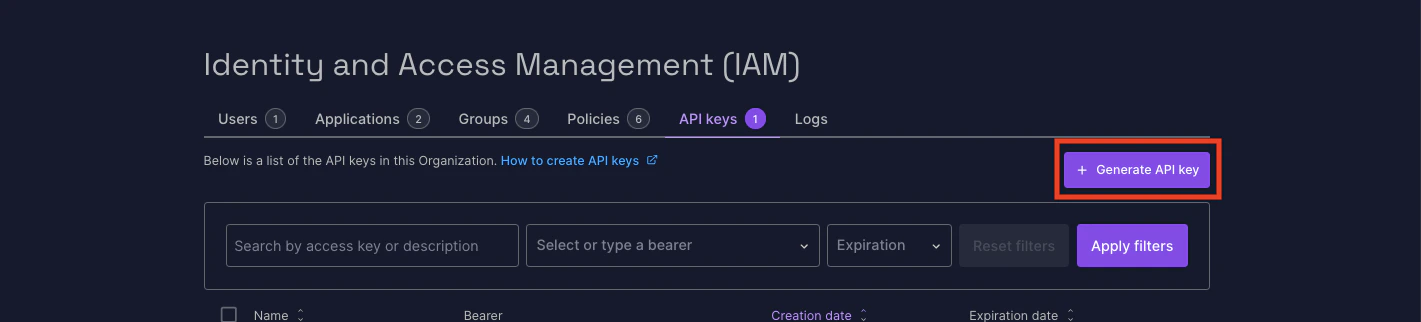
  </Step>

  <Step title="Generate API Key">
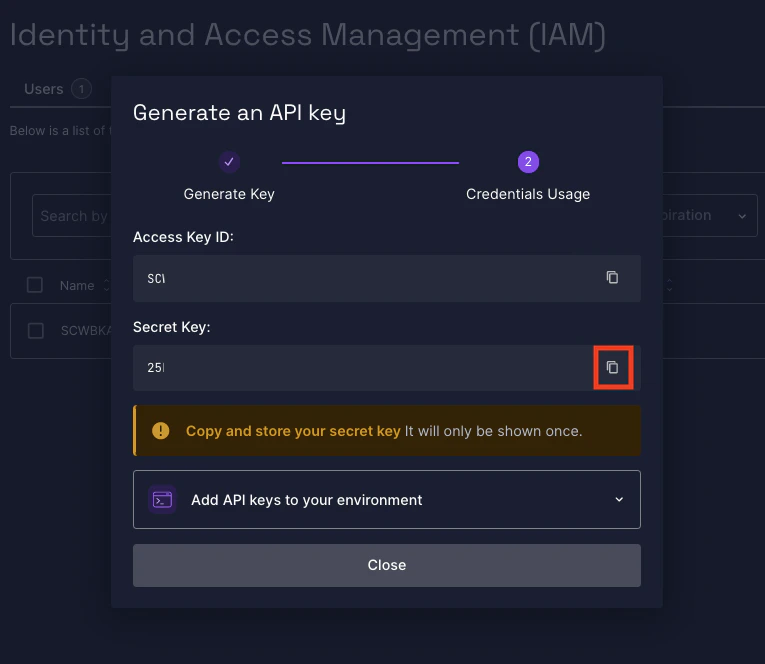
    Click the Generate API key button at the bottom to proceed. Your Secret Key will be displayed once. Click the button to copy your Secret Key and store it safely.
    <Frame>
      <img className="rounded-md" style={{ margin: '0 auto', border: '1px solid #efefef' }} alt="Copy Secret Key" src="https://mintcdn.com/stackone-hub-docs-confluence-api-token-update/lxJo9u7ebkkFpY1x/images/scaleway/image13.png?fit=max&auto=format&n=lxJo9u7ebkkFpY1x&q=85&s=b440346ad7e4e75deb118ebf222dad32" width="765" height="664" data-path="images/scaleway/image13.png" />
    </Frame>
  </Step>

  <Step title="Close">
    Press the Close button to proceed.
  </Step>
</Steps>

## Connecting with StackOne

<Steps>
  <Step title="Enter Credentials">
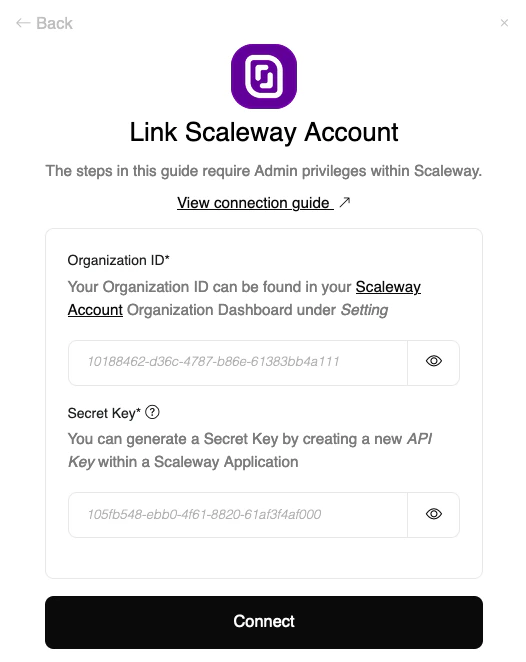
    Upon reaching the Link Account page, enter your Organization ID and Secret Key from the previous steps.
    <Frame>
      <img className="rounded-md" style={{ margin: '0 auto', border: '1px solid #efefef' }} alt="Link Account" src="https://mintcdn.com/stackone-hub-docs-confluence-api-token-update/lxJo9u7ebkkFpY1x/images/scaleway/image14.png?fit=max&auto=format&n=lxJo9u7ebkkFpY1x&q=85&s=ec14aacd2fa877b7d78ddab6a7277d73" width="526" height="662" data-path="images/scaleway/image14.png" />
    </Frame>
  </Step>

  <Step title="Connect">
    Proceed by clicking the Connect button.
  </Step>
</Steps>

<br />

Congratulations, you're all set! If you face any issues with the steps mentioned above,
please contact us by emailing [integrations@stackone.com](mailto:integrations@stackone.com). We're always here to assist you!

## Available data

This integration has the following [IAM Resources](https://docs.stackone.com/reference/iam_list_users) available from the provider:

<ul>
  <li>Users</li>
  <li>Roles</li>
  <li>Groups</li>
  <li>Policies</li>
</ul>

## Useful Links

<Card title="API Reference" icon="link" href="https://www.scaleway.com/en/developers/api/#identity-and-access-management-iam">
  [https://www.scaleway.com/en/developers/api/#identity-and-access-management-iam](https://www.scaleway.com/en/developers/api/#identity-and-access-management-iam)
</Card>