> ## Documentation Index
> Fetch the complete documentation index at: https://stackone-hub-docs-confluence-api-token-update.mintlify.site/llms.txt
> Use this file to discover all available pages before exploring further.
# Scoro
> Follow these steps to connect Scoro via the StackOne Hub successfully.
Ensure you are an Administrator in your Scoro account.
If you've been directed to StackOne to integrate with Scoro, the following steps will help you understand the process and any necessary actions to configure successful integration.
This guidance assumes that you are an Administrator within Scoro.
## Get User Credentials
You will need to provide a Username and Password and Company Account Id . It is recommended that you set up a new account for integration purposes.
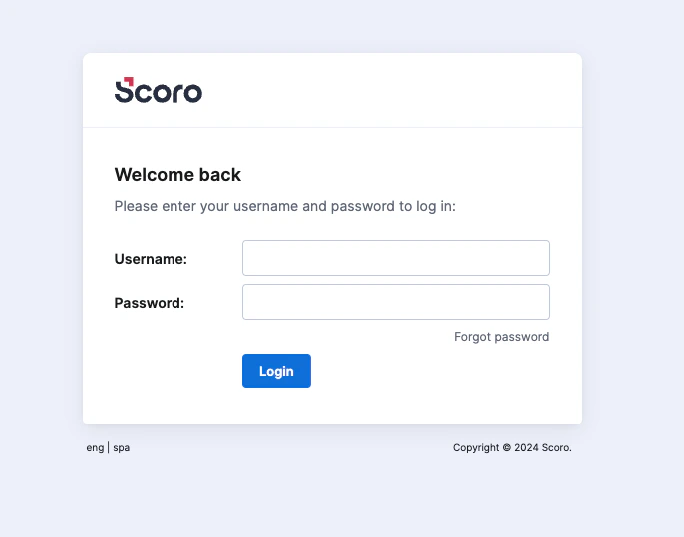
Log in to your Scoro Account. `https://{Your Company Account ID}.scoro.com/login`
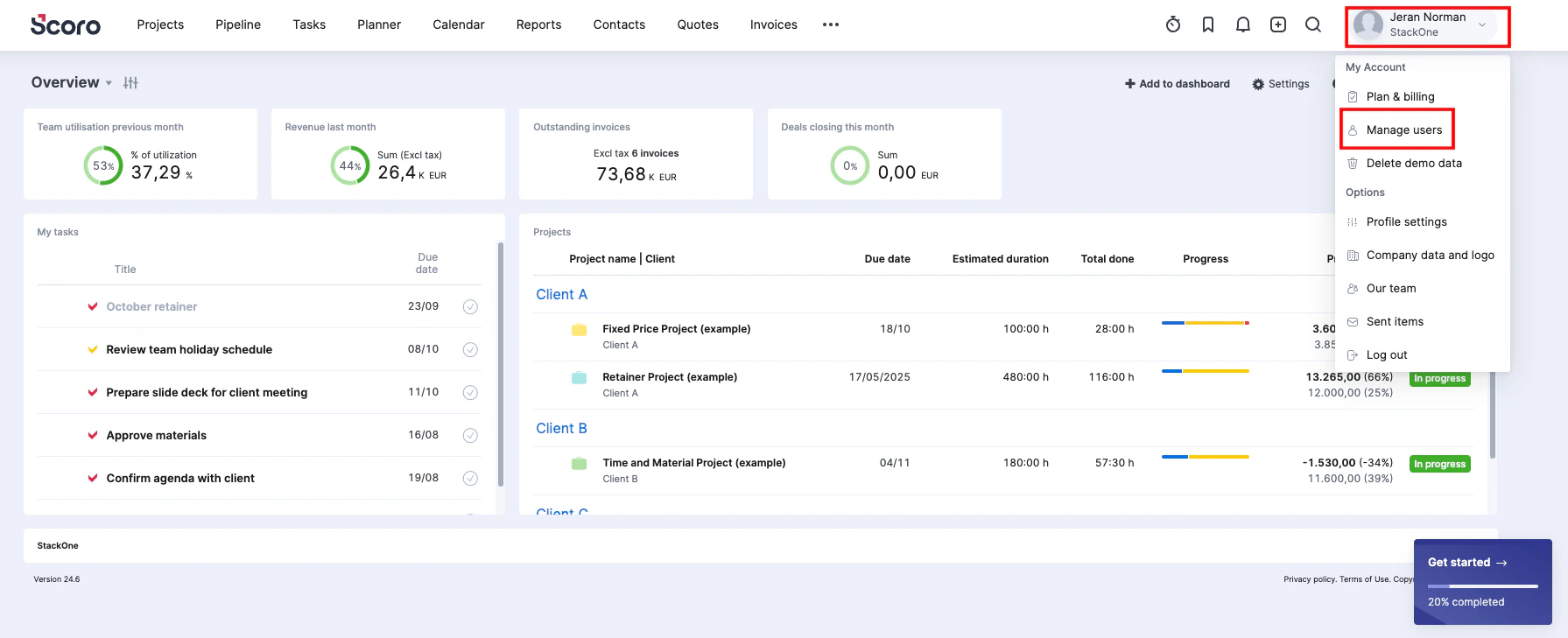
 Click on the dropdown button from top right corner and then click on the `Manage users` tab.
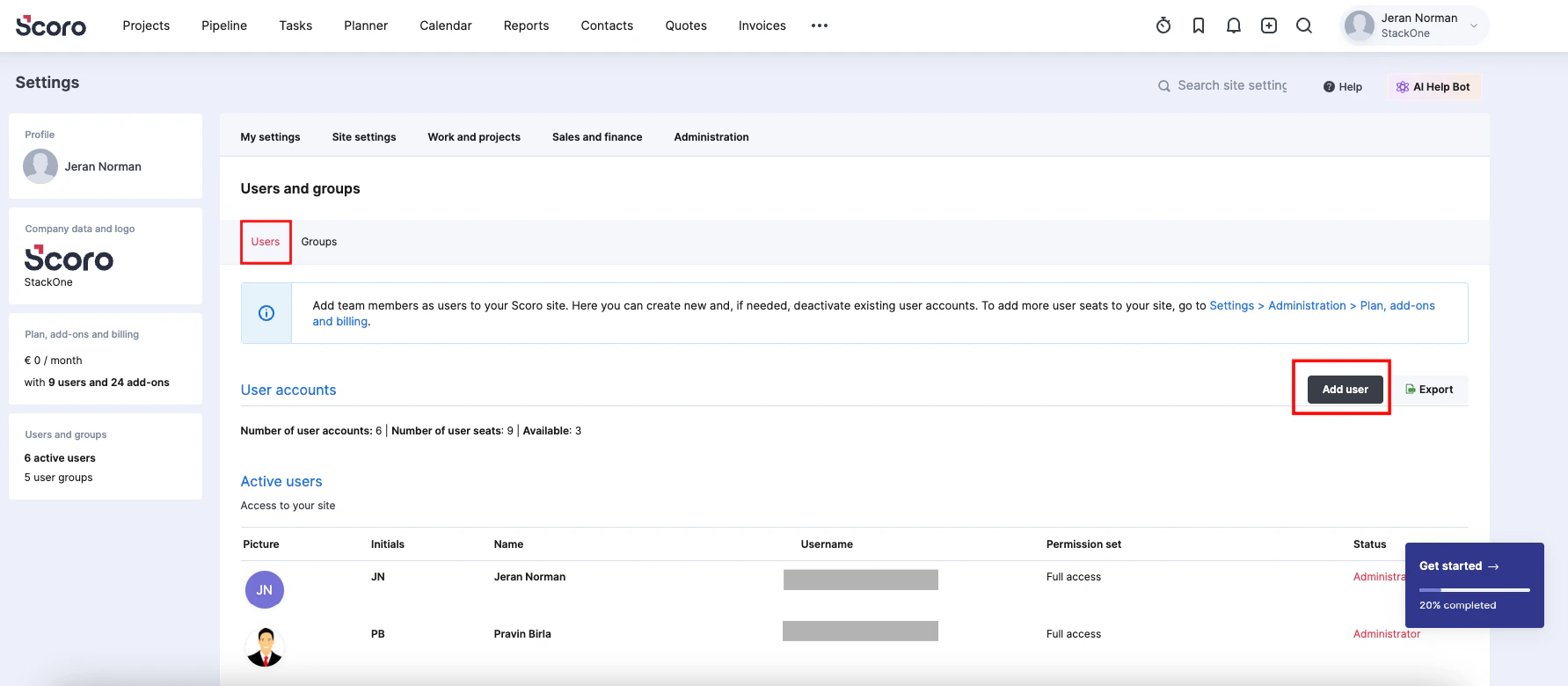
 Under the Users and Groups, click the `Users` tab and then click `Add User` button to create a new user.
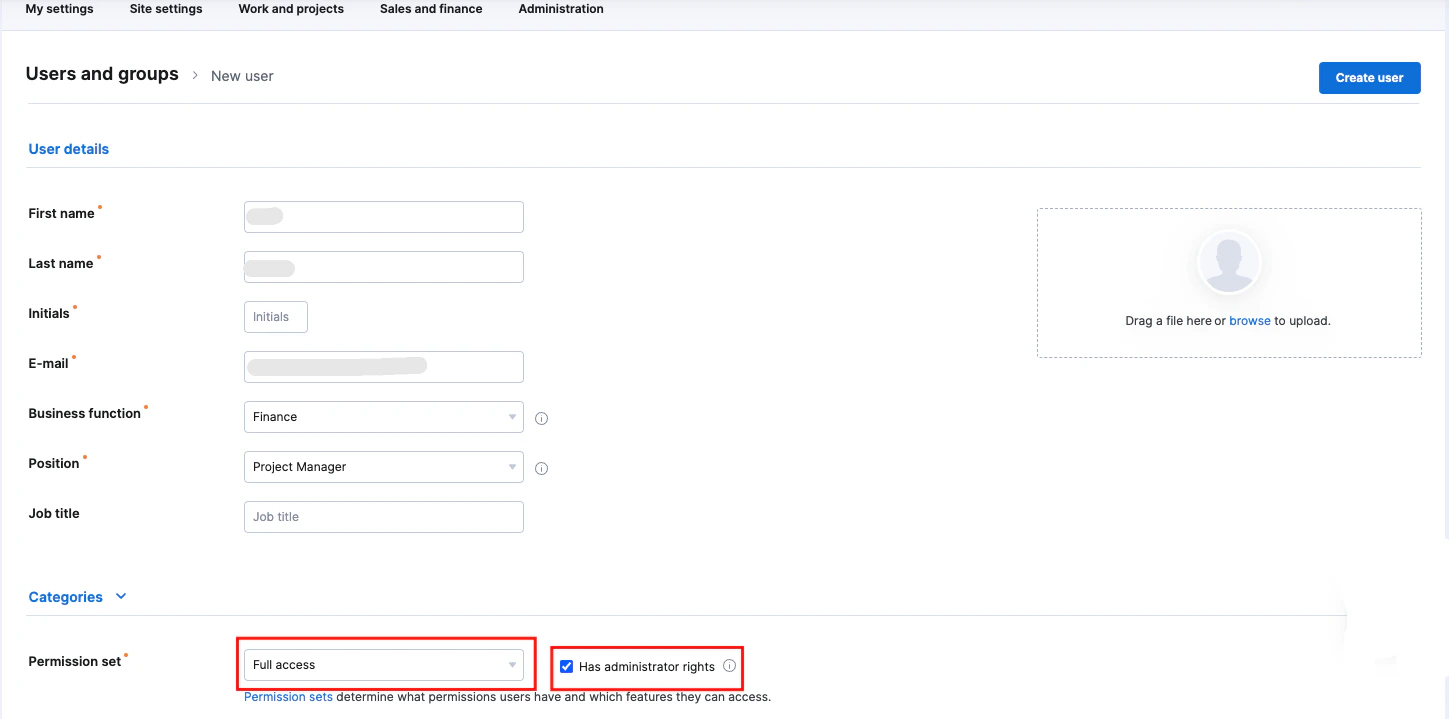
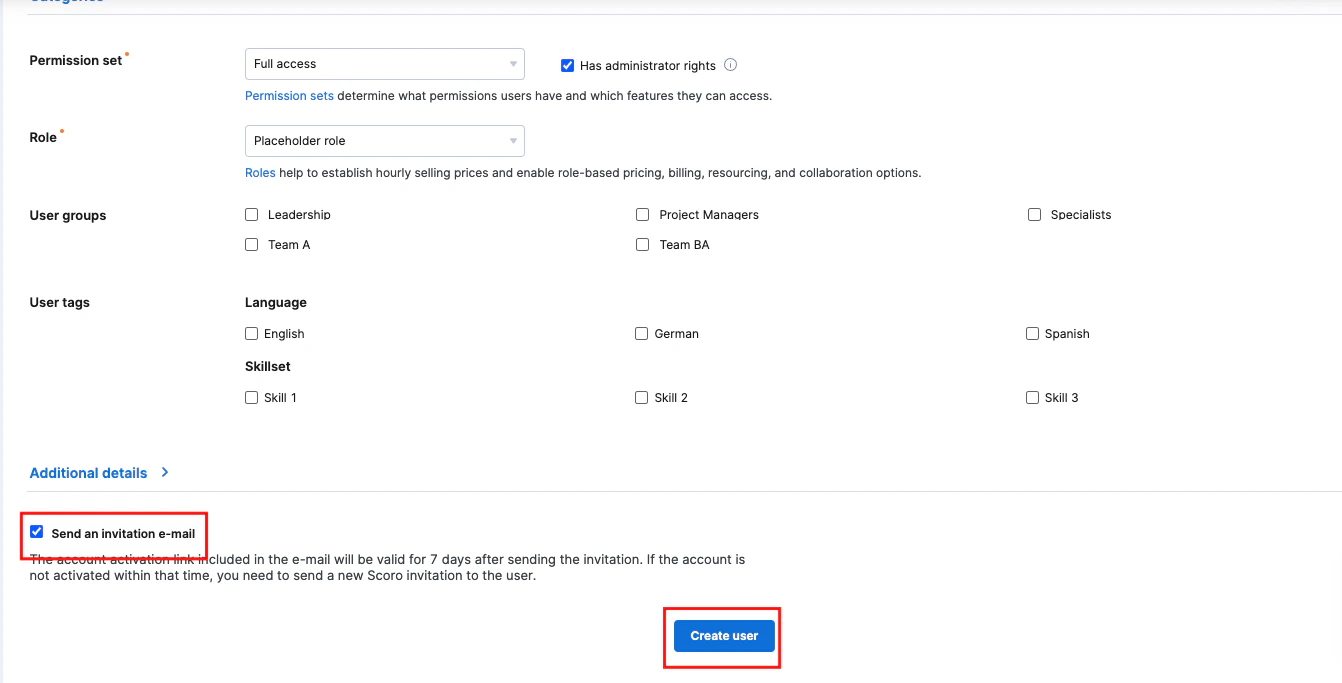
 Fill out the required fields, check the `Has administrator rights` and \
`Send an invitation e-mail` checkboxes, and select **Full access** in the `Permission set` dropdown. This will ensure the account has the correct permissions. Afterward, click `Create user`
Fill out the required fields, check the `Has administrator rights` and \
`Send an invitation e-mail` checkboxes, and select **Full access** in the `Permission set` dropdown. This will ensure the account has the correct permissions. Afterward, click `Create user`
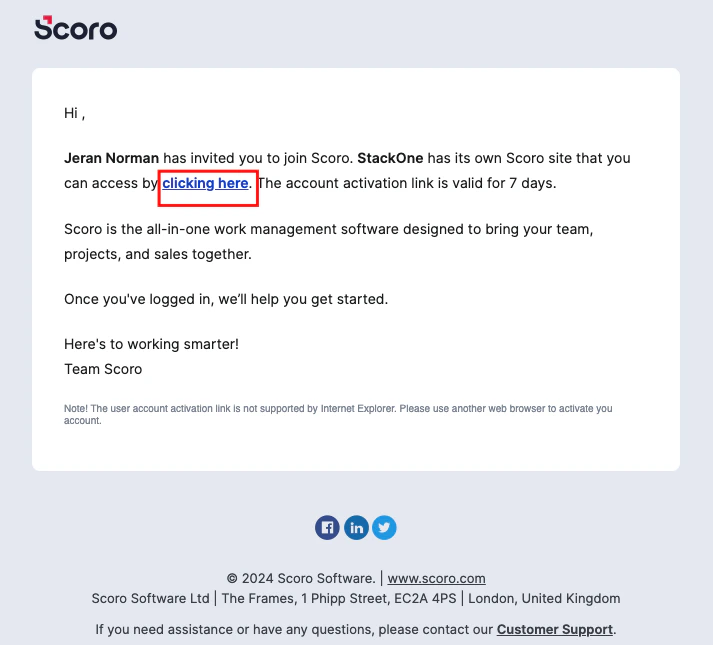
 The email address you entered will receive an invitation. Click `click here` link, you may have to log out of your current account to create the password.
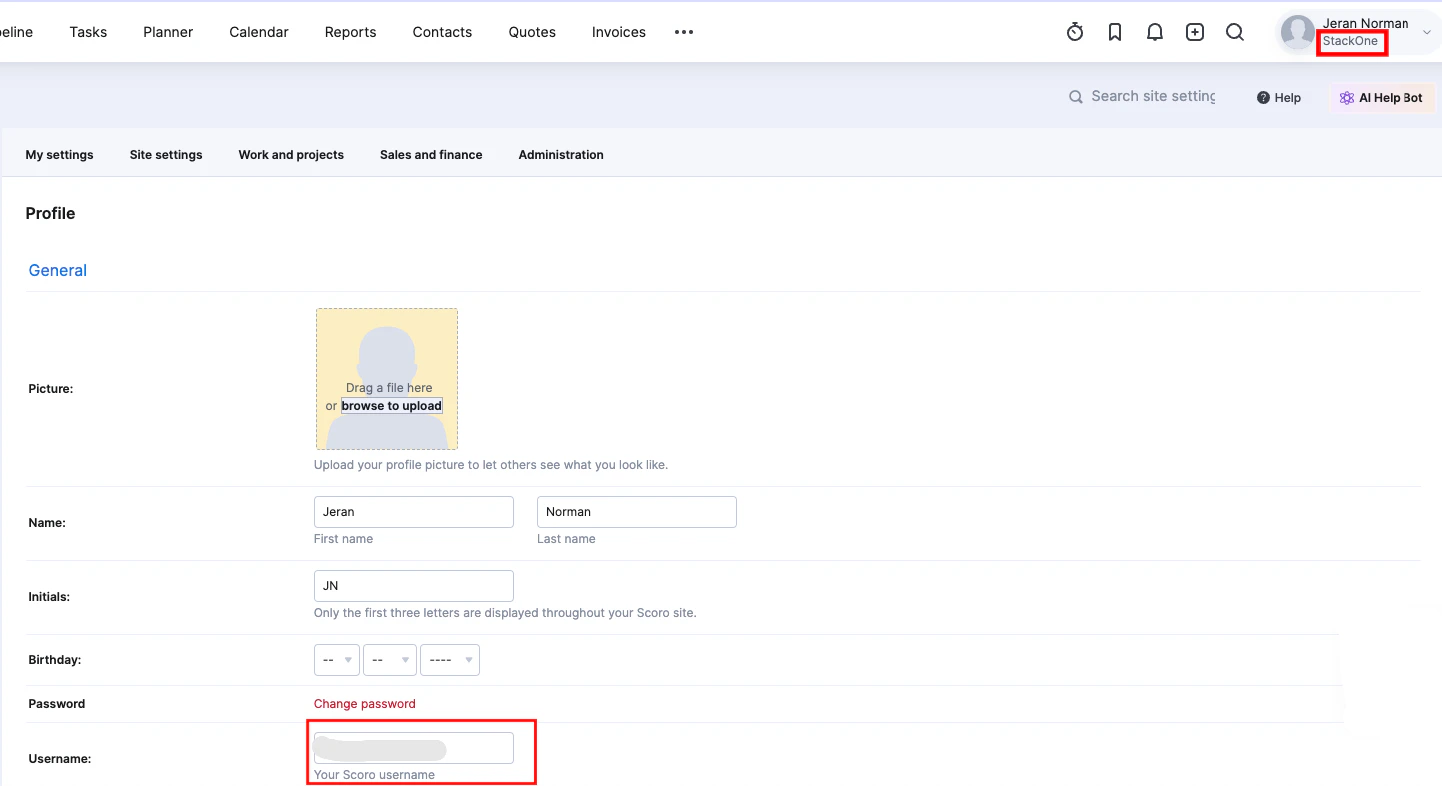
 Click the Profile Dropdown from the top right corner, then click `Profile settings`.
Copy your **Username** listed next to `Profile > Username`.
Click the Profile Dropdown from the top right corner, then click `Profile settings`.
Copy your **Username** listed next to `Profile > Username`.
 ## Get Your Company Account ID
Your **Company Account ID** can be found in the URL when you are logged in to Scoro.
Given the URL: `https://my-company.scoro.com/settings`, your **Company Account ID** is `my-company`.
## Connecting with StackOne
Upon reaching the Link Account page, enter your credentials from the previous steps:
* Company Account ID
* Username
* Password
## Get Your Company Account ID
Your **Company Account ID** can be found in the URL when you are logged in to Scoro.
Given the URL: `https://my-company.scoro.com/settings`, your **Company Account ID** is `my-company`.
## Connecting with StackOne
Upon reaching the Link Account page, enter your credentials from the previous steps:
* Company Account ID
* Username
* Password
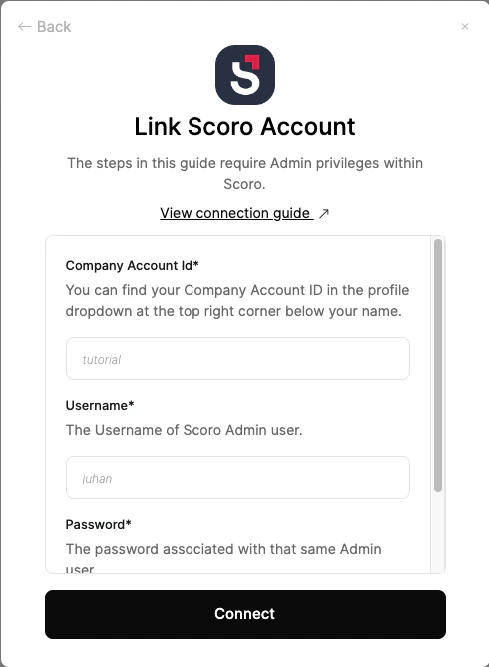 Click the Connect button to proceed.
Congratulations, you're all set! If you face any issues with the steps mentioned above,
please contact us by emailing [integrations@stackone.com](mailto:integrations@stackone.com). We're always here to assist you!
## Available data
This integration has the following [IAM Resources](https://docs.stackone.com/reference/iam_list_users) available from the provider:
## Useful Links
[https://api.scoro.com/api/v2#userAuthApiV2Docs](https://api.scoro.com/api/v2#userAuthApiV2Docs)