> ## Documentation Index
> Fetch the complete documentation index at: https://stackone-hub-docs-confluence-api-token-update.mintlify.site/llms.txt
> Use this file to discover all available pages before exploring further.

# Smartsheet

> Follow these steps to connect Smartsheet via the StackOne Hub successfully.

<Warning>
  Ensure that your Smartsheet account has Administrator privileges.

  A Smartsheet Business plan or higher is required for this integration.
</Warning>

If you've been directed to StackOne to integrate with Smartsheet, the following steps will help you understand the process and any necessary actions to configure a successful integration.

## Log in to Smartsheet

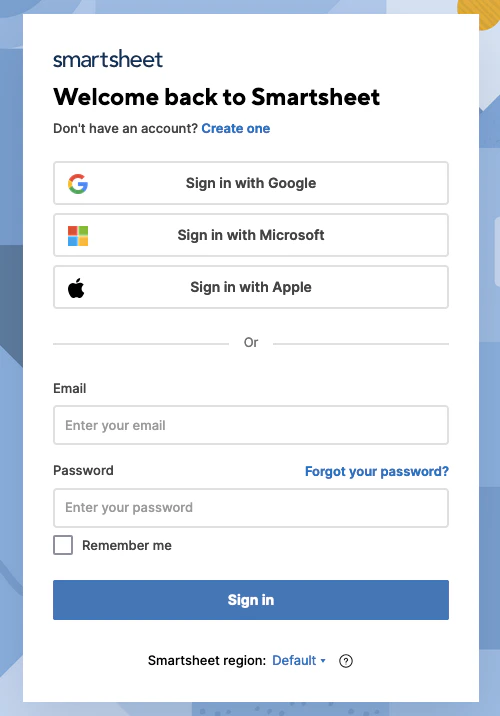
Log in to your Smartsheet account at [https://app.smartsheet.com](https://app.smartsheet.com)
<Frame>
  <img className="rounded-md" style={{ margin: '0 auto', border: '1px solid #efefef' }} alt="Log in" src="https://mintcdn.com/stackone-hub-docs-confluence-api-token-update/C1VeUVSQ_nltDcS8/images/smartsheet/image1.png?fit=max&auto=format&n=C1VeUVSQ_nltDcS8&q=85&s=110271653f08236e53ffd59bcf50ea09" width="500" height="716" data-path="images/smartsheet/image1.png" />
</Frame>

## Create a New Access Token

<Steps>
  <Step title="Navigate to Access Tokens">
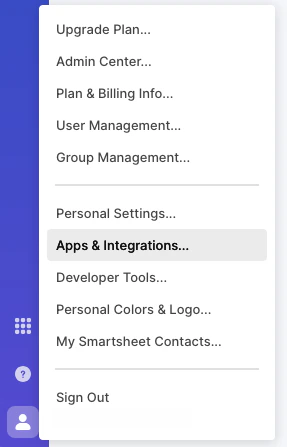
    Click your profile icon in the bottom left corner, then click **Apps & Integrations...**
    <Frame>
      <img className="rounded-md" style={{ margin: '0 auto', border: '1px solid #efefef' }} alt="Navigate to Access Tokens" src="https://mintcdn.com/stackone-hub-docs-confluence-api-token-update/C1VeUVSQ_nltDcS8/images/smartsheet/image6.png?fit=max&auto=format&n=C1VeUVSQ_nltDcS8&q=85&s=5545d3e1a06cc41d3347143448a785eb" width="287" height="447" data-path="images/smartsheet/image6.png" />
    </Frame>
  </Step>

  <Step title="Create New Access Token">
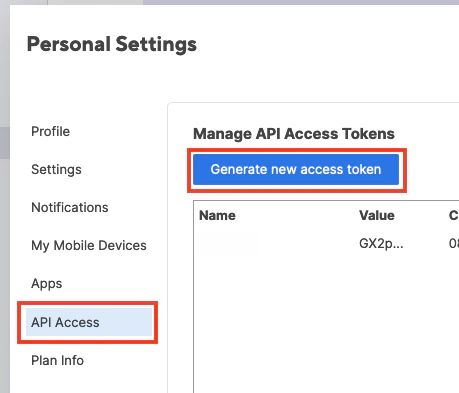
    Under *Personal Settings*, click **API Access**, then click the **Generate new access token** button.
    <Frame>
      <img className="rounded-md" style={{ margin: '0 auto', border: '1px solid #efefef' }} alt="Create New Access Token" src="https://mintcdn.com/stackone-hub-docs-confluence-api-token-update/C1VeUVSQ_nltDcS8/images/smartsheet/image7.png?fit=max&auto=format&n=C1VeUVSQ_nltDcS8&q=85&s=769db558ea940ef9865002f13f24b612" width="459" height="393" data-path="images/smartsheet/image7.png" />
    </Frame>
  </Step>

  <Step title="Enter Access Token Details">
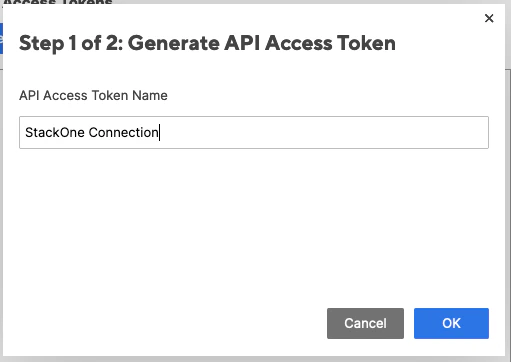
    Enter a **Name** for the new token, then click the **OK** button.
    <Frame>
      <img className="rounded-md" style={{ margin: '0 auto', border: '1px solid #efefef' }} alt="Enter Access Token Details" src="https://mintcdn.com/stackone-hub-docs-confluence-api-token-update/C1VeUVSQ_nltDcS8/images/smartsheet/image8.png?fit=max&auto=format&n=C1VeUVSQ_nltDcS8&q=85&s=bd43f39ca52ffe8ed5331eb4f9b9b9ce" width="511" height="362" data-path="images/smartsheet/image8.png" />
    </Frame>
  </Step>

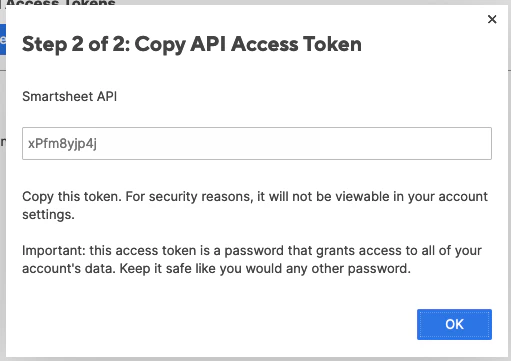
  <Step title="Copy your Access Token">
    Copy your displayed **Access Token** to be used in the next step.
    <Frame>
      <img className="rounded-md" style={{ margin: '0 auto', border: '1px solid #efefef' }} alt="Copy your Access Token" src="https://mintcdn.com/stackone-hub-docs-confluence-api-token-update/C1VeUVSQ_nltDcS8/images/smartsheet/image9.png?fit=max&auto=format&n=C1VeUVSQ_nltDcS8&q=85&s=4e5d16db445bc0b8a624bd915389ac38" width="511" height="361" data-path="images/smartsheet/image9.png" />
    </Frame>
  </Step>
</Steps>

## Connecting with StackOne

<Steps>
  <Step title="Enter Credentials">
    Upon reaching the Link Account page, enter the **Access Token** from the previous step.

    Proceed by clicking the Connect button.

    <Frame>
      <img className="rounded-md" style={{ margin: '0 auto', border: '1px solid #efefef' }} alt="Enter Credentials" src="https://mintcdn.com/stackone-hub-docs-confluence-api-token-update/C1VeUVSQ_nltDcS8/images/smartsheet/image1.png?fit=max&auto=format&n=C1VeUVSQ_nltDcS8&q=85&s=110271653f08236e53ffd59bcf50ea09" width="500" height="716" data-path="images/smartsheet/image1.png" />
    </Frame>
  </Step>
</Steps>

<br />

Congratulations, you're all set! If you face any issues with the steps mentioned above,
please contact us by emailing [integrations@stackone.com](mailto:integrations@stackone.com). We're always here to assist you!

## Available data

This integration has the following [IAM Resources](https://docs.stackone.com/reference/getting-started-with-your-api) available from the provider:

<ul>
  <li>Roles</li>
  <li>Users</li>
</ul>
