> ## Documentation Index
> Fetch the complete documentation index at: https://stackone-hub-docs-confluence-api-token-update.mintlify.site/llms.txt
> Use this file to discover all available pages before exploring further.
# Xyleme
> If you've been directed to StackOne to integrate with Xyleme, the following steps will help you understand the process and any necessary actions to configure successful integration.
This guidance assumes you have Admin privileges for your Xyleme account.
## Gather System Account Credentials
Log in to your Xyleme account.
Your domain (tenant) is the subdomain used to access Xyleme. For example, if your URL is `https://my-domain.bravais.com/adminportal`, your domain is `my-domain`.
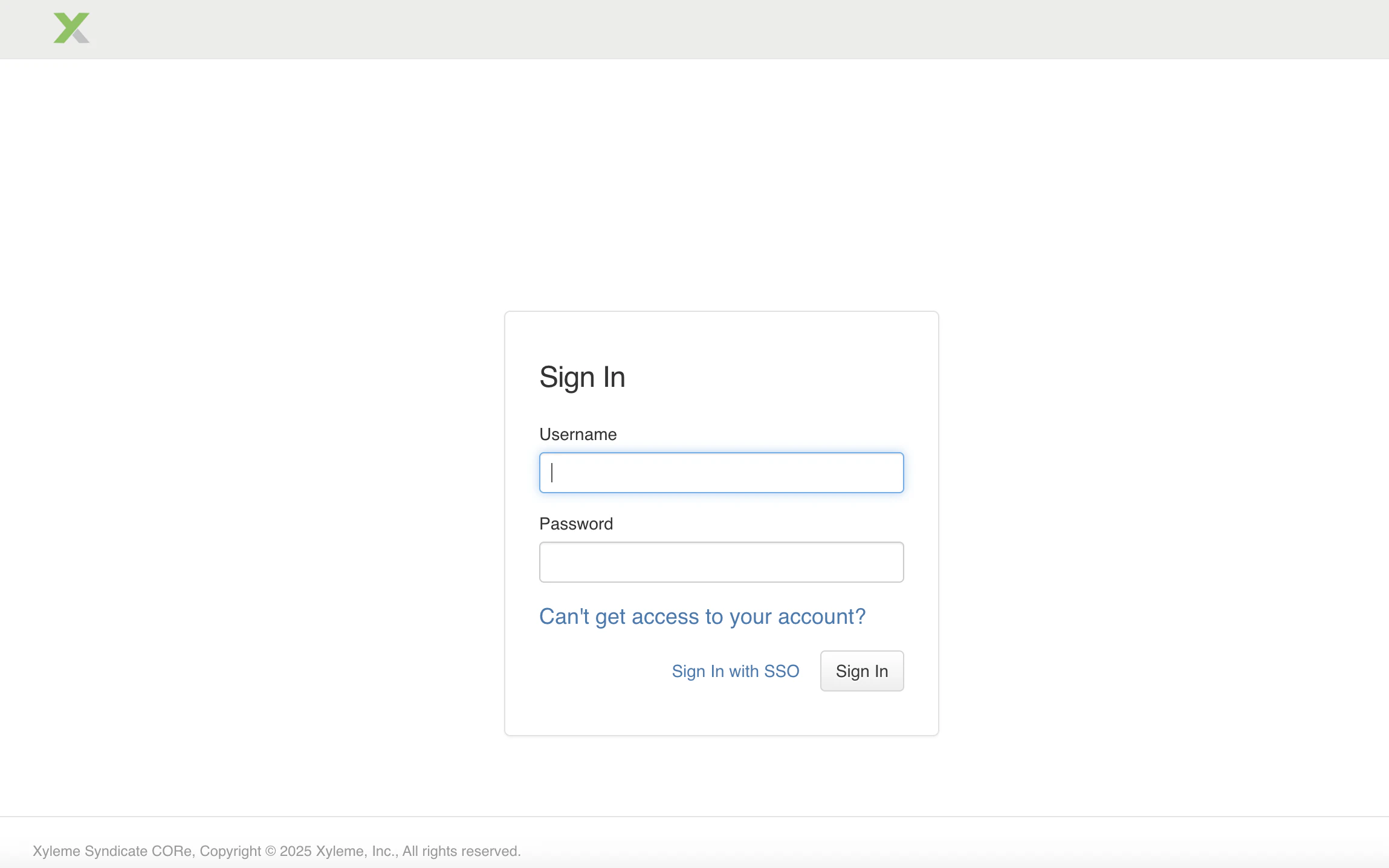 From the top navigation bar, open the **Admin Portal** dropdown to confirm you’re in the Admin Portal.
Next, open the **Users** dropdown and select **Users** to access the user management page.
On the Users page, click **Add user** to start creating a new user.
From the top navigation bar, open the **Admin Portal** dropdown to confirm you’re in the Admin Portal.
Next, open the **Users** dropdown and select **Users** to access the user management page.
On the Users page, click **Add user** to start creating a new user.
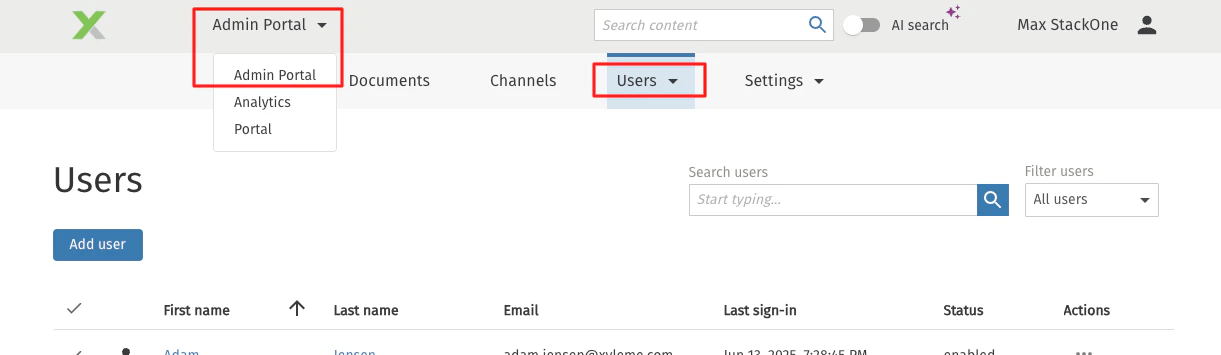 In the **Add user** dialog, fill in the user’s **First name**, **Last name**, and **Email**.
Once all fields are completed, click **Save** to add the user to Xyleme.
In the **Add user** dialog, fill in the user’s **First name**, **Last name**, and **Email**.
Once all fields are completed, click **Save** to add the user to Xyleme.
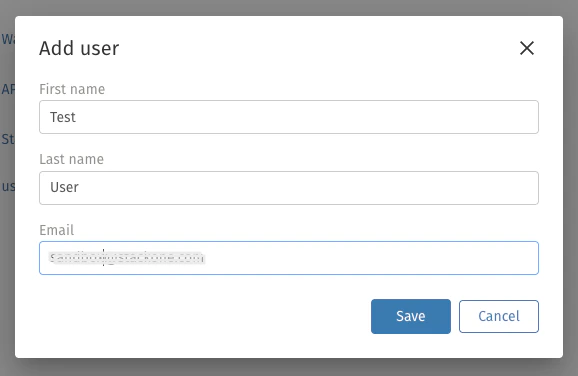 Return to the **Users** page and use the **Search users** box to find the user you just created.
Enter part of the user’s name or email and click the search icon.
In the results list, click the **three-dot menu** next to the correct user and select **View details**. This opens the user’s detail page.
Return to the **Users** page and use the **Search users** box to find the user you just created.
Enter part of the user’s name or email and click the search icon.
In the results list, click the **three-dot menu** next to the correct user and select **View details**. This opens the user’s detail page.
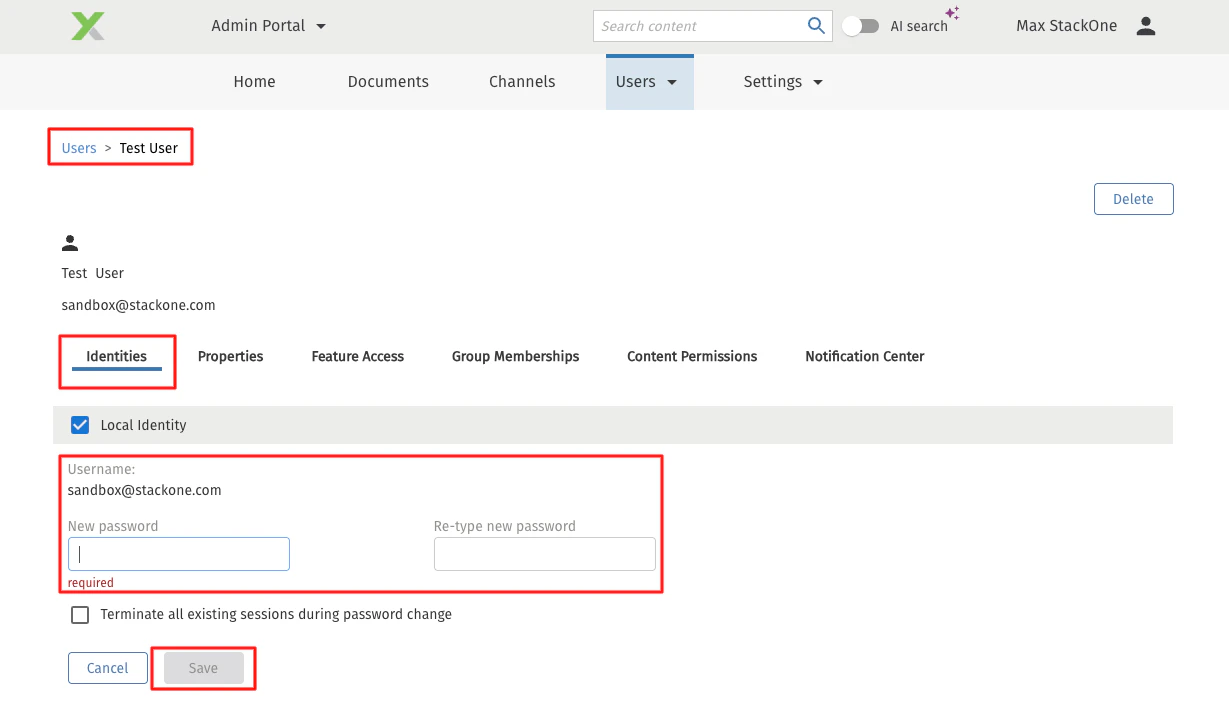
 On the user’s profile page, ensure the **Identities** tab is selected.
Under **Local Identity**, add and copy the **Username** shown — this will be used as the system account’s login.
Enter a strong password in both the **New password** and **Re-type new password** fields.
Click **Save** to finalize the username and password for this account.
On the user’s profile page, ensure the **Identities** tab is selected.
Under **Local Identity**, add and copy the **Username** shown — this will be used as the system account’s login.
Enter a strong password in both the **New password** and **Re-type new password** fields.
Click **Save** to finalize the username and password for this account.
 Record the `Username` and `Password` associated with this system account for use in the next steps.
## Linking Your Account
Use your domain and system account credentials to connect Xyleme with StackOne.
In the connection modal, enter the `Domain` (tenant), `Username`, and `Password`.
Record the `Username` and `Password` associated with this system account for use in the next steps.
## Linking Your Account
Use your domain and system account credentials to connect Xyleme with StackOne.
In the connection modal, enter the `Domain` (tenant), `Username`, and `Password`.
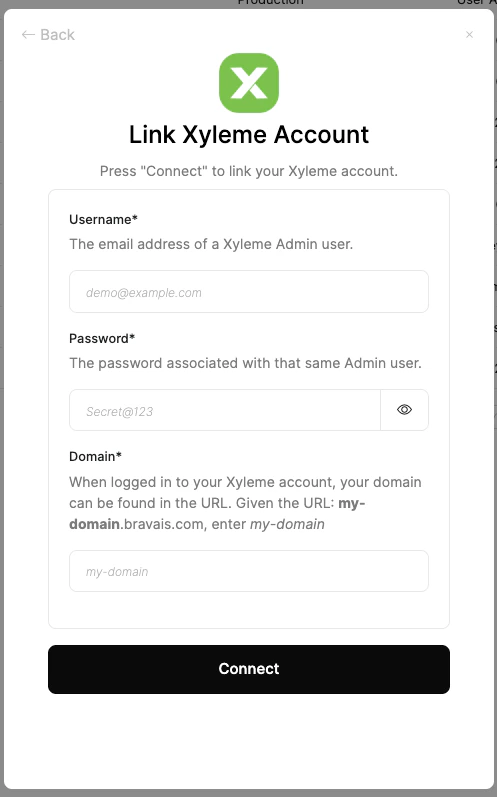 Click `Connect`.
Congratulations, you're all set! If you face any issues with the steps mentioned above,
please contact us by emailing [integrations@stackone.com](mailto:integrations@stackone.com). We're always here to assist you!
## Useful Links
[https://api-docs.xyleme.com/](https://api-docs.xyleme.com/)