> ## Documentation Index
> Fetch the complete documentation index at: https://stackone-hub-docs-confluence-api-token-update.mintlify.site/llms.txt
> Use this file to discover all available pages before exploring further.

# Braze

> Follow these steps to connect Braze with StackOne Hub successfully.

<Warning>
  Ensure you have Admin privileges for your Braze account.
</Warning>

If you've been directed to StackOne to integrate with Braze, the following steps will help you understand the process and any necessary actions to configure successful integration.

## Finding your Instance URL

<Steps>
  <Step title="Login to Braze dashboard">
    Login to your Braze dashboard.
  </Step>

  <Step title="Note the subdomain">
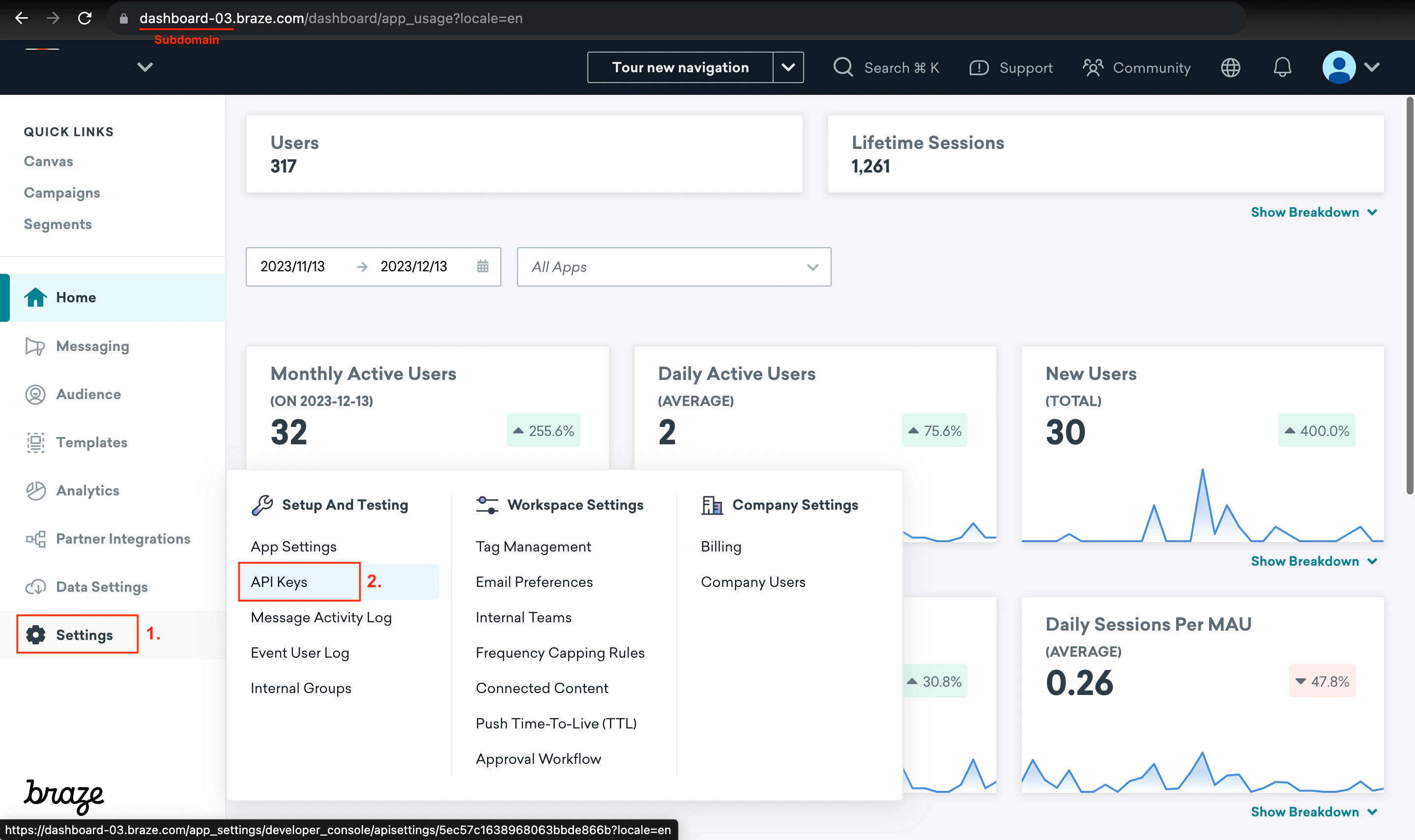
    Note the subdomain in your browser's URL bar (e.g., dashboard-03).
  </Step>

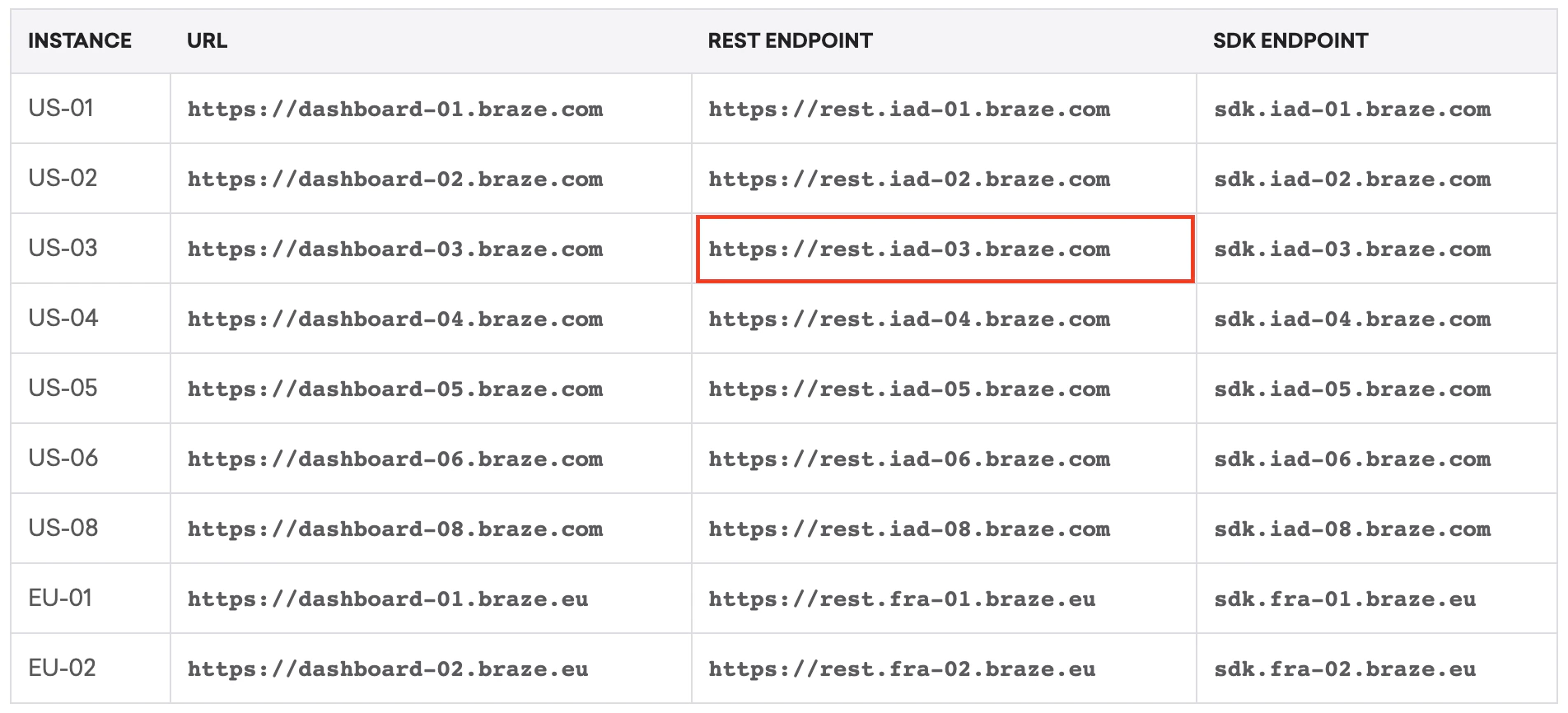
  <Step title="Check endpoints table">
    Check the endpoints table on [this Endpoints page](https://www.braze.com/docs/api/basics/#endpoints).
  </Step>

  <Step title="Select and copy Rest Endpoint">
    Select and copy the Rest Endpoint that matches your subdomain under URL. E.g., if our subdomain is dashboard-03, the rest endpoint would be `https://rest.iad-03.braze.com`
    <Frame>
      <img className="rounded-md" style={{ margin: '0 auto', border: '1px solid #efefef' }} alt="Endpoints Table" src="https://mintcdn.com/stackone-hub-docs-confluence-api-token-update/r1CxNaPqqmzcLh_k/images/braze/image1.png?fit=max&auto=format&n=r1CxNaPqqmzcLh_k&q=85&s=cd5c770df5ca5bbedd6662314563bbc8" width="1904" height="866" data-path="images/braze/image1.png" />
    </Frame>
  </Step>
</Steps>

## Generating your API Key

<Steps>
  <Step title="Navigate to API Keys">
    On the Braze dashboard, select Settings from the left menu and choose API Keys.
    <Frame>
      <img className="rounded-md" style={{ margin: '0 auto', border: '1px solid #efefef' }} alt="API Keys" src="https://mintcdn.com/stackone-hub-docs-confluence-api-token-update/r1CxNaPqqmzcLh_k/images/braze/image2.png?fit=max&auto=format&n=r1CxNaPqqmzcLh_k&q=85&s=aad1f10d14682d833d0ea85a2125693e" width="2879" height="1709" data-path="images/braze/image2.png" />
    </Frame>
  </Step>

  <Step title="Create New API Key">
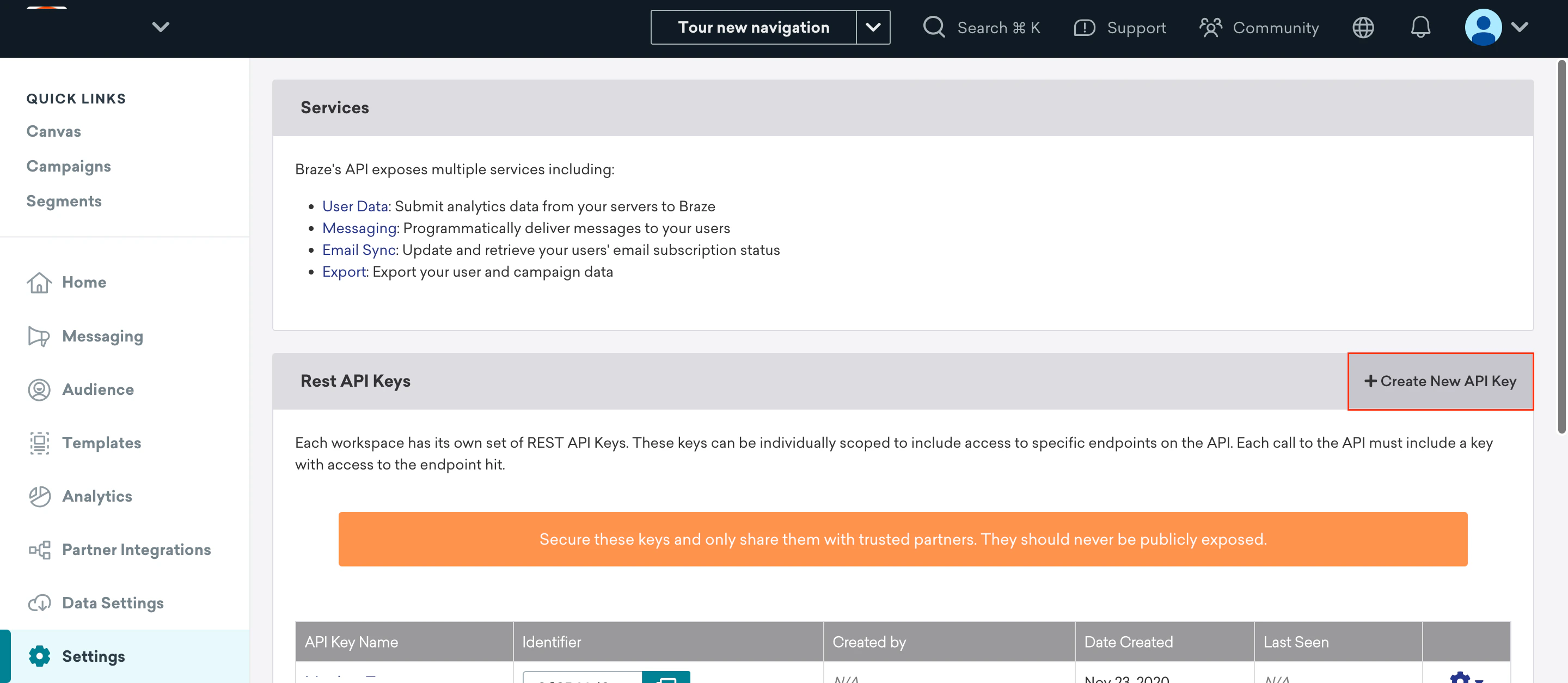
    Select Create New API Key.

    <Frame>
      <img className="rounded-md" style={{ margin: '0 auto', border: '1px solid #efefef' }} alt="Create New API Key" src="https://mintcdn.com/stackone-hub-docs-confluence-api-token-update/r1CxNaPqqmzcLh_k/images/braze/image3.png?fit=max&auto=format&n=r1CxNaPqqmzcLh_k&q=85&s=29f5ad53f7d9ea513fe35a6a4cf21133" width="2880" height="1254" data-path="images/braze/image3.png" />
    </Frame>
  </Step>

  <Step title="Enter API Key Name">
    Enter any API Key Name.
  </Step>

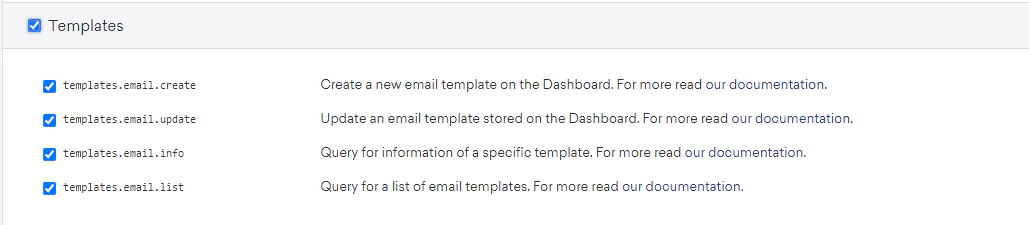
  <Step title="Enable Permissions">
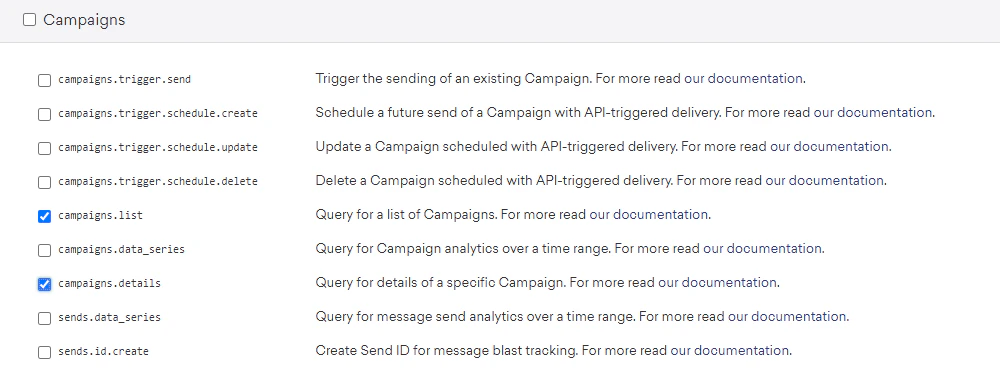
    Enable the following permissions:

    * `campaigns.list`

    * `campaigns.details`
    <Frame>
      <img className="rounded-md" style={{ margin: '0 auto', border: '1px solid #efefef' }} alt="API Key Permissions" src="https://mintcdn.com/stackone-hub-docs-confluence-api-token-update/r1CxNaPqqmzcLh_k/images/braze/image4.png?fit=max&auto=format&n=r1CxNaPqqmzcLh_k&q=85&s=823f5d6f27fe7c01444f0073a71ad3e6" width="1000" height="386" data-path="images/braze/image4.png" />
    </Frame>

    * `templates.email.create`

    * `templates.email.update`

    * `templates.email.info`

    * `templates.email.list`
    <Frame>
      <img className="rounded-md" style={{ margin: '0 auto', border: '1px solid #efefef' }} alt="API Key Permissions" src="https://mintcdn.com/stackone-hub-docs-confluence-api-token-update/r1CxNaPqqmzcLh_k/images/braze/image5.png?fit=max&auto=format&n=r1CxNaPqqmzcLh_k&q=85&s=103e75e8007156cae6ca555c971fab83" width="1029" height="225" data-path="images/braze/image5.png" />
    </Frame>
  </Step>

  <Step title="Save API Key">
    Select Save API Key.
  </Step>

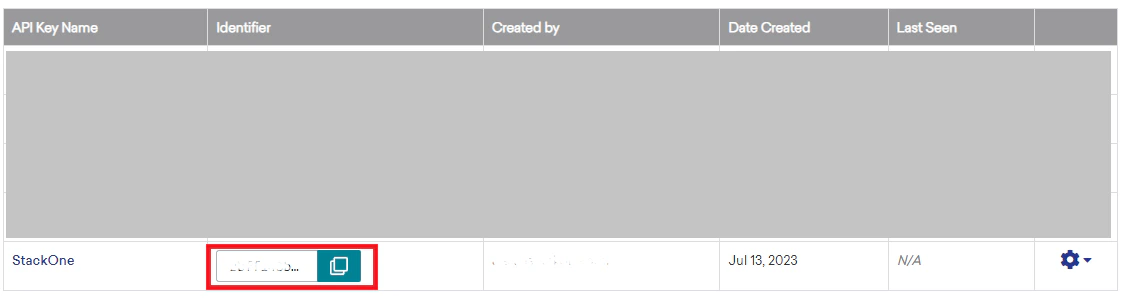
  <Step title="Copy the API Key">
    Your newly created API key will be listed under the Rest API Keys table. Copy the Identifier from the table. This will be your API Key.
    <Frame>
      <img className="rounded-md" style={{ margin: '0 auto', border: '1px solid #efefef' }} alt="API Key Table" src="https://mintcdn.com/stackone-hub-docs-confluence-api-token-update/r1CxNaPqqmzcLh_k/images/braze/image6.png?fit=max&auto=format&n=r1CxNaPqqmzcLh_k&q=85&s=da9dc75d204445a5df80cb54e934c657" width="1124" height="300" data-path="images/braze/image6.png" />
    </Frame>
  </Step>
</Steps>

## Linking Braze to StackOne

<Steps>
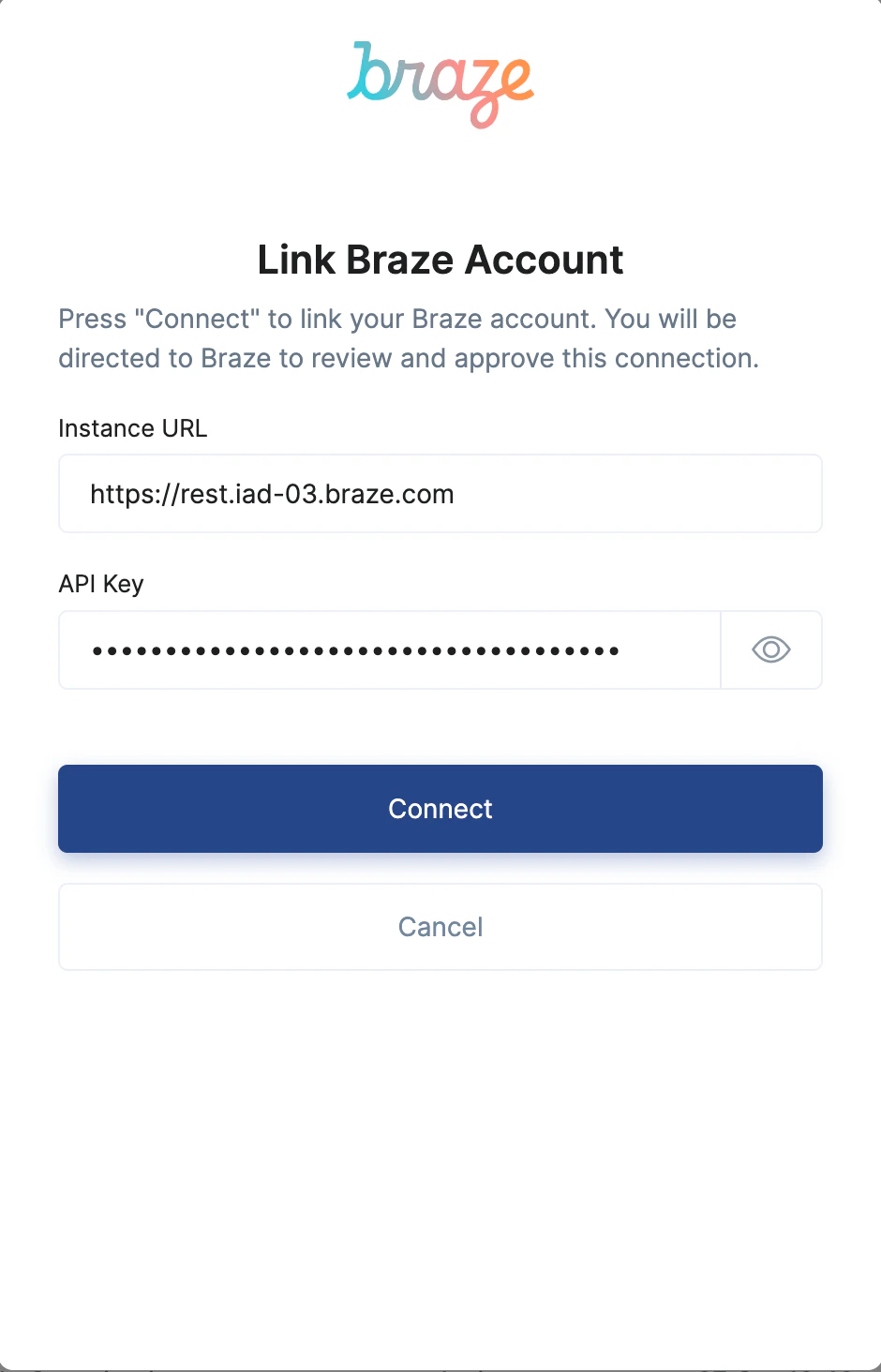
  <Step title="Enter the Details">
    Upon reaching the Link Account page, enter the gathered details and proceed by clicking the `Connect` button.
    <Frame>
      <img className="rounded-md" style={{ margin: '0 auto', border: '1px solid #efefef' }} alt="Link Account" src="https://mintcdn.com/stackone-hub-docs-confluence-api-token-update/r1CxNaPqqmzcLh_k/images/braze/image7.png?fit=max&auto=format&n=r1CxNaPqqmzcLh_k&q=85&s=2d54a3793d20aeee9653c2fbb013a59c" width="940" height="1464" data-path="images/braze/image7.png" />
    </Frame>
  </Step>
</Steps>

<br />

Congratulations, you're all set! If you face any issues with the steps mentioned above,
please contact us by emailing [integrations@stackone.com](mailto:integrations@stackone.com). We're always here to assist you!

## Useful Links

<Card title="API Reference" icon="link" href="https://www.braze.com/docs/api/basics/">
  [https://www.braze.com/docs/api/basics/](https://www.braze.com/docs/api/basics/)
</Card>