> ## Documentation Index
> Fetch the complete documentation index at: https://stackone-hub-docs-confluence-api-token-update.mintlify.site/llms.txt
> Use this file to discover all available pages before exploring further.

# Greenhouse Assessment or Background Check

> To successfully send webhook notifications from Greenhouse, follow these steps in your Greenhouse account, and complete the necessary actions.

## Send the assessment or background check invitation to the candidate

<Steps>
  <Step title="Add Assessment or Background Check stage with in the specific Job">
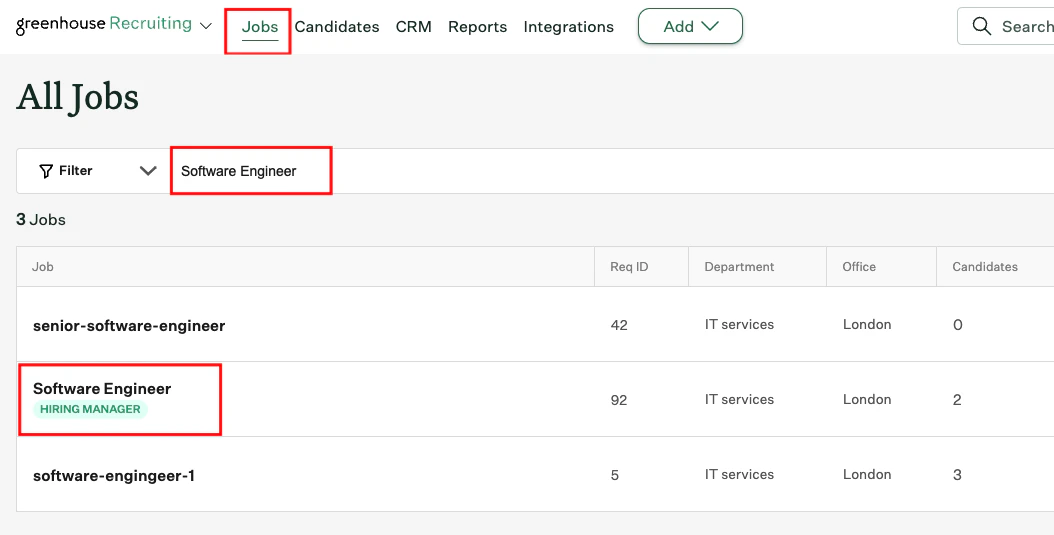
    Visit the <i>Job's</i> page to add or edit a job by searching for terms like <i>Software Engineer</i>.

    <Frame>
      <img className="rounded-md" style={{ margin: '0 auto', border: '1px solid #efefef' }} alt="Go to Job Page" src="https://mintcdn.com/stackone-hub-docs-confluence-api-token-update/gCnVSZzD28kSlWtw/images/greenhouse-assessment/Go_to_Job_Page_1.png?fit=max&auto=format&n=gCnVSZzD28kSlWtw&q=85&s=bc786685d72dc3da3823df431db2e1cb" width="1054" height="535" data-path="images/greenhouse-assessment/Go_to_Job_Page_1.png" />
    </Frame>

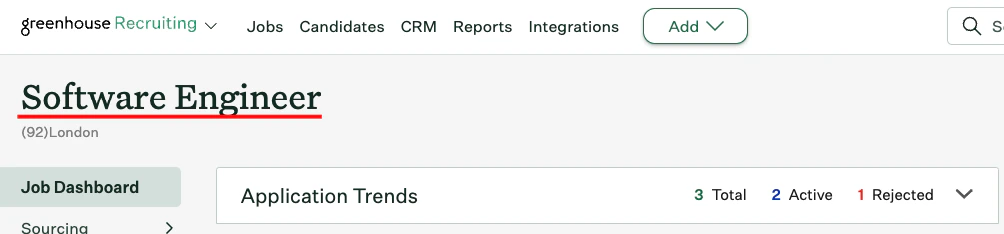
    Click on the job, and you will be redirected to the specific Job’s page,
    <Frame>
      <img className="rounded-md" style={{ margin: '0 auto', border: '1px solid #efefef' }} alt="Edit Job" src="https://mintcdn.com/stackone-hub-docs-confluence-api-token-update/6QOxZsBfCtSHWqb3/images/greenhouse-assessment/Go_to_Job_Edit_2.png?fit=max&auto=format&n=6QOxZsBfCtSHWqb3&q=85&s=4d234717c95d7570e200b3901ca6b497" width="1004" height="234" data-path="images/greenhouse-assessment/Go_to_Job_Edit_2.png" />
    </Frame>

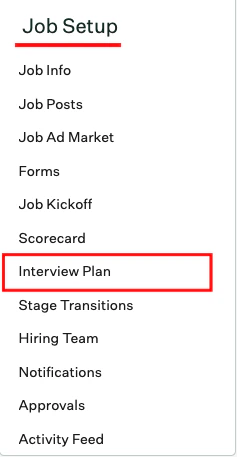
    Then scroll down and select `Interview Plan` under Job Setup.
    <Frame>
      <img className="rounded-md" style={{ margin: '0 auto', border: '1px solid #efefef' }} alt="Edit Job Setup" src="https://mintcdn.com/stackone-hub-docs-confluence-api-token-update/6QOxZsBfCtSHWqb3/images/greenhouse-assessment/Go_to_Interview_Plan_1.png?fit=max&auto=format&n=6QOxZsBfCtSHWqb3&q=85&s=c42306439021d85add0adefee2426c00" width="237" height="457" data-path="images/greenhouse-assessment/Go_to_Interview_Plan_1.png" />
    </Frame>

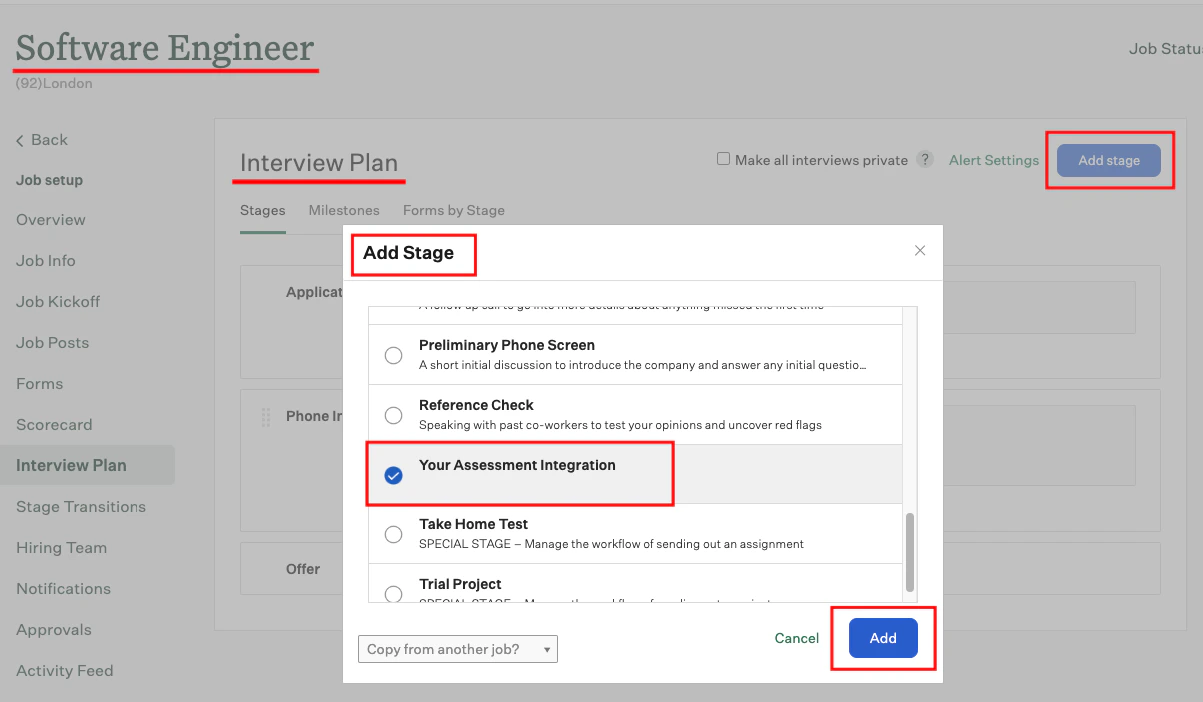
    Click the `Add Stage` button to select and add a new stage from the dropdown list.
    <Frame>
      <img className="rounded-md" style={{ margin: '0 auto', border: '1px solid #efefef' }} alt="Edit Job Setup" src="https://mintcdn.com/stackone-hub-docs-confluence-api-token-update/6QOxZsBfCtSHWqb3/images/greenhouse-assessment/Go_to_Interview_Plan_2.png?fit=max&auto=format&n=6QOxZsBfCtSHWqb3&q=85&s=31ee08c5119529908cd8a055f0ec7fd5" width="1203" height="702" data-path="images/greenhouse-assessment/Go_to_Interview_Plan_2.png" />
    </Frame>

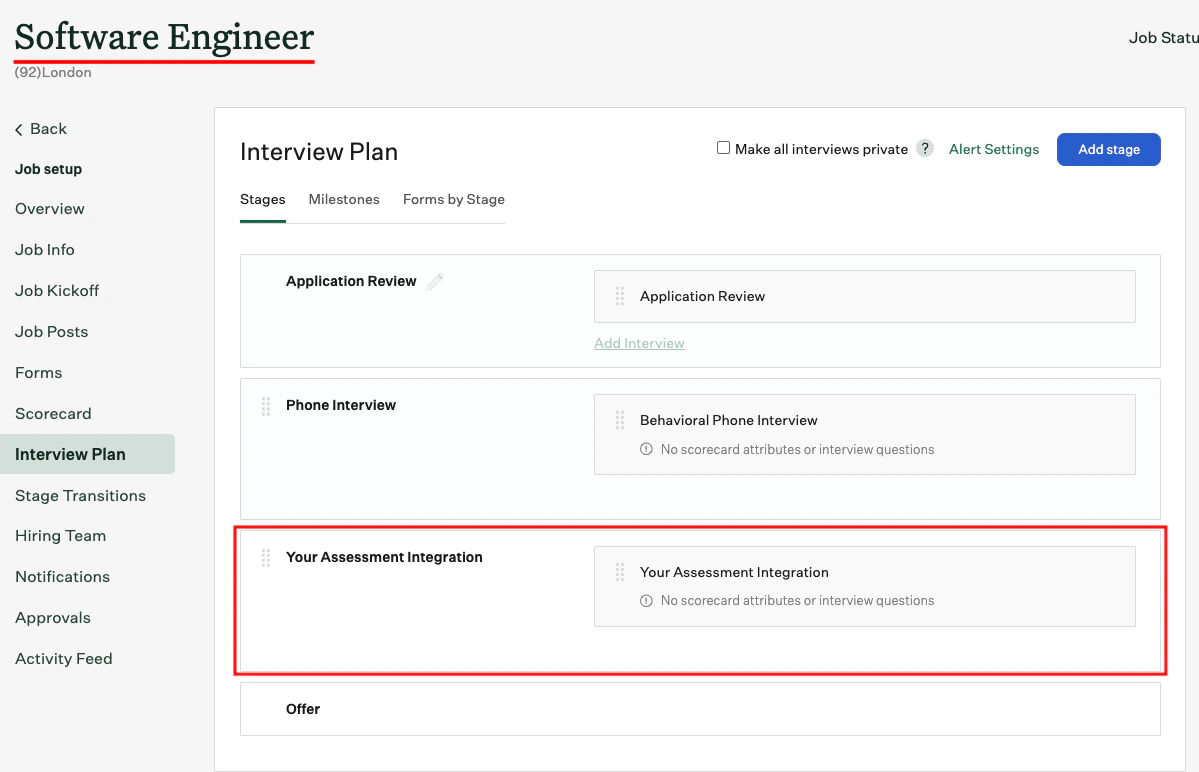
    You will find the additional stage included in the Interview Plan.
    <Frame>
      <img className="rounded-md" style={{ margin: '0 auto', border: '1px solid #efefef' }} alt="Edit Job Setup" src="https://mintcdn.com/stackone-hub-docs-confluence-api-token-update/gCnVSZzD28kSlWtw/images/greenhouse-assessment/Interview_Plan_Edited_3.png?fit=max&auto=format&n=gCnVSZzD28kSlWtw&q=85&s=f6141889a872f24b1f4523aee97ea021" width="1199" height="772" data-path="images/greenhouse-assessment/Interview_Plan_Edited_3.png" />
    </Frame>
  </Step>
</Steps>

## Add Candidate to the Job

<Steps>
  <Step title="Add a New Candidate within the Job">
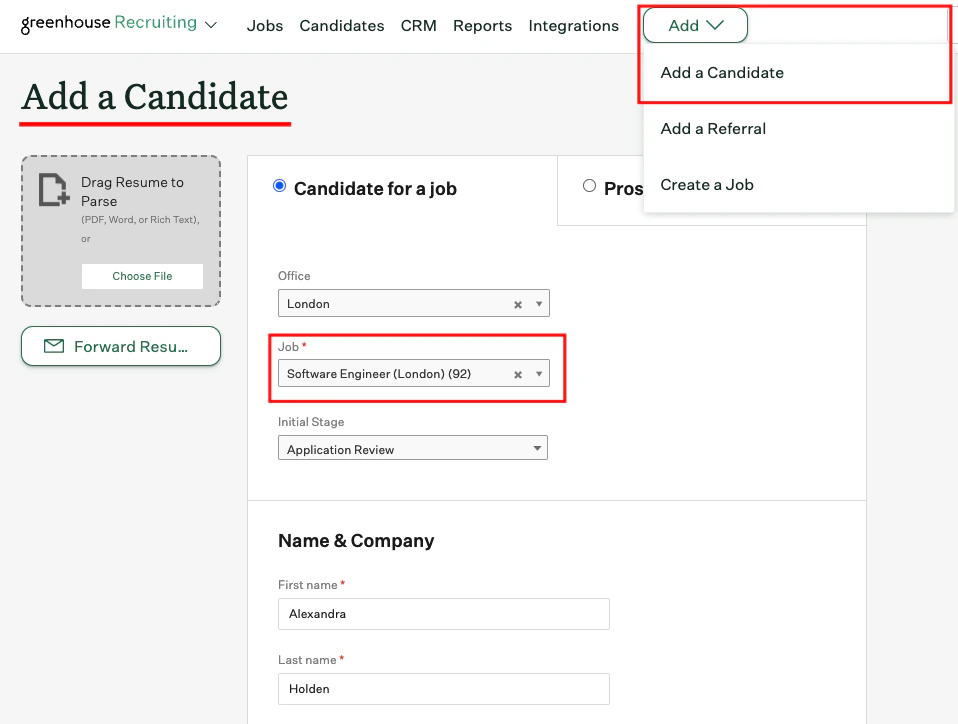
    Navigate to the <i>Add Candidate</i> page to add a candidate and select the relevant job from the dropdown list.
    <Frame>
      <img className="rounded-md" style={{ margin: '0 auto', border: '1px solid #efefef' }} alt="Add New Candidate within the Job" src="https://mintcdn.com/stackone-hub-docs-confluence-api-token-update/6QOxZsBfCtSHWqb3/images/greenhouse-assessment/Add_Candidate_1.png?fit=max&auto=format&n=6QOxZsBfCtSHWqb3&q=85&s=ed660d3caebb2d857a49c9f17c806ed2" width="958" height="724" data-path="images/greenhouse-assessment/Add_Candidate_1.png" />
    </Frame>

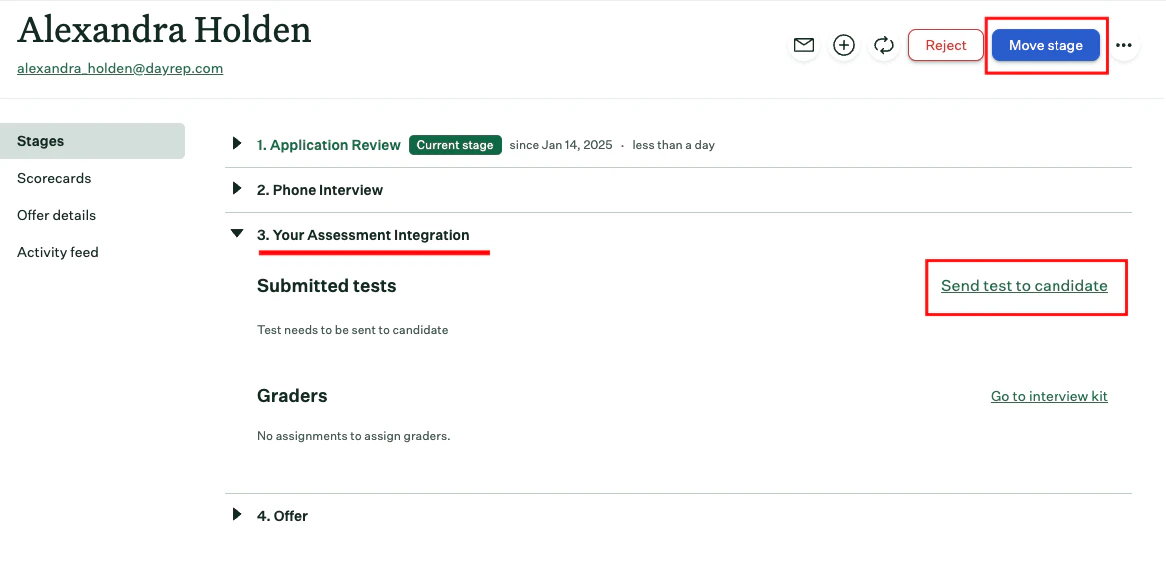
    After adding a candidate, you will be directed to the candidate's profile page.
    <Frame>
      <img className="rounded-md" style={{ margin: '0 auto', border: '1px solid #efefef' }} alt="Candidate Profile Page" src="https://mintcdn.com/stackone-hub-docs-confluence-api-token-update/6QOxZsBfCtSHWqb3/images/greenhouse-assessment/Candidate_Profile_To_Move_1.png?fit=max&auto=format&n=6QOxZsBfCtSHWqb3&q=85&s=ab6ea252502862243e6566728d88f679" width="1166" height="567" data-path="images/greenhouse-assessment/Candidate_Profile_To_Move_1.png" />
    </Frame>
  </Step>
</Steps>

## Move Candidate to the assessment or background check stage

<Steps>
  <Step title="Move Candidate to the assessment or background check stage">
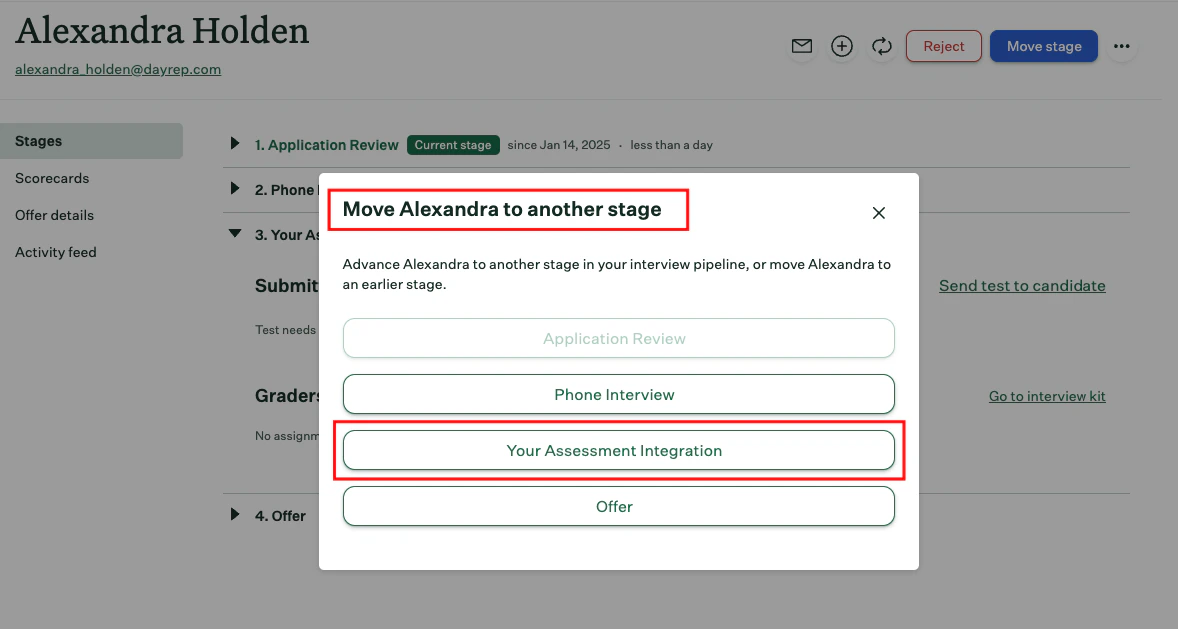
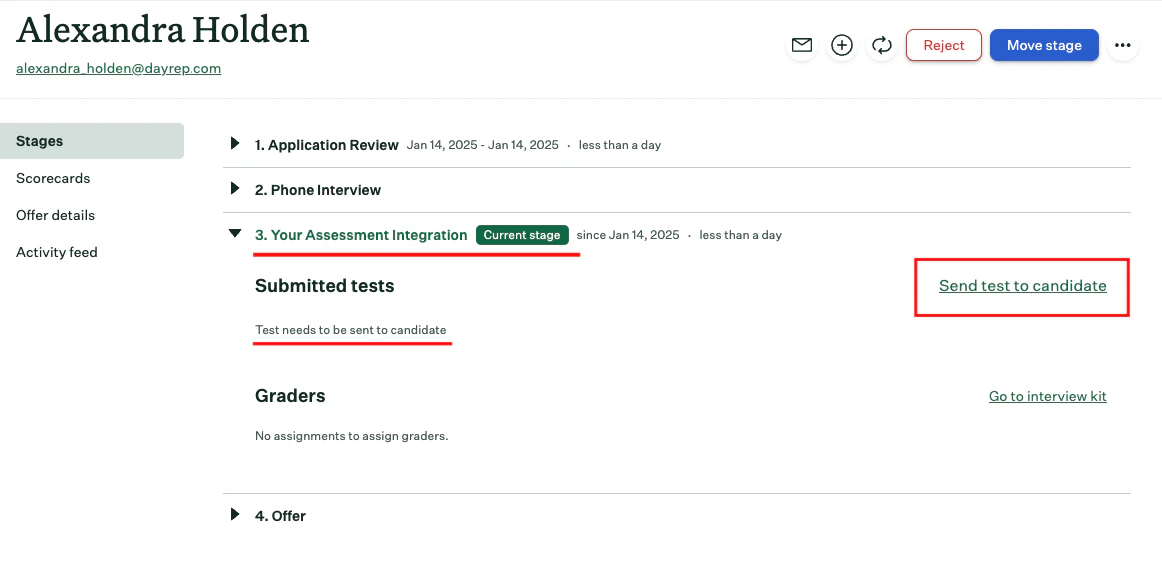
    Click the `Move Stage` button in the top-right corner, then select `Your Assessment or Background Check Integration` to proceed.
    <Frame>
      <img className="rounded-md" style={{ margin: '0 auto', border: '1px solid #efefef' }} alt="Move Candidate to the Assessment or Background Check Stage" src="https://mintcdn.com/stackone-hub-docs-confluence-api-token-update/gCnVSZzD28kSlWtw/images/greenhouse-assessment/Move_Candidate_2.png?fit=max&auto=format&n=gCnVSZzD28kSlWtw&q=85&s=cea9f33552780d8fe546aa8185057763" width="1178" height="629" data-path="images/greenhouse-assessment/Move_Candidate_2.png" />
    </Frame>

    Candidate will be moved to the assessment or background check stage.
    <Frame>
      <img className="rounded-md" style={{ margin: '0 auto', border: '1px solid #efefef' }} alt="Add New Candidate within the Job" src="https://mintcdn.com/stackone-hub-docs-confluence-api-token-update/gCnVSZzD28kSlWtw/images/greenhouse-assessment/Moved_Candidate_3.png?fit=max&auto=format&n=gCnVSZzD28kSlWtw&q=85&s=cd953ae82a5009d71103bd3ba4d944dd" width="1162" height="563" data-path="images/greenhouse-assessment/Moved_Candidate_3.png" />
    </Frame>
  </Step>
</Steps>

## Send Webhook to the Candidate

<Steps>
  <Step title="Choose Test to send the assessment or background check">
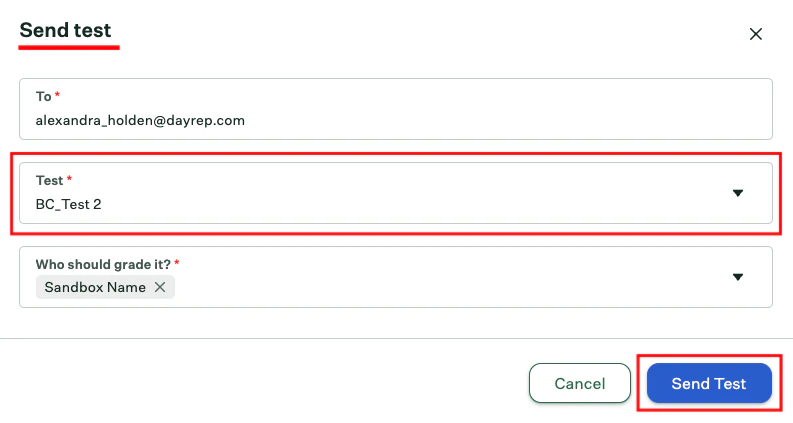
    Click the `Send test to candidate` link to open a pop-up, allowing the recruiter to select which assessment or background check to send to the candidate.
    <Frame>
      <img className="rounded-md" style={{ margin: '0 auto', border: '1px solid #efefef' }} alt="Move Candidate to the assessment or background check Stage" src="https://mintcdn.com/stackone-hub-docs-confluence-api-token-update/gCnVSZzD28kSlWtw/images/greenhouse-assessment/Select_Assessment_1.png?fit=max&auto=format&n=gCnVSZzD28kSlWtw&q=85&s=d9e64e92fc5a2a541add944e84a53219" width="793" height="423" data-path="images/greenhouse-assessment/Select_Assessment_1.png" />
    </Frame>

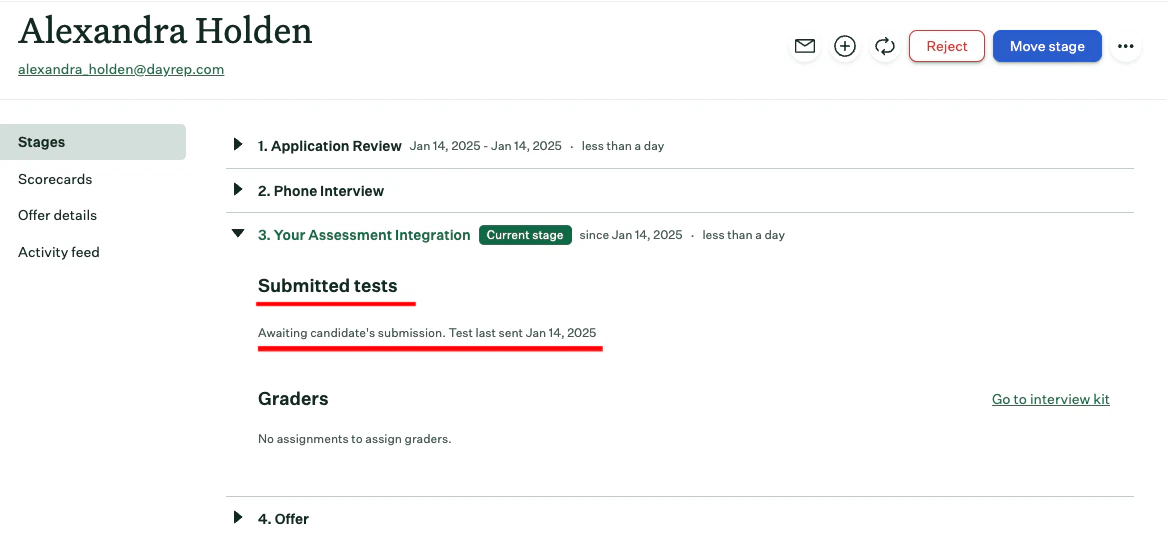
    Notification will be sent to the candidate by clicking the `Send Test` button. You will receive confirmation at the same stage,
    <Frame>
      <img className="rounded-md" style={{ margin: '0 auto', border: '1px solid #efefef' }} alt="Add New Candidate within the Job" src="https://mintcdn.com/stackone-hub-docs-confluence-api-token-update/gCnVSZzD28kSlWtw/images/greenhouse-assessment/Sent_Assessment_Webhook_1.png?fit=max&auto=format&n=gCnVSZzD28kSlWtw&q=85&s=d3247dacdb097e60e018ab1194a441c4" width="1168" height="554" data-path="images/greenhouse-assessment/Sent_Assessment_Webhook_1.png" />
    </Frame>
  </Step>
</Steps>

## To check updated result of the assessment or background check invitation of the candidate

<Steps>
  <Step title="To see the updated results of assessment">
    Click on the candidate's name to view their application. You will see the updated results along with the assessment or background check integration stage from the previously sent webhook

    <Frame>
      <img className="rounded-md" style={{ margin: '0 auto', border: '1px solid #efefef' }} alt="View Assessment or Background Check Updated Results" src="https://mintcdn.com/stackone-hub-docs-confluence-api-token-update/6QOxZsBfCtSHWqb3/images/greenhouse-assessment/Check_Result.png?fit=max&auto=format&n=6QOxZsBfCtSHWqb3&q=85&s=ce386950b175b87cef3b4527e78f147e" width="909" height="157" data-path="images/greenhouse-assessment/Check_Result.png" />
    </Frame>

    After the candidate has completed the assessment, click the `Go to test` link to view the results report.
  </Step>
</Steps>

<br />

Congratulations, you're all set! If you face any issues with the steps mentioned above,
please contact us by emailing [integrations@stackone.com](mailto:integrations@stackone.com). We're always here to assist you!

## Useful Links

<Card title="API Reference" icon="link" href="https://developers.greenhouse.io/assessment.html#introduction">
  [https://developers.greenhouse.io/assessment.html#introduction](https://developers.greenhouse.io/assessment.html#introduction)
</Card>