> ## Documentation Index
> Fetch the complete documentation index at: https://stackone-hub-docs-confluence-api-token-update.mintlify.site/llms.txt
> Use this file to discover all available pages before exploring further.

# Workable Application Custom Fields

> To create and view application custom fields in Workable, follow these steps

<Warning>
  This guidance assumes that you have admin privileges for your Workable account.
</Warning>

## Create a Workable Application Custom Field
<Steps>
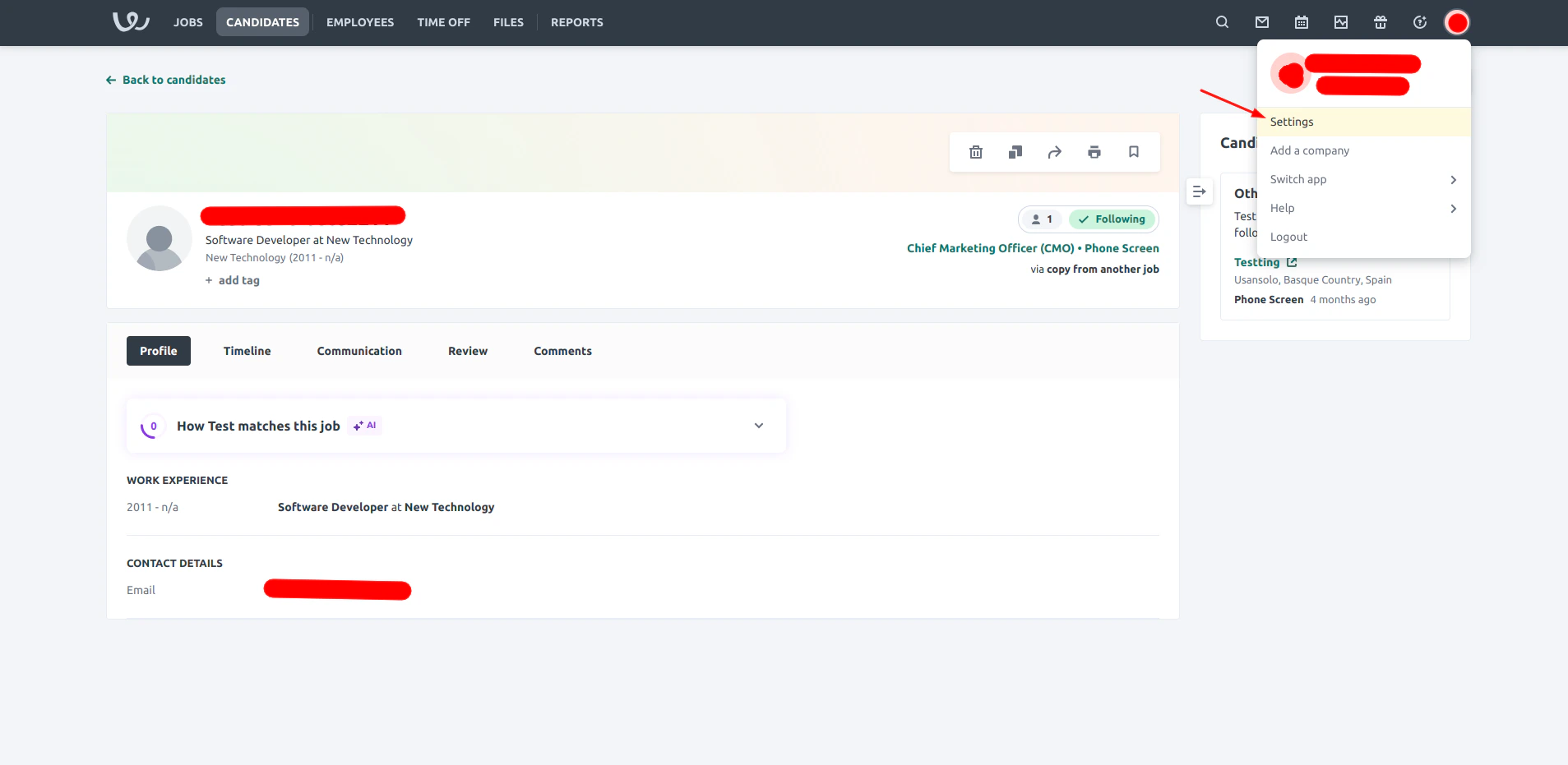
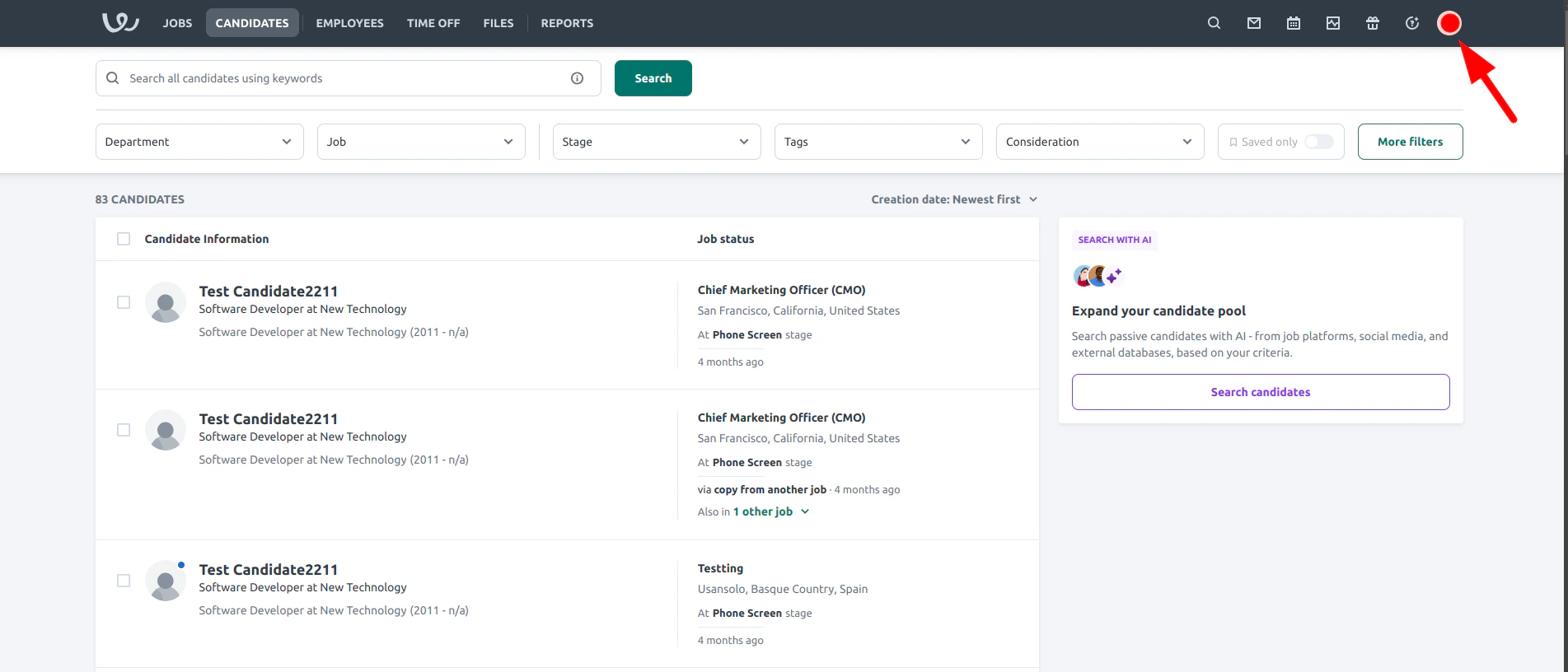
  <Step title="Click on your profile icon">
    <Frame>
      <img className="rounded-md" style={{ margin:"0 auto",border:"1px solid #efefef" }} alt="Click on the profile icon" src="https://mintcdn.com/stackone-hub-docs-confluence-api-token-update/_BEMwWcX5HRLBXL3/images/workable/custom-field/custom-field-01.png?fit=max&auto=format&n=_BEMwWcX5HRLBXL3&q=85&s=ce6bb34ceedf912ffa9f7934ee579d44" width="1903" height="816" data-path="images/workable/custom-field/custom-field-01.png" />
    </Frame>
  </Step>

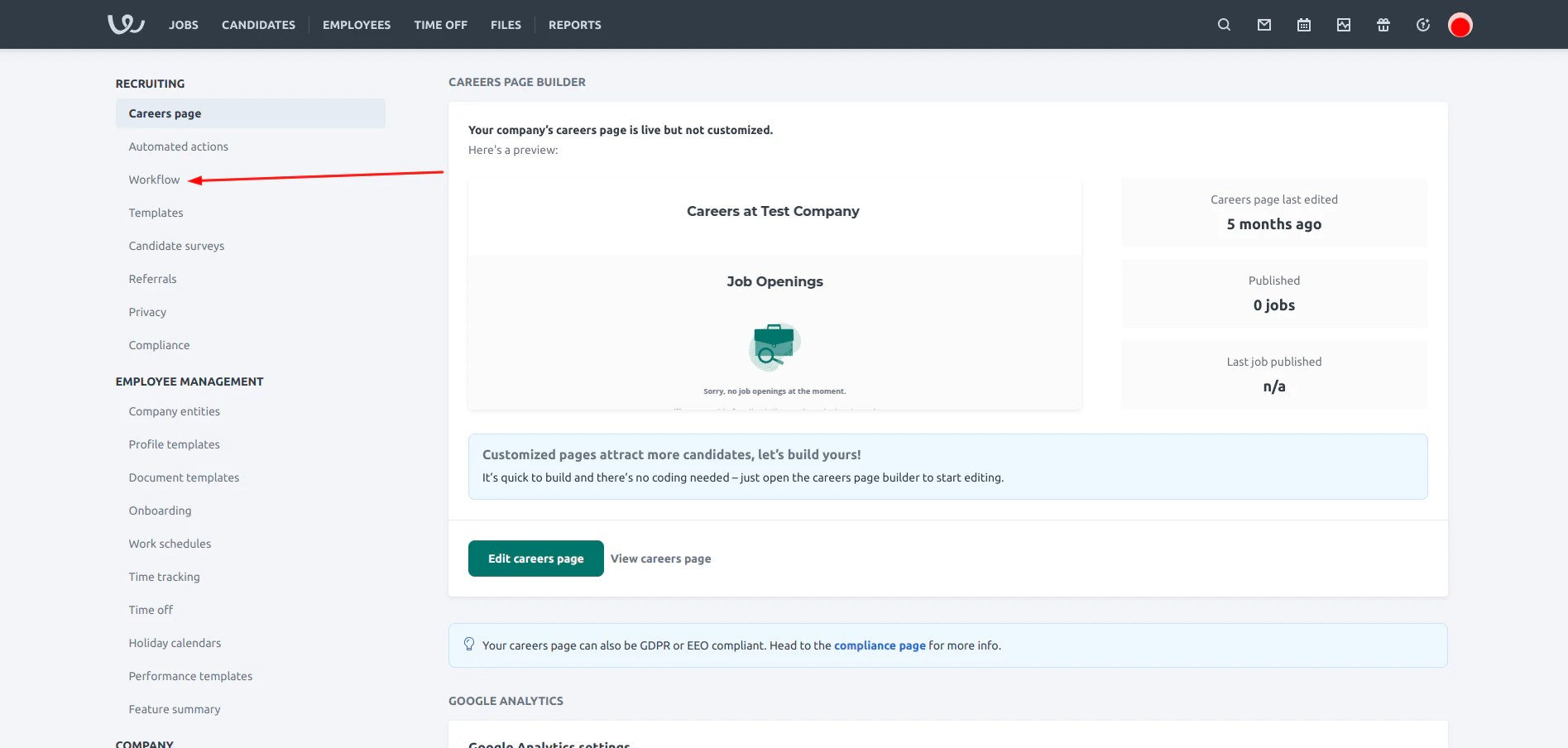
  <Step title="Navigate to Settings">
    <Frame>
      <img className="rounded-md" style={{ margin:"0 auto",border:"1px solid #efefef" }} alt="Navigate to settings" src="https://mintcdn.com/stackone-hub-docs-confluence-api-token-update/_BEMwWcX5HRLBXL3/images/workable/custom-field/custom-field-02.png?fit=max&auto=format&n=_BEMwWcX5HRLBXL3&q=85&s=462224f1214f737c692f2638f5f34c03" width="1907" height="931" data-path="images/workable/custom-field/custom-field-02.png" />
    </Frame>
  </Step>

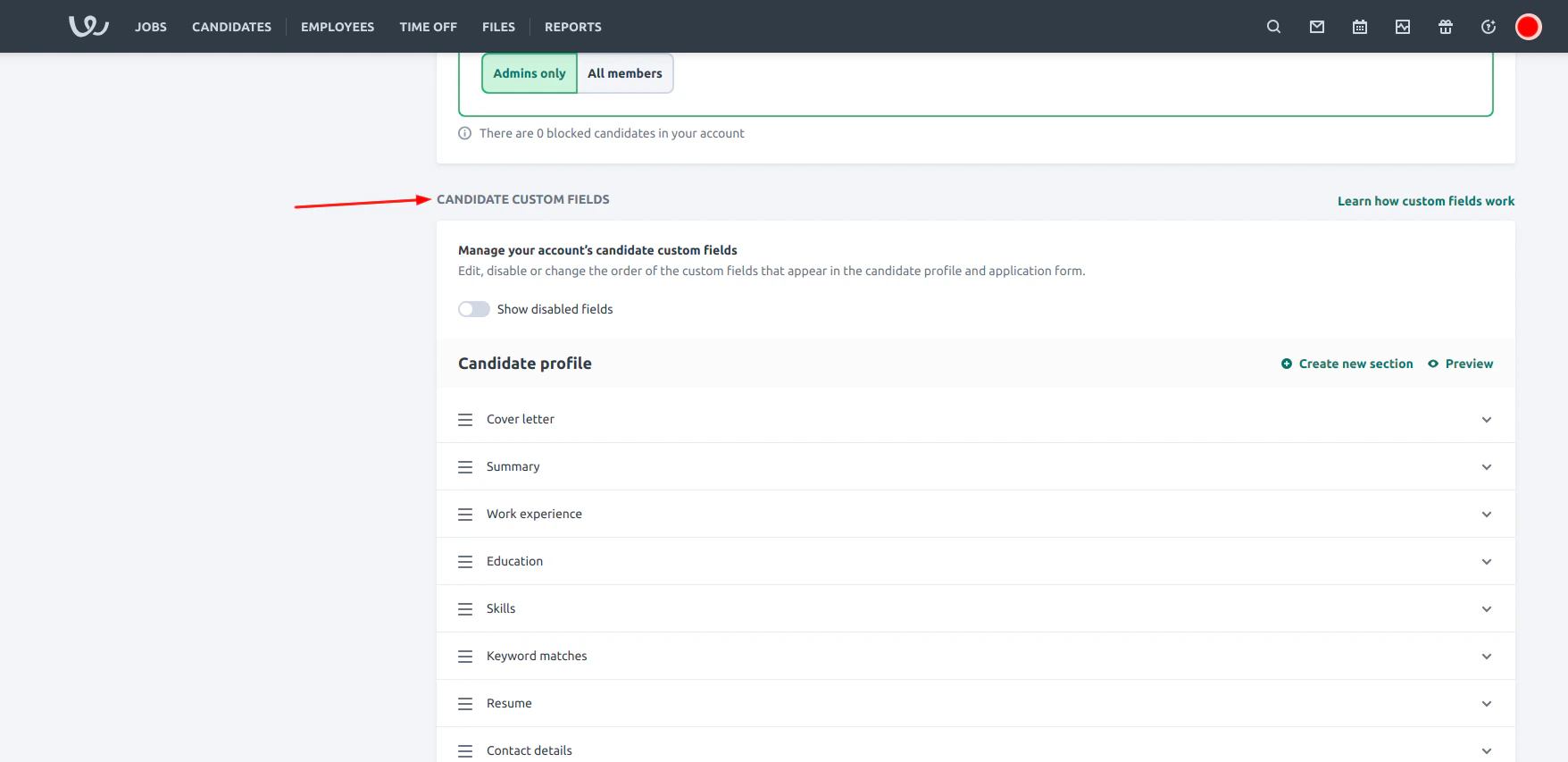
  <Step title="Click on Workflow">
    <Frame>
      <img className="rounded-md" style={{ margin:"0 auto",border:"1px solid #efefef" }} alt="Search Create Custom Object" src="https://mintcdn.com/stackone-hub-docs-confluence-api-token-update/_BEMwWcX5HRLBXL3/images/workable/custom-field/custom-field-03.png?fit=max&auto=format&n=_BEMwWcX5HRLBXL3&q=85&s=a2458566ac1e5ab239a5216ff8198f68" width="1895" height="904" data-path="images/workable/custom-field/custom-field-03.png" />
    </Frame>
  </Step>

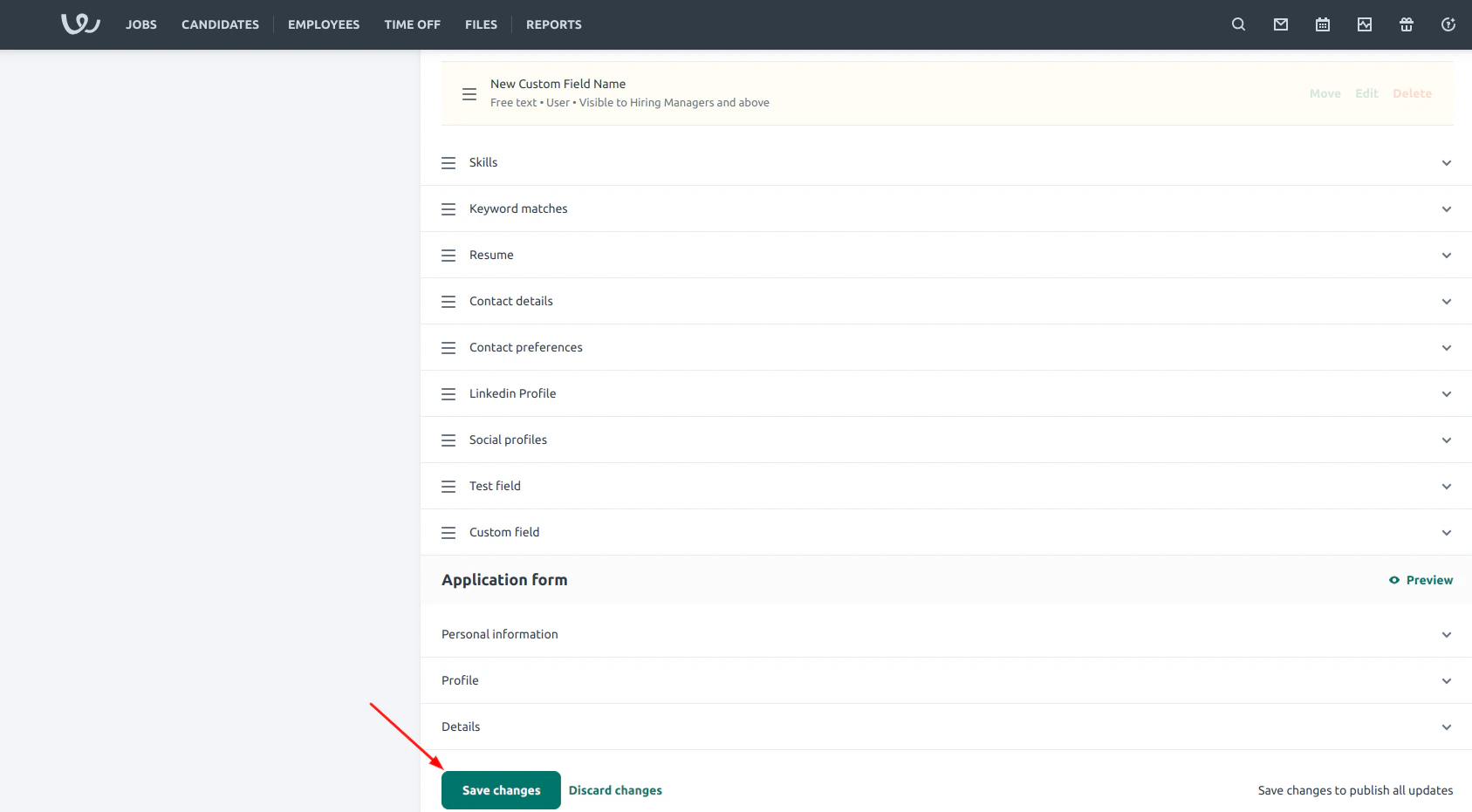
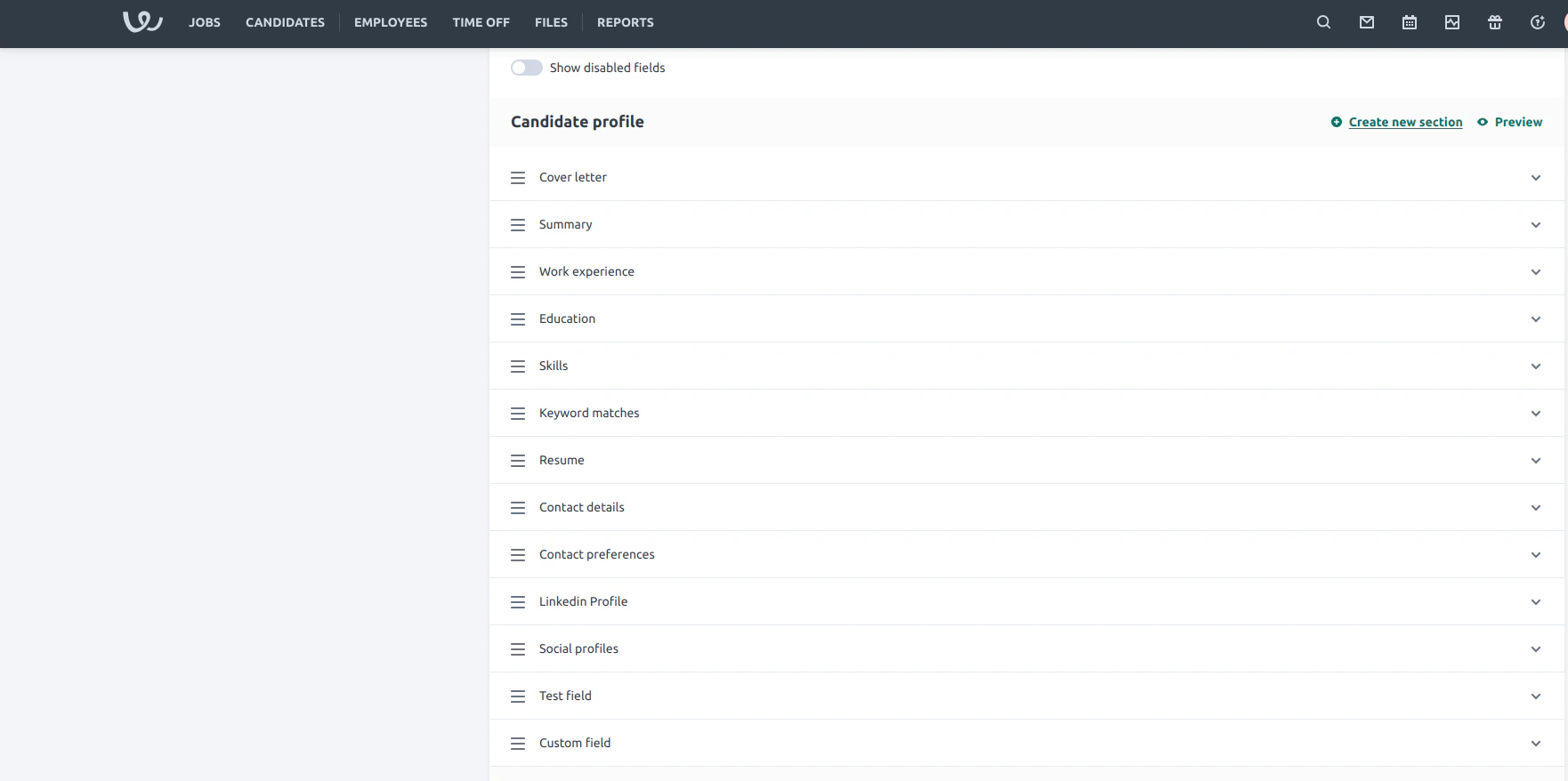
  <Step title="Scroll to the Candidate Custom Fields section">
    <Frame>
      <img className="rounded-md" style={{ margin:"0 auto",border:"1px solid #efefef" }} alt="Search Create Custom Object" src="https://mintcdn.com/stackone-hub-docs-confluence-api-token-update/_BEMwWcX5HRLBXL3/images/workable/custom-field/custom-field-04.png?fit=max&auto=format&n=_BEMwWcX5HRLBXL3&q=85&s=fd86b651481e9de008a5c98962dc5928" width="1756" height="853" data-path="images/workable/custom-field/custom-field-04.png" />
    </Frame>
  </Step>

  <Step title="Fields sections">
    Find or Create a section where you want the custom field created.
    <Frame>
      <img className="rounded-md" style={{ margin:"0 auto",border:"1px solid #efefef" }} alt="Search Create Custom Object" src="https://mintcdn.com/stackone-hub-docs-confluence-api-token-update/_BEMwWcX5HRLBXL3/images/workable/custom-field/custom-field-05.png?fit=max&auto=format&n=_BEMwWcX5HRLBXL3&q=85&s=246da91e617bc697cd8d06bc37d95298" width="1762" height="878" data-path="images/workable/custom-field/custom-field-05.png" />
    </Frame>
  </Step>

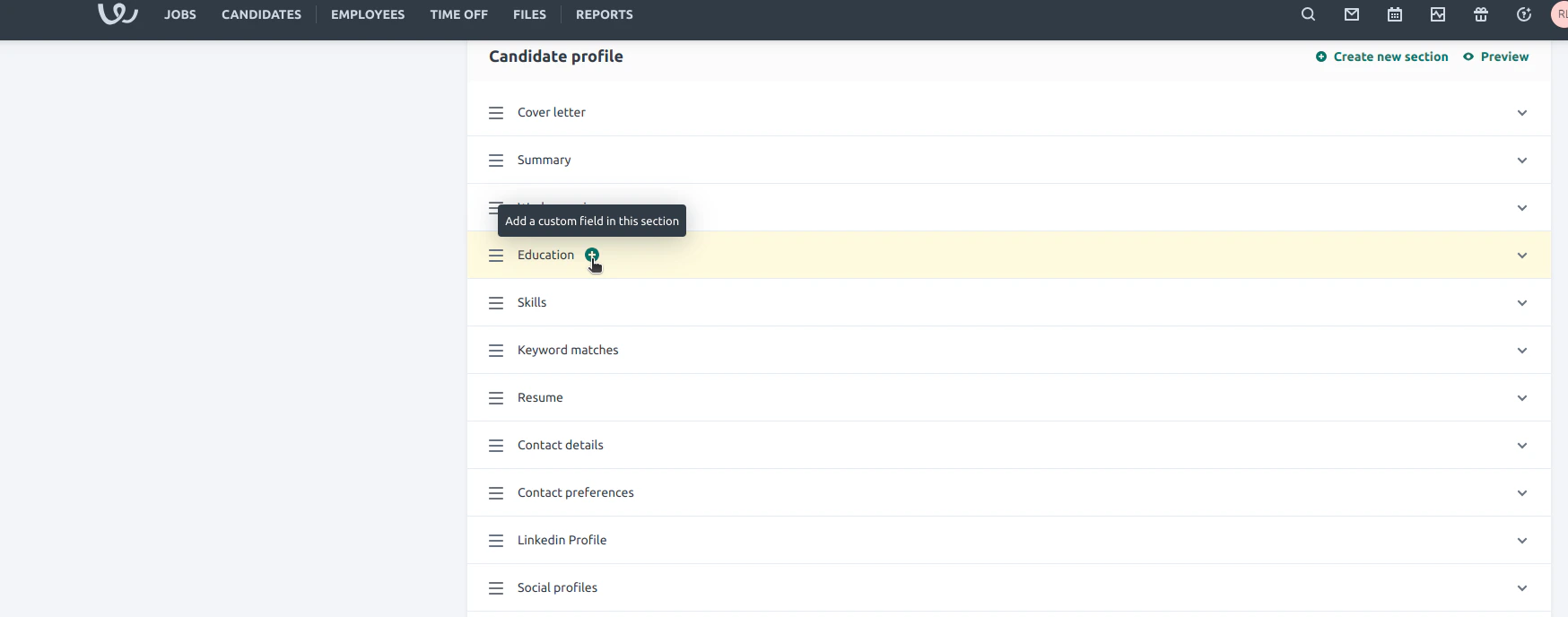
  <Step title="Add a new Custom Field">
    Hover over the desired section and click on the `+` icon to add a new custom field
    <Frame>
      <img className="rounded-md" style={{ margin:"0 auto",border:"1px solid #efefef" }} alt="Search Create Custom Object" src="https://mintcdn.com/stackone-hub-docs-confluence-api-token-update/_BEMwWcX5HRLBXL3/images/workable/custom-field/custom-field-06.png?fit=max&auto=format&n=_BEMwWcX5HRLBXL3&q=85&s=998256f707c28c4163f39127c68b5d5a" width="1748" height="688" data-path="images/workable/custom-field/custom-field-06.png" />
    </Frame>
  </Step>

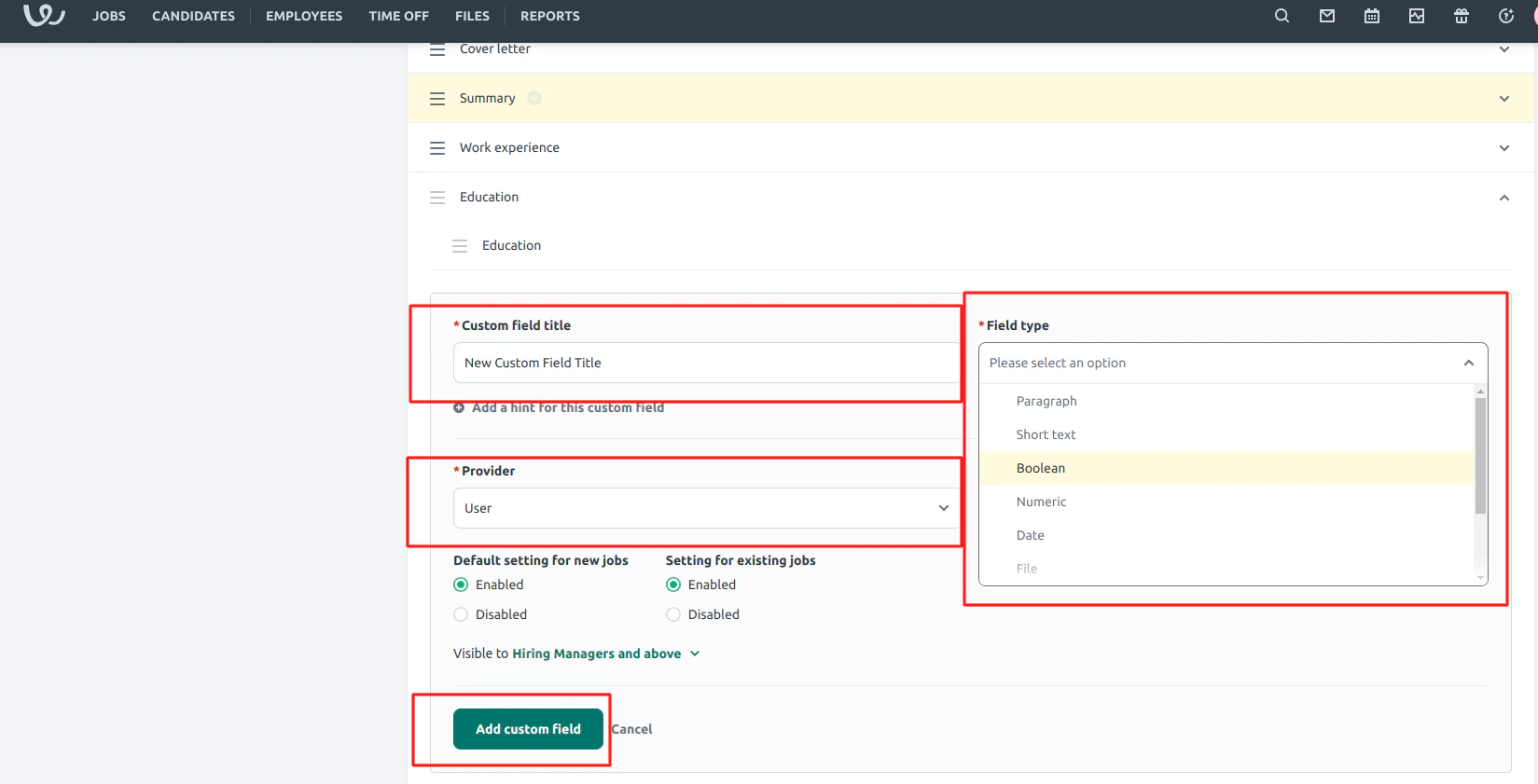
  <Step title="Custom field form">
    1. Enter a `Custom field title`
    2. Select the appropriate  `Field type`
    3. Set the `Provider` to `User`
    4. Click `Add Custom field`

    <Warning>
      The Provider field must be set to User to be able to edit the field via API
    </Warning>

    <Frame>
      <img className="rounded-md" style={{ margin:"0 auto",border:"1px solid #efefef" }} alt="Search Create Custom Object" src="https://mintcdn.com/stackone-hub-docs-confluence-api-token-update/_BEMwWcX5HRLBXL3/images/workable/custom-field/custom-field-08.png?fit=max&auto=format&n=_BEMwWcX5HRLBXL3&q=85&s=c4ce81bde4be2313672e9bbe19c54502" width="1649" height="841" data-path="images/workable/custom-field/custom-field-08.png" />
    </Frame>
  </Step>

  <Step title="Save the changes">
    Scroll to the bottom and click <b>Save Changes</b>

    <Frame>
      <img className="rounded-md" style={{ margin:"0 auto",border:"1px solid #efefef" }} alt="Search Create Custom Object" src="https://mintcdn.com/stackone-hub-docs-confluence-api-token-update/_BEMwWcX5HRLBXL3/images/workable/custom-field/custom-field-09.png?fit=max&auto=format&n=_BEMwWcX5HRLBXL3&q=85&s=6de7a5c027da3d72d10dbd2e6096062a" width="1687" height="931" data-path="images/workable/custom-field/custom-field-09.png" />
    </Frame>
  </Step>

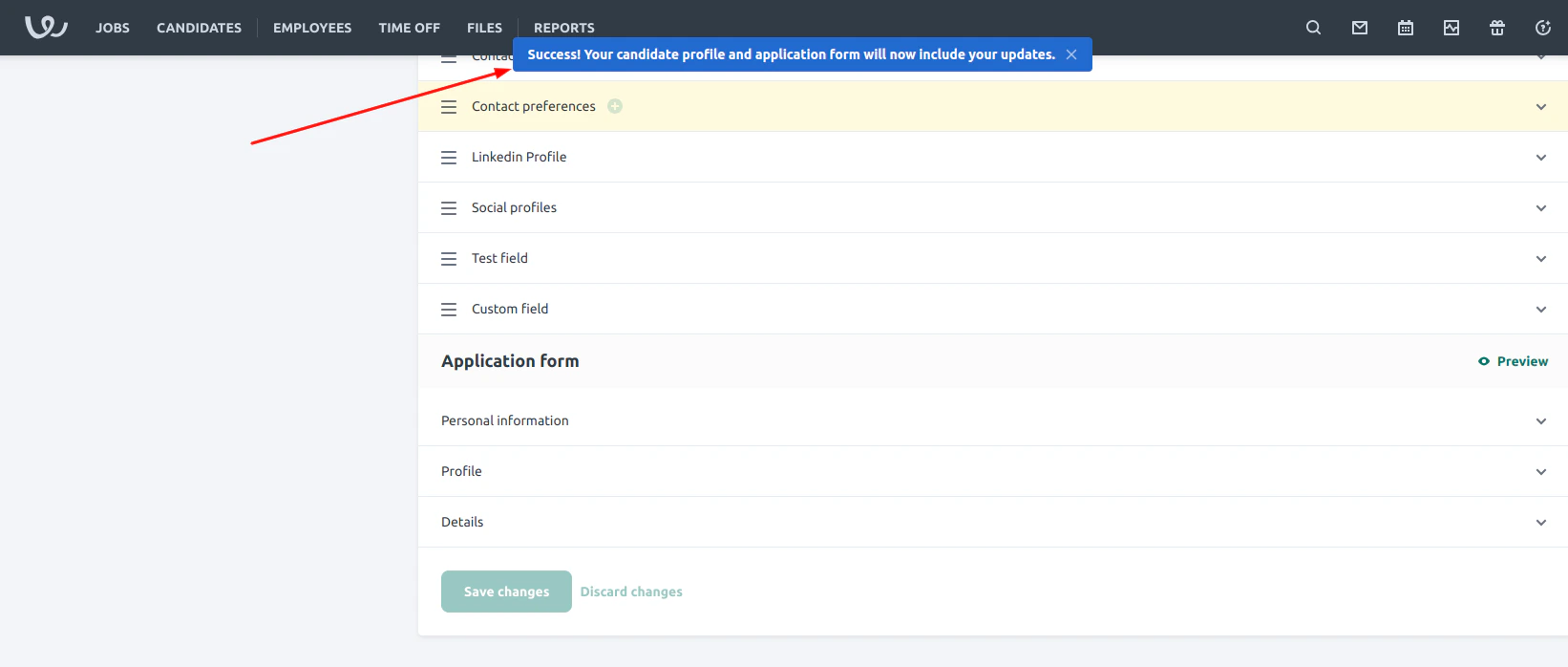
  <Step title="Created custom field">
    A success message shown after the custom field is created
    <Frame>
      <img className="rounded-md" style={{ margin:"0 auto",border:"1px solid #efefef" }} alt="Search Create Custom Object" src="https://mintcdn.com/stackone-hub-docs-confluence-api-token-update/_BEMwWcX5HRLBXL3/images/workable/custom-field/custom-field-10.png?fit=max&auto=format&n=_BEMwWcX5HRLBXL3&q=85&s=6732b95ffb5d571d99b8201752a6ad32" width="1642" height="698" data-path="images/workable/custom-field/custom-field-10.png" />
    </Frame>
  </Step>

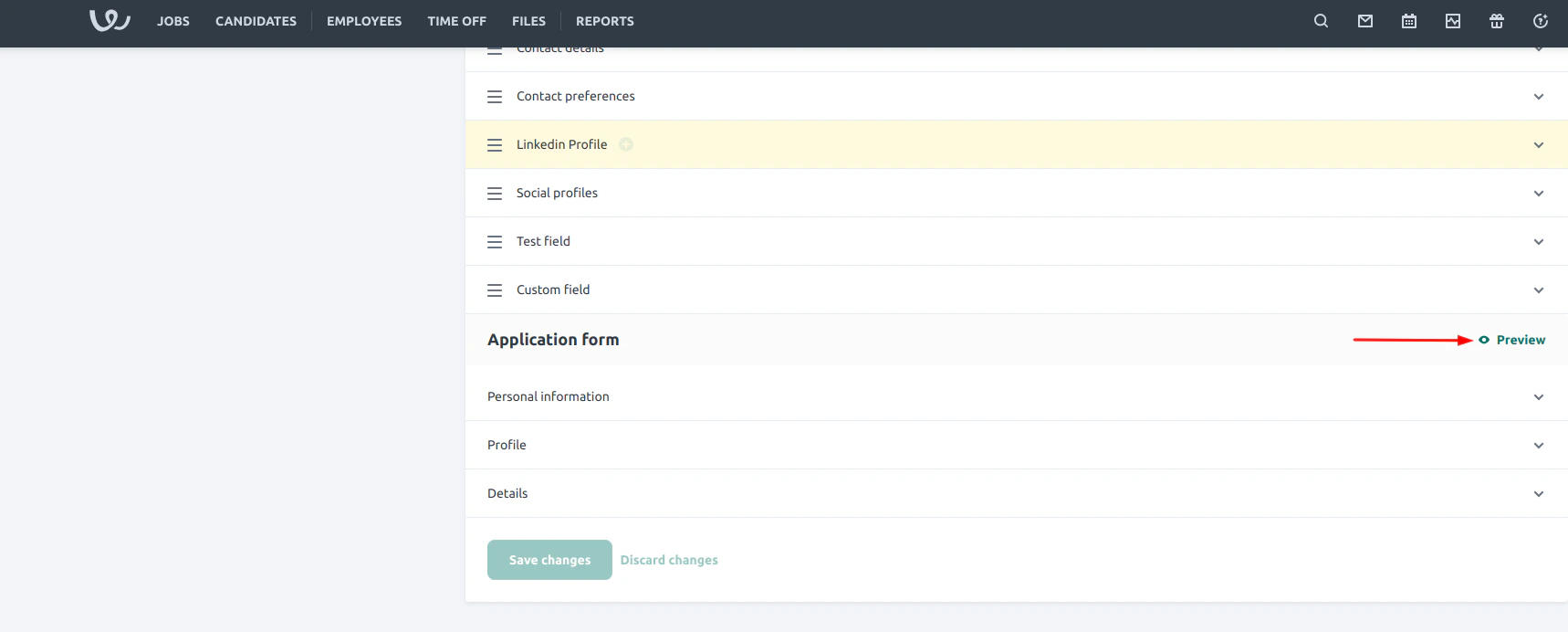
  <Step title="Application form preview">
    You can preview where this sits on the candiate profile by Clicking the `Preview` button.
    <Frame>
      <img className="rounded-md" style={{ margin:"0 auto",border:"1px solid #efefef" }} alt="Search Create Custom Object" src="https://mintcdn.com/stackone-hub-docs-confluence-api-token-update/_BEMwWcX5HRLBXL3/images/workable/custom-field/custom-field-11.png?fit=max&auto=format&n=_BEMwWcX5HRLBXL3&q=85&s=117a291a705a094e9d288613af79b5b7" width="1718" height="692" data-path="images/workable/custom-field/custom-field-11.png" />
    </Frame>
  </Step>

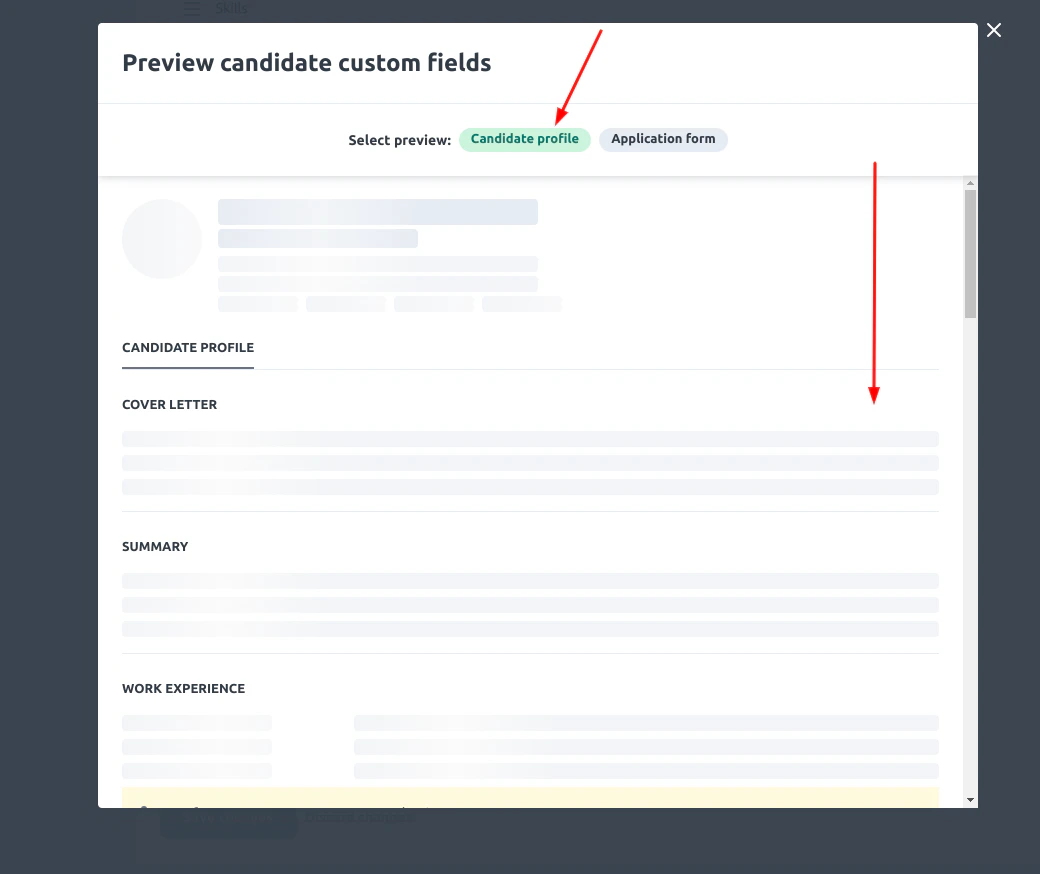
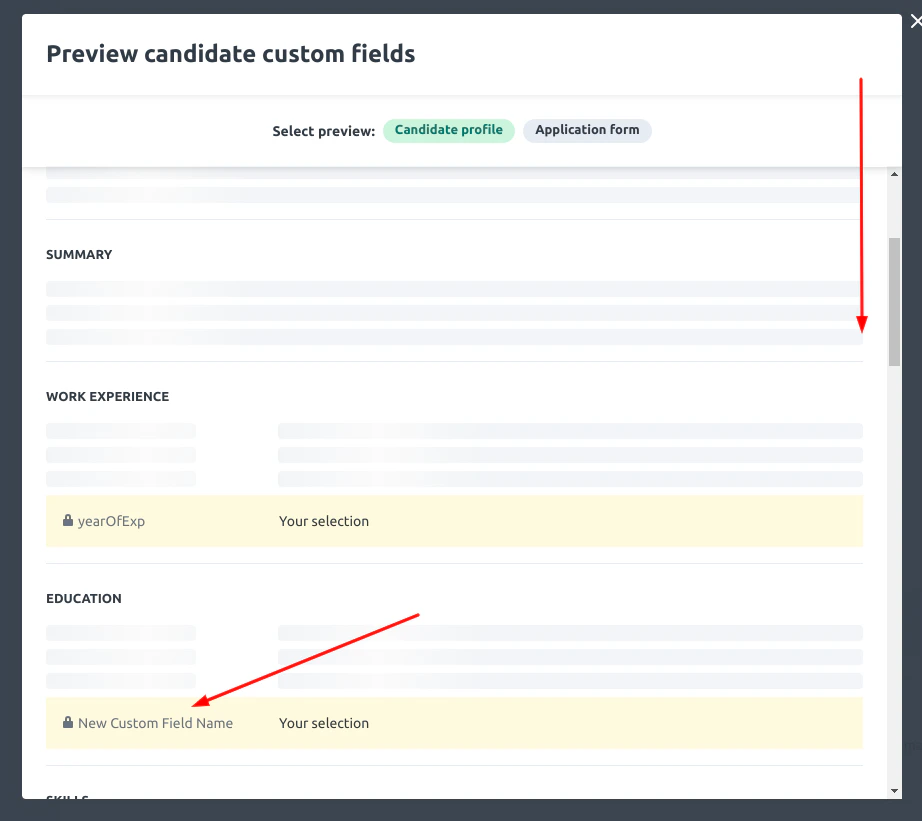
  <Step title="Preview candidate custom fields">
    Ensure you Select `Candidate profile`

    <Frame>
      <img className="rounded-md" style={{ margin:"0 auto",border:"1px solid #efefef" }} alt="Search Create Custom Object" src="https://mintcdn.com/stackone-hub-docs-confluence-api-token-update/lMwMaErGDlYR1KkK/images/workable/custom-field/custom-field-12.png?fit=max&auto=format&n=lMwMaErGDlYR1KkK&q=85&s=35421eeafb8742b0b55f31c14b8da485" width="1040" height="874" data-path="images/workable/custom-field/custom-field-12.png" />
    </Frame>

    Scroll down to see the newly created custom field
    <Frame>
      <img className="rounded-md" style={{ margin:"0 auto",border:"1px solid #efefef" }} alt="Search Create Custom Object" src="https://mintcdn.com/stackone-hub-docs-confluence-api-token-update/lMwMaErGDlYR1KkK/images/workable/custom-field/custom-field-13.png?fit=max&auto=format&n=lMwMaErGDlYR1KkK&q=85&s=918d6e48cae60778d5fa8edf19548b06" width="922" height="821" data-path="images/workable/custom-field/custom-field-13.png" />
    </Frame>
  </Step>
</Steps>

<br />

Congratulations, you're all set! If you face any issues with the steps mentioned above,
please contact us by emailing [integrations@stackone.com](mailto:integrations@stackone.com). We're always here to assist you!

## Useful Links

<Card title="API Reference" icon="link" href="https://help.workable.com/hc/en-us/articles/115012903847-Custom-fields-for-candidate-profiles">
  [https://help.workable.com/hc/en-us/articles/115012903847-Custom-fields-for-candidate-profiles](https://help.workable.com/hc/en-us/articles/115012903847-Custom-fields-for-candidate-profiles)
</Card>