> ## Documentation Index
> Fetch the complete documentation index at: https://stackone-hub-docs-confluence-api-token-update.mintlify.site/llms.txt
> Use this file to discover all available pages before exploring further.

# Workday Application Custom Field

> To create and view application custom field in Workday, follow these steps

<Warning>
  This guidance assumes that you have admin privileges for your Workday account.
</Warning>

## Create Workday Application Custom Field

<Steps>
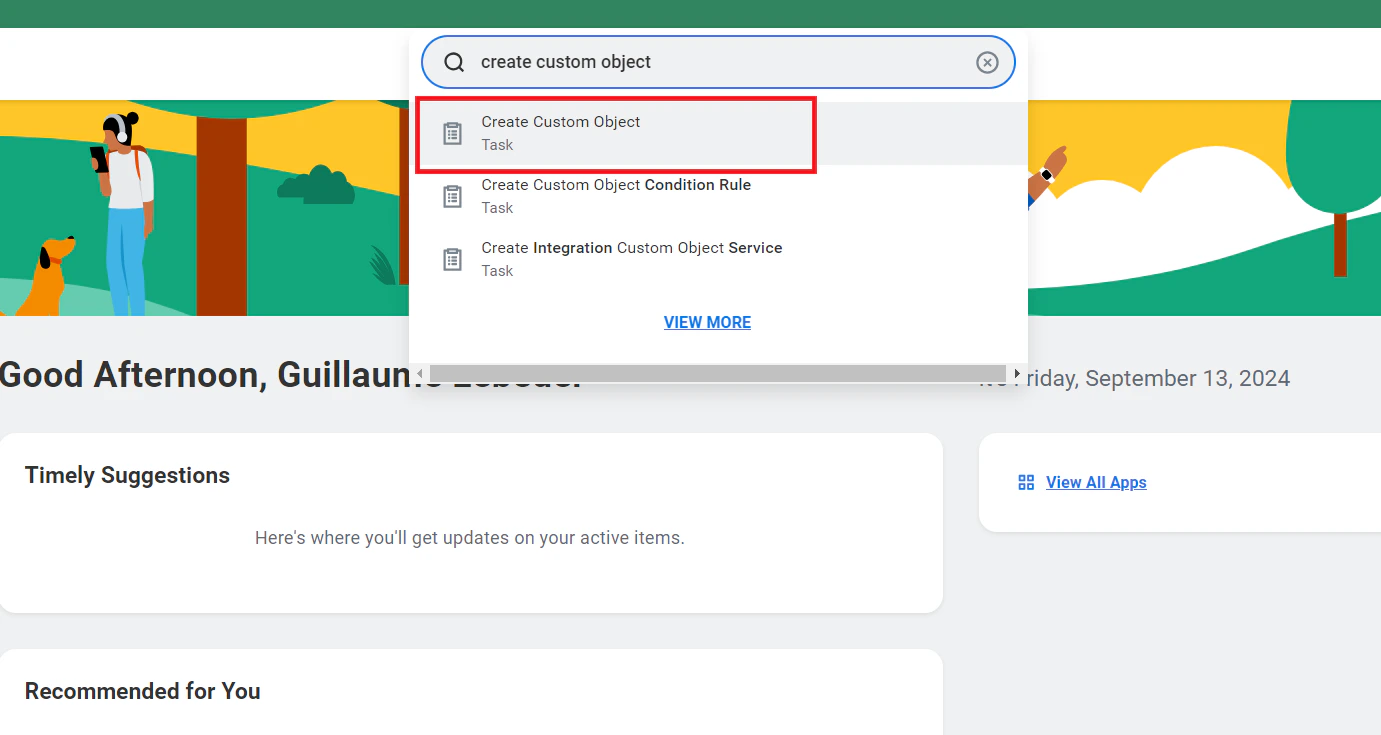
  <Step title="Search for 'Create Custom Object'">
    Search for <b>Create Custom Object</b> in the search bar and select it.

    <Frame>
      <img className="rounded-md" style={{ margin: '0 auto', border: '1px solid #efefef' }} alt="Search Create Custom Object" src="https://mintcdn.com/stackone-hub-docs-confluence-api-token-update/w__eN0U5iLwN8ehP/images/workday/custom-field/custom-field-01.png?fit=max&auto=format&n=w__eN0U5iLwN8ehP&q=85&s=22a6f1f9d6645642f3510062953859f0" width="1381" height="735" data-path="images/workday/custom-field/custom-field-01.png" />
    </Frame>
  </Step>

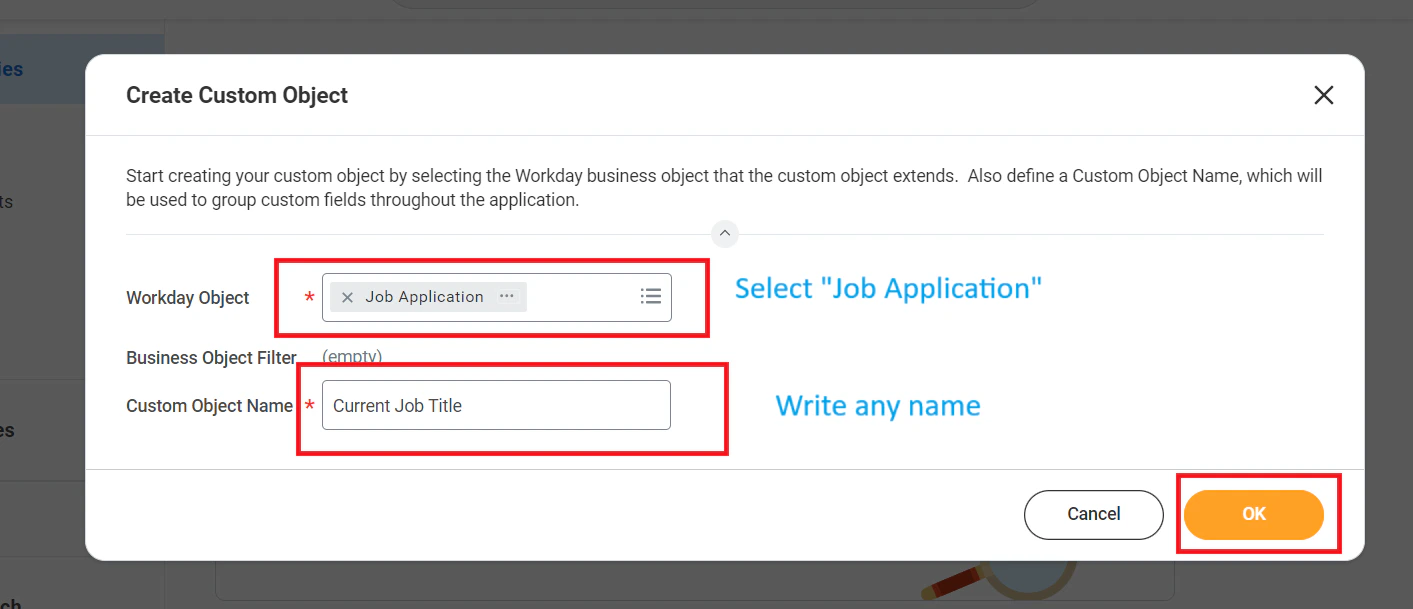
  <Step title="Create Custom Object">
    Select <b>Job Application</b> in Workday Object.<br /> Enter a name for the custom object and click <b>OK</b>

    <Frame>
      <img className="rounded-md" style={{ margin: '0 auto', border: '1px solid #efefef' }} alt="Create Custom Object" src="https://mintcdn.com/stackone-hub-docs-confluence-api-token-update/w__eN0U5iLwN8ehP/images/workday/custom-field/custom-field-24.png?fit=max&auto=format&n=w__eN0U5iLwN8ehP&q=85&s=22b02517d103527a4ed9b40dd10a3395" width="1413" height="609" data-path="images/workday/custom-field/custom-field-24.png" />
    </Frame>
  </Step>

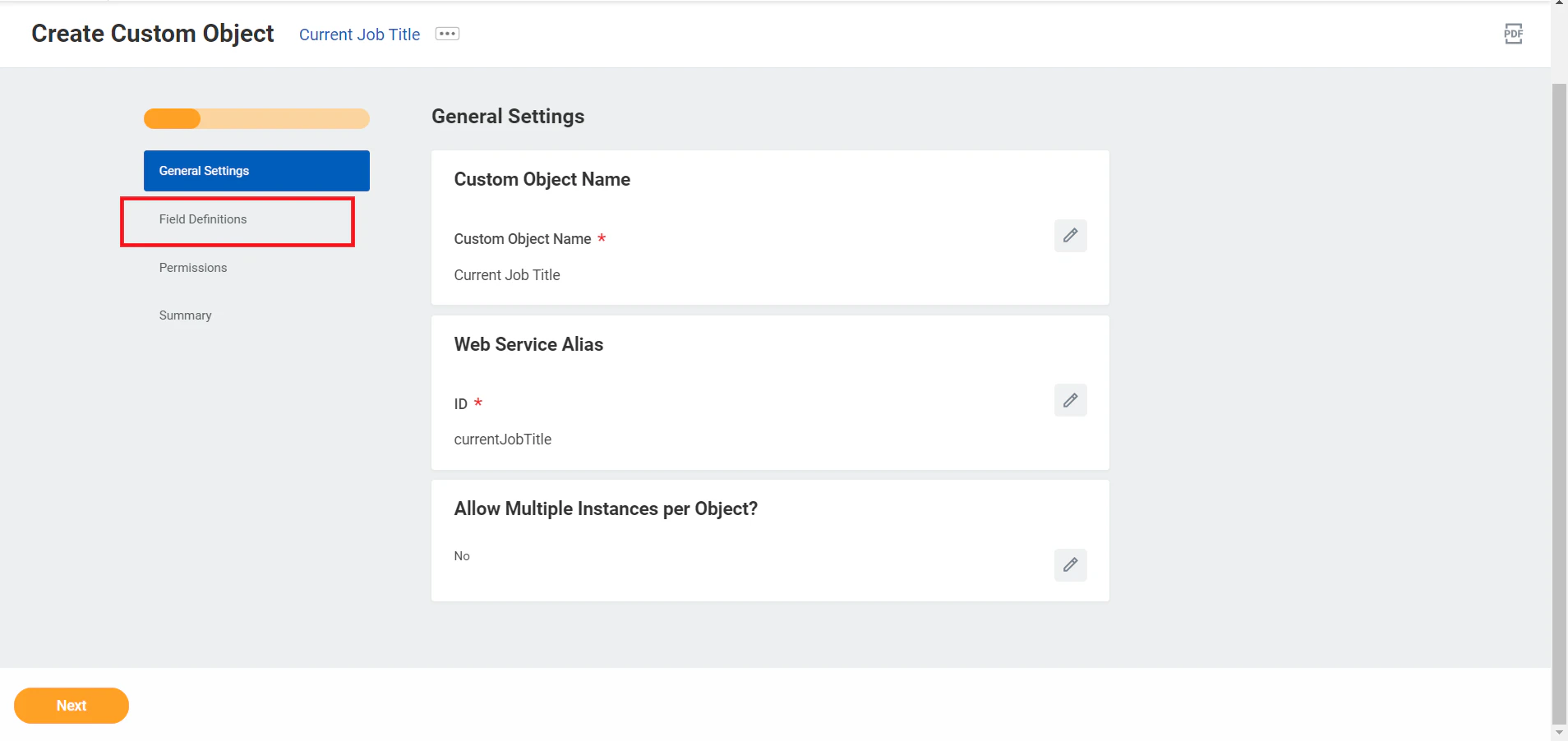
  <Step title="Click 'Field Definitions'">
    Click the <b>Field Definitions</b> tab in the sidebar.

    <Frame>
      <img className="rounded-md" style={{ margin: '0 auto', border: '1px solid #efefef' }} alt="Click Field Definitions" src="https://mintcdn.com/stackone-hub-docs-confluence-api-token-update/w__eN0U5iLwN8ehP/images/workday/custom-field/custom-field-03.png?fit=max&auto=format&n=w__eN0U5iLwN8ehP&q=85&s=0a3db1f12b1438c13e3a03ea31676423" width="1908" height="902" data-path="images/workday/custom-field/custom-field-03.png" />
    </Frame>
  </Step>

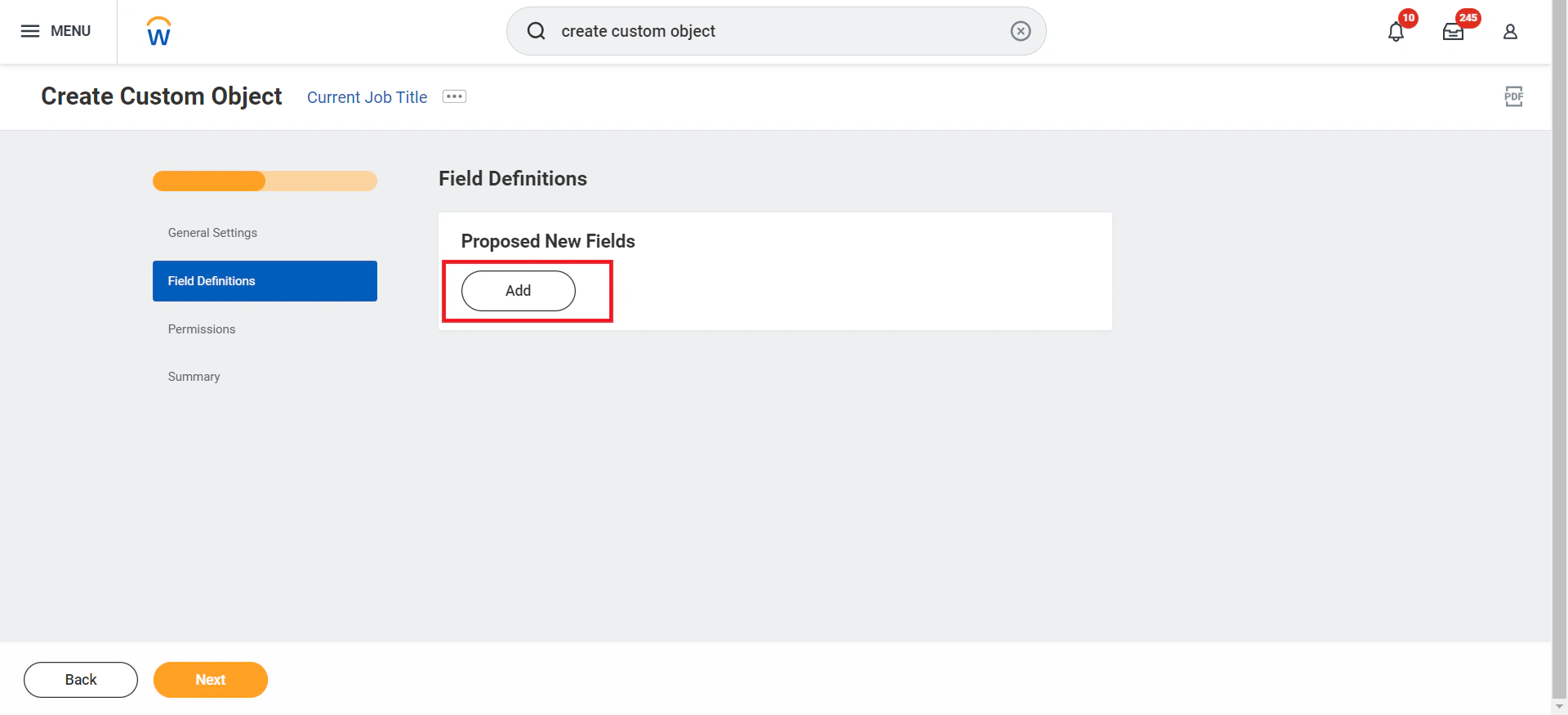
  <Step title="Click 'Add' button">
    Click the <b>Add</b> button in Proposed New Fields.

    <Frame>
      <img className="rounded-md" style={{ margin: '0 auto', border: '1px solid #efefef' }} alt="Click Add button" src="https://mintcdn.com/stackone-hub-docs-confluence-api-token-update/w__eN0U5iLwN8ehP/images/workday/custom-field/custom-field-04.png?fit=max&auto=format&n=w__eN0U5iLwN8ehP&q=85&s=441ab771e9fce370bcdc5ddcdc8418c4" width="1920" height="875" data-path="images/workday/custom-field/custom-field-04.png" />
    </Frame>
  </Step>

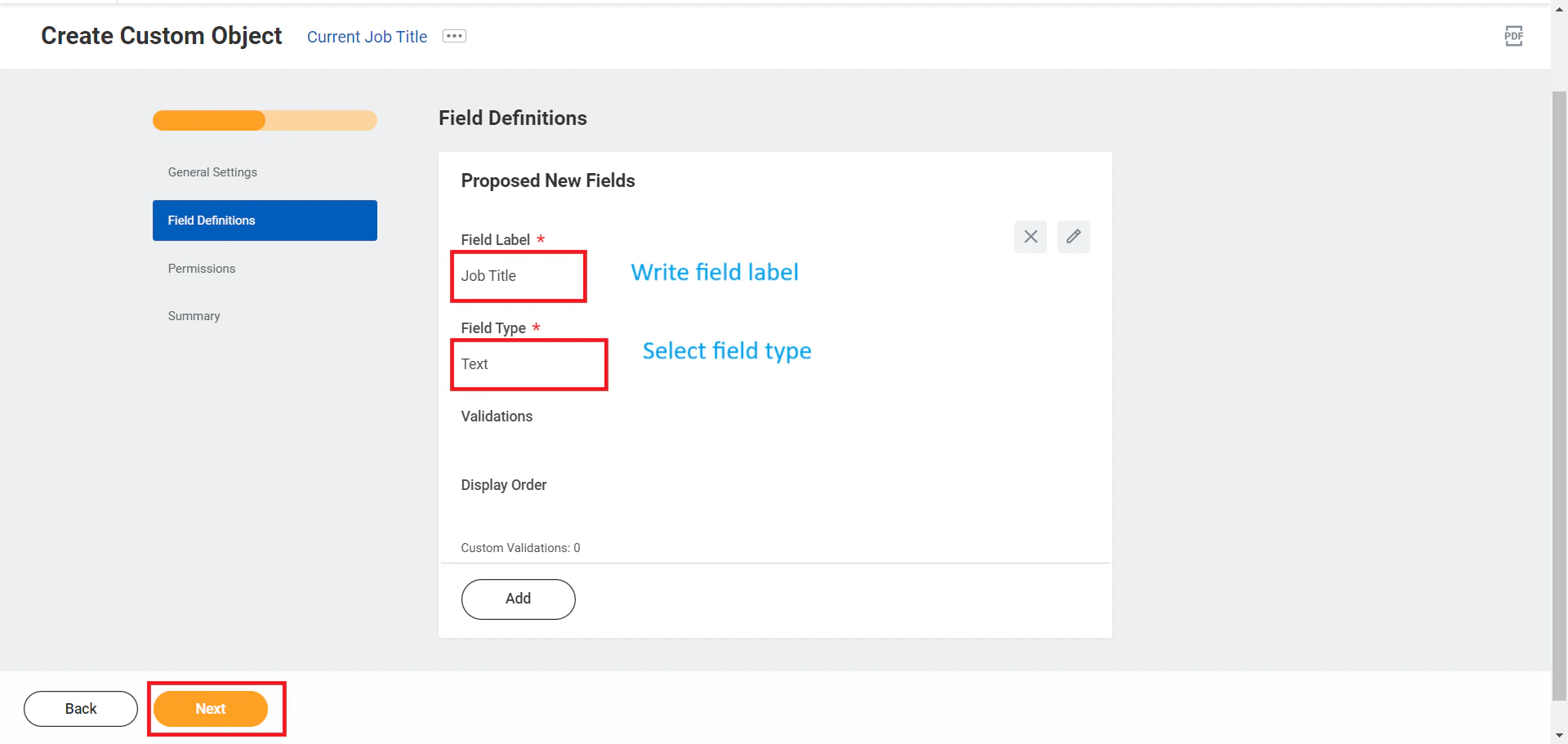
  <Step title="Enter Label & Field Type">
    Enter a label for the field, select a field type from the dropdown menu, and click <b>Next</b>

    <Frame>
      <img className="rounded-md" style={{ margin: '0 auto', border: '1px solid #efefef' }} alt="Enter Label & Field Type" src="https://mintcdn.com/stackone-hub-docs-confluence-api-token-update/w__eN0U5iLwN8ehP/images/workday/custom-field/custom-field-05.png?fit=max&auto=format&n=w__eN0U5iLwN8ehP&q=85&s=f060df0b136f394ef52656862d42d326" width="1920" height="911" data-path="images/workday/custom-field/custom-field-05.png" />
    </Frame>
  </Step>

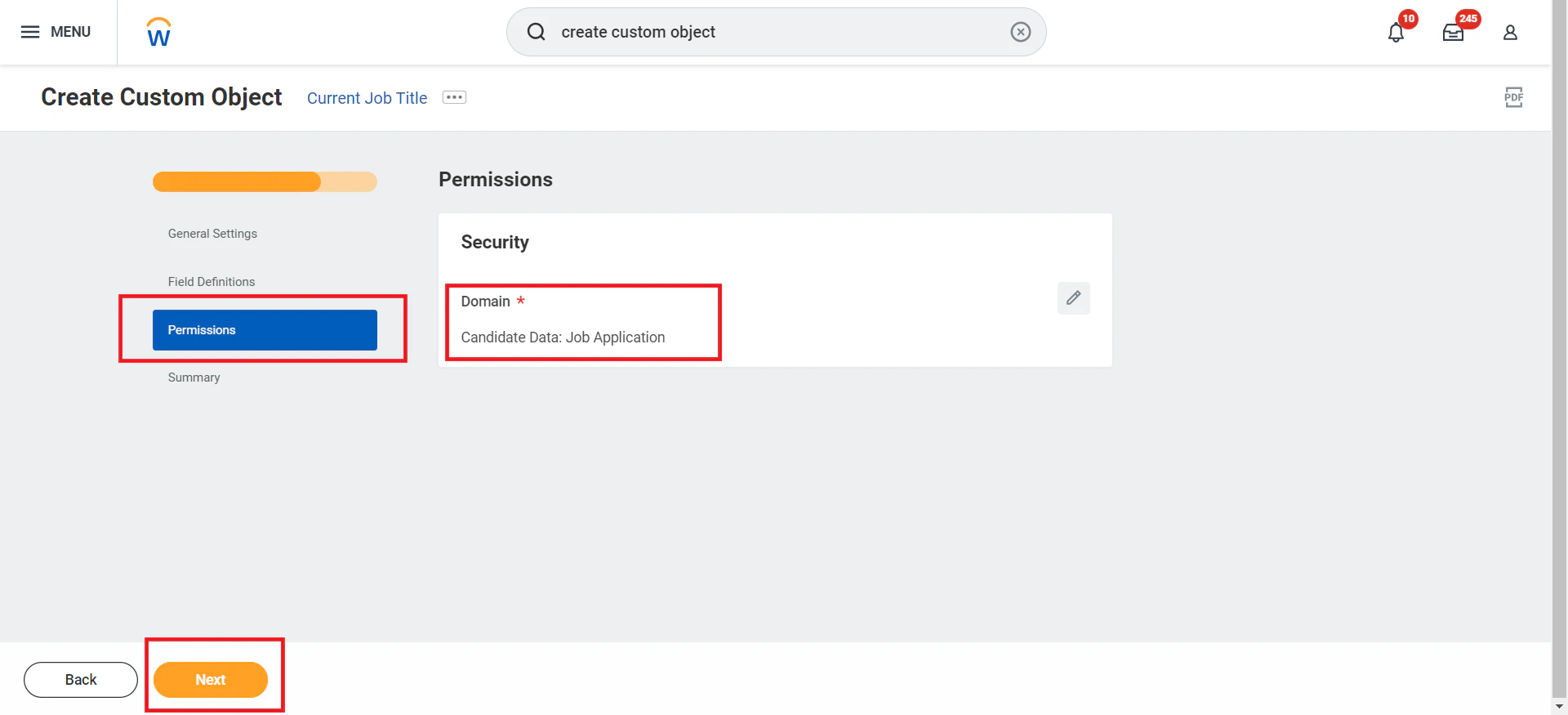
  <Step title="Select 'Candidate Date: Job Application'">
    Select <b>Candidate Date: Job Application</b> in Permissions tab and click <b>Next</b>.

    <Frame>
      <img className="rounded-md" style={{ margin: '0 auto', border: '1px solid #efefef' }} alt="Select Permission" src="https://mintcdn.com/stackone-hub-docs-confluence-api-token-update/w__eN0U5iLwN8ehP/images/workday/custom-field/custom-field-17.png?fit=max&auto=format&n=w__eN0U5iLwN8ehP&q=85&s=389b021f4191014fc726342144296296" width="1920" height="875" data-path="images/workday/custom-field/custom-field-17.png" />
    </Frame>
  </Step>

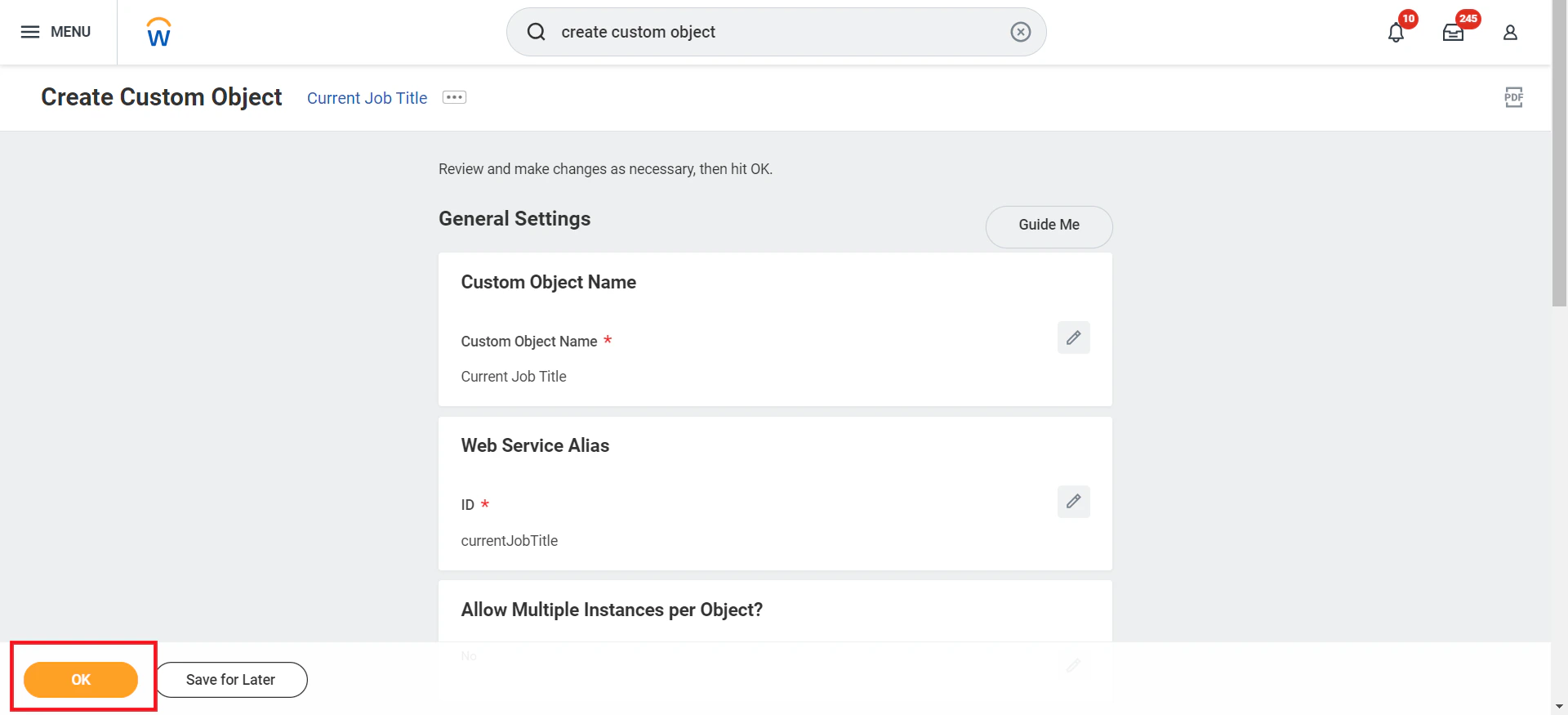
  <Step title="Review and Confirm">
    Verify the custom object summary and click <b>OK</b>

    <Frame>
      <img className="rounded-md" style={{ margin: '0 auto', border: '1px solid #efefef' }} alt="Review and Confirm" src="https://mintcdn.com/stackone-hub-docs-confluence-api-token-update/w__eN0U5iLwN8ehP/images/workday/custom-field/custom-field-07.png?fit=max&auto=format&n=w__eN0U5iLwN8ehP&q=85&s=58618a9c9a4dc03de4c96d24f0871054" width="1920" height="875" data-path="images/workday/custom-field/custom-field-07.png" />
    </Frame>
  </Step>

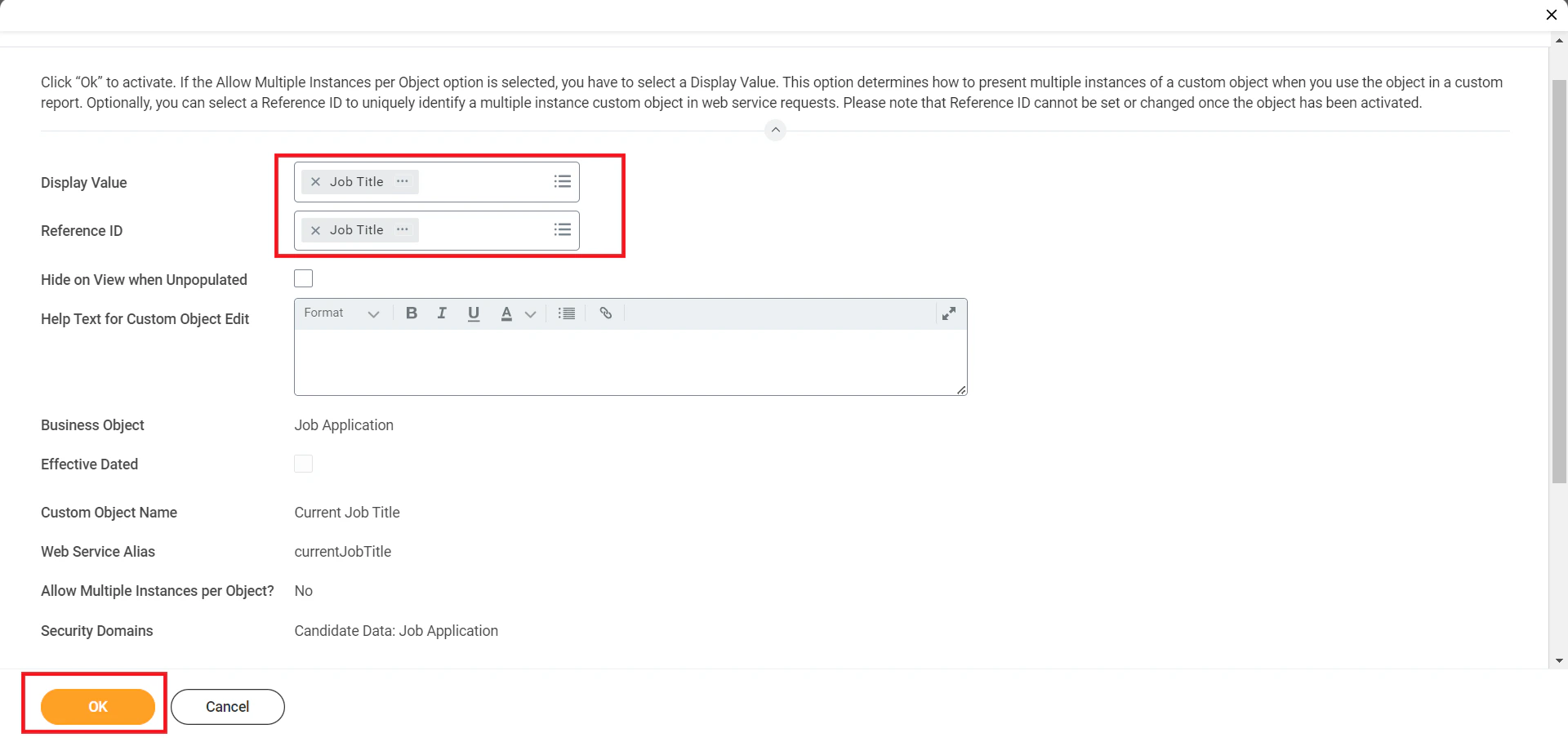
  <Step title="Configure Field Selection">
    Select the newly created custom field from the <b>Display Value</b> and <b>Reference ID</b> dropdowns if the Allow Multiple Instances per Object option is selected, and click <b>OK</b>.

    <Frame>
      <img className="rounded-md" style={{ margin: '0 auto', border: '1px solid #efefef' }} alt="Configure Field Selection" src="https://mintcdn.com/stackone-hub-docs-confluence-api-token-update/w__eN0U5iLwN8ehP/images/workday/custom-field/custom-field-08.png?fit=max&auto=format&n=w__eN0U5iLwN8ehP&q=85&s=9109d305a7e998e50efabb4a0a1ab814" width="1920" height="909" data-path="images/workday/custom-field/custom-field-08.png" />
    </Frame>
  </Step>

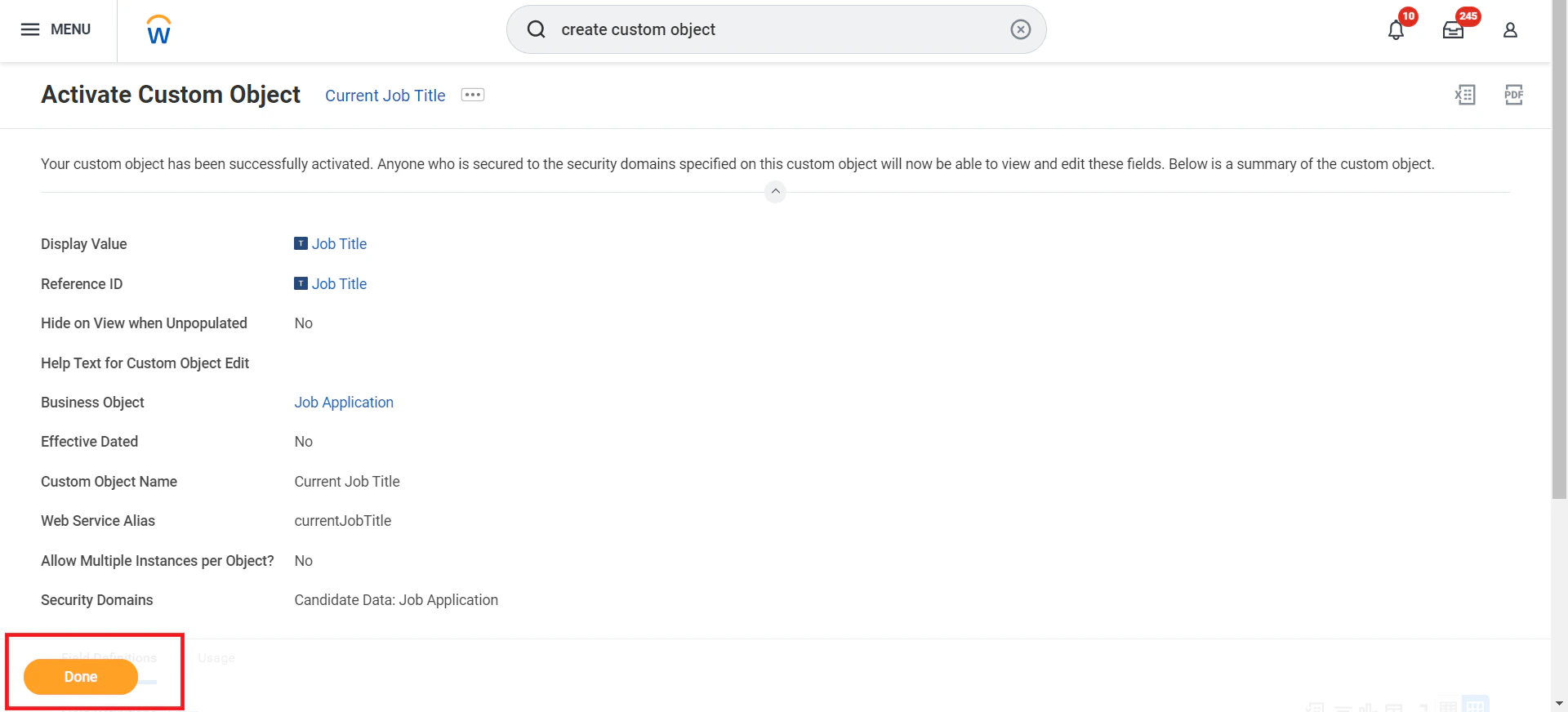
  <Step title="Activate Custom Object">
    Activate the custom object by clicking <b>Done</b>

    <Frame>
      <img className="rounded-md" style={{ margin: '0 auto', border: '1px solid #efefef' }} alt="Activate Custom Object" src="https://mintcdn.com/stackone-hub-docs-confluence-api-token-update/w__eN0U5iLwN8ehP/images/workday/custom-field/custom-field-09.png?fit=max&auto=format&n=w__eN0U5iLwN8ehP&q=85&s=fc33613d40436d4868ea1bb3eb8283c7" width="1920" height="872" data-path="images/workday/custom-field/custom-field-09.png" />
    </Frame>
  </Step>
</Steps>

## View Workday Application Custom Field
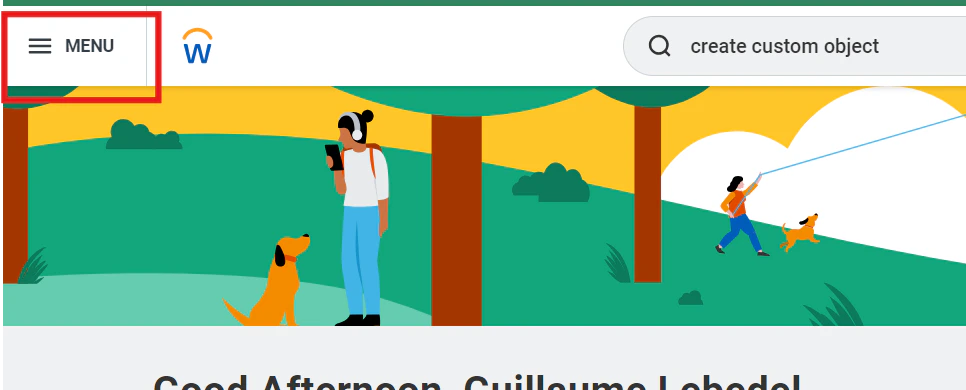
<Steps>
  <Step title="Click on 'Menu'">
    <Frame>
      <img className="rounded-md" style={{ margin: '0 auto', border: '1px solid #efefef' }} alt="Click on Menu" src="https://mintcdn.com/stackone-hub-docs-confluence-api-token-update/w__eN0U5iLwN8ehP/images/workday/custom-field/custom-field-18.png?fit=max&auto=format&n=w__eN0U5iLwN8ehP&q=85&s=515ca4470ecf437816cf6446df0adc17" width="966" height="390" data-path="images/workday/custom-field/custom-field-18.png" />
    </Frame>
  </Step>

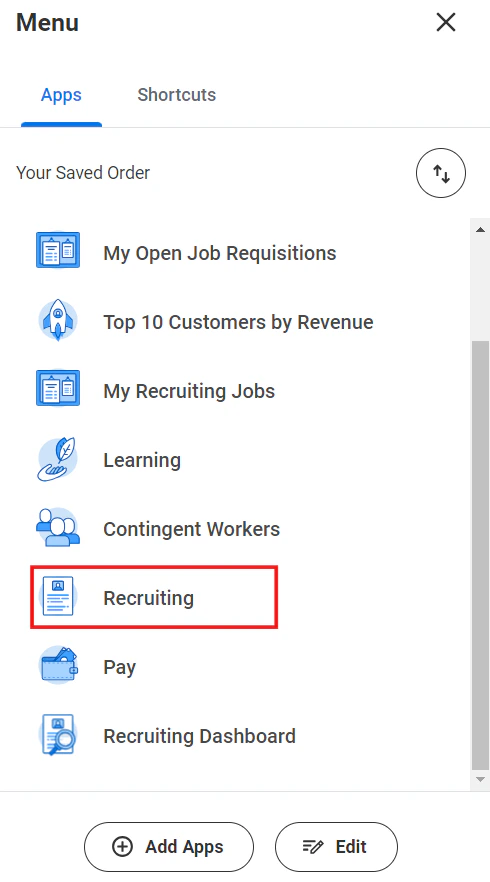
  <Step title="Click 'Recruiting'">
    <Frame>
      <img className="rounded-md" style={{ margin: '0 auto', border: '1px solid #efefef' }} alt="Click Recruiting" src="https://mintcdn.com/stackone-hub-docs-confluence-api-token-update/w__eN0U5iLwN8ehP/images/workday/custom-field/custom-field-19.png?fit=max&auto=format&n=w__eN0U5iLwN8ehP&q=85&s=c081ae99abc9671765d58a3b1e02266a" width="490" height="882" data-path="images/workday/custom-field/custom-field-19.png" />
    </Frame>
  </Step>

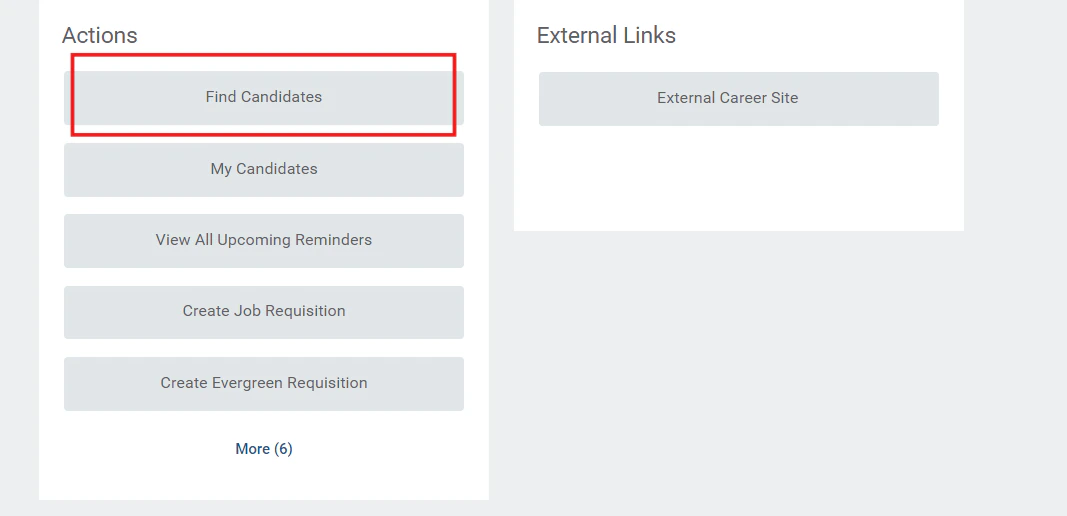
  <Step title="Click on 'Find Candidates'">
    <Frame>
      <img className="rounded-md" style={{ margin: '0 auto', border: '1px solid #efefef' }} alt="Click on Find Candidates" src="https://mintcdn.com/stackone-hub-docs-confluence-api-token-update/w__eN0U5iLwN8ehP/images/workday/custom-field/custom-field-20.png?fit=max&auto=format&n=w__eN0U5iLwN8ehP&q=85&s=17f251e1ebd4320b17cea6aa3e971619" width="1067" height="516" data-path="images/workday/custom-field/custom-field-20.png" />
    </Frame>
  </Step>

  <Step title="Access Job Application Actions">
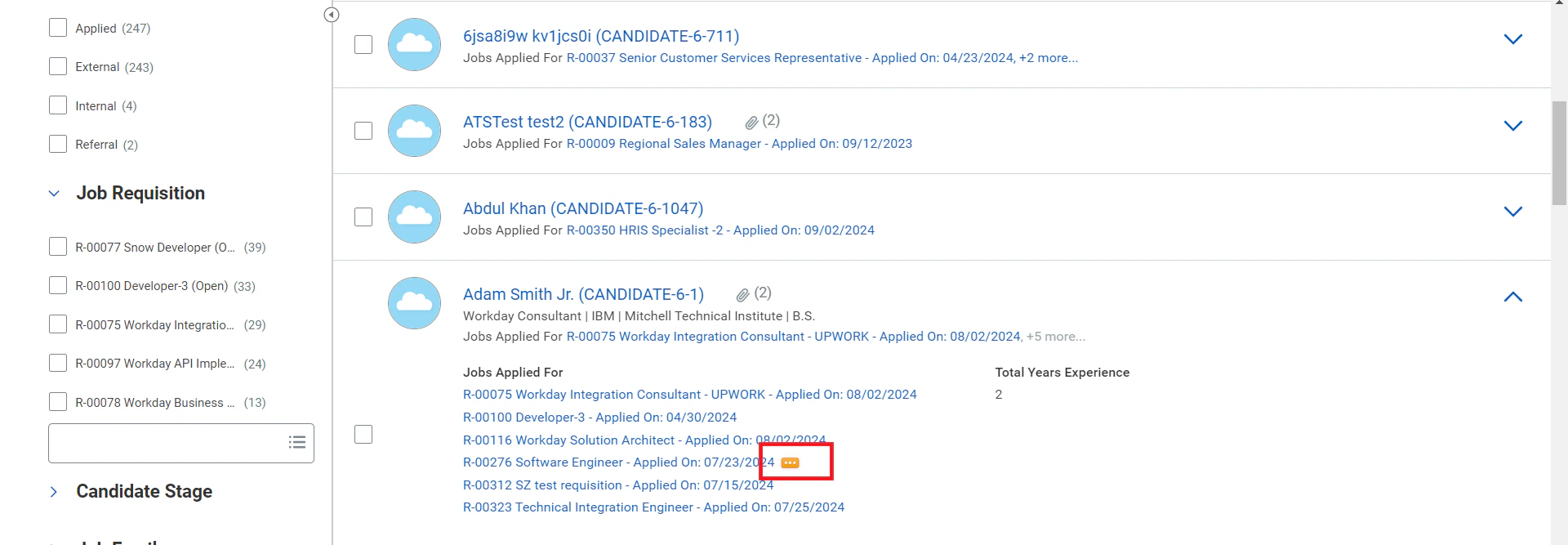
    Expand the <b>Job Applied</b> section for the candidate, hover over the job application, and click on the three dots (...).
    <Frame>
      <img className="rounded-md" style={{ margin: '0 auto', border: '1px solid #efefef' }} alt="Access Job Application Actions" src="https://mintcdn.com/stackone-hub-docs-confluence-api-token-update/w__eN0U5iLwN8ehP/images/workday/custom-field/custom-field-21.png?fit=max&auto=format&n=w__eN0U5iLwN8ehP&q=85&s=7185f8d3bd1fbc2db2ce9a08506b1208" width="1920" height="667" data-path="images/workday/custom-field/custom-field-21.png" />
    </Frame>
  </Step>

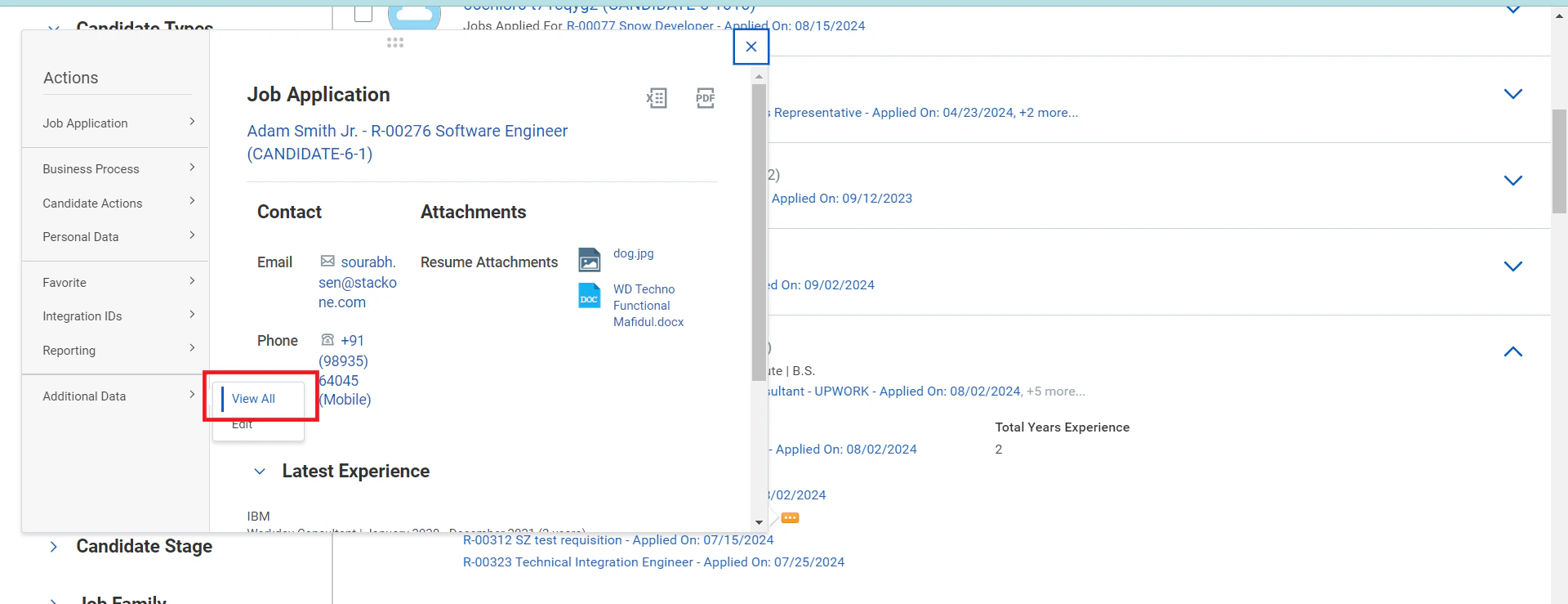
  <Step title="View All Additional Fields">
    In the Additional Fields section, click on <b>View All</b>.

    <Frame>
      <img className="rounded-md" style={{ margin: '0 auto', border: '1px solid #efefef' }} alt="View All Additional Fields" src="https://mintcdn.com/stackone-hub-docs-confluence-api-token-update/w__eN0U5iLwN8ehP/images/workday/custom-field/custom-field-22.png?fit=max&auto=format&n=w__eN0U5iLwN8ehP&q=85&s=3bcfe1000719ed95cfbe899c569474a3" width="1920" height="739" data-path="images/workday/custom-field/custom-field-22.png" />
    </Frame>
  </Step>

  <Step title="View Newly Created Custom Field">
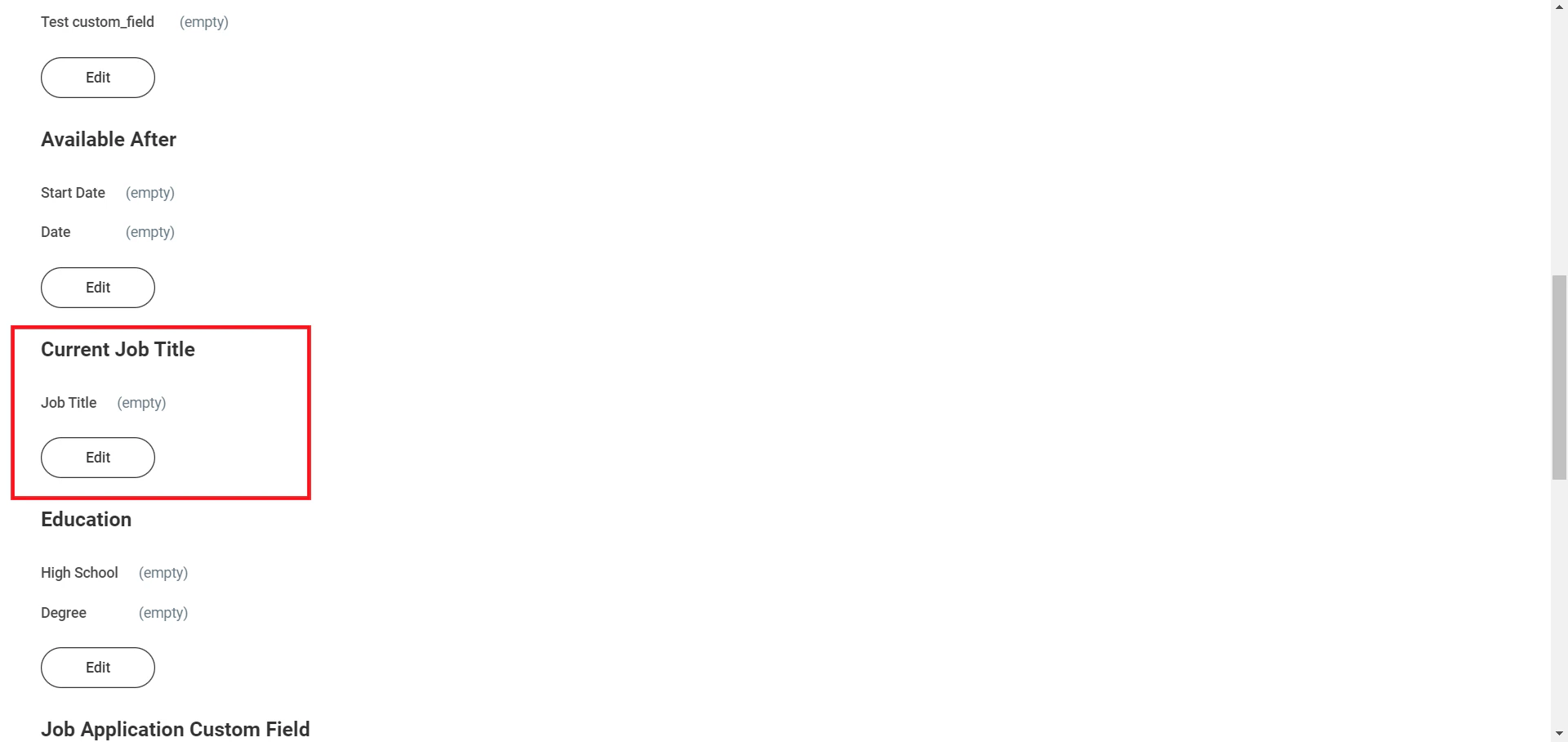
    Now, you will see the newly created custom field.
    <Frame>
      <img className="rounded-md" style={{ margin: '0 auto', border: '1px solid #efefef' }} alt="View Newly Created Custom Field" src="https://mintcdn.com/stackone-hub-docs-confluence-api-token-update/w__eN0U5iLwN8ehP/images/workday/custom-field/custom-field-23.png?fit=max&auto=format&n=w__eN0U5iLwN8ehP&q=85&s=8aedee20758e110ad865d2cf1dd77ab7" width="1920" height="908" data-path="images/workday/custom-field/custom-field-23.png" />
    </Frame>
  </Step>
</Steps>

<br />

Congratulations, you're all set! If you face any issues with the steps mentioned above,
please contact us by emailing [integrations@stackone.com](mailto:integrations@stackone.com). We're always here to assist you!