> ## Documentation Index
> Fetch the complete documentation index at: https://stackone-hub-docs-confluence-api-token-update.mintlify.site/llms.txt
> Use this file to discover all available pages before exploring further.
# Hibob Time-off Webhook Configuration
> To successfully configure the webhook and send the event on action of time-off
The following guidance assumes you have Admin privileges for your Hibob
account.
## To Get External Trigger Token
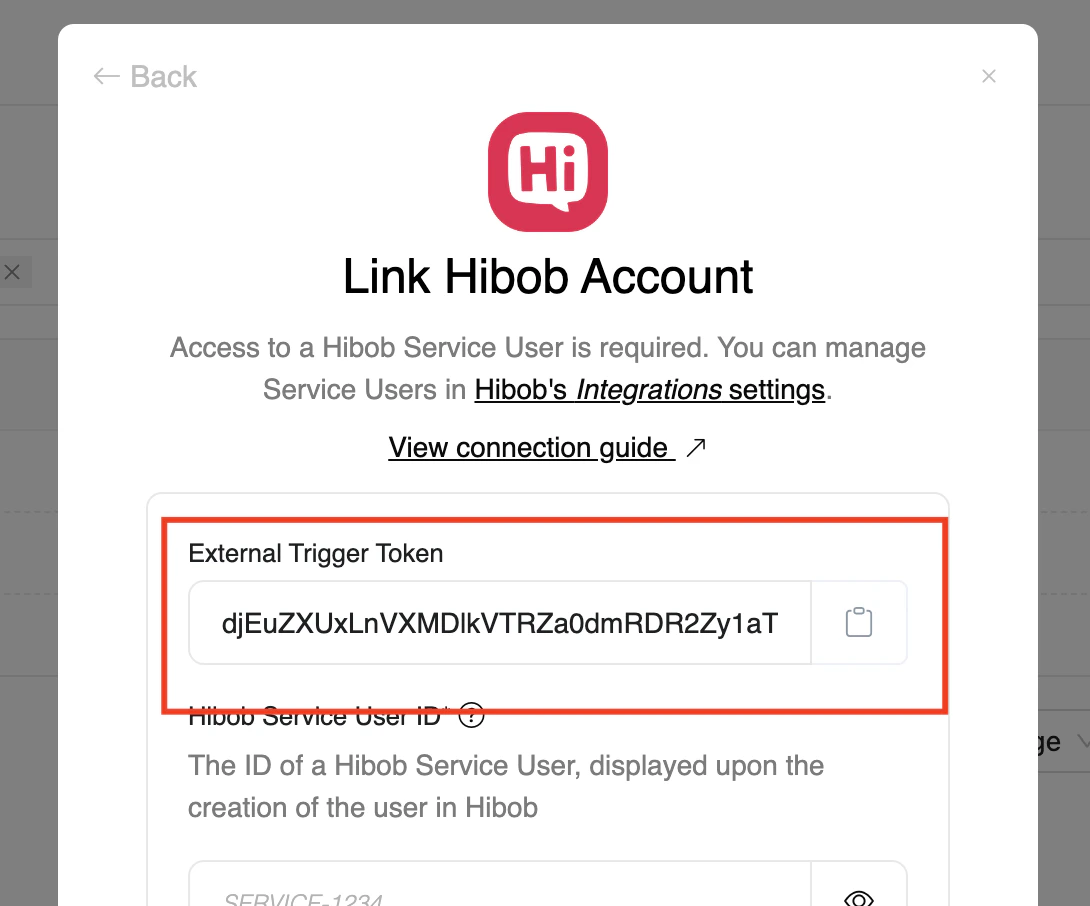
From the StackOne hub, you will receive the `External Trigger Token` needed to enable the Hibob Time-off webhook.
 ## To enable Time-off Webhook events
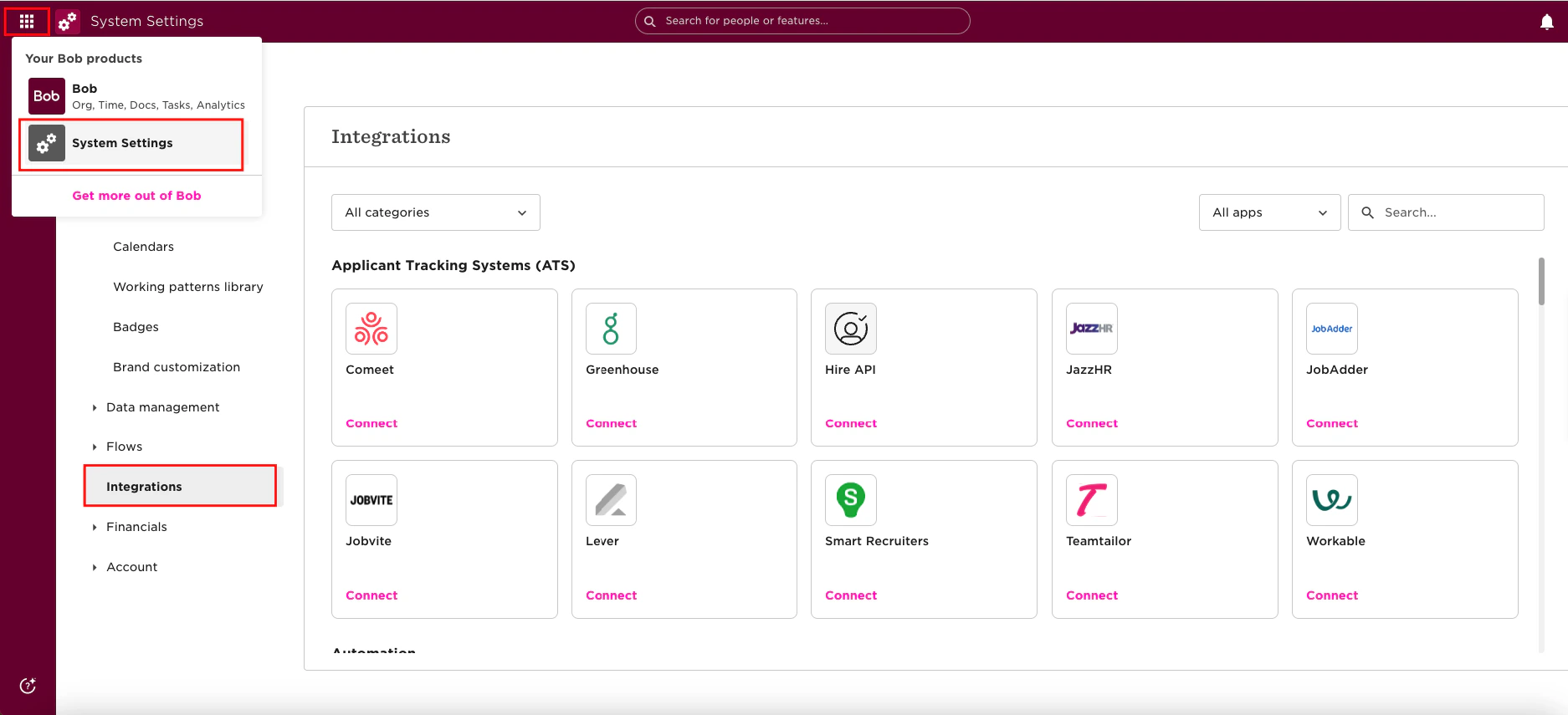
Please navigate to the `Hibob` Dashboard, click on `Menu`, select `System Settings`, and then click on `Integrations`.
## To enable Time-off Webhook events
Please navigate to the `Hibob` Dashboard, click on `Menu`, select `System Settings`, and then click on `Integrations`.
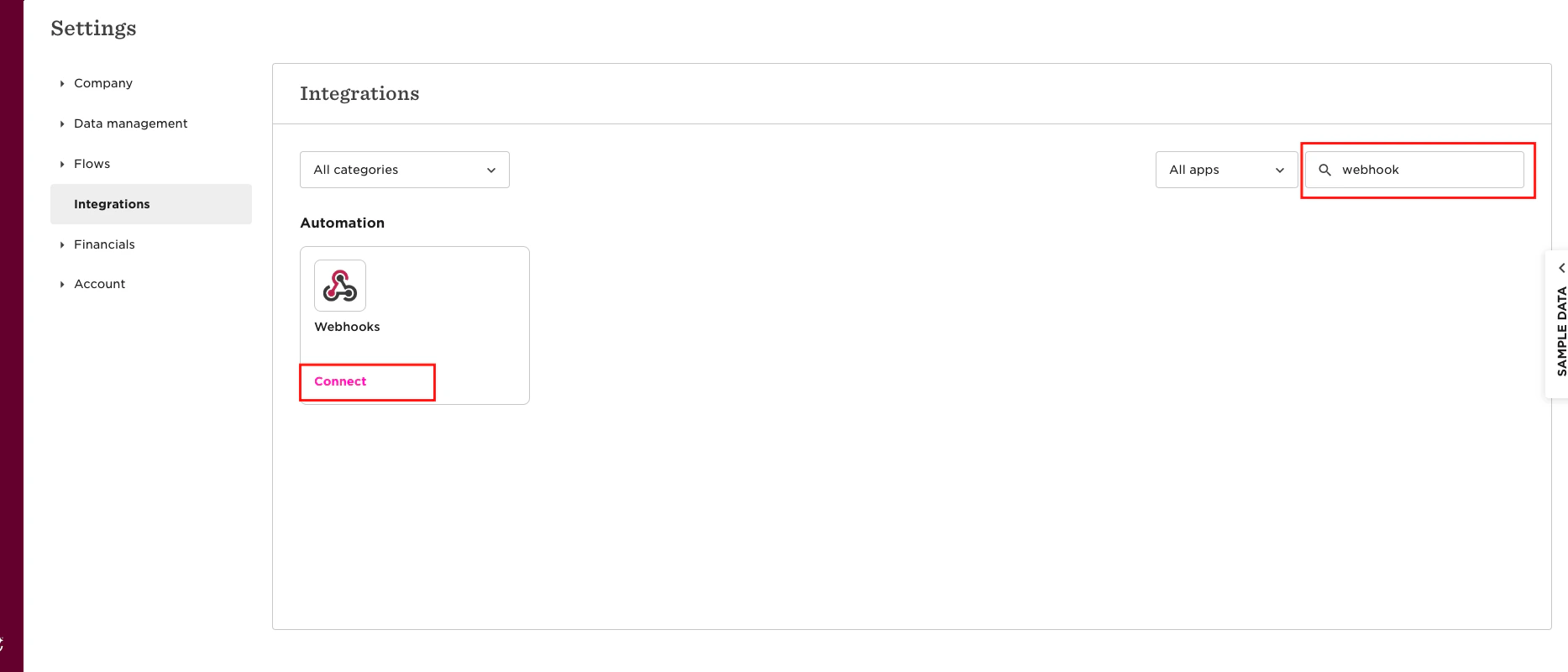
 Search for the `webhook` in the search bar and click the `Connect` button.
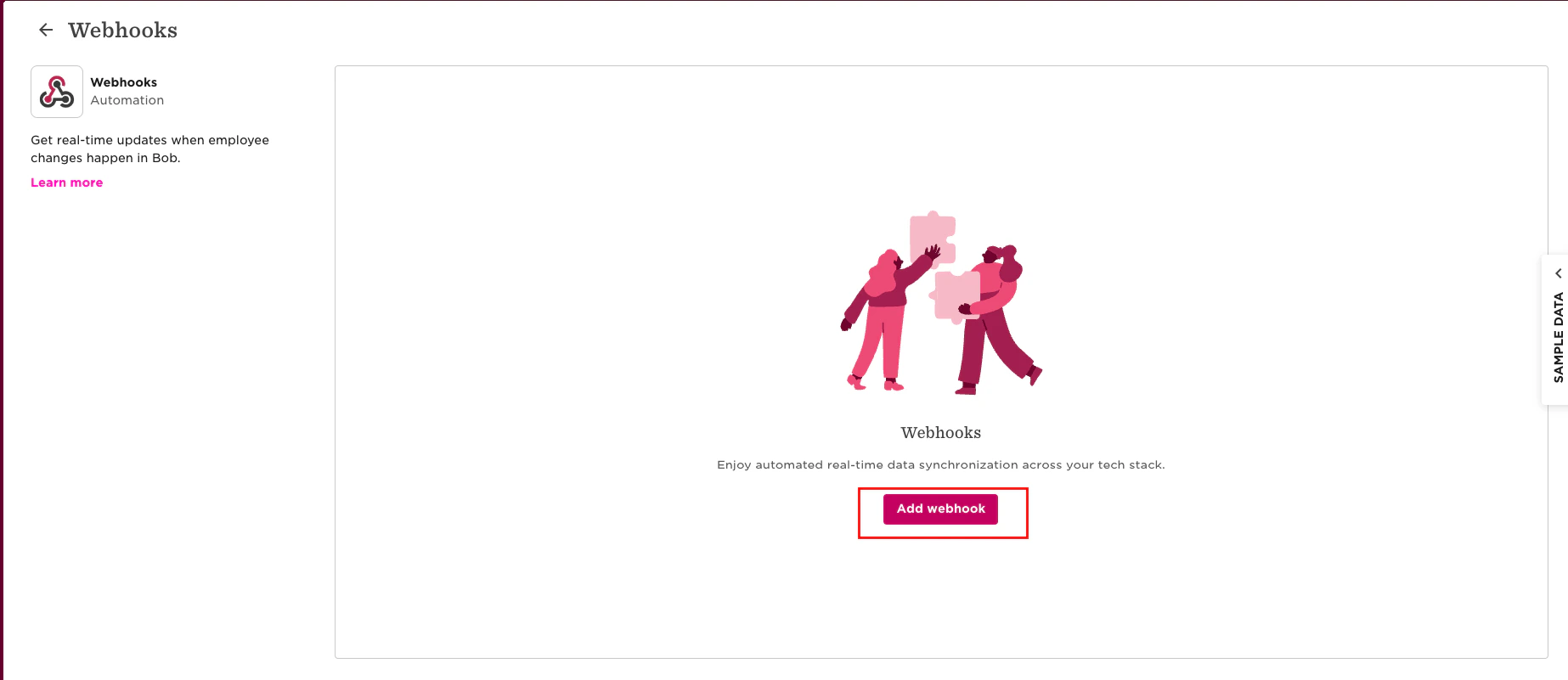
 The following screen will appear as shown below. To add the webhook, click the` Add Webhook` button.
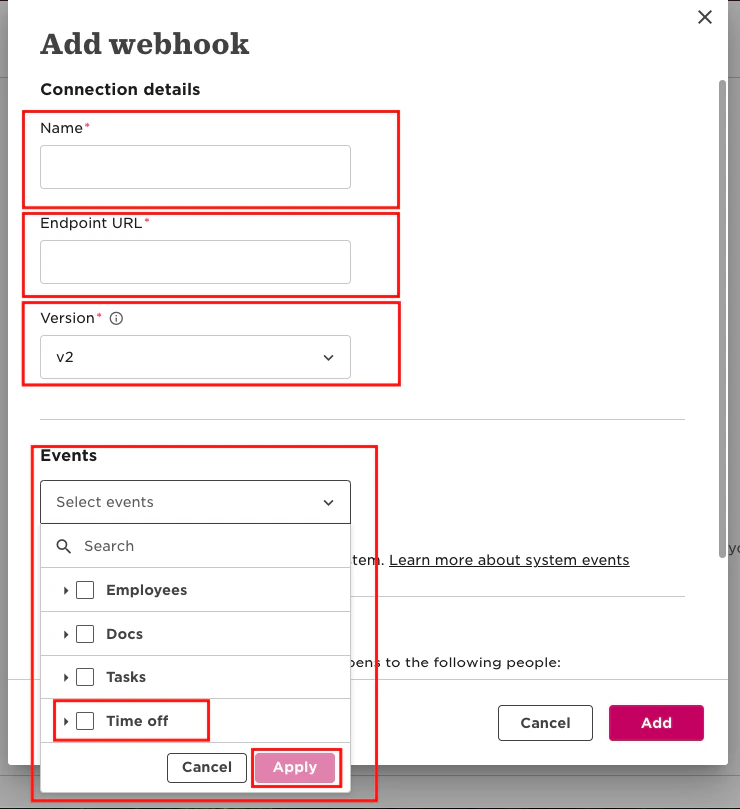
 Please provide the required details to configure the webhook for `time-off` events:
* **Name**: Enter the webhook name.
* **Endpoint URL**: Use the base URL provided by the partner and append your external trigger token from StackOne Hub as follows:
`https://api.stackone.com/external-trigger/hibob?externalTriggerToken=`
* **Version**: Select the webhook version.
* **Events**: Choose the time-off event types.
Please provide the required details to configure the webhook for `time-off` events:
* **Name**: Enter the webhook name.
* **Endpoint URL**: Use the base URL provided by the partner and append your external trigger token from StackOne Hub as follows:
`https://api.stackone.com/external-trigger/hibob?externalTriggerToken=`
* **Version**: Select the webhook version.
* **Events**: Choose the time-off event types.
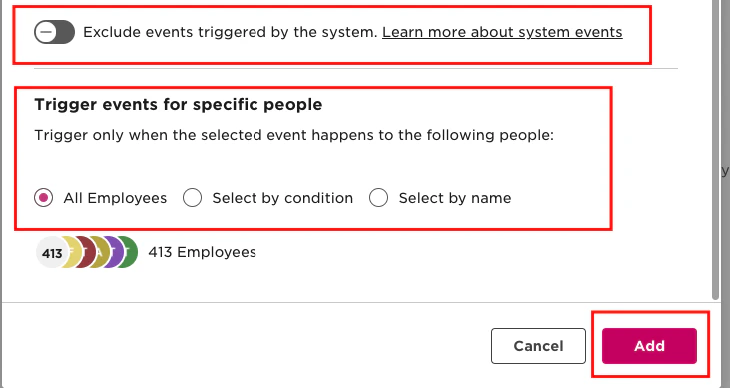
 Check the Exclude Event checkbox if you don’t want to fetch system-triggered events.
Select the people for triggering the event, then click the `Add` button.
Check the Exclude Event checkbox if you don’t want to fetch system-triggered events.
Select the people for triggering the event, then click the `Add` button.
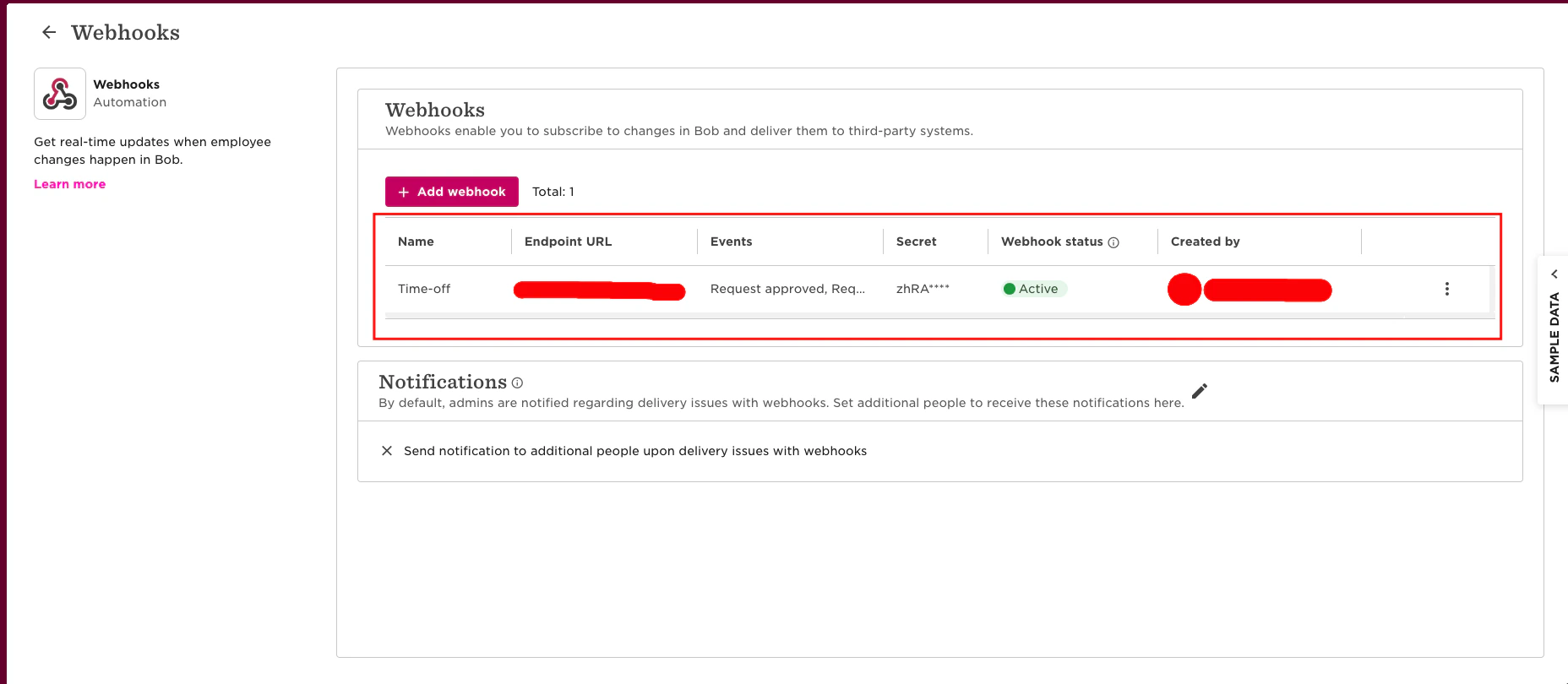
 The following screen will appear as shown below once you have successfully configured the webhook.
Congratulations, you're all set! If you face any issues with the steps mentioned above,
please contact us by emailing [integrations@stackone.com](mailto:integrations@stackone.com). We're always here to assist you!
## Useful Links
[https://apidocs.hibob.com/reference/time-off-webhook-events](https://apidocs.hibob.com/reference/time-off-webhook-events)