> ## Documentation Index
> Fetch the complete documentation index at: https://stackone-hub-docs-confluence-api-token-update.mintlify.site/llms.txt
> Use this file to discover all available pages before exploring further.

# Workday Calculated Fields

> To add calculated fields in Workday, follow these steps

<Warning>
  This guidance assumes that you have admin privileges for your Workday account.
</Warning>

## Add Workday Calculated Fields

<Steps>
  <Step title="Search for 'Create Integration System'">
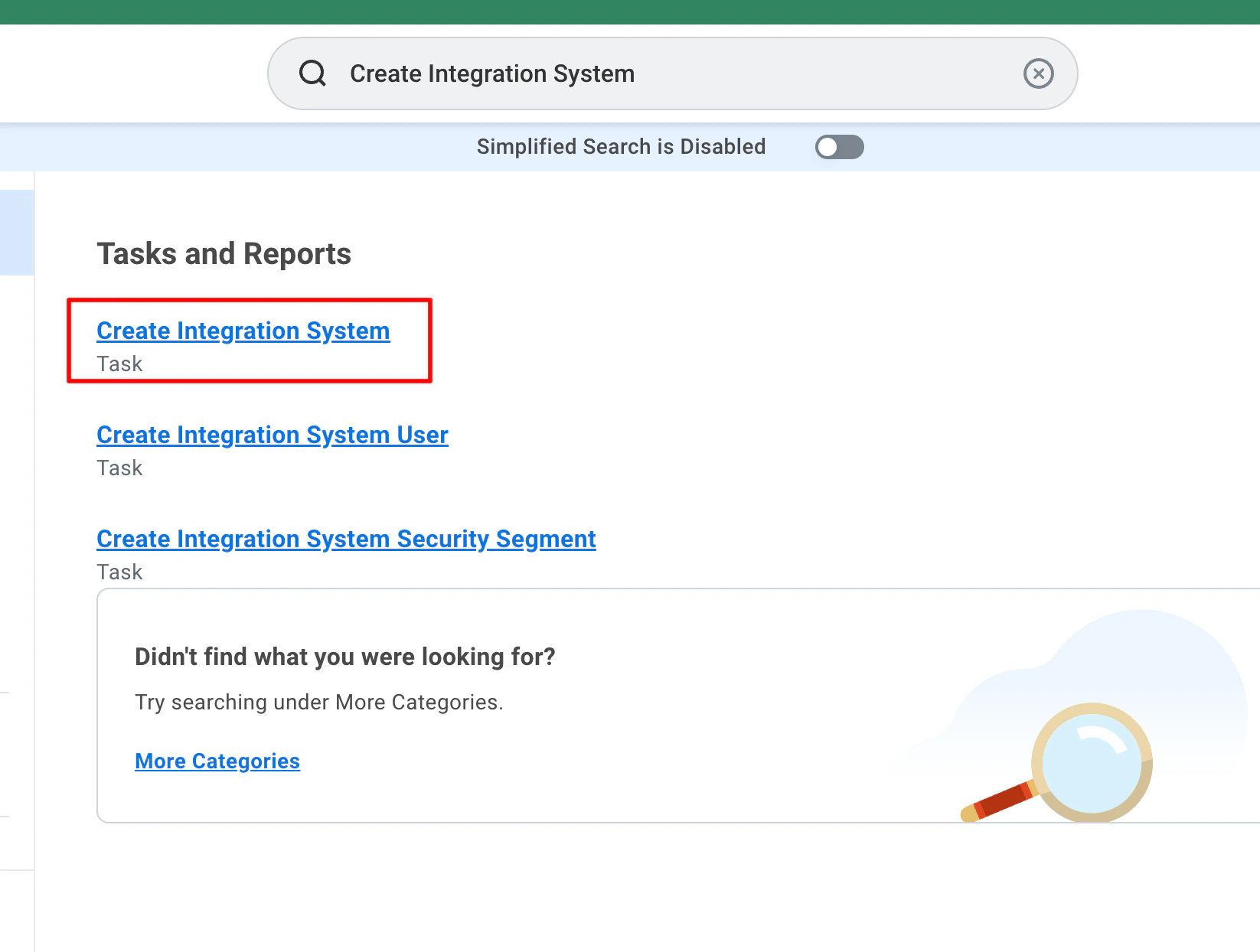
    Search for <b>Create Integration System</b> in the search bar and select it.

    <Frame>
      <img className="rounded-md" style={{ margin: '0 auto', border: '1px solid #efefef' }} alt="Search Create Custom Object" src="https://mintcdn.com/stackone-hub-docs-confluence-api-token-update/Cmc9v6zkKIhKV8Me/images/workday/calculated-fields/image.png?fit=max&auto=format&n=Cmc9v6zkKIhKV8Me&q=85&s=e423ca41b308816183f8bd6542a7e04b" width="1646" height="1244" data-path="images/workday/calculated-fields/image.png" />
    </Frame>
  </Step>

  <Step title="Create Integration System">
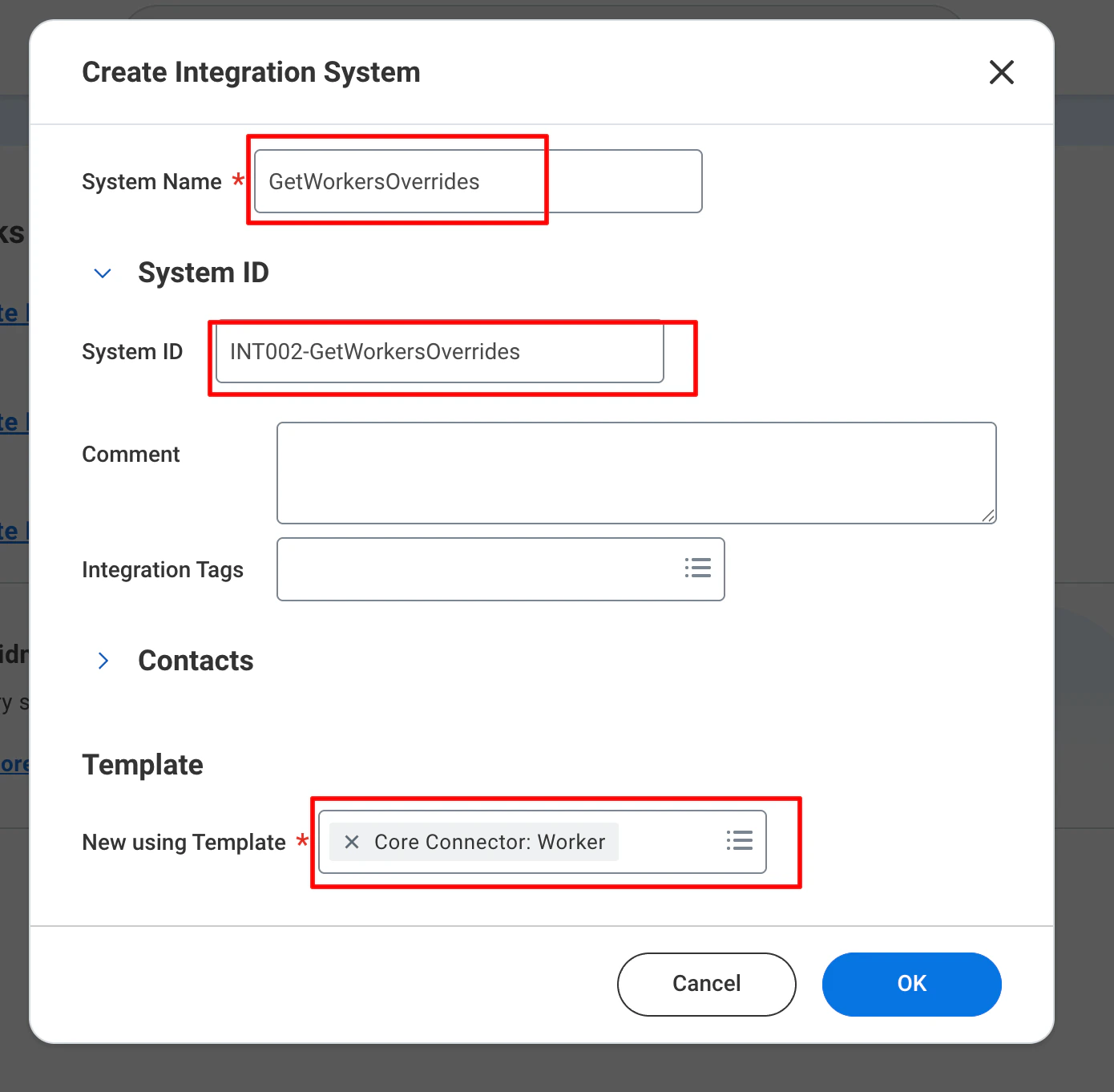
    Provide the <b>System Name</b>, <b>System ID</b> and select <b>Core Connector: Worker</b> in New Using Template and click <b>OK</b>.

    <Frame>
      <img className="rounded-md" style={{ margin: '0 auto', border: '1px solid #efefef' }} alt="Create Custom Object" src="https://mintcdn.com/stackone-hub-docs-confluence-api-token-update/Cmc9v6zkKIhKV8Me/images/workday/calculated-fields/image1.png?fit=max&auto=format&n=Cmc9v6zkKIhKV8Me&q=85&s=9d1068b493a89f80fd84289e5526aafe" width="1390" height="1362" data-path="images/workday/calculated-fields/image1.png" />
    </Frame>
  </Step>

  <Step title="Select 'Integration Service'">
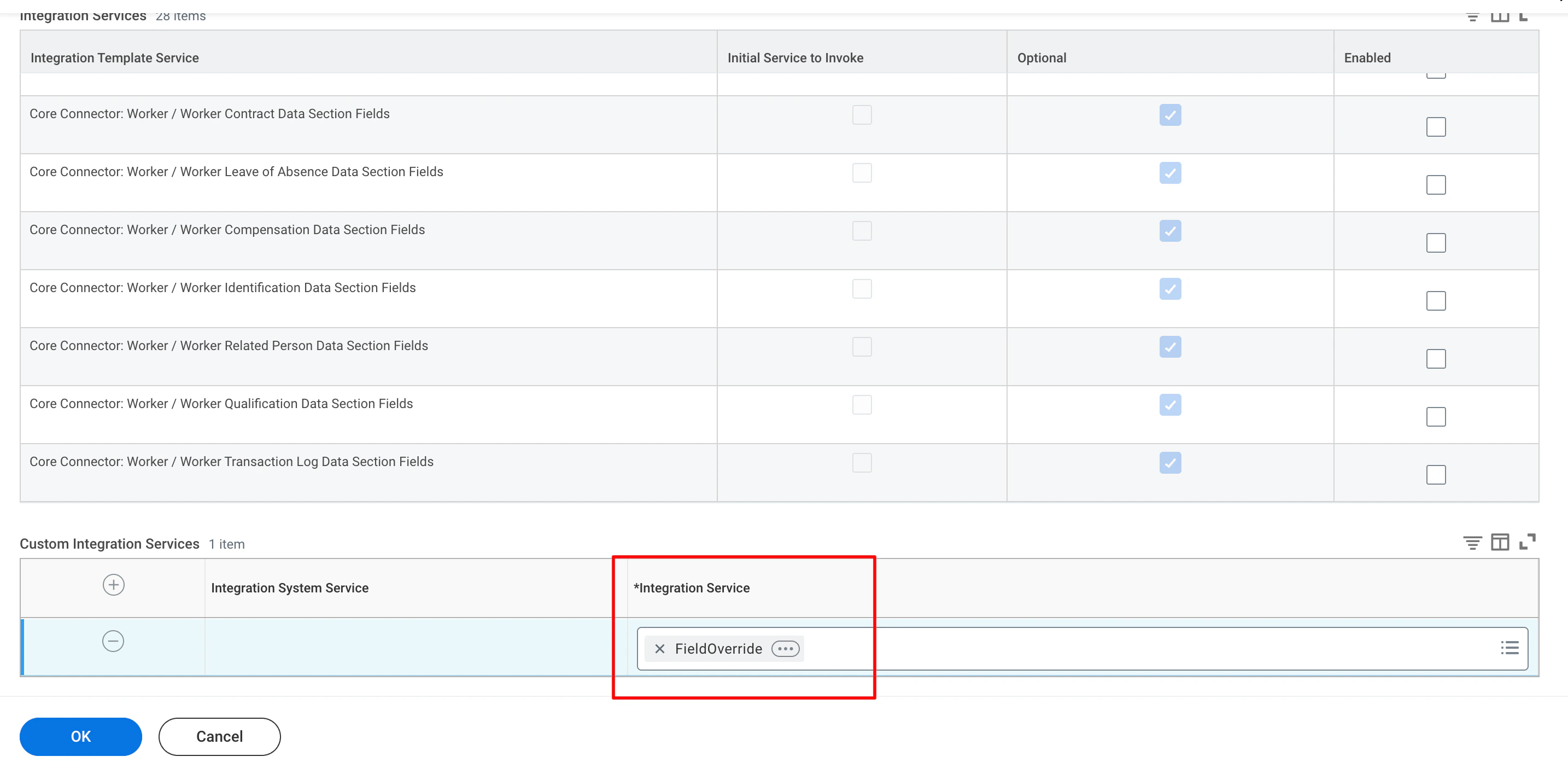
    Select the <b>Integration Service</b> in the Custom Integrations Services and click <b>OK</b>.

    <Frame>
      <img className="rounded-md" style={{ margin: '0 auto', border: '1px solid #efefef' }} alt="Click Field Definitions" src="https://mintcdn.com/stackone-hub-docs-confluence-api-token-update/Cmc9v6zkKIhKV8Me/images/workday/calculated-fields/image2.png?fit=max&auto=format&n=Cmc9v6zkKIhKV8Me&q=85&s=a50bda5d07135373bf951f779d6785ff" width="2868" height="1404" data-path="images/workday/calculated-fields/image2.png" />
    </Frame>
  </Step>

  <Step title="Add the 'Field Name' in the Servie">
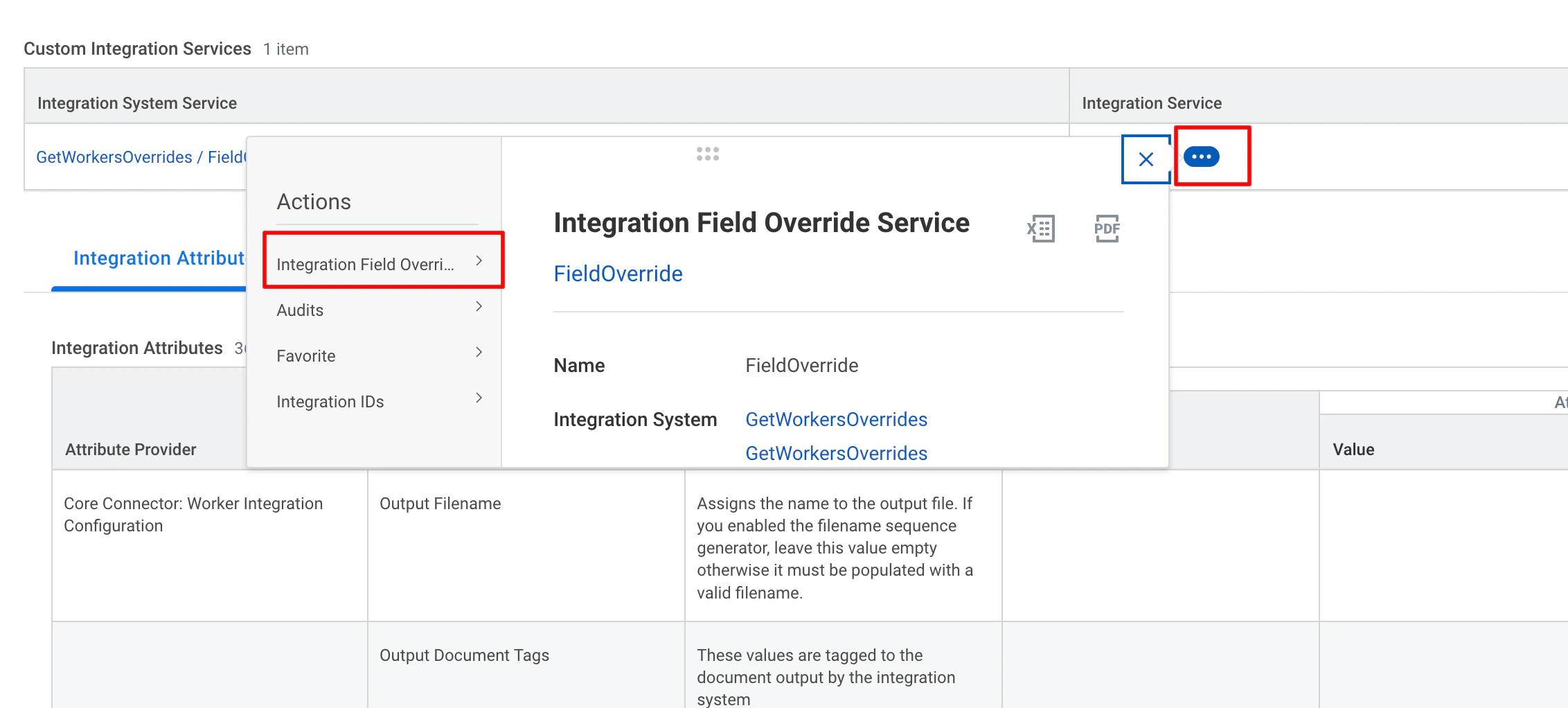
    Click on <b>Actions</b> on the Integration Services and select <b>Integration Field Override</b> and click on <b>Edit</b>.

    <Frame>
      <img className="rounded-md" style={{ margin: '0 auto', border: '1px solid #efefef' }} alt="Click Field Definitions" src="https://mintcdn.com/stackone-hub-docs-confluence-api-token-update/Cmc9v6zkKIhKV8Me/images/workday/calculated-fields/image3.png?fit=max&auto=format&n=Cmc9v6zkKIhKV8Me&q=85&s=19ceecc485694a23d5bd499b10a3ed3f" width="2264" height="1022" data-path="images/workday/calculated-fields/image3.png" />
    </Frame>

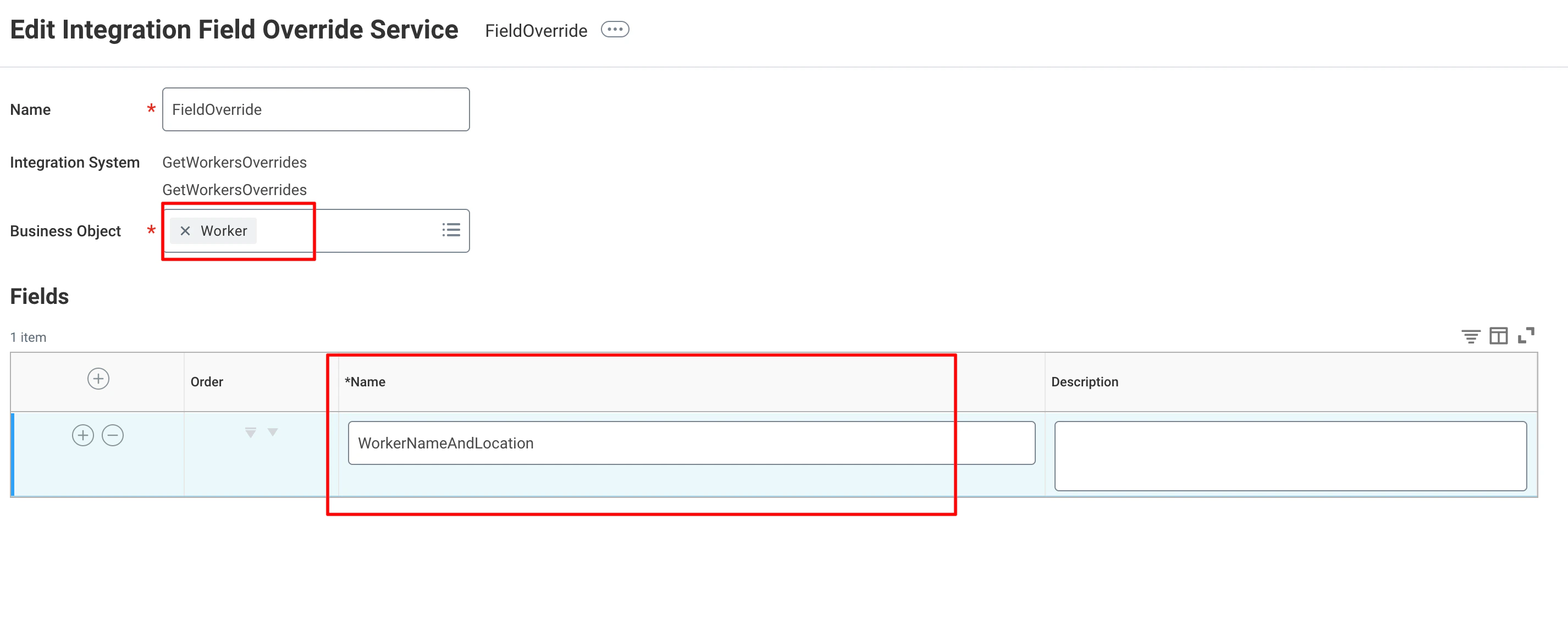
    Select the Business Object <b>Worker</b> and provide the Name of the field and click <b>OK</b> and <b>Done</b>.

    <Frame>
      <img className="rounded-md" style={{ margin: '0 auto', border: '1px solid #efefef' }} alt="Click Field Definitions" src="https://mintcdn.com/stackone-hub-docs-confluence-api-token-update/Cmc9v6zkKIhKV8Me/images/workday/calculated-fields/image5.png?fit=max&auto=format&n=Cmc9v6zkKIhKV8Me&q=85&s=107fd58550258f00cd79a18649ca3645" width="2852" height="1150" data-path="images/workday/calculated-fields/image5.png" />
    </Frame>
  </Step>

  <Step title="Go to 'Integration Override Fields'">
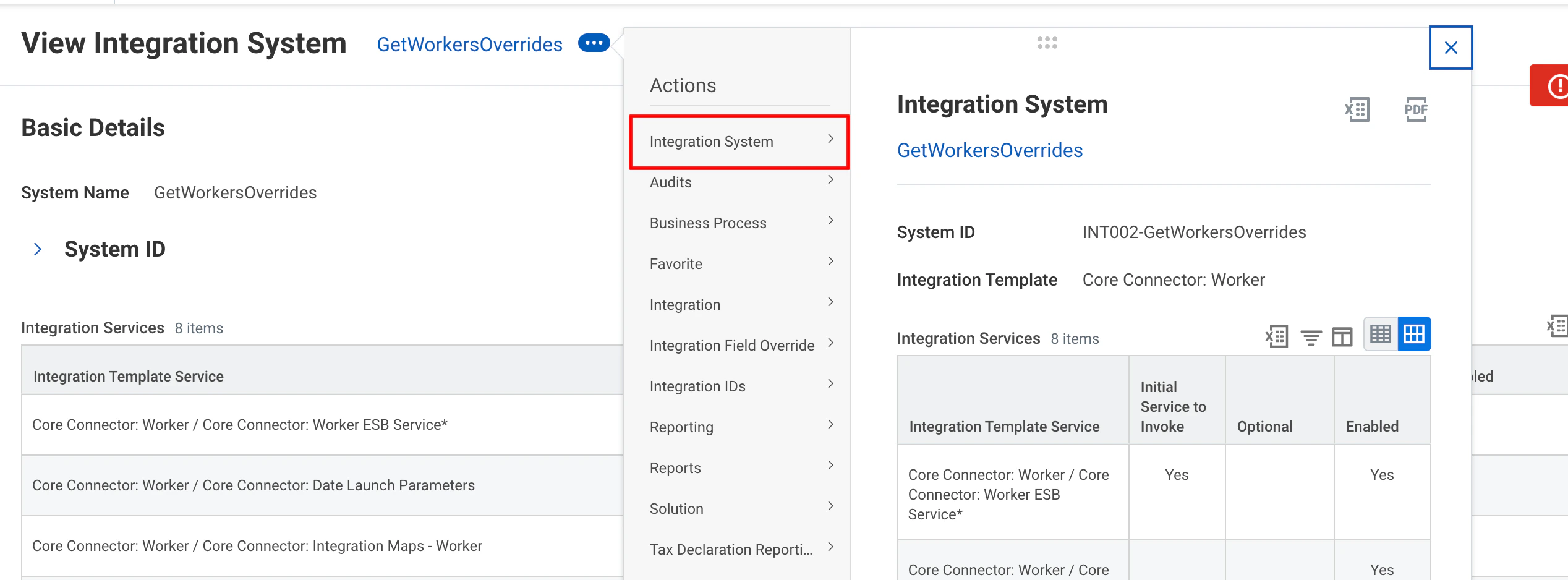
    Click the <b>Actions</b> button and select <b>Integration System</b> and select <b>Configure Integration Field Overrides</b>.

    <Frame>
      <img className="rounded-md" style={{ margin: '0 auto', border: '1px solid #efefef' }} alt="Click Add button" src="https://mintcdn.com/stackone-hub-docs-confluence-api-token-update/Cmc9v6zkKIhKV8Me/images/workday/calculated-fields/image6.png?fit=max&auto=format&n=Cmc9v6zkKIhKV8Me&q=85&s=e6d0070b299cd63933ee204d9ff3b056" width="2536" height="938" data-path="images/workday/calculated-fields/image6.png" />
    </Frame>
  </Step>

  <Step title="Select the Calculated Field">
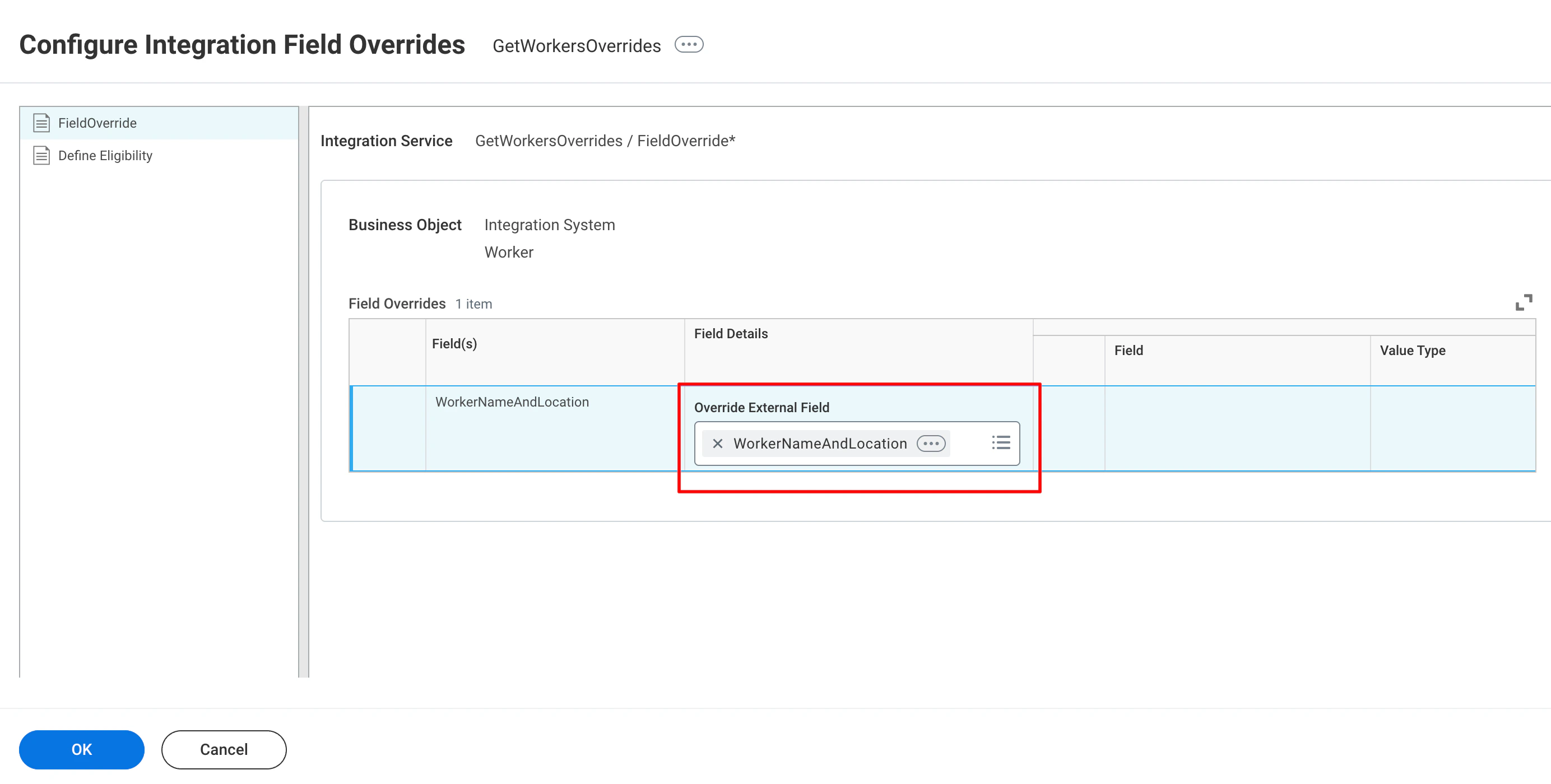
    Select the field to be overriden and click <b>OK</b> and then <b>Done</b>.

    <Frame>
      <img className="rounded-md" style={{ margin: '0 auto', border: '1px solid #efefef' }} alt="Enter Label & Field Type" src="https://mintcdn.com/stackone-hub-docs-confluence-api-token-update/Cmc9v6zkKIhKV8Me/images/workday/calculated-fields/image7.png?fit=max&auto=format&n=Cmc9v6zkKIhKV8Me&q=85&s=6acd9b06a84057a96e650e1f40f3aafd" width="2768" height="1400" data-path="images/workday/calculated-fields/image7.png" />
    </Frame>
  </Step>

  <Step title="Select the required 'Integration Attributes'">
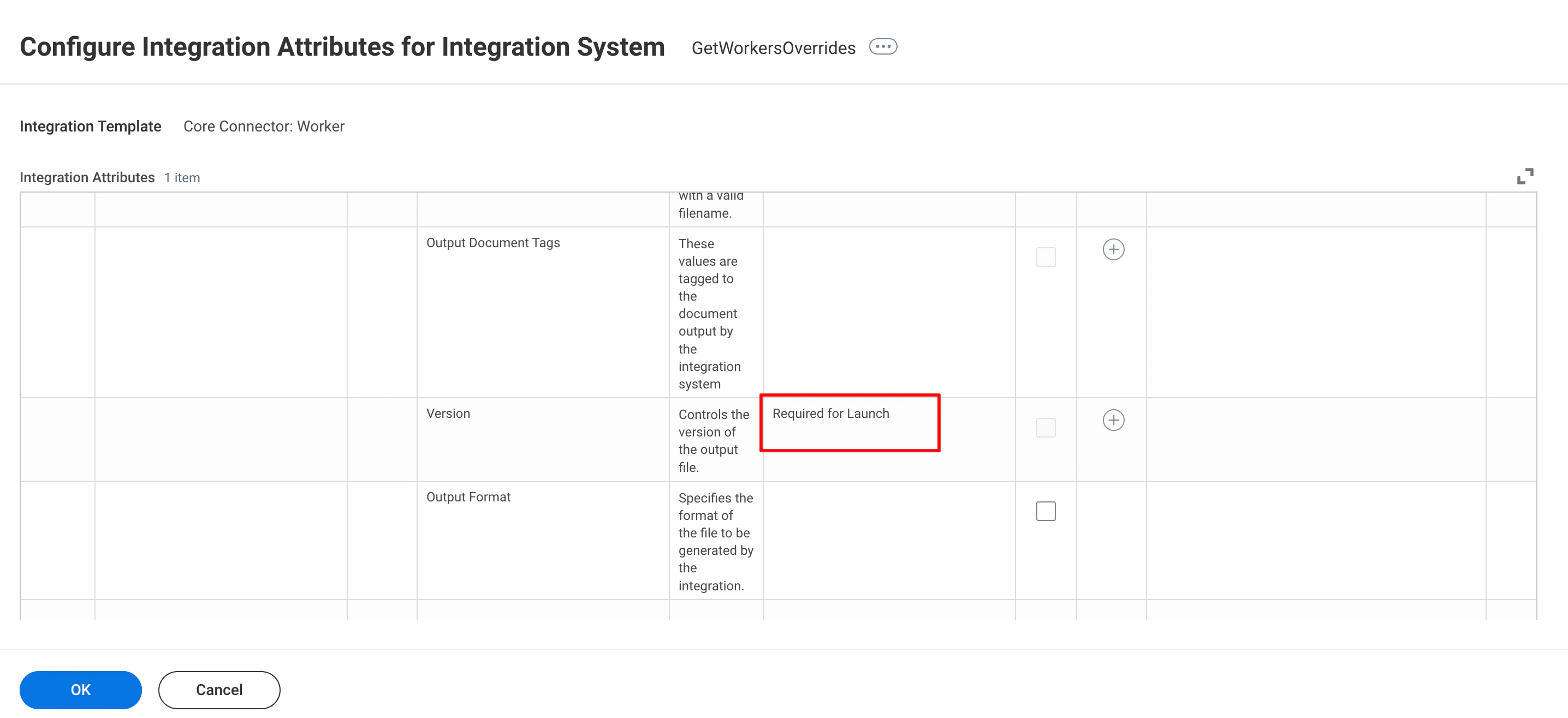
    Click the <b>Actions</b> button and select <b>Integration System</b> and select <b>Configure Integration Attributes</b>.
    From the given list provide values for all the attributes that are <b>Required for Launch</b> and click <b>OK</b>.

    <Frame>
      <img className="rounded-md" style={{ margin: '0 auto', border: '1px solid #efefef' }} alt="Click Add button" src="https://mintcdn.com/stackone-hub-docs-confluence-api-token-update/Cmc9v6zkKIhKV8Me/images/workday/calculated-fields/image8.png?fit=max&auto=format&n=Cmc9v6zkKIhKV8Me&q=85&s=35f628313e7fd7a6953bdd1bd0c9b952" width="2872" height="1316" data-path="images/workday/calculated-fields/image8.png" />
    </Frame>
  </Step>

  <Step title="Run the Integration">
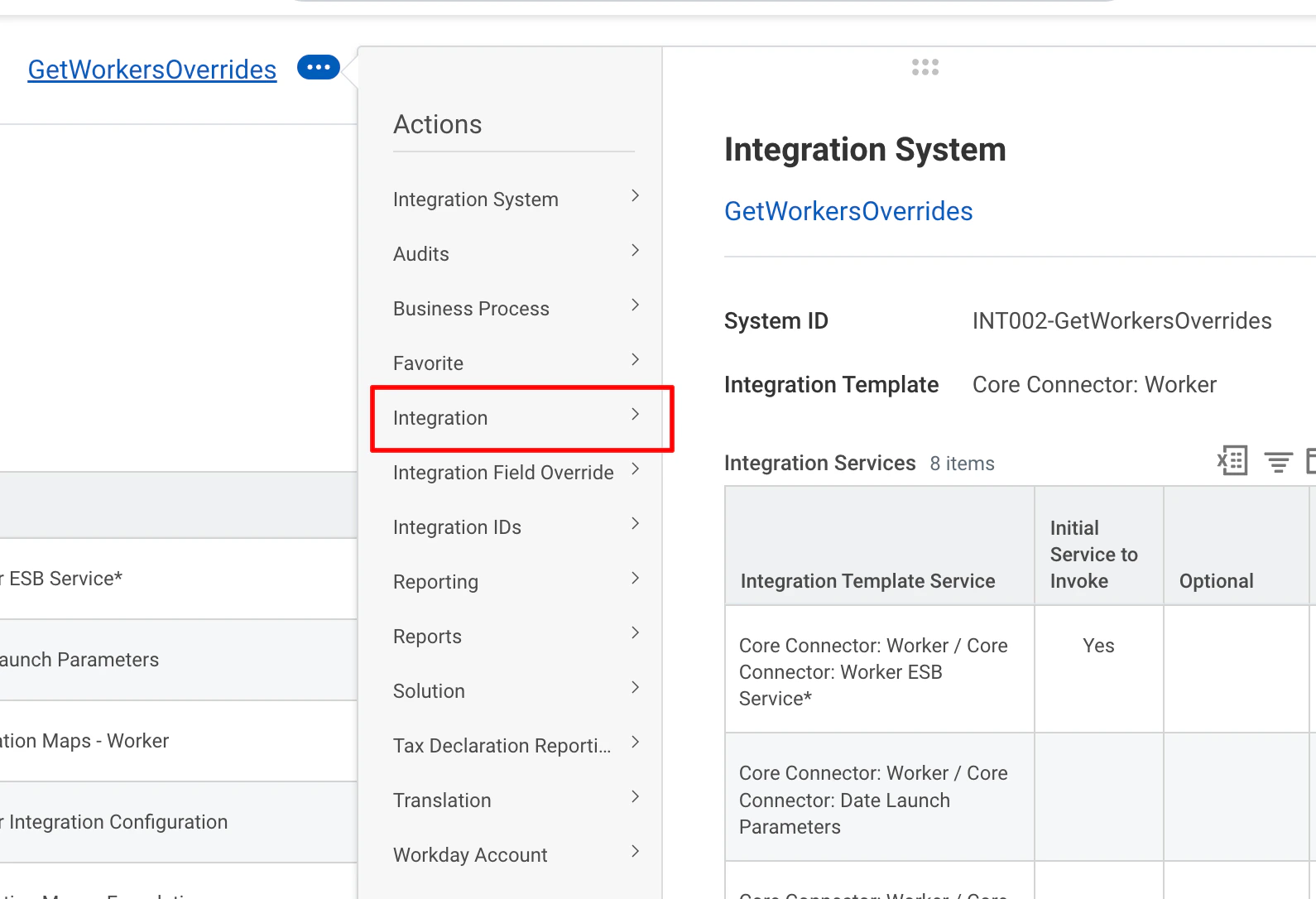
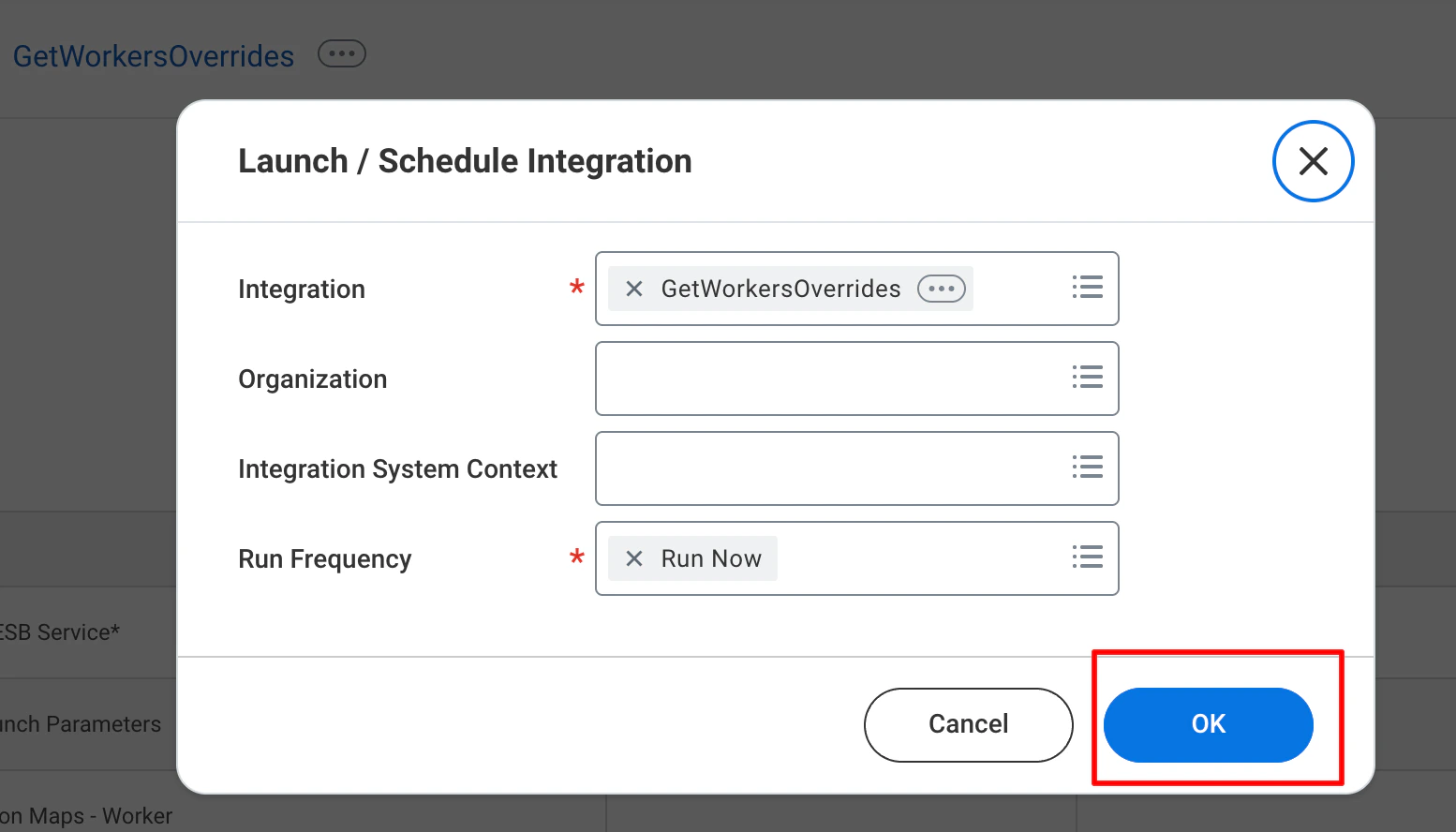
    Click the <b>Actions</b> button and select <b>Integration</b> and select <b>Launch/Schedule</b>.

    <Frame>
      <img className="rounded-md" style={{ margin: '0 auto', border: '1px solid #efefef' }} alt="Review and Confirm" src="https://mintcdn.com/stackone-hub-docs-confluence-api-token-update/Cmc9v6zkKIhKV8Me/images/workday/calculated-fields/image9.png?fit=max&auto=format&n=Cmc9v6zkKIhKV8Me&q=85&s=3b0c7b0680bca547e05950e600c79362" width="1590" height="1086" data-path="images/workday/calculated-fields/image9.png" />
    </Frame>

    Click <b>OK</b>.

    <Frame>
      <img className="rounded-md" style={{ margin: '0 auto', border: '1px solid #efefef' }} alt="Review and Confirm" src="https://mintcdn.com/stackone-hub-docs-confluence-api-token-update/Cmc9v6zkKIhKV8Me/images/workday/calculated-fields/image10.png?fit=max&auto=format&n=Cmc9v6zkKIhKV8Me&q=85&s=40314ede73ffc849712f10b8dd9e3621" width="1554" height="888" data-path="images/workday/calculated-fields/image10.png" />
    </Frame>

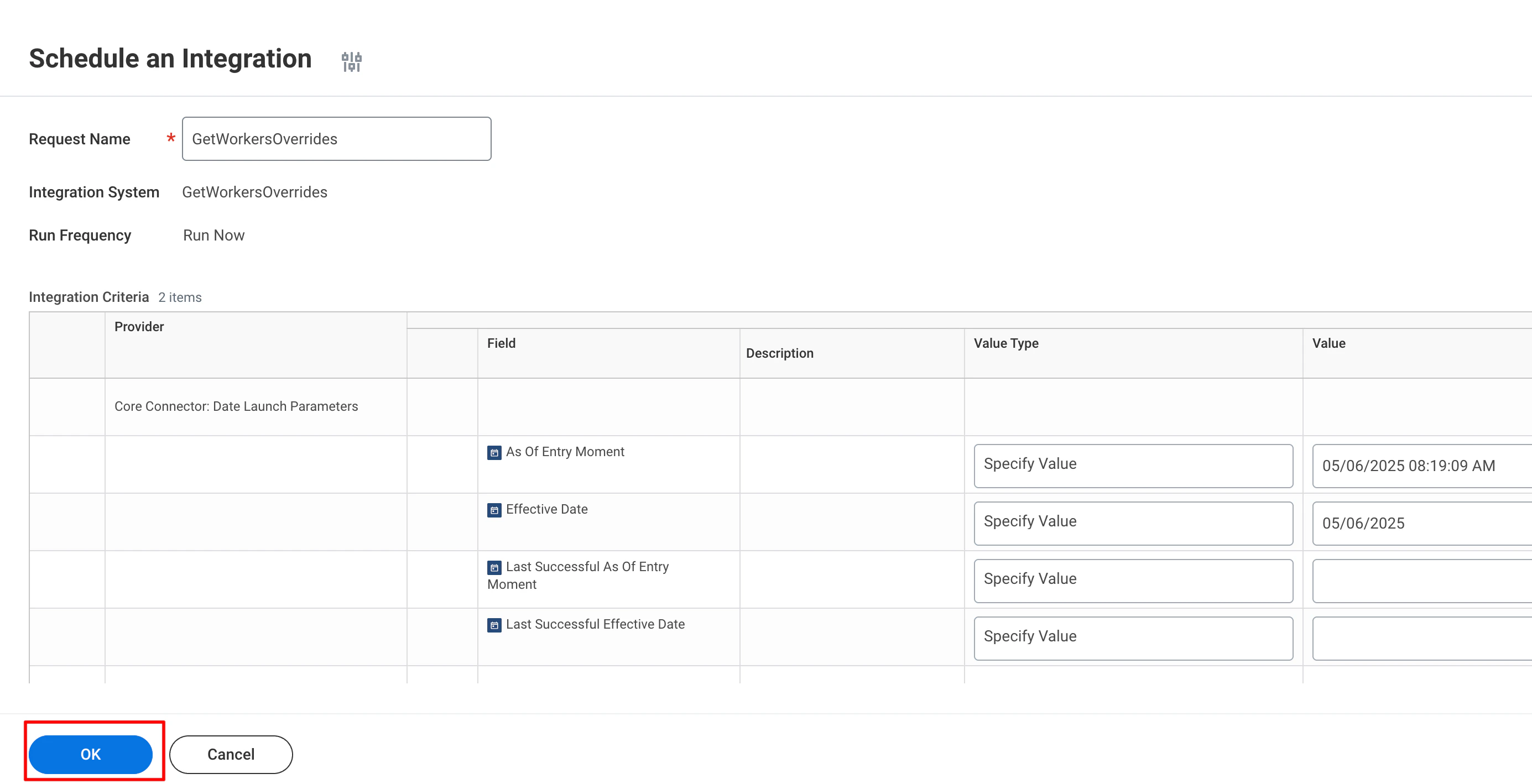
    Click <b>OK</b>.

    <Frame>
      <img className="rounded-md" style={{ margin: '0 auto', border: '1px solid #efefef' }} alt="Review and Confirm" src="https://mintcdn.com/stackone-hub-docs-confluence-api-token-update/Cmc9v6zkKIhKV8Me/images/workday/calculated-fields/image11.png?fit=max&auto=format&n=Cmc9v6zkKIhKV8Me&q=85&s=6b226ab7fc9562f1bf8d8768d1eb738d" width="2770" height="1418" data-path="images/workday/calculated-fields/image11.png" />
    </Frame>
  </Step>
</Steps>

<br />

Congratulations, you're all set! If you face any issues with the steps mentioned above,
please contact us by emailing [integrations@stackone.com](mailto:integrations@stackone.com). We're always here to assist you!