> ## Documentation Index
> Fetch the complete documentation index at: https://stackone-hub-docs-confluence-api-token-update.mintlify.site/llms.txt
> Use this file to discover all available pages before exploring further.
# Workday RaaS
> Follow these steps to configure and connect Workday via Report as a Service (RaaS) successfully.
This guidance assumes you have administrative privileges for your Workday account.
Workday Report as a Service (RaaS) allows you to create custom reports and expose them as web services for integration purposes.
This guide walks you through setting up an Integration System User, creating and sharing a web‑service‑enabled Advanced custom report,
configuring security group permissions, and connecting it through the integration platform.
## Set Up an Integration System User (Optional)
Setting up an **Integration System User (ISU)** is recommended but optional. You can use an existing Workday user account with appropriate permissions instead.
The key requirement is having valid credentials **(username and password)** with access to create and manage custom reports.
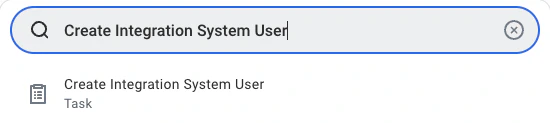
Search for and open the `Create Integration System User` task.
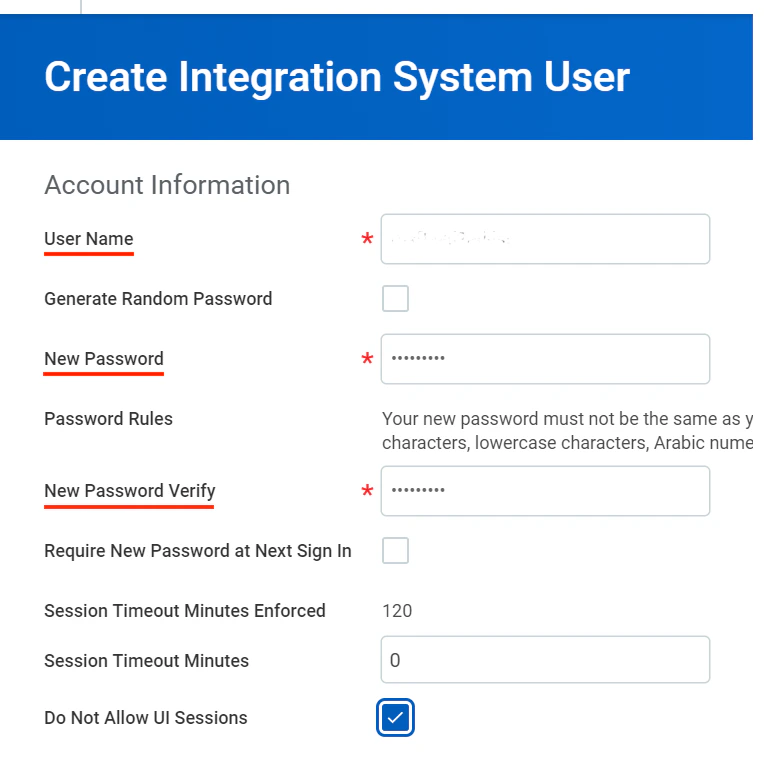
 Enter a username and strong password in the Account Information section, then click `OK` to create the user.
 ## Create and View a Custom Report (Optional)
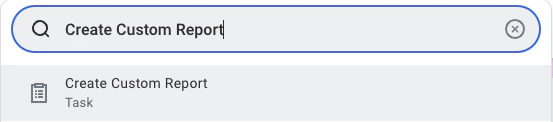
Search and navigate to the `Create Custom Report` task
## Create and View a Custom Report (Optional)
Search and navigate to the `Create Custom Report` task
 Follow the steps below to configure the custom report:
* **Report Name**: Must be unique within the tenant
* **Report Type**: Select **Advanced**
* **Optimised for Performance**: Tick this box to enhance performance
* **Data Source**: Choose the appropriate data source based on the data you need (e.g. Workers for HCM reporting).
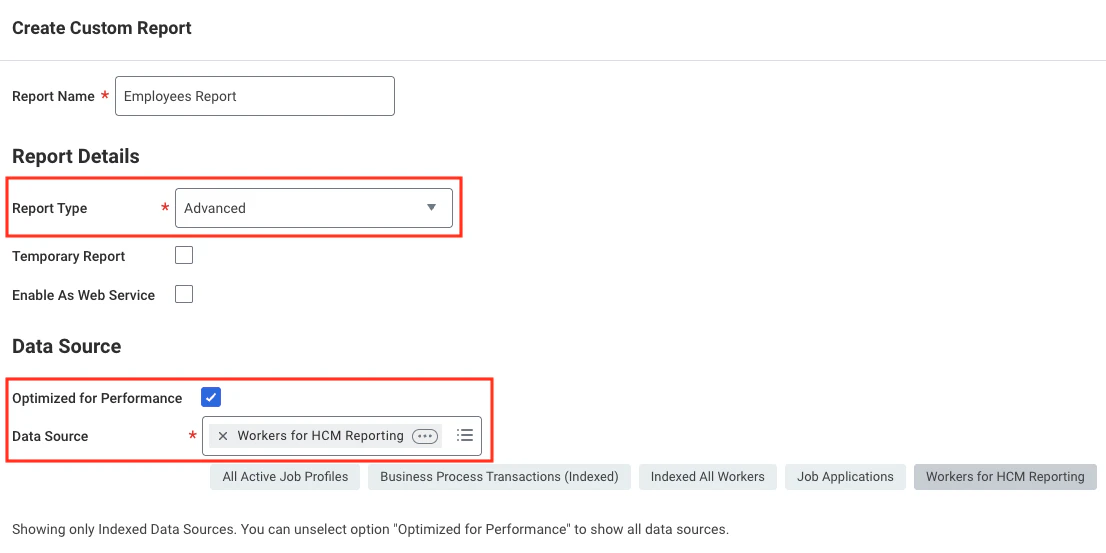
Follow the steps below to configure the custom report:
* **Report Name**: Must be unique within the tenant
* **Report Type**: Select **Advanced**
* **Optimised for Performance**: Tick this box to enhance performance
* **Data Source**: Choose the appropriate data source based on the data you need (e.g. Workers for HCM reporting).
 Click `OK` to continue.
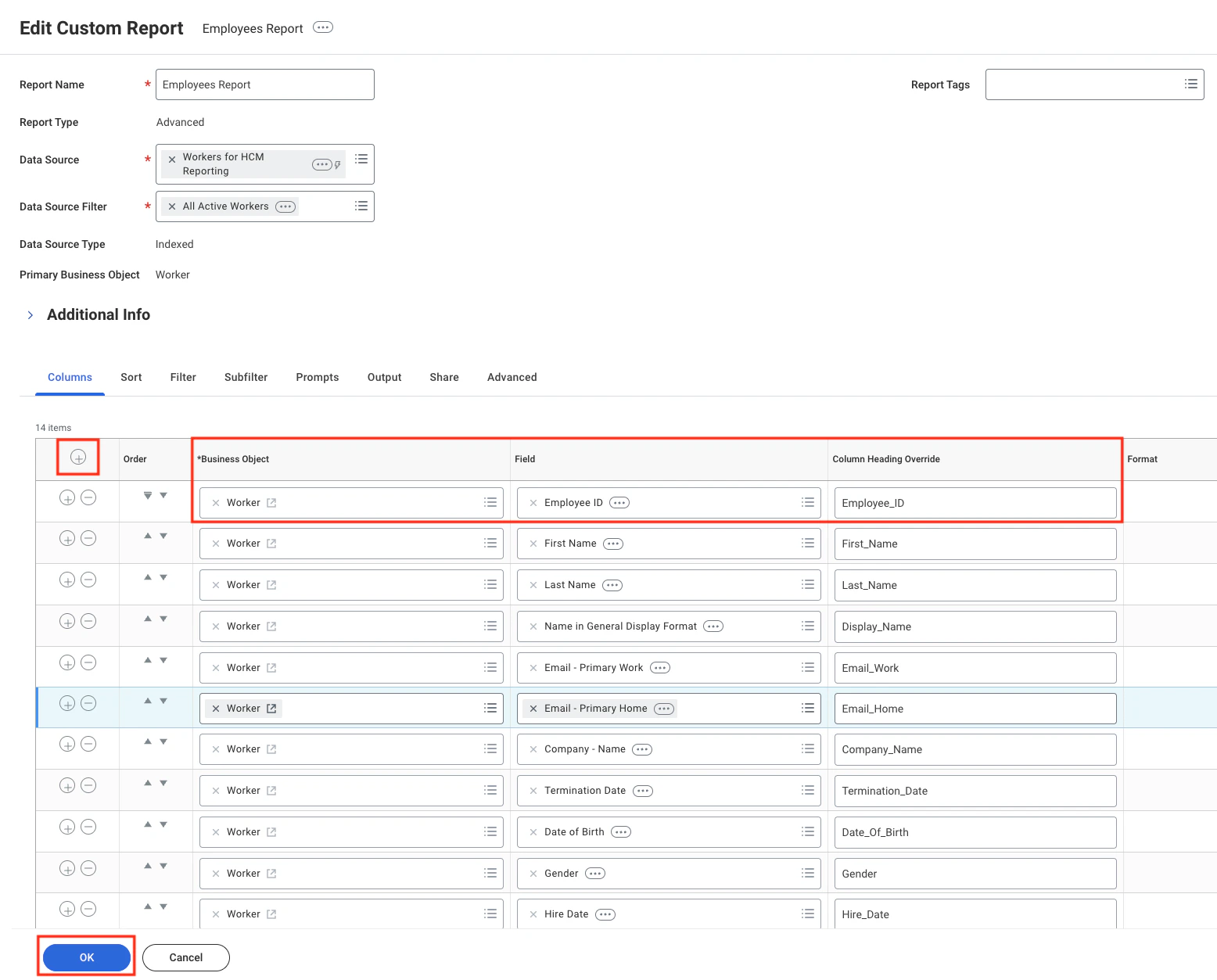
Add and configure report fields:
* Click the `+` icon to add a field.
* Select a Business Object (e.g. Worker) in the **Business Object** column.
* Choose the specific field (e.g. Employee ID) in the **Field** column.
* Set aliases in **Column Heading Override** to ensure stable field names in API responses.
The **Column Heading Override XML Alias** column will appear only after you enable **Enable As Web Service** under the Advanced tab and save the report. You can view this column when you return to edit the report.
Add the following **field aliases** in your report. The aliases serve as stable identifiers for the API responses but the underlying fields must be properly configured.
* Employee\_ID
* First\_Name
* Last\_Name
* Display\_Name
* Email\_Work
* Email\_Home
* Phone\_Work
* Phone\_Home
* Job\_Title
* Hire\_Date
* Gender
* Date\_Of\_Birth
* Termination\_Date
* Company\_Name
Click `OK` to continue.
Add and configure report fields:
* Click the `+` icon to add a field.
* Select a Business Object (e.g. Worker) in the **Business Object** column.
* Choose the specific field (e.g. Employee ID) in the **Field** column.
* Set aliases in **Column Heading Override** to ensure stable field names in API responses.
The **Column Heading Override XML Alias** column will appear only after you enable **Enable As Web Service** under the Advanced tab and save the report. You can view this column when you return to edit the report.
Add the following **field aliases** in your report. The aliases serve as stable identifiers for the API responses but the underlying fields must be properly configured.
* Employee\_ID
* First\_Name
* Last\_Name
* Display\_Name
* Email\_Work
* Email\_Home
* Phone\_Work
* Phone\_Home
* Job\_Title
* Hire\_Date
* Gender
* Date\_Of\_Birth
* Termination\_Date
* Company\_Name
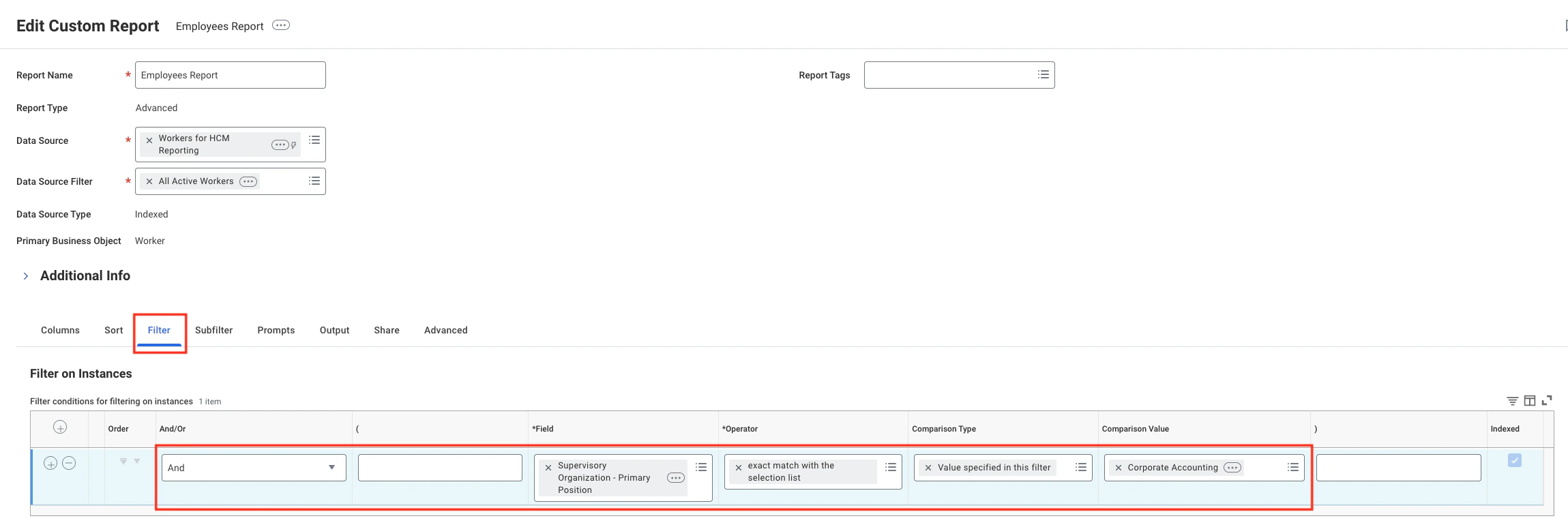
 Add filters to narrow the result data set (e.g. Supervisory Organisation – Primary Position).
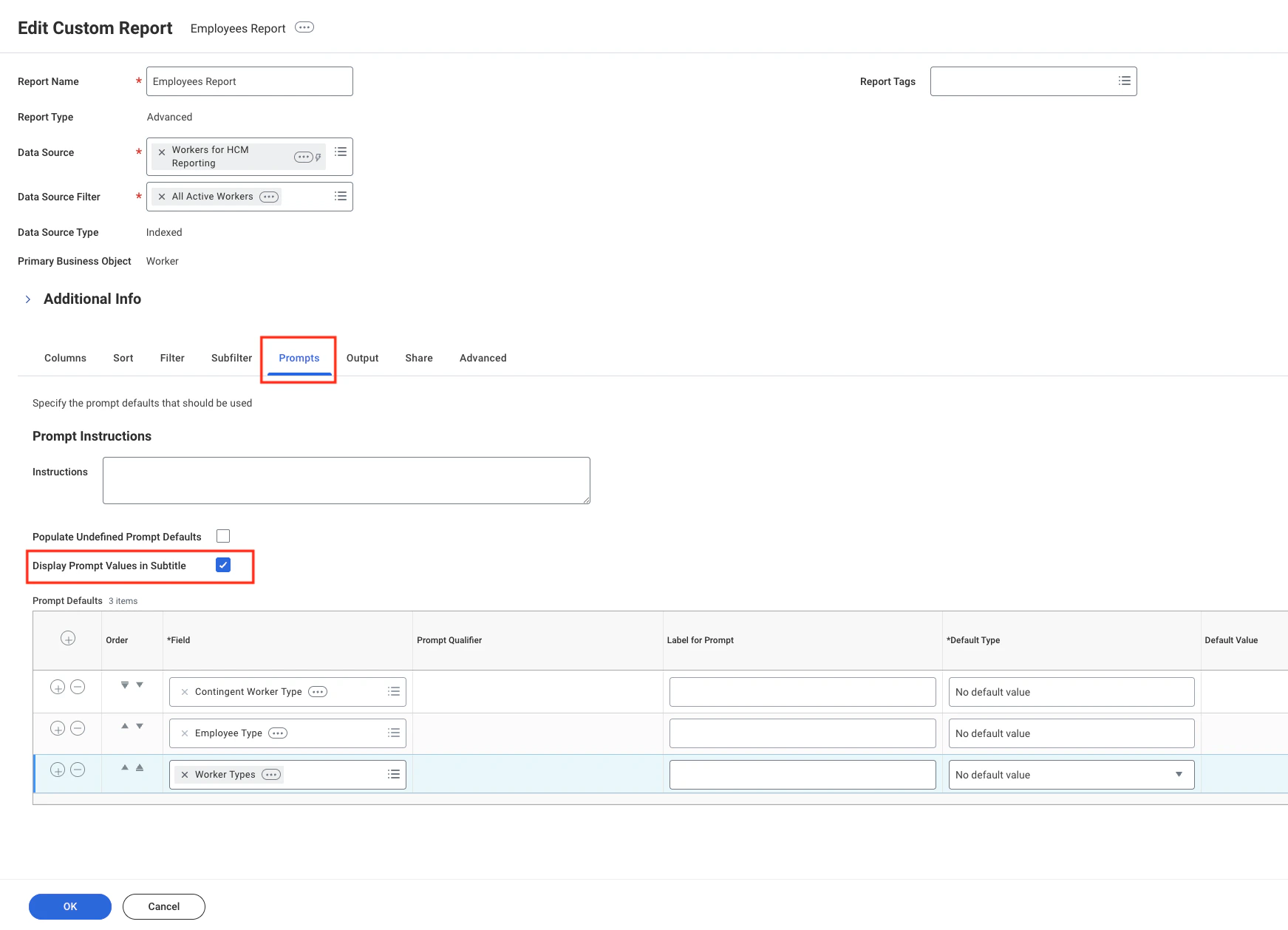
 * Tick **Populate Undefined Prompt Defaults** to make prompt default fields visible in the report table. Once the `Prompt Defaults` grid is visible, the **Populate Undefined Prompt Defaults** field will be automatically unticked.
* Tick **Display Prompt Values in Subtitle** to enable prompt display.
* Tick **Populate Undefined Prompt Defaults** to make prompt default fields visible in the report table. Once the `Prompt Defaults` grid is visible, the **Populate Undefined Prompt Defaults** field will be automatically unticked.
* Tick **Display Prompt Values in Subtitle** to enable prompt display.
 Tick **Optimised for Performance** and **Enable As Web Service**. Leave other advanced options unchanged.
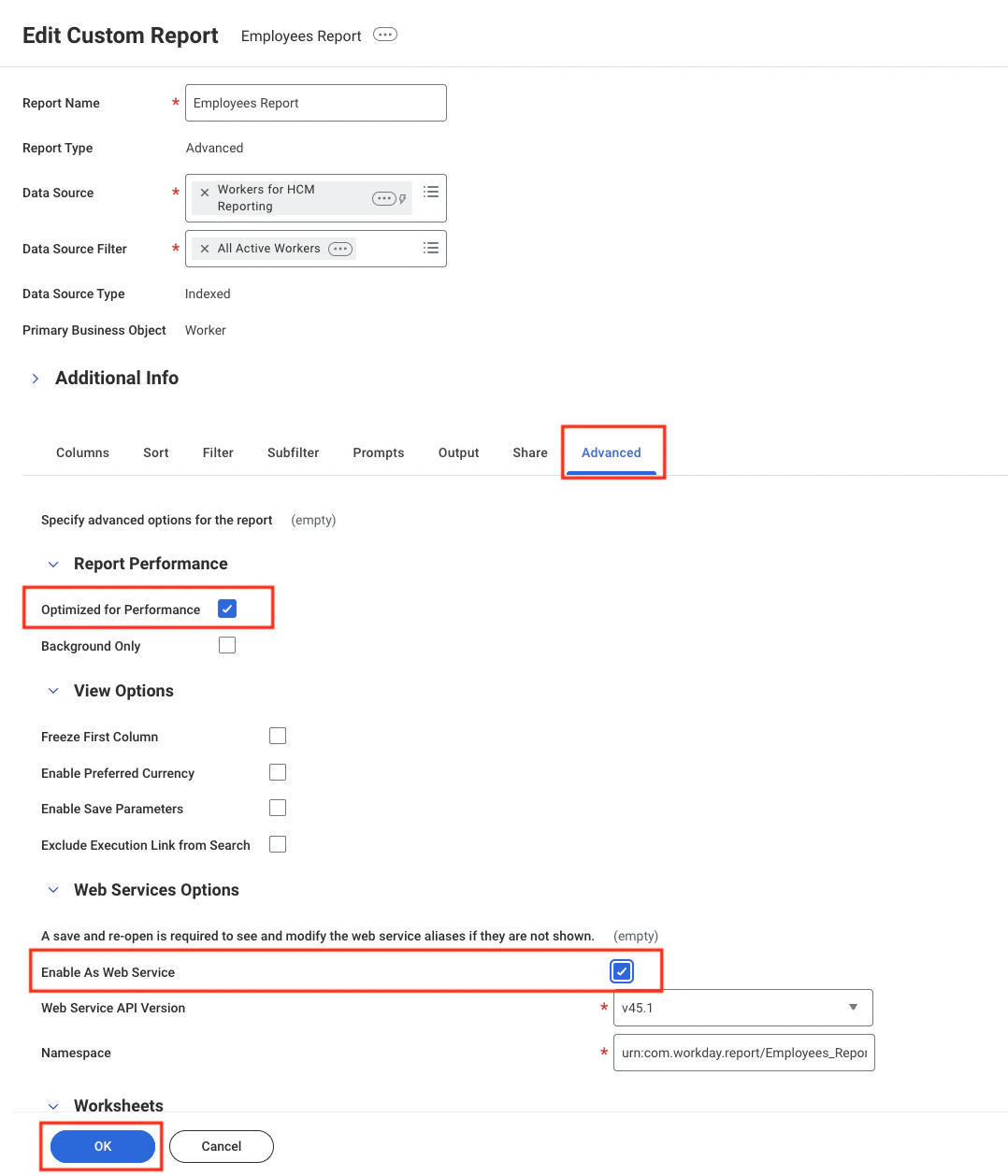 Click `OK` to save the report.
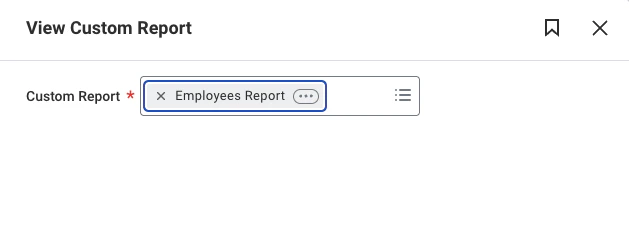
Search for `View Custom Report`, select the report you just created, then click `OK` to open it.
Click `OK` to save the report.
Search for `View Custom Report`, select the report you just created, then click `OK` to open it.
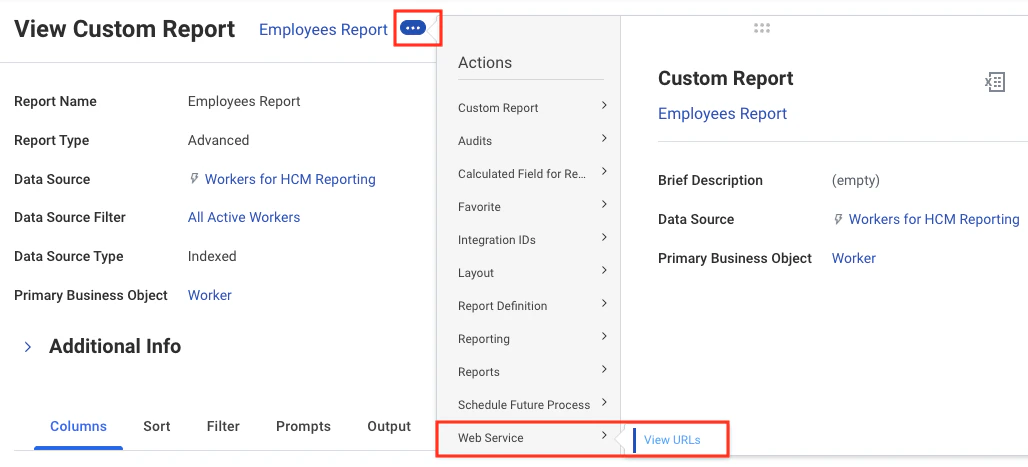
 Open the three‑dot menu, select *Web Service* > *View URLs*; you will be redirected to the **View URLs Web Service** page.
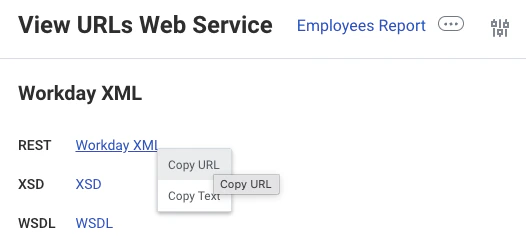
 Right‑click the **Workday XML** link and copy its URL.
 ## Connecting to StackOne
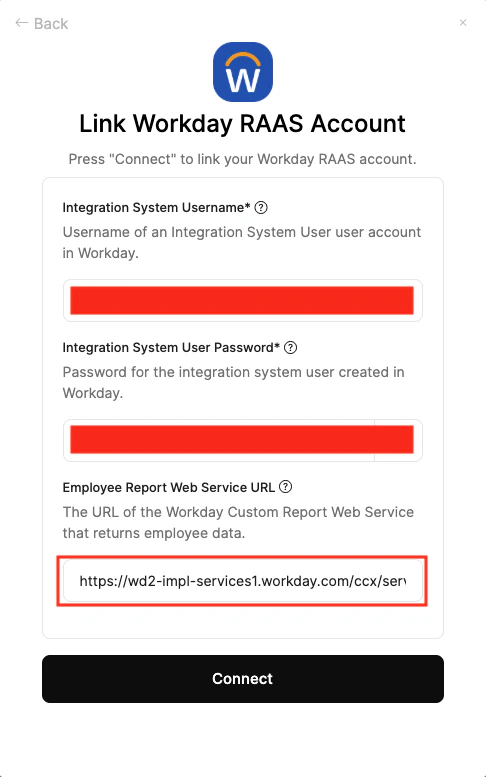
Use the **ISU Username**, **ISU Password**, and **Report URL** to create a connection.
## Connecting to StackOne
Use the **ISU Username**, **ISU Password**, and **Report URL** to create a connection.
 After connecting and calling the unified **List Employees** endpoint, you may see:
1. A response with all fields populated.
2. A response with fields present but values are `null`.
3. An error: `The task submitted is not authorized.`
4. An error: `Report not found`.
**Scenario 1** = successful configuration.\
**Scenario 2** = missing Security Group permissions for the ISU.\
**Scenarios 3 & 4** = insufficient report access for the ISU credentials used.
Proceed to [Configure Security Group Permissions for the ISU (Required for non‑null data)](#configure-security-group-permissions-for-the-isu-required-for-non‑null-data)
and [Configure Custom Report Access for the ISU (Required for report access)](#configure-custom-report-access-for-the-isu-required-for-report-access) to resolve issues.
## Configure Security Group Permissions for the ISU (Required for non‑null data)
Search for and open the **Create Security Group** task.
After connecting and calling the unified **List Employees** endpoint, you may see:
1. A response with all fields populated.
2. A response with fields present but values are `null`.
3. An error: `The task submitted is not authorized.`
4. An error: `Report not found`.
**Scenario 1** = successful configuration.\
**Scenario 2** = missing Security Group permissions for the ISU.\
**Scenarios 3 & 4** = insufficient report access for the ISU credentials used.
Proceed to [Configure Security Group Permissions for the ISU (Required for non‑null data)](#configure-security-group-permissions-for-the-isu-required-for-non‑null-data)
and [Configure Custom Report Access for the ISU (Required for report access)](#configure-custom-report-access-for-the-isu-required-for-report-access) to resolve issues.
## Configure Security Group Permissions for the ISU (Required for non‑null data)
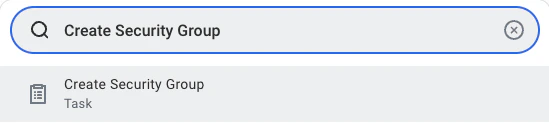
Search for and open the **Create Security Group** task.
 Choose `Integration System Security Group (Unconstrained)` and enter a name for the Security Group.
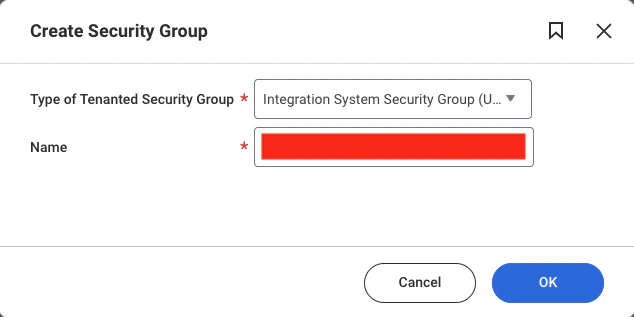 Click `OK`.
Select `Integration System Users`. Pick the ISU created earlier (or another integration user).
Click `OK`.
Select `Integration System Users`. Pick the ISU created earlier (or another integration user).
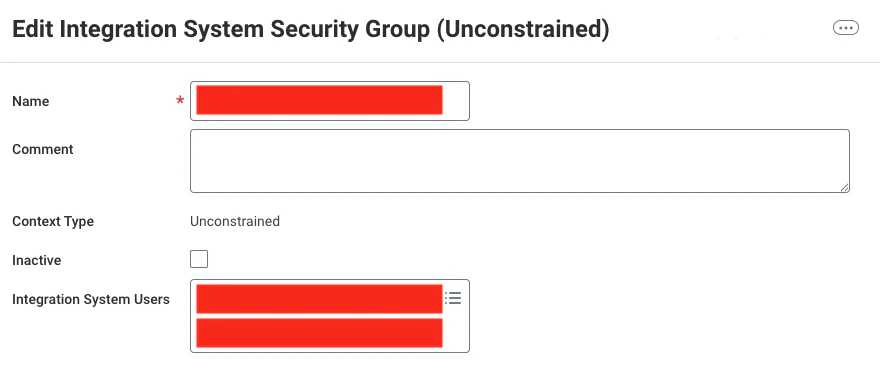 Click `OK` to save.
Search for `Maintain Permissions for Security Group` and open it.
Click `OK` to save.
Search for `Maintain Permissions for Security Group` and open it.
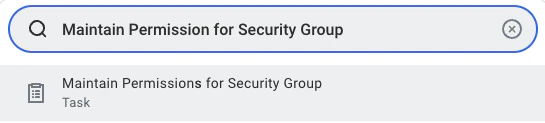 Select the Security Group you created in the steps above.
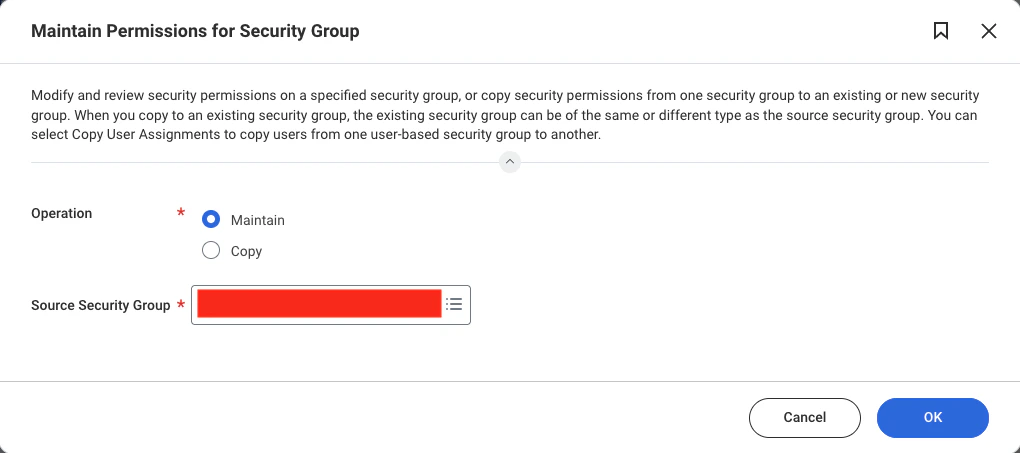 Set required Domain Security Policy Permissions to **Get Only** in the *View/Modify Access* column. Common Domain Security Policy Permissions are listed below:
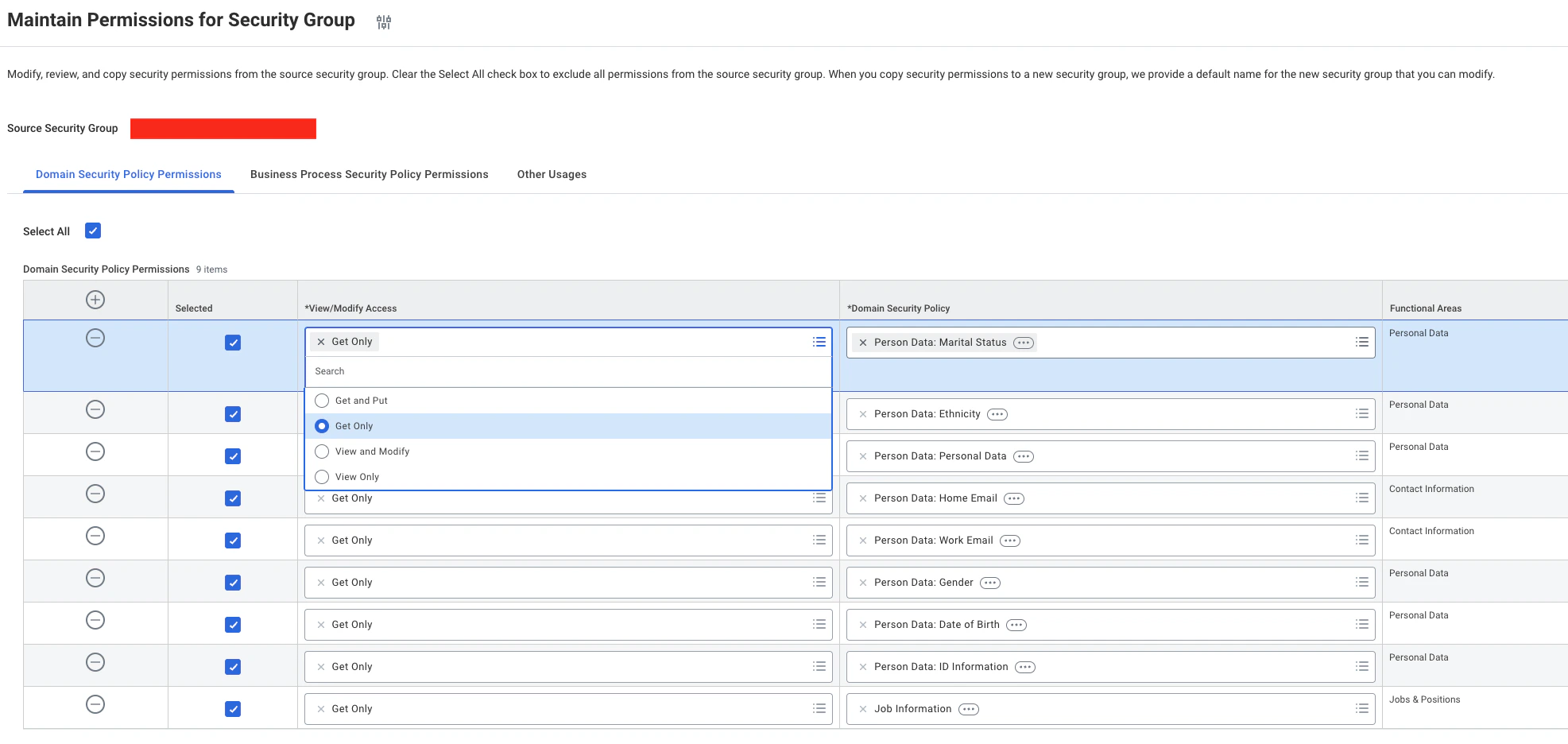 Please note that Domain Security Policy Permissions can be customised within a Workday organisation, and this list does not account for such customisations.
| Domain Security Policy | View/Modify Access |
| --------------------------- | ------------------ |
| Job Information | Get Only |
| Person Data: Date of Birth | Get Only |
| Person Data: Ethnicity | Get Only |
| Person Data: Gender | Get Only |
| Person Data: Home Email | Get Only |
| Person Data: ID Information | Get Only |
| Person Data: Marital Status | Get Only |
| Person Data: Personal Data | Get Only |
| Person Data: Work Email | Get Only |
Depending on the fields included in your custom report, additional Domain Security Policy Permissions may be required.
If you encounter `null` values in the API response, review and add the necessary permissions accordingly.
Search for **Activate Pending Security Policy Changes** and open it.
Please note that Domain Security Policy Permissions can be customised within a Workday organisation, and this list does not account for such customisations.
| Domain Security Policy | View/Modify Access |
| --------------------------- | ------------------ |
| Job Information | Get Only |
| Person Data: Date of Birth | Get Only |
| Person Data: Ethnicity | Get Only |
| Person Data: Gender | Get Only |
| Person Data: Home Email | Get Only |
| Person Data: ID Information | Get Only |
| Person Data: Marital Status | Get Only |
| Person Data: Personal Data | Get Only |
| Person Data: Work Email | Get Only |
Depending on the fields included in your custom report, additional Domain Security Policy Permissions may be required.
If you encounter `null` values in the API response, review and add the necessary permissions accordingly.
Search for **Activate Pending Security Policy Changes** and open it.
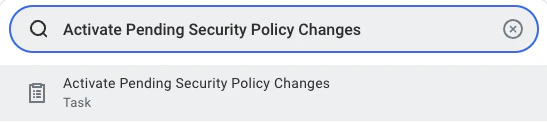 Optionally add a comment, then continue.
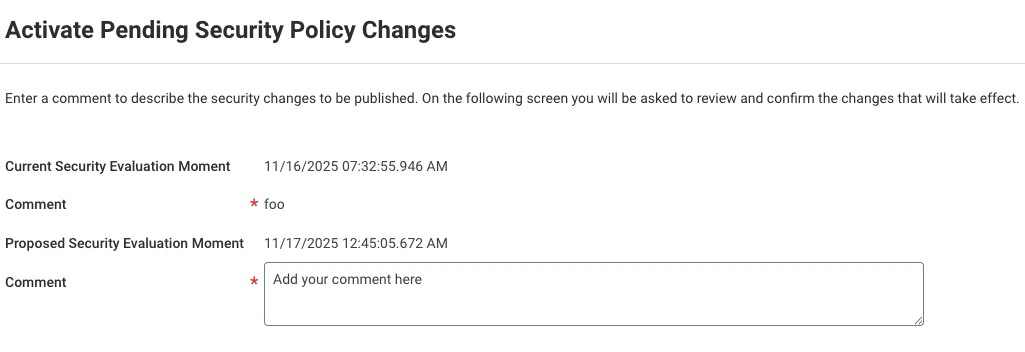 Review the summary, tick the confirmation box, and click `OK`.
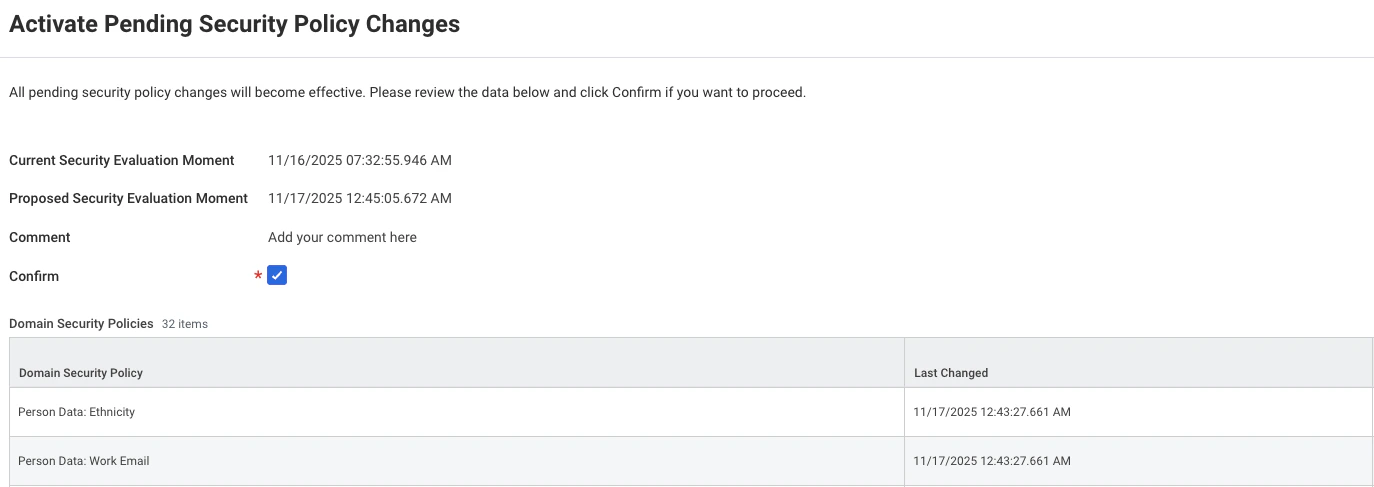 You must activate security changes each time you modify Domain Security Policy Permissions; otherwise changes will not take effect.
## Configure Custom Report Access for the ISU (Required for report access)
Search for `View Custom Report`.
You must activate security changes each time you modify Domain Security Policy Permissions; otherwise changes will not take effect.
## Configure Custom Report Access for the ISU (Required for report access)
Search for `View Custom Report`.
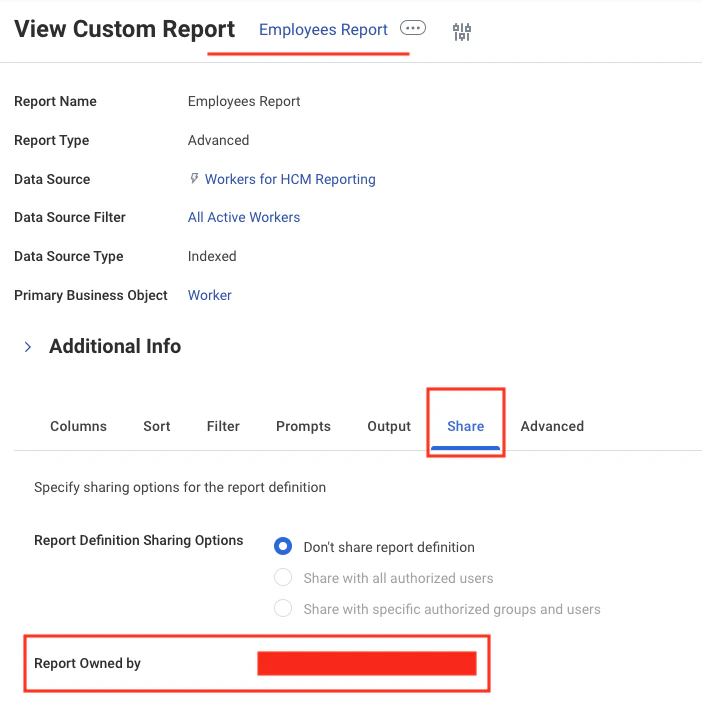
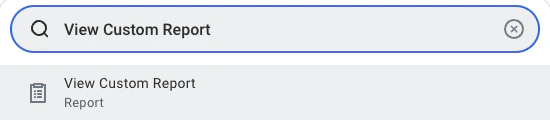 Select your custom report.
Navigate to the `Share` tab and view the **Report Owned by** value.
Select your custom report.
Navigate to the `Share` tab and view the **Report Owned by** value.
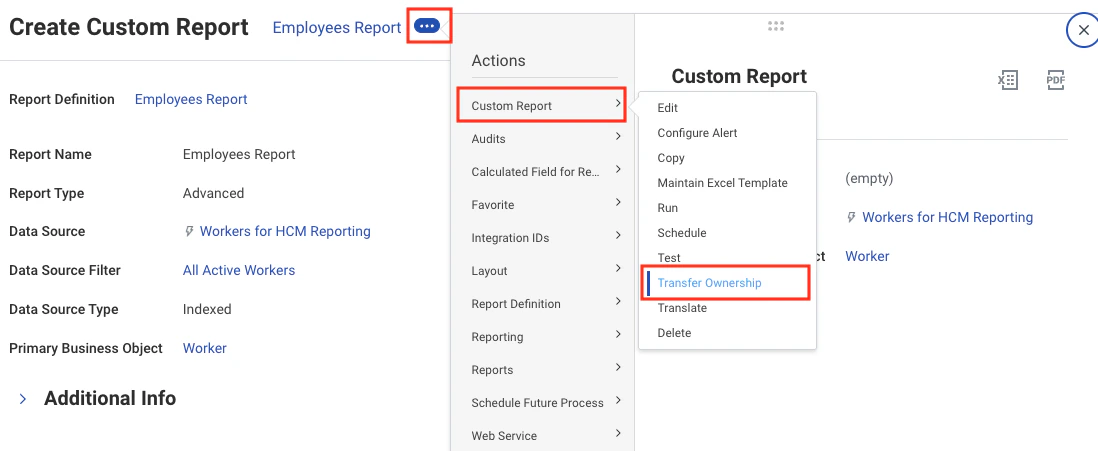
 **Transferring ownership** revokes access from the current owner.\
After transferring, ensure you reconnect in the StackOne Connector Hub using the new owner’s ISU credentials; otherwise you will encounter the `The task submitted is not authorized` error.
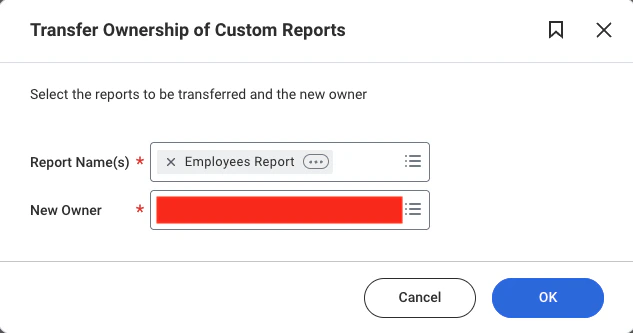
If the current owner is not the ISU you intend to use to connect with StackOne, open the three‑dot menu under *Custom Report* and select `Transfer Ownership`.
**Transferring ownership** revokes access from the current owner.\
After transferring, ensure you reconnect in the StackOne Connector Hub using the new owner’s ISU credentials; otherwise you will encounter the `The task submitted is not authorized` error.
If the current owner is not the ISU you intend to use to connect with StackOne, open the three‑dot menu under *Custom Report* and select `Transfer Ownership`.
 Enter the new ISU username in `New Owner` and click `OK`.
If you cannot find the ISU in the `New Owner` dropdown, you can share the report access without transferring ownership as described in the next step **Grant access without transferring ownership**.
Enter the new ISU username in `New Owner` and click `OK`.
If you cannot find the ISU in the `New Owner` dropdown, you can share the report access without transferring ownership as described in the next step **Grant access without transferring ownership**.
 Granting access retains the current owner. Authorised users can access the report and connect via the StackOne Connector Hub using their ISU credentials and the Report URL.
To grant access, choose `Edit` under *Custom Report* from the three‑dot menu.
Granting access retains the current owner. Authorised users can access the report and connect via the StackOne Connector Hub using their ISU credentials and the Report URL.
To grant access, choose `Edit` under *Custom Report* from the three‑dot menu.
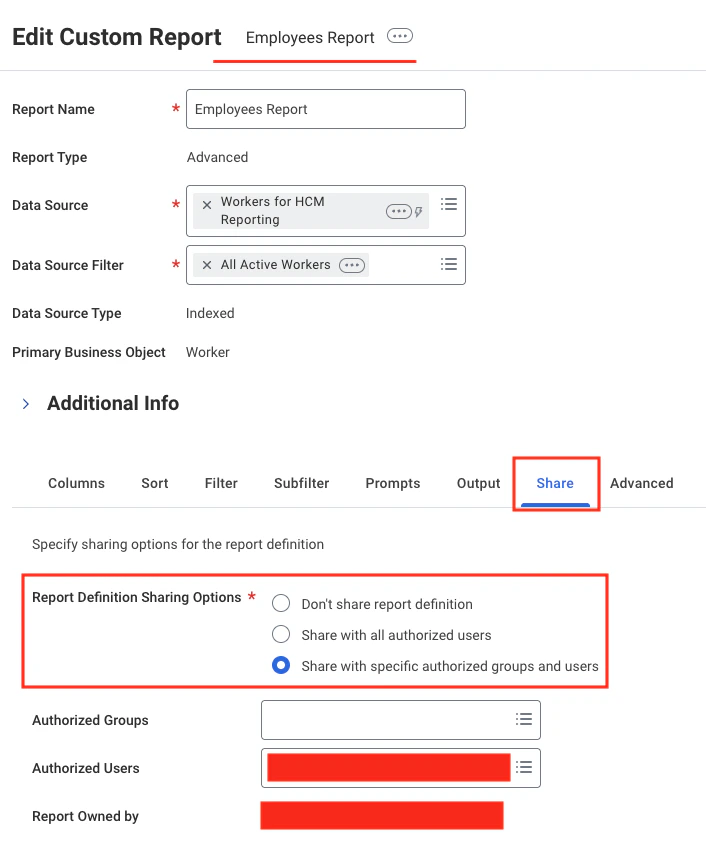
 Three options exist under **Report Definition Sharing Options**; the appropriate option for controlled user access is described in this guide.
Go to the `Share` tab, select `Share with specific authorized groups and users`, choose the desired ISU in `Authorized Users`, then click `OK`.
* **Do Not Share Report Definition**: Only the owner can access and retrieve data through the Report URL. If ownership changes or other ISU credentials are used, errors such as `Report not found` or `The task submitted is not authorized` may occur.
* **Share with All Authorized Users**: All ISU users can access the report. Ownership should remain with the report creator; otherwise StackOne connections using other users’ credentials may encounter a `Report not found` error.
* **Share with Specific Authorized Groups and Users**: Restrict access to selected groups/users.
* No selection acts like `Do Not Share Report Definition`.
* Selecting users allows both owner and selected ISU users to access the report (ownership must still stay with the report creator to avoid a `Report not found` error).
Three options exist under **Report Definition Sharing Options**; the appropriate option for controlled user access is described in this guide.
Go to the `Share` tab, select `Share with specific authorized groups and users`, choose the desired ISU in `Authorized Users`, then click `OK`.
* **Do Not Share Report Definition**: Only the owner can access and retrieve data through the Report URL. If ownership changes or other ISU credentials are used, errors such as `Report not found` or `The task submitted is not authorized` may occur.
* **Share with All Authorized Users**: All ISU users can access the report. Ownership should remain with the report creator; otherwise StackOne connections using other users’ credentials may encounter a `Report not found` error.
* **Share with Specific Authorized Groups and Users**: Restrict access to selected groups/users.
* No selection acts like `Do Not Share Report Definition`.
* Selecting users allows both owner and selected ISU users to access the report (ownership must still stay with the report creator to avoid a `Report not found` error).
 ## Troubleshooting
* Verify that the ISU username and password are correct in the StackOne Connector Hub.
* Ensure the credentials have not expired or been changed.
* Confirm the ISU has the necessary security group permissions configured.
* Ensure the ISU has access to the custom report (either as owner or through authorized user sharing).
* Verify the report ownership configuration matches the ISU credentials being used.
* If ownership was recently transferred, reconnect in the StackOne Connector Hub with the new owner's credentials.
* Verify the Report URL is correct and reachable.
* Ensure the ISU has access to the report through ownership or authorized user sharing.
* Check that the report is enabled as a web service in Advanced settings.
* Add missing **Domain Security Policy Permissions** as described in the security configuration section.
* Activate pending security policy changes after modifications.
* Retry the endpoint (fields populate once permissions are effective).
## Useful Links
[https://community.workday.com](https://community.workday.com)
## Troubleshooting
* Verify that the ISU username and password are correct in the StackOne Connector Hub.
* Ensure the credentials have not expired or been changed.
* Confirm the ISU has the necessary security group permissions configured.
* Ensure the ISU has access to the custom report (either as owner or through authorized user sharing).
* Verify the report ownership configuration matches the ISU credentials being used.
* If ownership was recently transferred, reconnect in the StackOne Connector Hub with the new owner's credentials.
* Verify the Report URL is correct and reachable.
* Ensure the ISU has access to the report through ownership or authorized user sharing.
* Check that the report is enabled as a web service in Advanced settings.
* Add missing **Domain Security Policy Permissions** as described in the security configuration section.
* Activate pending security policy changes after modifications.
* Retry the endpoint (fields populate once permissions are effective).
## Useful Links
[https://community.workday.com](https://community.workday.com)